A voice AI assistant is software you talk to instead of click. You say what you want, it turns your speech into text, works out what you meant, and then does something with it: books the meeting, writes the note, turns on the lights, answers the caller.
At work that usually means three jobs: hands-free scheduling, meeting capture so nobody has to type notes, and device or call control so a room starts itself and routine phone queries never reach a person.
The timing matters more than usual. 2026 is the year the big consumer assistants were rebuilt on large language models and the old ones started to disappear. Google is retiring Assistant in favour of Gemini, Amazon replaced classic Alexa with Alexa+, and Apple’s rebuilt Siri has slipped again. If you chose a tool in 2024, some of what you chose no longer exists.
This guide covers how these systems work, what the serious work tools cost, which assistant suits which ecosystem, and what the new EU disclosure rules mean if customers or employees are recorded.
Key Takeaways
- Voice assistants handle scheduling, note capture, quick lookups and device control, which removes small tasks rather than big ones.
- The consumer platforms were rebuilt in 2026: Gemini replaces Google Assistant, Alexa+ replaces classic Alexa, and the new Siri is still pending.
- For meetings, the work happens in transcription tools such as Otter.ai, not in phone assistants.
- Choose by ecosystem first, because integration quality decides whether people keep using the tool.
- Since 2 August 2026, EU rules require you to tell people when they are talking to an AI system.
- Start with one assistant and one workflow, then measure hours recovered before you expand.
Why you may want voice AI at work right now
The case is not that talking beats typing. It is that your day is already broken into pieces. Microsoft’s Breaking Down the Infinite Workday report, published in June 2025, found that employees are interrupted every two minutes by a meeting, email or notification, and receive 117 emails and 153 Teams messages on a weekday. Half of all meetings land in the two peak focus windows, 9 to 11 in the morning and 1 to 3 in the afternoon.
Voice tools attack the small tasks that fill those gaps. A transcription assistant joins your Zoom, Google Meet or Microsoft Teams call, writes the transcript and produces a summary with action items, so nobody retypes notes afterwards. A calendar assistant moves a meeting while your hands are full. A call automation platform answers routine customer questions so your team only handles the ones needing judgement.
- Capture notes and action items automatically, then push them into your meeting notes template.
- Triage your calendar hands-free: reschedule, confirm or block time without opening an app.
- Route repetitive calls to an agent that resolves the simple ones and passes the rest on with context.
None of this is transformational on its own. The value is cumulative, and easiest to see if you already track where your hours go. A focus time policy gives the recovered time somewhere to go.
What changed in 2026: the assistant reset
Three platform changes landed within a year, and they affect anything you rolled out before 2026.
Google Assistant is being retired. Google confirmed that Gemini replaces Assistant on Android phones and tablets, and that the standalone Google Assistant app for iOS goes away. Routines that worked on Assistant need re-testing in Gemini rather than being assumed to carry over.
Alexa+ replaced classic Alexa. Amazon made Alexa+ generally available across the United States in February 2026. It is built on large language models, keeps context across a conversation, and can carry out multi-step jobs such as booking a reservation. It is included with Amazon Prime and costs $19.99 a month without it.
Apple’s new Siri has not shipped. Apple confirmed that Google’s Gemini will power the next generation of Siri, and Google Cloud said in April 2026 that it was due later in the year. It has slipped more than once, so plan around what Siri does today, not what was announced.
The lesson: treat the assistant layer as something that changes under you. Keep routines short, write them down, and re-test them once a year. The same discipline applies to any AI-powered assistant at work.
How voice AI assistants work under the hood
Four steps run every time you speak. Knowing them helps you work out why a command failed.
From speech to text
Automatic speech recognition, usually shortened to ASR, turns the audio into a transcript. Room noise, accents and people talking over each other cause most errors here. If a tool keeps mishearing you, the fix is almost always the microphone or the room, not the software.
Understanding intent
Natural language processing, the part that works out meaning rather than just words, decides what you actually asked for. Good systems hold context, so “move it to Thursday” still works after you said “my call with Sam”.
Executing tasks
The assistant then fetches data, triggers an integration or controls a device. This depends entirely on permissions. An assistant that cannot see your calendar cannot move your meeting, however clearly you speak.
- Integration layers connect calendars, CRMs and project tools so one command can finish a whole task.
- Enterprise setups log transcripts, run quality checks and hand the conversation to a person when the assistant is out of its depth.
Speaking back
Text-to-speech reads the answer aloud. Modern systems let you interrupt mid-sentence, which is what makes a conversation feel like a conversation rather than a menu.
What to look for when you choose voice AI assistants
Test recognition and speed first, because a tool that mishears you twice gets abandoned.
Accuracy and response time. Try it in your real meeting room, with your real headset, using the phrasing you would actually use. A two-second pause feels broken in a live conversation.
Integrations. Confirm the tool connects to the software you already run: calendar, conferencing, CRM and project boards. This matters more than feature lists. An assistant that does two things inside your existing workflow beats one that does ten things in isolation.
Customization. Look for saved routines, voice profiles and custom vocabulary, so you are not reconfiguring the same thing every week.
Privacy and admin control. Check encryption, retention periods, redaction and third-party sharing before rollout. For business use you also want role-based access, audit logs and the ability to delete transcripts. If you have no general policy yet, our generative AI usage guidelines cover the basics.
Top voice AI for work: scheduling, meetings, and productivity
These are the tools that do real work, as opposed to answering trivia. Pick by your main need: notes, customer calls, or broad assistance.
Otter.ai: transcription, summaries, and action items
If meetings run your day, Otter.ai auto-joins Zoom, Google Meet and Microsoft Teams, transcribes live, labels speakers and produces summaries with action items. The free Basic plan covers 300 transcription minutes a month, capped at 30 minutes per meeting. Pro costs $8.33 per user a month billed annually, or $16.99 monthly, raising that to 1,200 minutes and 90-minute meetings. Business is $19.99 per user annually, or $30 monthly, and removes the meeting limits. Enterprise is quoted individually and adds single sign-on and API access. For a routine built around this, see our AI meeting notes workflow.
Zendesk voice AI: customer-grade call automation
Zendesk automates common call flows inside its own support platform, captures transcripts, applies quality checks and hands off to a human with the context attached. Worth testing if your queue is full of the same five questions. Our guide to AI chatbots in customer service covers what this automation realistically resolves.
PolyAI: voice-first agents for high call volume
PolyAI builds multilingual voice agents for large support operations, handling authentication, order lookups, billing and call routing. Pricing is quoted rather than published, which tells you the size of customer it targets.
ChatGPT with Voice and Gemini: broad, multimodal help
For reasoning, document summaries and open questions, both support interruptible spoken conversation. Gemini is now the default assistant on Android, so there it is no longer an optional extra.
- Notes and action items: Otter.ai.
- Call deflection: Zendesk voice automation.
- Scale and language coverage: PolyAI.
- Open questions and multimodal work: ChatGPT with Voice or Gemini.
Best for your home and hybrid life: smart devices and daily tasks
If you work from home, the assistant on your kitchen speaker is part of your working day whether you planned it or not. Small routines remove friction so you are not handling the same five chores manually.
Alexa+: smart home control, routines, and agentic tasks
Alexa+ controls lights, thermostats, locks and music, and runs routines that chain several actions together. The 2026 version holds context across a conversation and can complete multi-step jobs such as booking a table. It is free with Prime in the US and $19.99 a month without it.
Siri: the privacy-forward option inside Apple
Siri suits you if your devices are Apple. A good deal of processing happens on the device itself, which limits what leaves your hardware, and commands sync across iPhone, iPad, Mac and Watch. The big rebuild is still pending, so judge Siri by what it does today.
Gemini on Android and Nest
Gemini is now Google’s assistant across Android phones, tablets and, progressively, Nest speakers and displays. It handles follow-up questions well and connects cleanly to Google Calendar, Gmail and Maps.
Bixby: Samsung device control and SmartThings
Bixby pairs with SmartThings for whole-home scenes and Galaxy-specific device controls. It makes sense if most of your hardware is Samsung, and little sense otherwise.
“Match the platform to the devices you already own, so you are not rebuying hardware to suit an assistant.”
- Set up household routines and voice profiles so the assistant knows who is speaking.
- Weigh convenience against privacy: on-device processing versus cloud features is the real trade-off.
Product spotlights: strengths, limitations, and ideal users
Short profiles to match a tool to your routine.

Alexa+: widest device support, most data collected
Strengths: the broadest catalogue of compatible devices and Skills, strong multi-room audio, and real multi-step tasks since the 2026 upgrade.
Limitations: the most cloud-dependent of the mainstream options. Review the privacy settings before putting one in a room where work is discussed.
Siri: on-device processing, Apple-only reach
Strengths: tight integration across Apple hardware and a meaningful amount of local processing, which keeps more data on the device.
Limitations: fewer third-party integrations than its rivals, and the promised rebuild has been delayed repeatedly.
Gemini: fast answers, Google-scale data practices
Strengths: good at open questions, follow-ups and anything touching Google Workspace, and now the default on Android, so there is little setup.
Limitations: check the activity and data settings, since the defaults are more permissive than some teams want.
Otter.ai: meeting capture with audio-quality caveats
Strengths: joins meetings automatically, transcribes reliably and turns a call into a summary and a task list.
Limitations: accuracy tracks audio quality. No amount of AI recovers words the microphone never caught.
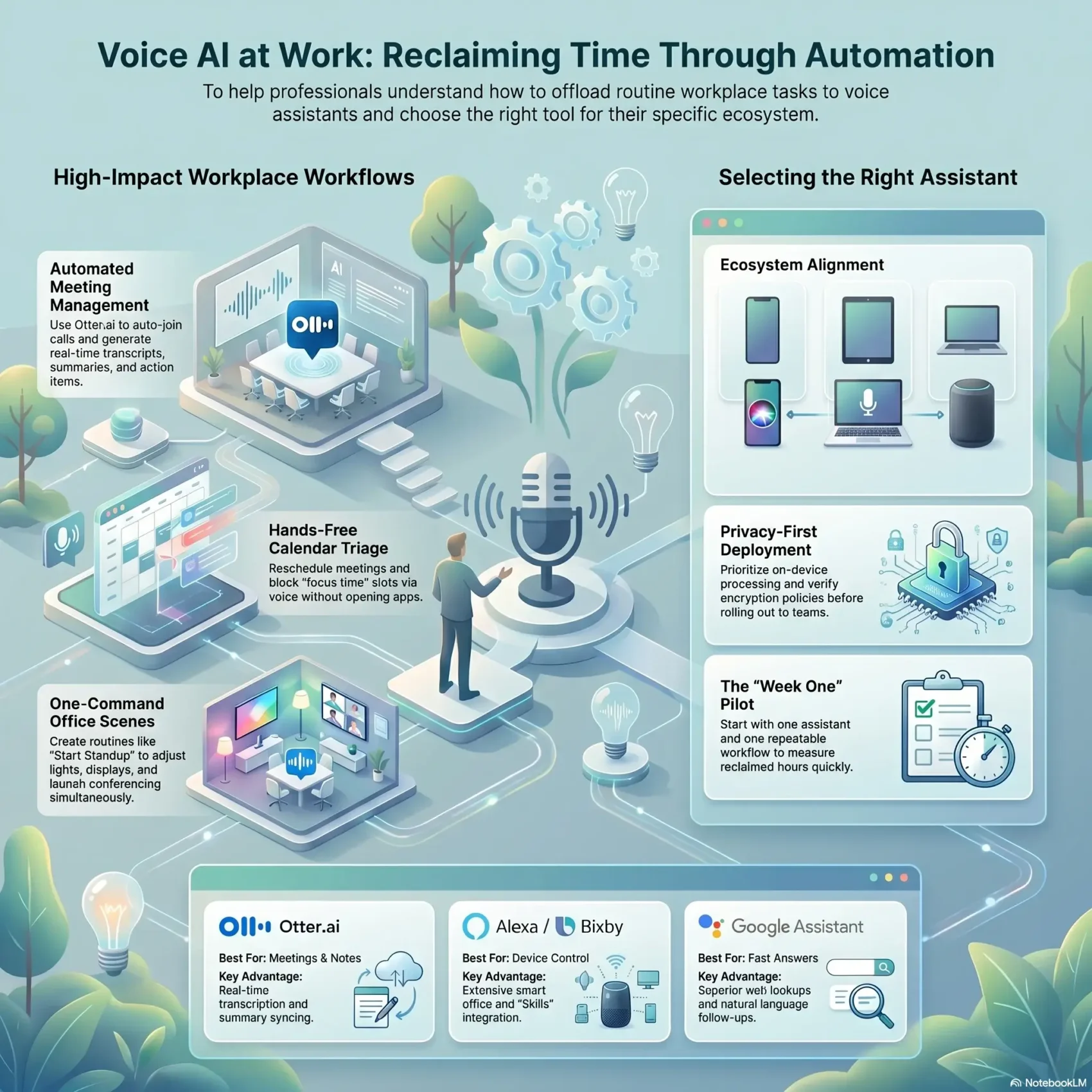
- Ideal users: Alexa+ for smart home breadth, Siri for Apple-only setups, Gemini for Android and Google Workspace, Otter.ai for meeting-heavy teams.
- Check whether the tool scales across users and rooms before you commit a department to it, and pair it with a focus tool if the goal is protecting attention rather than only recording it.
Workflows you can automate today with voice
Pick two workflows, not ten. The ones below pay back fastest.
Scheduling and focus blocks
You can ask an assistant to move a meeting, block focus time or notify attendees without opening a calendar, and tools such as Motion, Reclaim and Clockwise handle the reshuffling around it. If back-and-forth booking is your bottleneck, automated scheduling solves more of it than voice does. Our guide to calendar management covers how to structure the week the assistant is protecting.
Capturing notes, action items, and follow-ups
Let the tool capture notes rather than a person. Otter.ai creates summaries and action items after each call, and those can go straight into team chat or become tasks so follow-ups do not slip. For thoughts that never reach a meeting, turning voice memos into usable notes applies the same idea to yourself, and voice dictation covers longer drafting by speech.
Controlling rooms and office devices
One command can raise the display, set the lights and start the conference bridge. This works best when room hardware is consistent; mixed equipment is the usual reason these routines fail. The wider category is covered in our piece on IoT and remote work.
- Measure the effect by counting how many tasks or focus blocks you create by voice each week.
Integration playbook: connect assistants to your tools
Start with the calendar, because almost everything else depends on it. Connect Google and Microsoft calendars first so availability is consistent everywhere. That step alone unlocks most useful automations.
Calendars, project management, and team chat
Once calendars are connected, link your project tool and team chat so reminders, notes and tasks arrive where people already work.
- Post meeting summaries to Slack or Teams automatically, and create tasks on the project board from the action items.
- Let meeting tools join and record only with consent, then push the transcript to the right channel.
- Use secure connectors and single sign-on so assistant permissions match your existing access policy.
If most of your status updates could be written rather than spoken, look at asynchronous communication tools first.
Smart devices in the office: lights, thermostats, and displays
Connected devices let you start a session and set a room scene hands-free.
- Build named routines. “Start standup” can open the document, launch the room and invite the team.
- Test your phrasing, plan for Wi-Fi outages and review the logs so failed commands get fixed rather than ignored.
For keeping in-office and remote colleagues on the same footing, our guide to hybrid workforce tools goes further than voice alone.
Privacy, security and the disclosure rules that now apply
Before rolling anything out, map what the system records and who can see it. Start with encryption, retention and sharing rules, so you know where recordings live. Confirm which features run on the device and which send audio to the cloud.
Then handle consent properly. Require explicit agreement before recording or transcribing, and log approvals so a compliance reviewer can audit them later.
There is now a legal floor as well. Under Article 50 of the EU AI Act, which has applied since 2 August 2026, systems that interact directly with people must make clear that the person is dealing with an AI, at the latest at the first interaction. If you point a voice agent at customers in the EU, the disclosure is not a courtesy any more. Our overview of AI regulation in 2026 sets out the wider timeline, and data privacy rules covers what applies alongside it.
Data collection, storage, and encryption
Audit what is captured, how it is encrypted in transit and at rest, and who can read the logs. Check retention windows and whether automatic deletion is available, so nothing is kept indefinitely by default.
Consent, voice profiles, and compliance
Use explicit prompts and visible notices before recording. Apply voice profiles and role-based access so sensitive commands are limited to the people who should have them.
- Audit the data policy: what is collected, who can reach it, and how long it is kept.
- Consent first: opt-in for recordings, with an audit trail for regulated work such as healthcare.
- Prefer on-device processing where the feature allows it, since audio that never leaves the hardware cannot leak from a server.
- Export and deletion: users should be able to delete transcripts, and admins should be able to answer a data-subject request quickly.
- Shared spaces: decide in advance how guests and visitors are handled, because accidental capture is the common failure.
Anything that scores or evaluates staff crosses into a different category of risk. Our piece on AI in employee monitoring explains where that line sits in 2026, and this deployment guide covers AI rollouts generally.
Choosing by ecosystem: Apple, Android, Samsung, and mixed
Pick the assistant that matches the hardware you already own. Integration quality, not feature count, is what decides whether people keep using it.
Apple-first. Siri gives smooth handoffs between iPhone, iPad, Mac and Watch, plus more local processing. Third-party integration is thinner.
Android and Nest. Gemini is the default and connects cleanly to Google Calendar, Gmail and Maps. If your company runs Google Workspace, this is the path of least resistance.
Samsung. Bixby plus SmartThings gives scene-based routines and device-level control the others cannot match on Galaxy hardware.
- Mixed environments: Alexa+ or Gemini support the widest range of third-party devices, so they cope best with a household or office that grew piece by piece.
- List the features you genuinely need, such as routines, shared lists or video calling, then check which ecosystem supports all of them.
- For work, confirm that meetings, scheduling and team tools sync across iOS, Android and desktop before you commit.
How to get started: your first week with a voice AI at work
One tool, one workflow. That constraint is what makes a pilot produce usable evidence.
Pick one assistant and one core workflow
Choose a single assistant and one job for week one: meeting notes, scheduling, or task capture. Not all three.
Connect your calendar on day one. Without permission to read and edit invites, most automations fail silently. Run a calendar tool such as Motion, Reclaim or Clockwise alongside the assistant during the pilot, so logistics and voice commands are tested together.
Set routines, tighten permissions, measure
Build two or three named routines, for example “start standup”, “protect focus” and “post recap”.
- Set permissions and voice profiles, then test commands in the rooms and headsets people actually use.
- Auto-block focus time and record how many uninterrupted hours it returns in week one.
- Pin the command list in chat or your wiki, so everyone phrases things the same way.
After seven days, review meeting coverage, follow-up completion and rescheduling speed. That tells you whether to expand or stop. The habit of reviewing on a fixed date is worth more than the tool itself, as our guide to deep work argues.
Conclusion
Close the pilot by counting hours recovered and noting what still needs a person. That number, not enthusiasm, is what justifies the next step.
Then pick for your actual setup. For meetings and follow-ups, Otter.ai and platform-native call automation do the heavy lifting. For quick answers and device control, Alexa+, Siri, Gemini and Bixby each suit different hardware, and none is best at everything.
Expect the ground to move again. Google Assistant is on its way out, the new Siri has not arrived, and the assistant you standardise on this year may be rebuilt next year. Keep routines short and documented so they survive the next reset. To weigh the broader category, compare assistants and see which fits the day you actually have.
Found this useful?
Make SmartKeys a preferred source on Google, and our articles will surface more often in your Top Stories, AI Overviews, and AI Mode.
Add as Preferred Source