Tools
Tools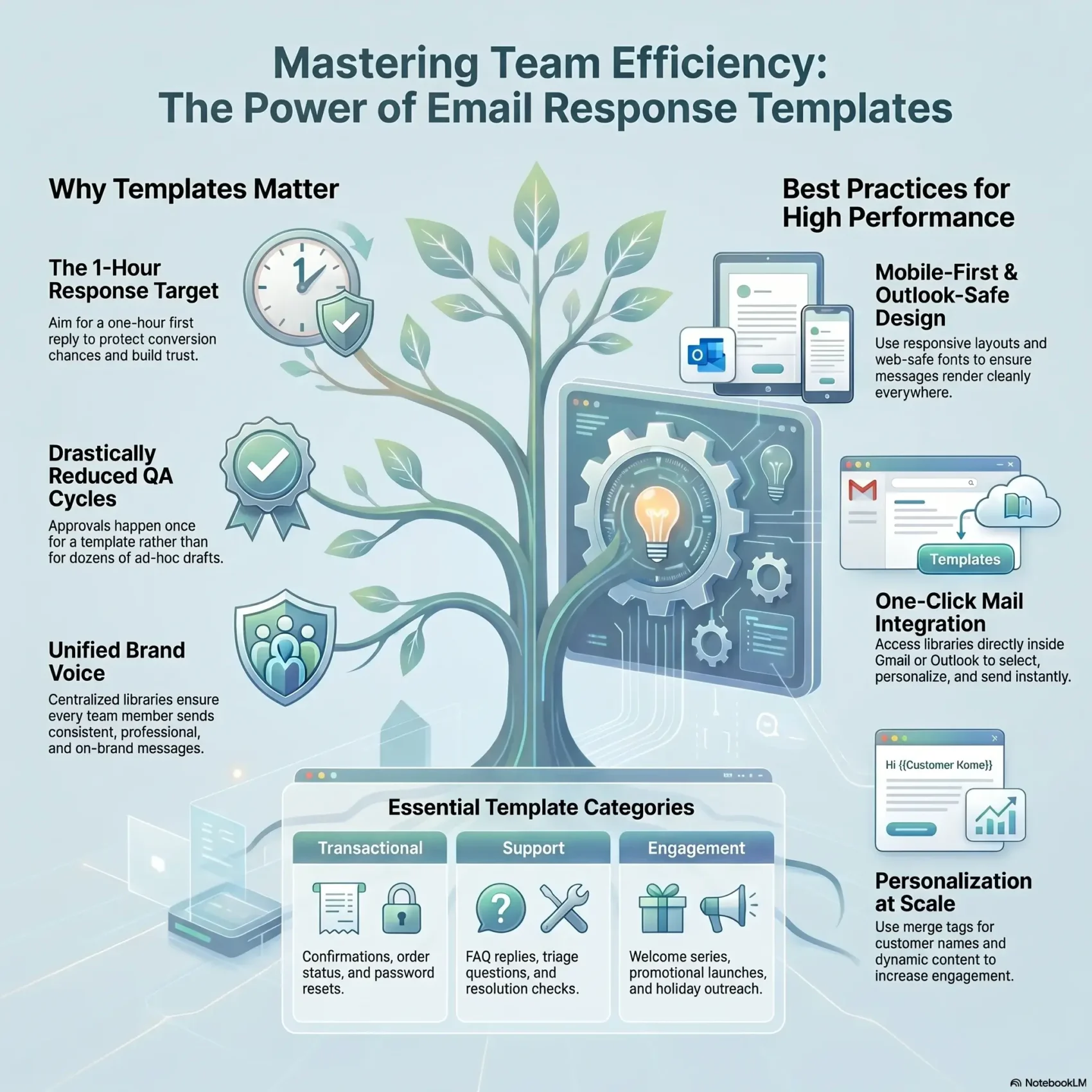
Last Updated on May 22, 2026
Quick replies can change how your team works. You’ll learn how to use ready-made replies to respond faster and keep a consistent brand voice. This helps your customer support stay professional and calm under pressure.
Work directly in Gmail or Outlook with a one-click library. Make messages mobile-friendly and Outlook-safe so they look right on all devices. Use merge tags for the customer name and dynamic content to make notes feel personal.
The guide also shows testing and preview steps, plus how to trim HTML to avoid clipping. You’ll see how to build a categorized library for transactional, welcome, promo, and support flows. Use shareable items so the whole team follows the same quality rules.
Key Takeaways
- Use reusable replies to save time and keep answers consistent.
- Work inside Gmail and Outlook for faster sends and fewer steps.
- Design for mobile and Outlook to protect message quality.
- Build a categorized library for fast access across campaigns.
- Test preview across clients and use merge tags for personalization.
Why email templates matter right now: save time, boost quality, and stay on brand
Speed and consistency in replies protect conversion chances and build customer trust. Fast responses matter: many service teams aim for a one-hour first reply. Ready-made replies help you hit that SLA without lowering quality.
Match commercial intent: faster replies, more conversions
When a customer signals purchase intent, a quick, clear reply can close the gap. Use short, commercial-focused content in your answers so you respond at the moment that matters.
Tip: Embed simple CTAs and the customer’s name to make messages feel personal and timely.
Where you save time: drafting, approvals, and QA
Standardized templates cut drafting and reduce back-and-forth with managers. Approvals happen once for an approved template, not for dozens of ad hoc drafts.
QA tools then focus on variation and coaching, not rewriting. That reduces review cycles and helps your team scale when volume spikes.
“Templates reduce response time immediately and keep every message on-brand.”
Getting started in the tools you already use: Gmail and Outlook
Access a one-click content library inside your mail client to select, personalize, and send in seconds. That single change cuts context switching and keeps your replies consistent across your team.
One-click library inside Gmail compose
In Gmail, click the compose icon to open your library, pick a ready item, and personalize the name and subject. You can include attachments so customers get everything in one reply.
Browse and personalize directly in Outlook’s New Mail window
Open New Mail, browse the shared library, tailor the content for the recipient, and send—no tab switching or extra software required. This keeps replies fast and error-free for all users.
Mobile access with Gmail add-on and Outlook mobile add-in
The Gmail add-on gives mobile access today; Outlook mobile add-in is coming soon (early access via ). Import Mailchimp and HubSpot designs so branding stays consistent across clients.
- Share items with your team for centralized control.
- Search, select, and tailor quickly in the compose window.
- Reduce reply time and improve support quality.
“Putting the library where you write saves minutes on every reply and prevents costly errors.”
Design principles for high-performing templates that render everywhere
Design choices determine whether your messages render cleanly across every client and screen. Focus on a mobile-first layout and modular sections so you can swap content without breaking the overall look.
Responsive layouts and mobile-first controls
Use responsive rows and hide/show controls to tailor content per device. Adjust font sizes and button widths for smaller screens so recipients can tap easily.
Email-safe fonts and on-image banner text for consistent display
Stick to web-safe fonts for body copy and reserve decorative display type for baked-in banner images. Keep essential copy as live text for accessibility and searchability.
Buttons, accessibility, and Outlook-safe rendering
Configure buttons with Outlook-safe rendering so CTAs stay clickabl in tricky clients. Add descriptive alt text automatically and ensure good color contrast and readable sizes.
- Modular layouts speed updates and preserve brand consistency.
- Test with screenshot previews across clients—especially Outlook—before sending.
- Maintain a master template that locks core styles and approved elements for every team member.
“Keep critical headlines as live text when possible; use banner images only when a specific font is essential.”
Build a reusable template library by category, industry, and occasion
Sorting assets by purpose and season makes your process repeatable and fast. Start with clear categories so your team can grab the right item in seconds.
Core categories should include transactional, welcome, promo, password reset, and notifications. Lock down required fields for confirmations and password flows so you reduce errors.
Industry and holiday-ready collections
Group collections by business verticals—eCommerce, legal, and financial—to keep copy and offers relevant to your customers. Prepare holiday designs ahead of peak seasons so campaigns launch on time.
- Keep subject lines, greetings with the customer name, and footers consistent across categories.
- Use folders and naming rules so new hires find the right asset quickly.
- Standardize metadata: owner, last updated, and usage notes to prevent stale sends.
Tip: Cycle fresh designs seasonally but preserve the underlying layout to reinforce brand recognition.
For a practical workflow guide on organizing for productivity, see template productivity.
Power features that accelerate production without code
Power features speed production so your team ships polished campaigns faster.
Use visual tools first, code only when you need pixel-perfect control.
Drag-and-drop plus open HTML/CSS
Build faster with a drag-and-drop editor that also lets you switch to inline HTML/CSS. You stay on the same canvas while making precise edits.
Modules, Smart Elements, and synchronized updates
Save headers, footers, and product grids as reusable modules you can assemble quickly.
Turn on synchronized modules to update one section and push changes across every template instantly. Smart Elements auto-populate product cards or digests to reduce manual work and errors.
Interactive design tools and engagement blocks
Generate banners with overlay text, add anchor links for long newsletters, and use rollover images and hover effects on buttons to draw attention.
Insert a star-rating block so recipients can give feedback without leaving the message. Advanced users can embed video or interactive snippets when supported.
Document when and how to use each feature so your team applies consistent design and avoids regressions across brands and campaigns.
Create, share, and govern templates across teams
Centralizing your library makes it simple for everyone to find the right message fast. Store approved email templates in a shared, searchable library so your team always pulls from the same source of truth.
Team libraries, standardized messaging, and reduced errors
Assign roles and permissions so each person edits only their lane. Role-based access (like Stripo offers) prevents accidental changes and keeps governance clean.
Lock headers, footers, and legal copy to standardize messaging. Add clear notes where agents should insert the recipient name and which sections are safe to personalize.
- Use version notes to explain what changed and why.
- Keep a short playbook on subject lines, greetings, and sign-offs.
- Maintain a feedback loop between support and marketing for ongoing improvements.
Brand Guidelines kits for consistent visuals and voice
Generate a Brand Guidelines kit from an approved template to capture colors, fonts, logos, and tone. That kit helps teams apply the brand consistently across campaigns.
Tools like cloudHQ make it easy to share approved assets across organizations and reduce errors during handoffs. Schedule quarterly reviews to retire stale items and align with legal early in the process.
Tip: Train new hires with a guided walkthrough of the library and process to speed onboarding and reduce mistakes.
Personalization and dynamic content that drive action
Personalizing your messages turns routine updates into moments that prompt real action. Use merge tags for the recipient name and key custom fields so each message feels tailored to the customer.
Merge tags for names and custom fields
Insert a name field and other variables from your CRM to boost relevance. Map fields like plan, location, or last purchase so you can show the right call to action.
Real-time updates and gamified AMP components
Pull live inventory, blog posts, or stock counts into the body so users see fresh content on open. Add AMP blocks for quizzes and surveys to prompt immediate participation inside the message.
Going global: RTL text and translation workflows
Enable right-to-left support with one click for Arabic or Hebrew audiences. Use the built-in translation workflow to generate localized copies across markets, then route to proofreaders via Google Sheets integration.
- Fallbacks: Provide standard content for clients that don’t support AMP.
- Privacy: Define rules for handling personal fields to protect customer trust.
- Test: Try personalized subject lines and CTAs to measure lifts in clicks and conversions.
Preview, test, and QA before you hit send
Use live previews to confirm how your message looks and behaves on phones, desktops, and AMP-capable clients. This step catches layout shifts and broken interactions before your customer sees them.
Side-by-side desktop, mobile, and AMP checks
Open a side-by-side preview to compare desktop and mobile simultaneously. Include the AMP view when you use interactive blocks so you can verify behavior and fallbacks.
Screenshot tests across devices and clients
Run screenshot testing across 90+ device and client combinations to surface rendering issues that a simple preview can miss. Services like Email on Acid make these checks fast and repeatable.
Test sends and HTML minimization
Send test messages to multiple inboxes and devices to confirm links, images, and personalization fields such as the recipient name render correctly.
Export a minimized HTML file to reduce Gmail clipping and keep your CTA visible. Minimize HTML when you export the final template to your ESP.
- Verify alt text, link targets, and tracking parameters in a QA checklist.
- Check accessibility basics: contrast, font size, and focus order.
- Confirm subject, preheader, and sender name match your brand voice.
- Document edge cases (Outlook quirks, AMP fallbacks) for team learning.
- Complete a final sign-off: preview review, test send, and link validation.
“A quick QA pass prevents most launches from needing urgent fixes.”
Integrations that keep your process seamless
Move crafted designs into Gmail or Outlook without rebuilding them from scratch. That saves hours and keeps your brand consistent across campaigns. Use integrations to reduce tool‑hopping and keep the work in one flow.
Import and export are now practical parts of your workflow. cloudHQ pulls Mailchimp and HubSpot designs into Gmail and Outlook so you keep creative fidelity. Stripo exports to 90+ ESPs and clients and lets you download HTML or AMP HTML when needed.
Import, centralize, and continue editing
- Import Mailchimp and HubSpot designs directly so campaigns stay consistent.
- Store imports in a shared library for fast team access and governance.
- Export to 90+ clients or download HTML; edit after export where supported.
- Follow a simple checklist: import, customize the customer name fields, verify tracking, export.
Pro tip: Standardize naming conventions and keep a directory of supported clients and quirks. That small step makes every export predictable and keeps reporting accurate.
Deliverability and reliability: stay out of spam and render perfectly
Inbox placement depends on a few predictable checks you should include in every QA pass. These checks protect deliverability and keep your messages visible to customers.

Automatic alt text and unsubscribe links matter. Tools like Stripo auto-add alt text and cloudHQ makes it easy to include a reliable unsubscribe. That builds trust with mailbox providers and reduces complaint rates.
Keep link hygiene tight. Use consistent tracking parameters, remove broken destinations, and validate every link before you send. A single bad link can damage sender reputation.
Button support and Outlook fixes
Some clients render buttons oddly. Use “Support for Outlook” features so CTAs stay clickable for strict clients. Minimize HTML when needed to cut Gmail clipping risk and keep your main action visible.
- Verify sender identity, subject, and preheader so previews don’t look misleading.
- Ensure legal and footer info is present in every template and locked where required.
- Track bounces and complaints, then refine content and access rules to lower friction.
“A short deliverability checklist prevents most inbox-placement problems.”
Include Outlook and other strict clients in internal tests. Confirm the recipient name fields render and that support contacts are reachable before you ship.
email templates
Make your library a decision hub so anyone can pick the correct format for the task.
Stripo and cloudHQ provide ready-made, responsive email templates for transactional, marketing, and support service use. Keep a curated master library so you can find a template fast, insert the recipient name, and send.
- Use category notes to say when a layout fits best and which subject lines to start with.
- Favor proven layouts with clear CTAs to move customers through your campaigns.
- Keep a short list of high-performing templates for busy periods and annotate where to personalize copy for each customer.
- Add QA checks in footers: verify links, assets, and support contact before send.
- Rotate creative assets seasonally while preserving the same template structure to keep recognition high.
Tip: Track performance per template so you can scale winners and retire what underperforms.
Pre-written replies for common FAQs and support scenarios
Prepare a short set of ready replies so your support team confirms receipt quickly and keeps customers informed. Short acknowledgments set the subject, expected SLA, and a clear next step.
Acknowledgment of receipt and first-response SLAs
Use a compact receipt template that names the customer, states your reply window, and links to helpful information. That single sentence reduces anxious follow-ups and sets expectations.
Follow-ups, resolution checks, and feedback requests
Send a polite follow-up if a customer goes silent, with a closing date if no reply arrives. After resolution, use a short check to confirm the issue is closed and invite feedback via one-click rating.
Orders, cancellations, returns/refunds, and price updates
Operational messages should include order numbers, status links, and clear refund or cancellation steps. For price changes, explain reasons, effective dates, and any grandfathering details.
Complaints, apologies, outages, and tech support triage
For complaints, acknowledge the issue, take responsibility, and offer a concrete path to resolution. Outage notices need a status link and ETA. Triage messages ask targeted questions about the product and environment so you can fix it faster.
Tip: Always merge the customer name and product details into each reply to keep messages personal and precise.
From scratch to scale: marketing, sales, and operations use cases
Start small, then build a repeatable system that keeps every department aligned. Design one message in a drag-and-drop editor, save it, and scale that asset across campaigns so you avoid rebuilding the same content for each launch.
Campaigns, sales outreach, and client onboarding
Use marketing-ready items for launches and promos. Keep product highlights, CTAs, and subject conventions consistent to protect conversion rates.
Equip sales with outreach content that inserts the prospect name, a short value prop, and a clear next-step CTA.
Speed client onboarding with a welcome series saved as a reusable template. Include expectations, key resources, and first actions to shorten time-to-value.
Internal newsletters, announcements, and attachments
Keep operations aligned with a set of internal newsletter designs and announcement layouts. Lock core branding and messaging so your team sends uniform updates.
- Attach standard docs like price lists, quotes, or intake forms directly in a saved item to streamline handoffs.
- Create a mini-library for recurring events—renewals, seasonal offers, and reminders—to cut prep time.
- Standardize digital stationery so every department’s messages look cohesive.
Tip: Test CTA and body variations inside the same layout so you learn what converts without sacrificing brand consistency.
Measure, learn, and optimize your template library
Start measuring what matters: track response speed, engagement, and satisfaction so you can prioritize improvements.
Set clear KPIs tied to impact. Track first-reply time for support service (aim for ~one hour), CTOR and conversions for campaigns, and CSAT for overall customer happiness.
KPIs: reply time, CTOR, conversions, and CSAT
Log outcomes for each send so your team has the information needed to act. Use customer and product segments to see which versions drive the most action.
Iterate with testing, QA tools, and synchronized modules
Run A/B tests on subject lines, greetings that use the recipient name, and CTAs. Collect feedback from customers and your staff to prioritize fixes.
- QA tools: catch content, link, and rendering issues before launch.
- Synchronized modules: roll fixes across all versions at scale (Stripo-style).
- Changelog & cadence: keep a record, and run quarterly preview and test cycles.
“Small, repeatable improvements across many assets compound into meaningful results.”
Conclusion
Bring it all together: adopt a strong, repeatable process so your team sends better messages, faster.
You now have a clear way to set up, design, test, and govern email templates that render across devices and clients. Use one-click libraries, synchronized modules, and solid previews to protect deliverability.
With faster replies and consistent service, you’ll improve customer experience and hit SLAs without burning out the team. Personalize with the customer name and dynamic content so each message feels timely.
Make governance simple: lock core styles, measure outcomes, and run regular reviews. This way your campaigns scale, your business stays on brand, and customers get the reliable service they expect.