You can reclaim calm and control over your inbox without burning out. Microsoft’s Work Trend Index found that the average worker now receives 117 emails a day, and most of them get skimmed in under a minute. That flood creates overload and steals time you meant to spend on real work.
This guide walks you through a practical, step-by-step way to clear an email backlog and set a clear goal for how your inbox should work for you. The method deals with the messages that matter first, so you win back time and reduce stress early.
Expect simple routines, batching tips, and tools you already use. The approach combines quick bulk wins with lasting structure, so you keep momentum and protect your productivity at work.
Key Takeaways
- Follow a repeatable process to cut volume fast and stay steady over time.
- Set a realistic goal for your inbox that matches how you actually work.
- Prioritize the messages that matter to reclaim time and reduce overload.
- Use batching and late-day replies to limit ping-pong and interruptions.
- Combine bulk cleanup with a few folders and labels to keep control.
Why Your Email Backlog Happens and How You Will Beat It
Start by separating what needs action from what is just noise. With more than a hundred messages arriving each day, it is easy to lose track of the few that need a decision. Productivity coach Carl Pullein describes backlogs as growing, static, or shrinking. Your habits decide which one yours becomes.
Understanding informational vs. actionable messages
Most messages fall into two groups. Informational items only need to be read: a shipping notice, a newsletter, a CC on a thread you are not driving. Actionable items need a reply, a decision, or a task. Sorting every message into one of these two groups is a tiny step, but it removes mental friction and stops you rereading the same threads.
The “latest and loudest” trap in daily work
Reacting to the newest ping ruins focus and builds a pile of unfinished items. The message that arrived two minutes ago feels urgent simply because it is new. Commit to a lightweight system for triage and planned processing windows to break that cycle.
- Quick triage: Ask “What is it?” and “What do I need to do?” for each message.
- Batch reading: Park pure information for later and reserve reply time for actionable items.
- Set expectations: Tell your team when you process mail so interruptions fall.
What “email backlog” really means today
First, identify whether your message pile is growing, static, or shrinking. That tells you what to do next. This quick check shows whether your current habits help or hurt.
Growing, static, and shrinking backlogs
A growing backlog means volume outpaces your processing. It is urgent because decisions pile up and stress rises quickly.
A static backlog stays roughly the same size. It is annoying but predictable; you can manage it with rules and routine.
A shrinking backlog shows progress. Aim for a steady downward trend, not a single dramatic clean-out.
How many emails a day is typical?
Use a benchmark to size the problem. Microsoft’s June 2025 Work Trend Index, based on anonymized Microsoft 365 usage data, puts the average at 117 emails per day plus 153 chat messages. It also found an interruption roughly every two minutes during core hours. Your own number may be higher or lower, so count your inbox for a week before you plan.
- Identify which trend matches your inbox so you can change course if needed.
- Use a benchmark to set realistic capacity and reduce overload.
- Think of your inbox as a decision queue: unread messages are tasks waiting for a choice.
- Measure success by trend and throughput, not a one-time purge.
In short: know the trend, use the numbers, and build a repeatable way to shift toward a shrinking queue. If you want a named target, the Inbox Zero method gives you one; if that feels unrealistic for your volume, Inbox Infinity is the honest alternative.
The scope of the problem: data, time, and stress
When you convert message counts into minutes, the cost becomes clear. Take the 117 messages a day from the Microsoft data. At just 30 seconds each, that is nearly an hour of handling time daily, before you write a single reply.
What 100-plus messages mean in minutes
Thirty seconds per message sounds trivial, but it adds up to a full hour of effort. Carl Pullein suggests reserving 45 minutes each day to stay current. Skip a day and you will likely need about 90 minutes in the next session.
Why 45-90 minutes a day can keep you in control
Block focused time and you stop reactive fire-fighting. A single 60-minute pass or two 30-minute windows prevents rebuilds and lowers stress. This is email batching: you check at set times instead of every time a notification fires.
- Translate volume to minutes: plan realistic slots instead of guessing.
- Batch similar tasks: reduce context switching and improve productivity.
- Set management rules: decide what needs an hour and what can wait.
“Allocate time deliberately. It is the simplest way to prevent overload.”
Set your goal and schedule time on your calendar
Set a clear inbox goal and lock time on your calendar so the work stops being vague and starts getting done. A concrete goal, like “shrink by 30% this week” or “clear messages older than 30 days,” gives your steps purpose.
Block focused sessions today, this week, and ongoing
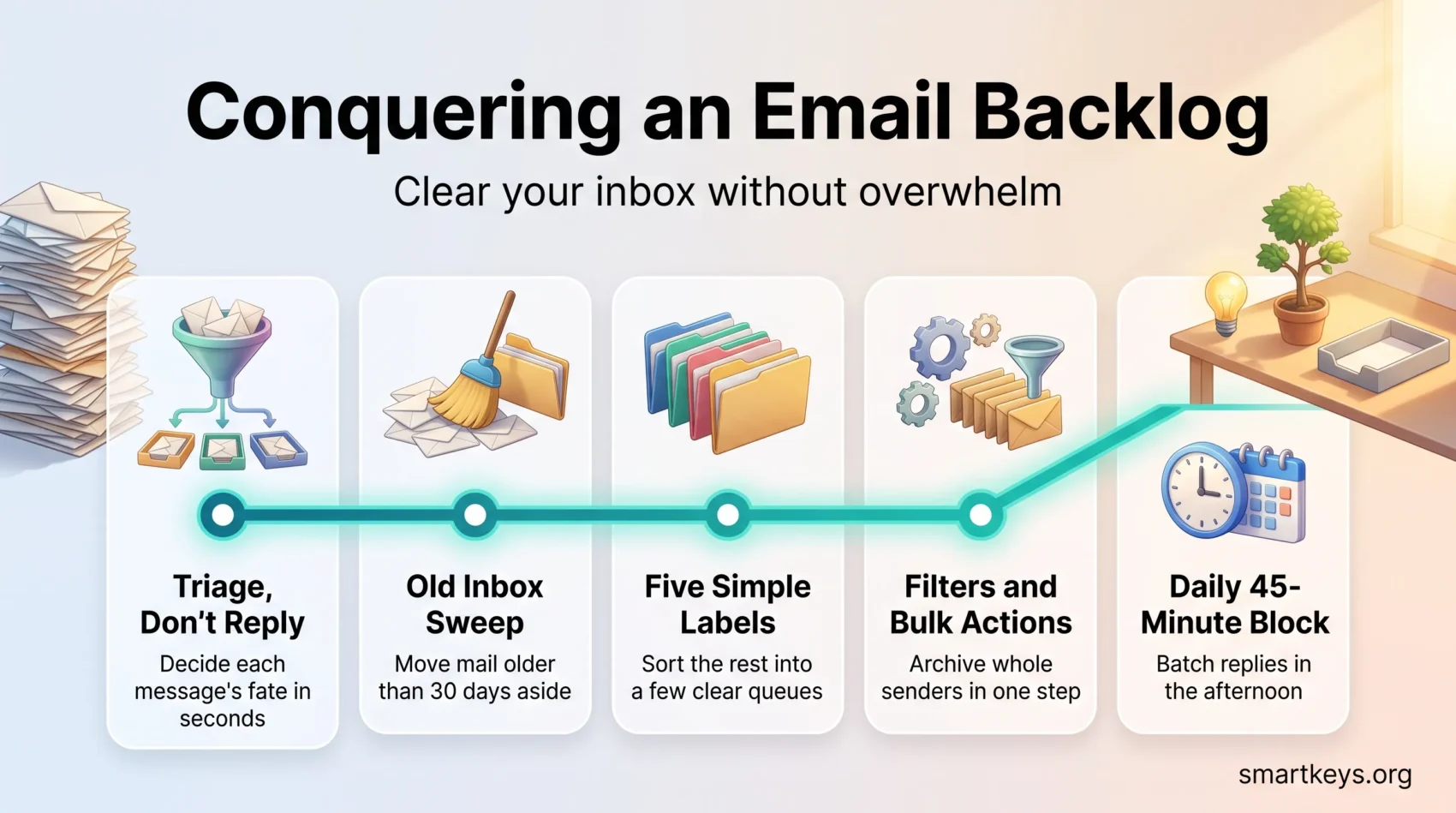
Put sessions on your calendar today and treat them as real appointments. Start with a daily 45-minute slot; if you miss one day, expect a 90-minute catch-up. This is time blocking applied to email: the slot exists on the calendar, so nothing else can claim it.
Use 15-20 minute bursts or 90-minute cycles for deep focus
Choose what fits the task: short bursts for quick triage, 90-minute cycles for deep processing of project threads.
- Set a goal for the week and map the steps to reach it.
- Stack one hour or two half-hour blocks across the week to prevent slippage.
- Add a late-afternoon session for replies to cut same-day ping-pong.
- Link blocks to adjacent admin tasks so context stays intact.
- Include short buffers before meetings to protect focus.
- Review the plan weekly and tweak the cadence to match your volume.
First pass triage: process, don’t reply
Start your cleanup with a quick triage pass that decides each message’s fate, not its reply. Treat the inbox as a short queue of choices. Your goal is to move each item to the place it belongs in well under a minute.
Carl Pullein recommends a two-step flow: quickly process messages into “Action This Day,” archive, or delete, then reply later during a planned block. This keeps you from fragmenting your focus and chasing half-finished responses.
Ask: What is it? What do I need to do with it?
Use two plain questions for every message. Answering them takes seconds and forces a decision. If the answer is a reply that takes less than two minutes, the two-minute rule says do it now rather than filing it.
- Decide fast: name the single next action and move the item out of your inbox.
- Action This Day: place actionable items there; archive or delete the rest immediately.
- Reverse sort: handle the oldest actionable items first so long-waiting senders get timely attention.
Move to “Action This Day,” archive, or delete: fast
Deferring complex replies protects your deep work. Save detailed responses for your reply block and batch similar messages for speed. Anything that turns into a project belongs in your task list, not your inbox; see how to capture tasks into a trusted system.
- Triage each email in under two minutes.
- Move items to folders, then close the inbox view.
- Use flags sparingly so you don’t create a second queue.
Repeat these steps and you will stop rereading the same message. Over time, the process gets faster and turns chaos into a clear action queue.
For broader inbox rules and a system to declutter, see declutter your digital workspace.
Bulk-reduce fast: smart archiving and the “Old Inbox” sweep
Start by moving month-old threads into a single folder so you can focus on what truly needs action. Carl Pullein recommends shifting anything older than 30 days into an “Old Inbox” folder to shrink the visible volume quickly.
From that staging folder you bulk-archive or delete newsletters, notifications, and stale threads. This clears space and cuts decision fatigue.
- Move items older than 30 days to the “Old Inbox” today to create breathing room.
- Search by sender or topic (retail promotions are an easy example) and clear hundreds at once.
- Apply size filters to drop large attachments you don’t need and speed up your mailbox.
- Keep a short grace period before final archiving to avoid mistakes.
Rely on built-in tools like sort by sender and subject to accelerate large cleanups. Tag a few uncertain threads for later review, but resist turning the sweep into a second queue. The same sweep logic works for files and photos; the digital declutter guide covers those.
“If something important resurfaces, the sender will usually follow up.”
This fast sweep saves you time and gives you momentum to work through the current queue with confidence.
Folders, labels, and categories that actually work
For a backlog, you need just enough structure to sort the pile, not a full filing system. Five labels cover almost every message: Action Required, Awaiting Response, Defer, Delegate, and Archive. Pair them with your “Action This Day” folder so each cleanup session has one clear queue.
Test the five labels on 50-100 messages before you add anything else. Add topic labels such as Accounting or Legal only when one group of senders keeps coming back. A Yesterbox view, which shows yesterday’s mail first, keeps new arrivals from jumping the queue while you work through the old pile. Once the backlog is gone, our guide to the Inbox Zero system shows how to build a lasting routine of folders, filters and processing blocks.
Gmail power features and filters to automate the grind
Gmail’s search and filters let you act on thousands of old messages at once. Outlook offers close equivalents in rules, Sweep, and Focused Inbox.
For the backlog itself, search does the heavy lifting. A search such as older_than:6m, or a single sender’s address, selects every matching message so you can archive the whole group in one action. Turn the same search into a filter (Skip Inbox, Apply label) and that sender never lands in your main view again.
Snooze and Schedule send are built in and free: use them to park messages until your next reply block. And learn the handful of keyboard shortcuts for archive, reply, and next message. They shave seconds off every one of your hundred daily decisions.
Use specialized tools to clear years of emails
Specialized cleanup tools can collapse years of clutter into a few smart actions. They cluster messages so you decide once for hundreds instead of reviewing line by line.
Mailstrom basics: it identifies bundles of related mail, by sender, subject, or size, so you can act on them as a group. Plans start at $9 a month for one account and up to 10,000 emails (Mailstrom pricing page, 2026). A free trial is available, though its exact limits have changed over time, so check the current terms before you rely on it.
Free trial vs. subscription
Try the trial to prove the model on your own mailbox. Paid plans add unlimited removal plus Block, Chill (snooze), and Expire rules.
Auto-expire older messages and AI triage
Set auto-expire rules so low-value items don’t return. Combine Mailstrom passes with your Gmail filters and labels for ongoing order.
AI email assistants are the newer option. Depending on your plan, Gemini in Gmail and Copilot in Outlook can summarize long threads. Standalone tools go further and pre-sort your inbox or draft replies; our Fyxer review looks at one of them in detail. Treat these as a layer on top of your system, not a replacement for it: they still need you to decide what matters.
- Group years of mail by sender, size, and subject to make bulk decisions.
- Prioritize large senders (retailers, tools, social networks) for immediate deletion or archive.
- Use Chill to resurface items during planned reply blocks.
- Validate progress with before-and-after counts and run quarterly cleanups.
Schedule smarter replies to avoid ping-pong
Plan replies so they land when recipients are ready to act, not when they will ping you back instantly. Timing reduces back-and-forth and keeps your most productive hours quiet.
Gmail’s built-in Schedule send covers the basics. Boomerang for Gmail adds two more tools. It can take a thread out of your inbox and return it when you can act. It can also remind you if nobody replies. Use these to stop threads from vanishing and to time messages for lower-interruption windows.
Send later and return later for better timing
- Schedule replies so messages arrive at moments that reduce instant ping-pong.
- Use return-later or snooze to bring threads back to your attention instead of letting important items slip away.
- Set calendar reminders for follow-ups that must not depend on someone else’s timing.
- Use email response templates for common answers, and a text expansion tool to insert them in seconds.
Afternoon responses to minimize same-day back-and-forth
Shift most responses to the afternoon so replies you receive can wait until the next day. This preserves morning focus and cuts context switching across days. Write so the thread ends quickly: a clear subject line, one concrete ask, and a proposed next step. Our guide to email clarity shows how.
“Late-day replies are a simple habit that reduces needless thread length.”
Make sure urgent exceptions use chat or phone so your timing strategy holds. Measure thread length after a week and tweak your schedule from there.
Notifications and mobile settings that protect your focus
Protect your deep work by routing only critical alerts through during focused hours. Make your phone a tool for capture and urgent action, not a constant interruption.
Priority-only alerts and Do Not Disturb windows
Set Gmail to notify you only for high-priority mail, so your device stays quiet for everything else. Then schedule Do Not Disturb or Focus windows at the operating system level to guard blocks of time for deep work. A wider approach to managing work notifications across email, chat, and apps pays off even more.
Do not toggle settings manually every hour. Let rules silence the noise while you work and resume normal alerts when your focus window ends. If your team runs shared no-meeting hours, a focus time policy makes the same protection team-wide.
Mobile templates and dual-screen workflows for quick replies
Keep short templates in Google Keep or a notes app for routine replies. Use scheduled sending to time messages so you reduce instant back-and-forth.
When you must reply on the go, use split-screen mode to view a thread or document while you type. This speeds up accurate answers and cuts follow-up questions.
“Limit interruptions; the fewer pings you get, the more productive your day becomes.”
- Switch to priority-only notifications so only critical messages break through during the day.
- Snooze noncritical items from your phone so your inbox stays aligned with desktop triage.
- Limit badge counts to priority labels so an unread number doesn’t trigger constant checking.
- Batch mobile checks at set times and test vibration-only alerts for priority messages.
- Capture quickly on your phone and defer detailed replies to planned desktop time.
Audit notification settings monthly as projects change. Small tweaks keep interruptions low and your focus high.
Delegate like a pro: assistants, teammates, and filters
Part of your backlog was never yours to answer. During triage, tag scheduling, information requests and billing questions for an assistant or teammate, and keep sensitive or strategic threads yourself. The principles of effective delegation apply to email exactly as they do to projects: clear ownership, clear standards, and a check-in rhythm.
To stop the same mail piling up again, publish role-based addresses (support@, billing@), add forwarding rules for recurring request types, and write a short auto-reply that points senders to the right channel. Review delegated folders once a week to catch new patterns early.
Integrate email with your work systems
Turn routine messages into structured tasks automatically with simple integrations. Link your inbox to the platforms your team uses so incoming notes become assignable work instead of clutter.
Route to Slack, project management, and CRMs via Zapier or Make
Many teams forward threads into Slack, a CRM, or a project board. Automation platforms such as Zapier or Make connect Gmail or Outlook with tools like Trello, Asana, Dropbox, or Google Drive. That converts messages into tickets, cards, or searchable client records. For larger teams, our Workato vs Zapier comparison explains when a heavier integration platform is worth it.
Batch similar messages to speed up responses and tasks
Batching reduces context switching. Group invoices, RFPs, or support requests and process them in one pass; the same batch processing logic applies to any repetitive work. Sync attachments automatically to Drive or Dropbox so files live where your projects and team already work.
- Route key threads into Slack, your CRM, or project boards so tasks get owners and due dates.
- Auto-create tickets from specific senders using automation rules.
- Tag clients from email events to keep history centralized and searchable.
- Design a simple flow: message arrives, rule triggers, task is created, owner is assigned, due date is set.
- Review integrations monthly to cut noisy triggers and align rules with meetings and sprint cadence.
“When work is routed to a single system, teammates comment in the project tool, not in long threads.”
Measure cycle time for common workflows to prove that batching and integrations save hours each week. Small automations pay off fast and keep your team focused on projects that move the needle.
Reduce future overload: unsubscribe, block, and separate addresses
Make lasting gains by unsubscribing, marking true spam, and assigning separate addresses for different kinds of mail. These steps stop many distractions at the source and keep your main account focused on work for clients and key tasks.

Unsubscribe from lists and mark true spam
Use the unsubscribe link on newsletters and promotions you never open. Gmail now makes this faster. The Manage subscriptions view, rolled out from July 2025, lists your most frequent senders with the number of emails each has sent recently. One click sends the unsubscribe request for you (Google, 2025).
Mark clear spam so filters learn what to remove automatically. Over time this reduces unwanted messages and trains the system.
Separate newsletters, social notifications, and personal mail
Create dedicated addresses or aliases for newsletters, social alerts, and personal mail. Keep your primary address for work-critical threads and client contact.
- Unsubscribe from lists you don’t read to reduce future volume.
- Mark true spam and refine filters so unwanted messages drop out fast.
- Route read-only lists to a Read Later label and auto-archive low-value ones.
- Review recurring senders over the next few weeks and unsubscribe in batches.
- Use a small filter set (retailers, social alerts, webinars) to archive or route low-value items automatically.
Tip: Tools like Mailstrom’s Mailing Lists tab can help remove many lists at once. Keep pruning monthly and favor sign-ups that add real value. If email is only one of several noisy tools in your day, our guide to work tech overload covers the rest of the stack.
Conclusion
Close the loop on old tasks and create a simple rhythm that keeps new ones from piling up. Set a short, clear goal for your inbox, pick the first small steps today, and move the oldest items into a reply window.
Protect a 45-minute daily cadence so your backlog shrinks this week. Spend a few focused minutes triaging, then save replies for your planned block. That steady routine wins control faster than a one-day marathon.
Choose the approach that fits your role (bulk reductions, labels, automations, or a cleanup tool) and turn each message into a single next task. Use afternoon replies to cut ping-pong and protect deep work.
Measure progress across days and week over week, keep the system simple, and revisit settings monthly. A short weekly review is the natural place to check the trend. Over time, the right structure gives you back your time and the confidence that your email supports your best work.
Found this useful?
Make SmartKeys a preferred source on Google, and our articles will surface more often in your Top Stories, AI Overviews, and AI Mode.
Add as Preferred Source