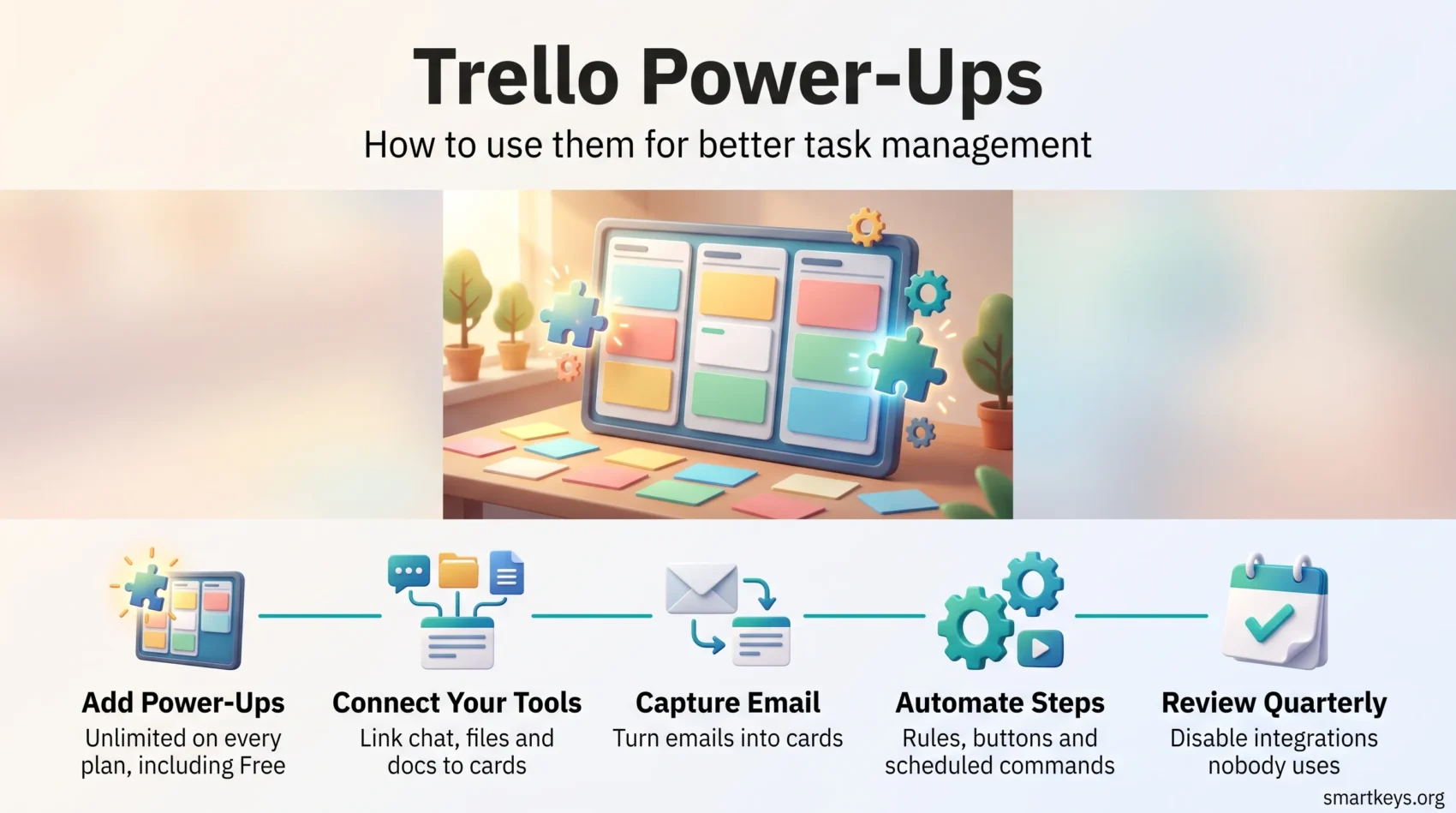
If you want to get more out of Trello, Power-Ups are where the platform stops being a set of lists and starts behaving like the hub your work actually runs through. Trello’s Power-Up Directory holds upwards of 200 integrations, and since Atlassian dropped the old per-board caps, every plan can enable as many as it needs. This guide covers what Power-Ups are in 2026, how to add and remove them, which ones repay the setup time, and how they fit alongside Trello’s newer Inbox, Planner and automation features.
Key Takeaways
- There is no limit on how many Power-Ups a board can have, on any Trello plan, including Free.
- The Power-Up Directory lists upwards of 200 integrations, split between Made by Trello and third-party partners.
- Automation is the built-in no-code engine, capped at 250 Workspace command runs a month on Free and 1,000 on Standard.
- Emails become cards through the board’s Email-to-board address, the Trello Inbox, or the Trello for Gmail add-on.
- The limiting factor is rarely how many Power-Ups you can add. It is how many your team will keep using.
What Trello Power-Ups Actually Are
Atlassian describes Power-Ups and integrations as a way to “bring additional features to your boards and integrate your favorite apps right into Trello.” In practice they are extensions that add a button, a card section, a new board view or a live link to another tool, so you stop bouncing between tabs to keep one project moving.
Some are built by the Trello team and carry a Made by Trello label in the directory. The rest come from third-party partners. Many are free, while others charge a separate subscription that has nothing to do with your Trello bill, so it is worth checking the pricing note in the directory before you roll one out to a whole team.
Power-Ups also cover the customisation layer: Custom Fields adds structured data to cards, Calendar and Timeline change how a board is displayed, and Card Aging flags work that has gone stale. If nothing fits, Trello’s API lets developers build a private Power-Up.
If you are still deciding whether Trello is the right home for your work at all, our comparisons of Monday.com and Trello and of Asana and Trello cover where each platform pulls ahead. For a broader shortlist, see our roundup of productivity apps worth using.
How Many Power-Ups You Can Use in 2026
This is the question that has changed most since the early Trello years, when the free plan allowed exactly one Power-Up per board. That cap is gone. Atlassian’s own documentation now states plainly that “there’s no limit on the number of Power-Ups a board can have, regardless of your plan.”
Trello’s pricing page confirms unlimited Power-Ups per board on Free, and unlimited Power-Ups across all paid tiers. What separates the plans in 2026 is automation volume and administration:
- Free ($0): unlimited Power-Ups per board, 250 Workspace command runs per month.
- Standard ($5 per user per month billed annually, $6 monthly): unlimited Power-Ups, 1,000 Workspace command runs per month, plus AI features including Quick Capture and AI summarisation.
- Premium ($10 per user per month billed annually, $12.50 monthly): unlimited Workspace command runs.
- Enterprise ($17.50 per user per month billed annually): adds Power-Up administration, so admins can restrict which integrations users may enable.
That last point matters more than the count. On Enterprise, the security team decides which Power-Ups are approved; on every other plan, anyone with board permissions can add one. If your boards carry client data, agree an approved list before people start experimenting.
How to Enable and Disable a Power-Up
The interface was reorganised in the 2025 redesign, so older instructions no longer match what you see.
Adding a Power-Up
- Open the board and select the Power-Ups menu in the board header.
- Select Add Power-Ups.
- Search for the integration you want, or browse the directory by category.
- Select Add, then follow the Power-Up’s own setup instructions.
Most Power-Ups then ask you to authorise a connection to the other service. That authorisation is tied to your account, not the board, so each teammate usually has to connect their own.
Removing a Power-Up
- Select the Power-Ups menu in the board header.
- Select the settings icon next to the Power-Up you want to remove.
- Choose Disable.
- Decide whether to leave Keep all Power-Up data checked. Uncheck it for a clean removal; leave it checked if you might reinstall later.
- Select Disable Power-Up.
If you only want to clear your own connection without removing the integration for everyone else, open the same settings menu and choose Remove personal settings.
Finding Your Way Around the Directory
Trello says its directory “boasts upwards of 200 integrations,” browsable by type such as analytics, communication and productivity. Searching by the name of a tool you already pay for beats browsing, because the useful question is rarely what exists but whether the software you already own plugs in.
A practical filter before you add anything:
- Does it remove a tab switch? The best Power-Ups collapse two tools into one screen.
- Who maintains it? Made by Trello integrations track platform changes closely. Third-party ones vary.
- What does it cost? Free in the directory does not always mean free at team scale.
- Will anyone else use it? An integration only one person has connected is a private convenience, not a team workflow.
The Power-Ups That Earn Their Place
Trello highlights four integrations in its own guide, and they are a fair reflection of what most teams end up using.
Slack
The Slack Power-Up links conversations to cards, so a decision made in a channel lands on the board instead of scrolling out of sight. It suits teams whose real decision-making happens in chat, which is most of them. Our Slack review covers what each Slack plan includes before you build a workflow on top of it.
Google Drive
Trello describes the Google Drive Power-Up as enabled by over a million Trello users, which makes it the most widely adopted integration in the directory. It lets you search Drive and attach files or folders to cards without leaving Trello, so the brief and the task sit in the same place. If Google Workspace is your document layer, our Google Workspace review covers what each tier includes.
Jira
The Jira Power-Up surfaces linked issues and epics on a Trello card, which is how mixed teams usually work: engineering lives in Jira, everyone else lives in Trello, and neither group wants to learn the other tool. See our Jira review and our head-to-head on Trello versus Jira for where the boundary between the two tools sensibly falls.
Confluence
The Confluence Cloud Power-Up connects cards to documentation, which is the quiet fix for the pattern where the same question gets answered in card comments four times a year.
The Customisation Layer
Alongside the app integrations, a small set of Trello-built Power-Ups changes how the board itself behaves. Custom Fields adds structured data such as effort, client or stage. Calendar and Timeline give deadline-driven work a shape a list view cannot. Card Aging fades cards nobody has touched, which is an uncomfortable but useful signal. If you are running several boards at once, our guide to managing multiple projects and our piece on building a personal kanban board both apply directly.
Comparable workflow tools handle this layer differently. Our comparison of Pipefy and Trello is a good reference point if your process is more rigid than a board naturally allows.
Turning Email into Cards
Email is where most tasks are born, and it is the part of the old advice that has aged worst. Trello no longer gives every card its own address. There are three current routes.
Email-to-board
Each board has a unique email address. Open the board menu, select Email-to-board, and copy the address. Anything forwarded there becomes a card. Two details are worth knowing: the total email size limit is 10 MB including attachments, and for seven days after a card is created, replies in that same thread that include the board address are added to the card as comments rather than creating duplicates.
The Trello Inbox
The Inbox arrived with the May 2025 Trello release and is designed as a single capture point. It takes forwarded emails, saved messages from Slack and Microsoft Teams, and voice capture on iOS. On Standard and above, Atlassian Intelligence parses that unstructured text with Quick Capture, pulling out due dates and action items rather than dumping the raw message onto a card. From there you drag items into Planner, which connects to a Google or Microsoft calendar so tasks can be blocked out as time rather than left floating on a list.
This is the closest Trello has come to a proper capture habit, and it pairs well with the discipline described in our guides to capturing tasks reliably and working the inbox down.
Trello for Gmail
The Gmail add-on is still supported. It creates cards from the Gmail sidebar, using the subject as the card name and the body as the description, both editable before you save. It handles one Trello account at a time. If email is your main queue, our guide to batching email pairs better with it than checking constantly.
Automation: What Used to Be Called Butler
The automation engine that older articles call Butler is now simply Automation, a built-in no-code tool for boards and workspaces. It offers five command types:
- Rules: make things happen whenever specific conditions are met.
- Card button: make things happen when a button is pressed on the card back.
- Board button: make things happen when a button is pressed in the board header.
- Scheduled: make things happen automatically on a set schedule.
- Due Date: make things happen automatically based on a card’s due date.
The quota is the constraint people hit first. Free gives you 250 Workspace command runs a month, Standard 1,000, and Premium and Enterprise remove the ceiling. A rule that fires on every card move burns through 250 runs faster than it sounds, so start with the repetitive step that annoys people most rather than automating everything at once.
Good first rules tend to be unglamorous: move a card to Done and tick the checklist, add a due date when a card enters a list, post a weekly summary to a channel every Friday. For heavier cross-tool automation, Trello sits alongside dedicated platforms rather than replacing them; our comparisons of Zapier and Make and our guide to automating recurring tasks cover where that line falls.
Best Practices Worth Following
Start From the Friction, Not the Directory
The reliable way to choose a Power-Up is to name the annoyance first: the file nobody can find, the status update repeated in three places, the deadline that lives only in someone’s head. Then look for the integration that removes it. Browsing the directory for inspiration produces boards full of features nobody opens.
Standardise Across Boards
If five boards each use a different time-tracking Power-Up, your reporting is fiction. Pick one per job and apply it consistently. This matters most for Custom Fields, where inconsistent field names quietly make cross-board views useless. Our guide to task prioritisation frameworks is a good starting point for deciding what those fields should even measure.
Review Quarterly
Put a recurring reminder in the calendar to open the Power-Ups menu on your main boards and disable anything nobody has touched. Integrations accumulate the way browser extensions do, and each one is a live connection to another service.
Common Mistakes
Confusing Capability With Adoption
Now that there is no cap, the temptation is to add everything. The cost is not a fee, it is attention: a card back stuffed with sections from six integrations is harder to read than a plain one. Our piece on work tech overload covers the wider version of this problem, and our guide to using to-do lists well makes the same argument for the underlying task list.
Ignoring the Permission Trail
Every Power-Up you authorise gets access to board data, and third-party ones sit outside Atlassian’s control. Before a Power-Up handles client information, check who maintains it and what it stores. On Enterprise, use Power-Up administration to make that decision once instead of board by board.
Leaving Dead Integrations Connected
A Power-Up whose underlying service you no longer pay for still shows up on cards and still holds an authorisation. Disable it properly, unchecking Keep all Power-Up data, rather than just ignoring it.
Automating a Broken Process
Automation makes a workflow faster, not better. If cards sit in review for a week because nobody owns the review step, a rule that moves them faster only relocates the queue. Fix the process on paper first, then automate it. Our guide to task management fundamentals is the right place to start.
Conclusion
Trello’s Power-Up story in 2026 is simpler than it was. The caps are gone, the directory holds upwards of 200 options, and the real constraints are your automation quota and your team’s patience. The question shifts from what you may add to what you can justify keeping.
A workable setup is small: one integration for files, one for conversations, one for the tool your other department lives in, Custom Fields kept consistent, and a few automation rules that remove manual steps. Add the Inbox and Planner if scattered capture is your real problem, then leave the directory alone until something starts to hurt.
Found this useful?
Make SmartKeys a preferred source on Google, and our articles will surface more often in your Top Stories, AI Overviews, and AI Mode.
Add as Preferred Source