A pre-written reply is a saved answer you insert, edit for the person in front of you, and send. Support teams call them canned responses or macros. Sales teams call them snippets. The idea is the same: the questions people ask you are not new, so the first draft of the answer should not be new either.
This guide covers the practical side. Where to store replies in Gmail and Outlook, how to write one that does not read like a form letter, how to organize a library your colleagues can actually search, and how to tell whether the whole exercise saved anyone time. It focuses on support and customer-facing email. For templates across documents, projects and meetings, start with our broader guide to work templates for repetitive tasks.
Key Takeaways
- Pre-written replies cut drafting time and keep answers consistent across a team.
- Gmail and Outlook both store reusable text natively, with real limits worth knowing first.
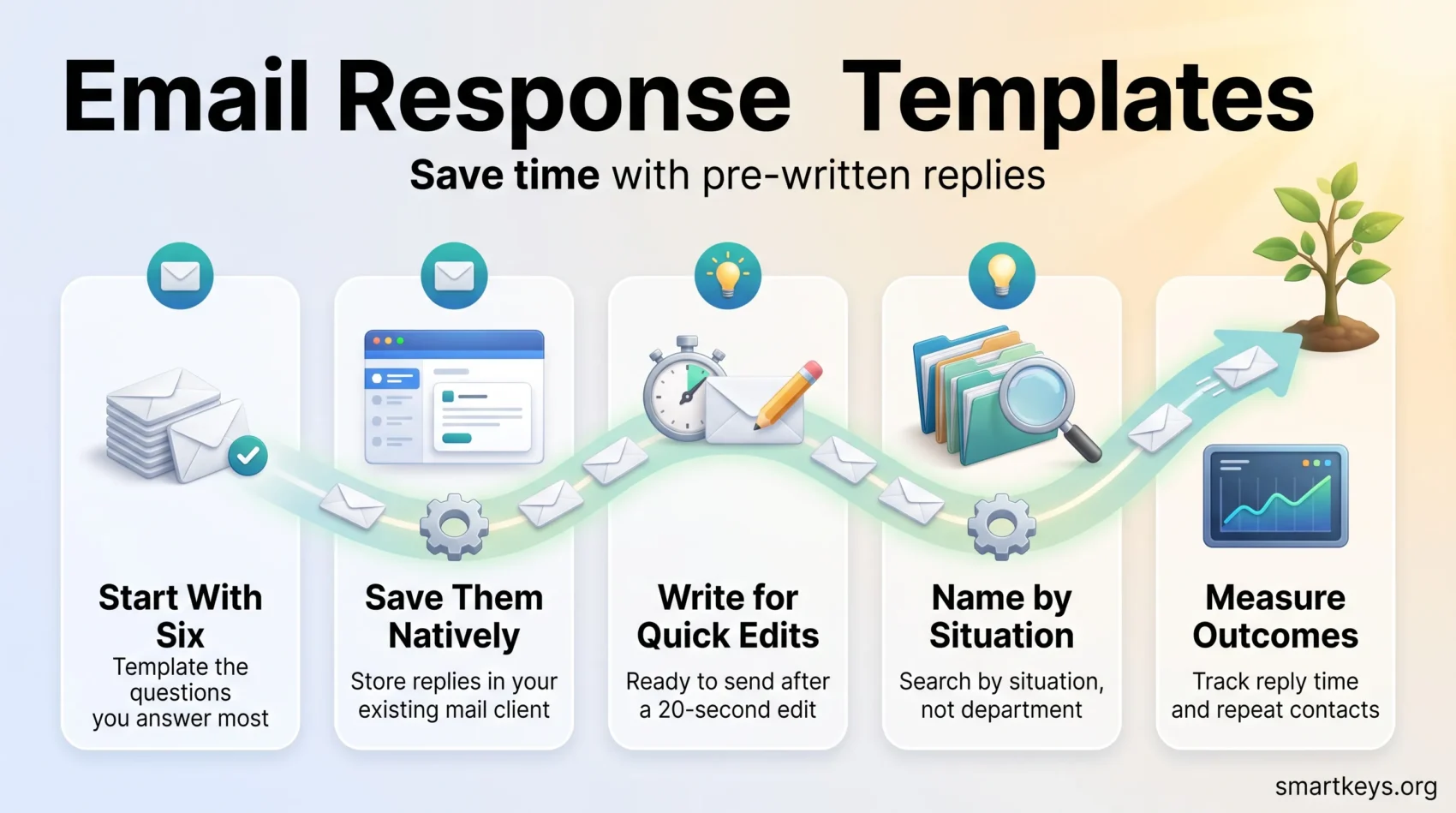
- Write the reply so a colleague can send it after a 20-second edit.
- A library nobody can search gets abandoned, so naming rules matter more than volume.
- Measure reply time and repeat contacts, not the number of templates you own.
What a pre-written reply actually saves you
The saving is not really the typing. It is the deciding. When a familiar question arrives, most of the effort goes into choosing what to say, in what order, and how firmly. A good template has already made those choices, so you spend your attention on the one or two details that are specific to this person.
Three things get cheaper at once.
Drafting. A refund explanation that takes six minutes to compose from scratch takes under a minute to adapt.
Review. Approval happens once, for the template, instead of every time a new hire writes about pricing or data deletion. Legal and compliance wording stays where someone signed off on it.
Consistency. Two colleagues answering the same question on the same day give the same answer. That matters most for anything with a rule behind it: return windows, cancellation terms, what you will and will not disclose.
The limit is worth naming early. Templates help with questions that repeat. They do not help with the genuinely unusual case, and forcing one onto a complicated situation is how customers end up feeling processed rather than helped. If you are also trying to fix the volume of mail arriving in the first place, that is a different problem: see our guides to clearing an email backlog and batching email instead of checking it constantly.
Set them up in the tools you already have
Before buying anything, check what your mail client already does. Both Gmail and Outlook store reusable text for free, and for most people that is enough for the first six months.
Gmail: the built-in Templates feature
Gmail’s Templates feature is switched off by default. Turn it on in Settings, under the Advanced tab, then reload your inbox. To save one, write the message in a compose window, open the three-dot menu at the bottom right, and choose Templates, then Save draft as template. To use it, open the same menu in any new message or reply and pick the template by name.
Two limits to plan around. Templates are personal, so nothing you save is visible to a colleague. And they are a flat list with no folders and no search, which stays workable at a dozen entries and stops being workable at fifty.
Outlook: three overlapping features with the same job
Outlook is messier, because Microsoft ships several reusable-content features that do not share data.
Quick Parts saves a block of formatted text. It reached general availability in the new Outlook in February 2026 and lives in the compose window under Insert, then Quick Parts, then Save selection to Quick Parts. You manage the saved list in Settings, under Mail. Entries are tied to one mailbox, so they do not follow you to another account, and the feature is absent on Outlook for Mac and on mobile.
My Templates is an older add-in that works across more desktop versions of Outlook, but it stores plain text only. Any formatting, links styled as buttons, or images will not survive.
Mail templates save a whole message, including the subject line. Classic Outlook uses local .oft files; the new Outlook and the web version use a cloud-stored equivalent that requires a Microsoft 365 mailbox. There is no automatic migration between the two, so entries written in one have to be recreated in the other.
The practical takeaway: pick one of the three and standardize on it, rather than letting each person use whichever they found first.
When a help desk tool earns its cost
Shared libraries, permissions, and usage reporting are where native features run out. A help desk or shared-inbox tool stores replies once for the whole team, tracks which ones get used, and lets you update a paragraph in one place. That becomes worth paying for at roughly the point where more than two or three people answer the same questions, or where you need an audit trail of what was sent. Our overview of customer service trends for 2026 covers how these platforms have changed, and AI chatbots in customer service looks at what happens when you push routine answers further upstream.
Write a reply that does not read like a form letter
The test for a good template is whether a colleague can send it after a 20-second edit. Too vague and they have to rewrite it. Too specific and it only fits one case.
A structure that holds up for most support and sales replies:
- Acknowledge the specific thing. Name the order, the invoice, the error message. One clause is enough, and it proves a person read the message.
- Answer the question directly. Put the answer in the first or second sentence, not after three lines of preamble.
- Explain only what changes the decision. Skip the internal reasoning nobody asked for.
- State the next step and who owns it. Either you are doing something, or they are. Say which.
- Give a timeframe you will actually meet. A vague promise creates the follow-up email you were trying to avoid.
Mark the parts that must be edited so they cannot be missed. Square brackets work well because they look wrong when left in: Hi [first name], about order [number]. Some tools call these merge fields or merge tags, meaning a placeholder the system fills in automatically from your customer records. Where that automation exists, use it. Where it does not, make the gap visible.
Two habits keep templates from aging badly. Avoid absolute dates and prices in the body, because they are the first thing to go stale; link to the page that holds the current figure instead. And write in the voice you would use in a one-off reply, not in the register people slip into when they know something will be reused. Our guide to writing emails that prevent miscommunication goes deeper on the sentence-level choices.
What to avoid
- Opening with an apology for the delay when there was no delay.
- Stacking three questions into one paragraph, which reliably gets one answer back.
- Wording so hedged that the reader cannot tell whether you said yes or no.
- A signature block longer than the reply.
Build a library people can actually search
Sorting by purpose beats sorting by department. People look for templates by the situation they are in, not by which team wrote them.
Start with the situations that repeat most in your own mail, which usually means a short list rather than a comprehensive one. A workable starting set:
- Acknowledgements: we have your message, here is when you will hear back.
- Information requests: the three or four questions you always have to ask before you can help.
- Orders and billing: status, cancellations, refunds, invoice corrections.
- Access and account: password resets, permission changes, data requests.
- Bad news: declined requests, outages, feature we do not have.
- Closing: resolution confirmation and a single feedback question.
Name entries by what the reader is asking, not by internal jargon. “Refund outside 30-day window” is findable; “RMA policy v3” is not. Add three pieces of metadata to every entry and keep them current: who owns it, when it was last checked, and one line on when to use it rather than a neighboring template.
Then schedule the review, because this is where libraries die. A quarterly pass that deletes anything unused for six months keeps the list short enough to trust. The same discipline that makes standard operating procedures useful applies here, and the wider question of keeping shared knowledge current is covered in our piece on organizational memory in remote teams.
Where personalization is worth the setup
Pulling a name from your customer record is trivial and worth doing. Pulling plan type, renewal date, or last purchase is more work and only pays off when it changes what you write. If the reply reads identically whether the field is filled or empty, the field is decoration.
Be careful about which customer data you route into message bodies. Anything drawn from a CRM is personal data, and the more fields you merge in, the more places a wrong record becomes visible to the customer. Our overview of CRM trends for 2026 covers how these records are now structured.
Deliverability and rendering: the checks that prevent resends
A reply that never arrives, or arrives broken, costs more than the one you did not template. A short pass before you save a new entry catches almost everything.

Keep the message small. Gmail truncates a message once it passes roughly 102 KB, replacing the rest with a “Message clipped” link, according to rendering tests by Litmus. For a plain support reply this is never a problem. For a heavily formatted template with inline styling and a long signature, it can be, and the part that gets cut is the end, which is where your next step usually sits.
Keep links honest. Check every destination before saving, not after a hundred sends. A dead link in a template is a dead link in every copy of it, and broken destinations damage sender reputation over time.
Do not rely on images to carry meaning. Many clients block images until the reader allows them. If an instruction only exists inside a screenshot, write it out as text as well, and give every image alt text that describes what it shows.
Check it in the clients your readers use. Outlook renders HTML differently from Gmail and Apple Mail, particularly around buttons and spacing. One test send to each of the two or three clients your audience actually uses is worth more than a long compatibility matrix.
The simplest fix for most rendering problems
Send less HTML. A reply built from plain paragraphs, ordinary links, and a short signature renders correctly everywhere, cannot be clipped, and loads on a weak connection. Reserve designed layouts for marketing sends, where the visual matters and the audience is opted in. Those sequences are a different discipline, covered in our guide to email workflow automation.
The replies most teams need first
If you write only six templates, write these. They cover the situations that generate the most repeat contact.
Acknowledgement
Confirms receipt, names the thing being asked about, and gives a realistic window for a full answer. This one template removes a large share of “did you get my email?” follow-ups on its own.
Missing information request
Asks for exactly what you need to proceed, as a short numbered list, and says what happens once you have it. Numbered questions get answered far more often than questions buried in a paragraph.
Order or billing status
States the current status, links to a self-service page where one exists, and gives the date something changes. Keep the amounts and dates out of the template body so nobody sends last quarter’s figure.
Refund, cancellation, or return
Explains the steps in order, states what the customer needs to do and by when, and links to the current policy rather than quoting it. Get this wording reviewed once and then leave it alone.
Declining a request
The hardest one to write and the most valuable. Say no clearly in the first two sentences, give the reason in one, and offer the nearest thing you can do. Ambiguity here produces three more emails.
Outage or known issue
Says what is affected, what is not, links to a status page, and gives the time of the next update rather than an optimistic fix estimate. Promising a next update is a promise you can keep.
Resolution and feedback
Confirms the issue is closed, states what changed, and asks one question. One question gets answered; a survey mostly does not. What you do with those answers at scale is covered in analyzing customer feedback at volume.
Govern the library without slowing it down
Every template needs one named owner. Shared ownership means nobody checks it. The owner is responsible for one thing: that the content is still true.
Lock the parts that carry risk and leave the rest editable. Legal wording, regulatory disclosures, and anything describing a right the customer has should be uneditable by the person sending. Greetings, the specific detail in the opening line, and the closing are exactly where a human should be adding something.
Keep a short changelog per entry: what changed, when, and why. When a customer quotes a reply back at you six months later, you want to know which version they received. And give new colleagues a walkthrough of the library on their first week, because an unexplained library gets bypassed in favor of writing from scratch. Our guide to remote onboarding covers how to fit that into a first-week plan, and sales enablement trends looks at the same problem on the revenue side.
Measure whether it actually worked
Track outcomes, not inventory. The number of templates you own tells you nothing. Four numbers tell you something.
Time to first reply. The single most sensitive measure, and the one templates move fastest. Compare the same question type before and after.
Contacts per resolved issue. If a template is clear, the exchange ends sooner. If the count goes up after you introduce one, the template is creating questions rather than answering them.
Reopen or repeat rate. The same person coming back about the same thing usually means the reply was ambiguous, not that the customer was inattentive.
Satisfaction per template. An aggregate score hides the one template that is quietly annoying people. Segmenting by template is what makes the number useful.
Then change one thing at a time. Rewrite the opening, or the subject line, or the structure, and watch a single measure. Changing four things at once tells you only that something moved. The wider metrics picture for support and revenue teams is covered in customer success tools for 2026.
Where template programs go wrong
- Too many entries. Past roughly fifty, people stop searching and start writing from scratch. Deleting is maintenance, not failure.
- No owner. Unowned templates drift out of date and then get sent anyway.
- Sending unedited. A template arriving with a placeholder still in it does more damage than a slow reply.
- Templating the wrong things. Complaints, escalations, and anything emotionally loaded need a human draft, even if a template gives you the skeleton.
- Treating the library as finished. Product changes, price changes, and policy changes all silently invalidate text nobody is rereading.
Templates also work best as one layer of a system rather than the whole of it. They pair naturally with automating the repetitive work around the reply, with choosing email, chat, or a meeting deliberately, and with asynchronous communication tools that keep routine updates off the calendar entirely. Internally, the same logic drives HR chatbots answering repeat employee questions.
Conclusion
Start with six templates, not sixty. Take the six questions you answered most often last month, write a good reply to each, save them where your mail client already stores reusable text, and use them for a few weeks.
You will learn more from those six in use than from a planning exercise. The ones people edit heavily need rewriting. The ones nobody opens should be deleted. The ones that get sent unchanged are the ones worth building on.
Then keep the habit small: one named owner per entry, one quarterly review, and one measure you actually watch. A short, current library beats a large, stale one every time. If you want to apply the same thinking to the rest of your repetitive work, our guide to using templates to streamline repetitive tasks and our task management fundamentals are the natural next reads.
Found this useful?
Make SmartKeys a preferred source on Google, and our articles will surface more often in your Top Stories, AI Overviews, and AI Mode.
Add as Preferred Source