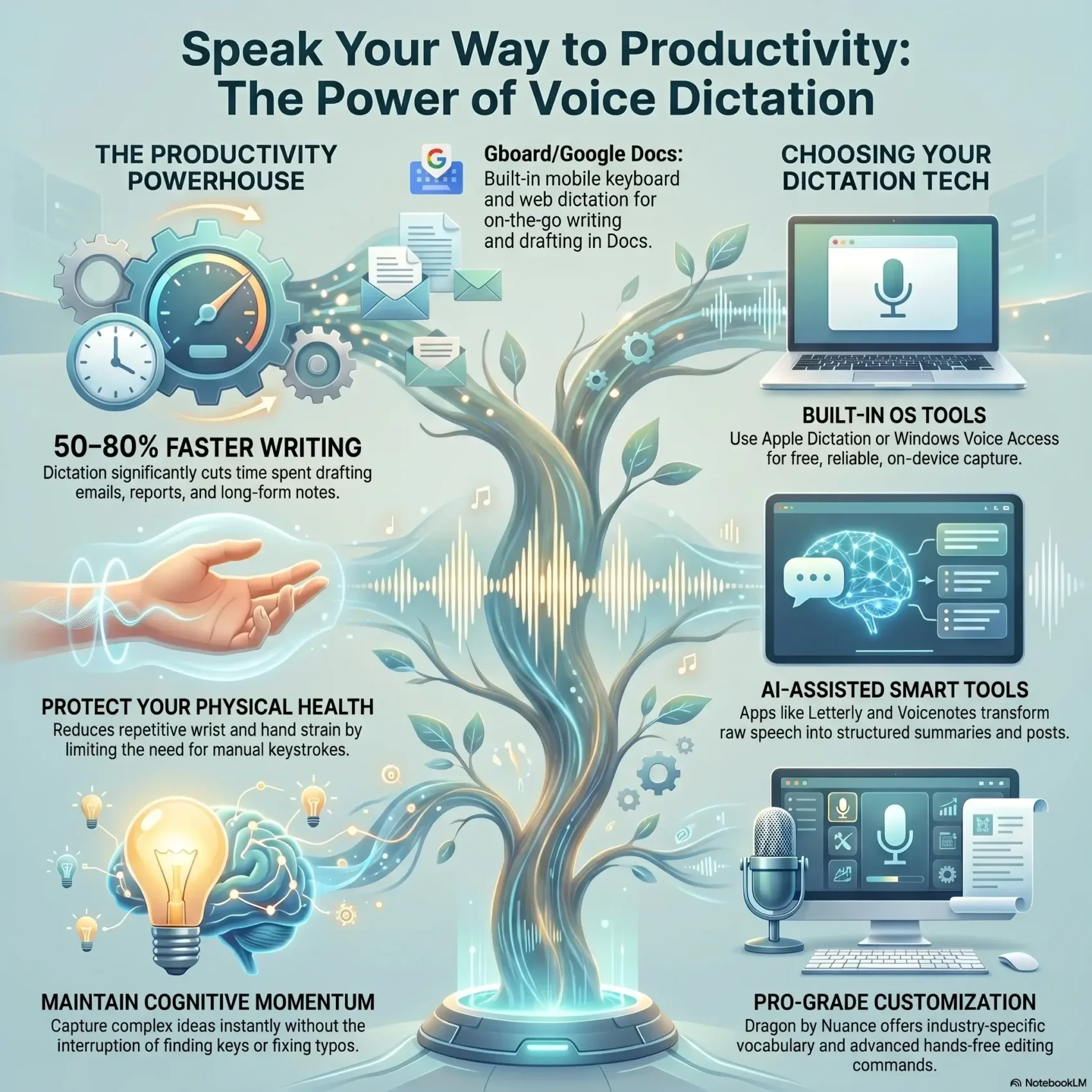
You can get more done in less time by speaking instead of typing. Modern tools turn your speech into usable text for emails, notes, and long-form drafts almost instantly.
Built-in options like Apple Dictation, Windows Voice Access, and Google Docs voice typing make it easy to try this workflow on your phone or desktop without buying anything new. Dedicated apps such as Dragon and AI-leaning services can add custom words and smart formatting to speed work further.
When you dictate, you move ideas from your head to words on the screen without breaking momentum. A few minutes of spoken input can replace hours of typing and reduce strain from repetitive keystrokes.
Try dictation for quick emails, outlines, and checklists. For organized notes and richer transcripts, see a practical guide on audio note systems at audio notes organization.
Key Takeaways
- Speaking can speed writing and cut the time spent typing.
- Built-in tools let you start without extra cost.
- Specialized apps add shortcuts and better transcription.
- Dictating reduces strain and keeps your ideas flowing.
- Use short dictation sessions to replace long typing blocks.
Why You’ll Love Voice Dictation for Everyday Workflows
Transform short ideas and long updates into editable text in a fraction of the usual typing time. You can draft emails, take quick notes, and even sketch longer pieces while you move around. This reduces the repetitive strain of typing and keeps your momentum through the day.
Save hours each week. By speaking routine messages and status updates, you cut the minutes that add up to hours. That frees time for higher-value work and shortens your inbox backlog.
Practical benefits for your work
- You draft emails and notes faster, capturing whole thoughts as clear text.
- Reduced hand and wrist strain makes the computer easier to use for long sessions.
- Fewer interruptions between meetings—talk, review, and send with minimal edits.
- Talking through sections helps you shape structure first, then refine wording later.
Accessibility and comfort matter. People with injuries or repetitive stress gain real freedom by limiting typing. You get the same quality of writing while protecting your hands.
Practice makes it natural. The more you use this approach, the faster you move from scattered words to actionable notes, and the more productive your day becomes.
How We Picked the Best Dictation Apps Today
We tested each app using a repeatable 200-word example to compare real performance. That let us measure accuracy, recognition speed, and how much editing you’d need after transcription. Tests ran on common laptop and phone mics in quiet rooms to mirror real work setups.

Accuracy benchmarks and real-time recognition
Accuracy was the top metric. We averaged scores from several runs and looked for 92% or higher. Consistent, prompt recognition meant less time fixing words and better flow when you draft emails or long notes.
Ease of use, commands, and cross-platform availability
We scored apps on how fast you can start typing by speech and how clear the on-screen mic box or indicator is. We tested formatting and edit commands that let you add punctuation, move the cursor, and correct mistakes hands-free.
Language support, versatility, and pricing value
We checked supported languages and whether apps use cloud services or local engines. That affects speed and privacy. Finally, we weighed features against cost to see when built-in tools are enough and when a paid service delivers real gains for your work.
The Best Voice Dictation Apps at a Glance
This quick guide helps you pick an app that fits the way you work. You’ll see solid free choices, mobile picks, and power-user tools so you can test typing by speech on your first try.
Top free options on Apple and Windows: If you use Apple or Windows, try the built-in solutions first. Apple Dictation and Windows Voice Access give reliable on‑device capture so you can create emails and notes without extra cost.
Mobile-friendly picks for Android and iOS
On phones, Gboard lets you dictate into any app that opens the keyboard. For documents, Google Docs voice typing in Chrome is a dependable mic for longer text and Slides work.
Advanced and AI-assisted tools for power users
Dragon by Nuance offers custom vocabulary and Auto‑Text for recurring phrases. Letterly reshapes transcripts into outlines or social posts, while Voicenotes turns meeting speech into bullet summaries and searchable notes.
“Try a couple of tools and stick with the one that saves you the most time and edits.”
- These apps use different engines, but speed and accuracy matter most.
- Most are cross‑platform, so you can move between computer and phone smoothly.
- Match features and price to how much you dictate and the languages you use.
Apple Dictation and Voice Control: Built-In Power on macOS, iOS, and iPadOS
Apple packs strong speech-to-text tools into its systems so you can write faster across devices. On iPhone and iPad you tap the microphone button on the keyboard to begin; you’ll see text appear inside any app as you speak.
Where to turn it on and how to start
On a Mac, open Settings > Keyboard > Dictation and enable the feature. Use the keyboard shortcut to toggle it and start typing by voice in documents or emails.
Enhanced offline use, custom vocabulary, and commands
Enable Enhanced Dictation to work offline and keep momentum when connectivity drops. Voice Control layers navigation and editing commands so you can move the cursor, select a word, or jump a line without touching the trackpad.
- Learn simple commands like “new line” and common punctuation words to speed up formatting.
- Add custom vocabulary for names and domain terms to improve recognition of the words you use most.
- Use built-in formatting commands to structure text as you speak and reduce later edits.
“Start with a single shortcut for on/off, then add more commands as you grow comfortable.”
Tip: Use these features for quick notes, emails, and longer drafts. A small setup in settings and a few practice commands will save you time and keep your hands free.
Windows Voice Access and Voice Typing: Free Speech Recognition on Your PC
On a Windows PC you can start typing with speech in seconds using a built-in shortcut. Press the Windows logo key + H and a gray box with a microphone appears at the top of the screen. That box lets you dictate into any field where you can place your cursor, from email clients to browsers.
Quick start and Settings paths
Use the Windows shortcut to open the mic box fast. For full control, go to Settings > Accessibility > Speech and enable Windows Speech Recognition.
Azure-powered recognition and handy commands
Typing uses online speech recognition powered by Azure Speech services, so the engine adapts as you speak. Try commands like “new line,” “Press Enter,” or “Select that” to move the cursor, fix a word, or jump a line without leaving speech mode.
Microsoft 365 tie-ins
Word in Microsoft 365 includes built-in dictation and file transcription for WAV or MP3 uploads. The same services power both tools, so you get consistent recognition whether you’re drafting quick notes or converting audio to a clean document.
“Keep sentences steady and watch the gray UI for the Listening cue; if it times out, click the mic and try again.”
Dragon by Nuance: Customizable, Pro-Grade Dictation
For users who transcribe long interviews or draft detailed reports, Dragon brings robust tools and training options. It’s built for people who spend hours converting speech to editable text and need reliable control over every word.
Custom words, Auto-Text shortcuts, and training
Teach Dragon your terms. You can add a custom word or phrase and train the model so specialized names and jargon appear correctly.
Auto-Text expands a single trigger into addresses, signatures, or templates and cuts repetitive typing. The result is cleaner drafts and fewer edits.
Mobile versus desktop: when the price makes sense
The mobile app costs about $15/month for on-the-go capture, while desktop licenses run $200–$500 for deep customization.
Desktop packages include audio transcription of uploaded files and advanced command menus like “What can I say?” That helps you learn available shortcuts without combing menus.
- Transcription from recordings is solid after a bit of training.
- Accuracy improves with daily use and custom vocabulary.
- Export and share options let you move text into email or cloud storage fast.
“If you dictate for hours, Dragon can pay back the cost in saved time.”
Google’s Ecosystem: Gboard and Google Docs Voice Typing
If you want fast, free text entry across devices, Google’s tools deliver a low-friction option. Use the keyboard on your phone for quick notes and switch to Docs in Chrome when you need a longer draft.
Gboard makes mobile typing fast. On Android it’s native and iOS users can install the app from the App Store. Open any text field, tap the mic button, speak, and an overlay captures your speech before inserting text where your cursor sits.
Gboard works great for messages, quick ideas, and short notes. Results get more accurate the more you use the tool.
Google Docs and Slides in Chrome
In Chrome open Tools > Voice typing to dictate directly into a document. You can also dictate speaker notes in Google Slides to prep presentations without stopping your flow.
- Use basic formatting and edit commands as you speak to shape paragraphs and word choice.
- Draft email text on mobile or in Docs, then polish before sending.
- Because both tools are free, they’re ideal for testing a speech-first workflow.
“Start small: try Gboard for a message, then move to Docs for longer work.”
AI-Enhanced Options: Letterly and Voicenotes for Smarter Notes
AI tools can turn a messy transcript into a polished draft in moments. If you want cleaner content faster, these apps transform raw speech into structured writing with little editing.
Letterly: structure, rewrite, translate, and output-ready content
Letterly rewrites your transcript so you can move straight to publishing. Toggle between the original transcription and an AI rewrite to retain control over wording.
You can reformat into bullet lists, outlines, or social posts. Translation is built in, so you adapt content for other audiences without extra steps.
There’s a free plan for up to 10 notes and paid tiers from $12.90/month.
Voicenotes: capture, organize, and chat with meeting-style bullet points
Voicenotes excels for meetings. Its Meetings mode produces concise bullet-point summaries you can scan or chat with to pull insights.
- Star, tag, and search notes to keep your data organized.
- Use the chat-style interface to extract a word, highlight action items, or reshape content fast.
- Free and paid plans start at $9.99/month for more storage and advanced features.
“Capture by speech, shape with AI, and publish with minimal friction.”
Bottom line: these AI layers complement typing and traditional transcriptions by turning spoken thoughts into actionable writing. Start on a free plan to see how the workflow fits your work, then upgrade as your volume grows.
SpeechTexter: Free, Multilingual Dictation in Your Browser
If you need a fast browser tool that handles many languages, SpeechTexter is a handy choice. It runs in Chrome and uses Google’s speech recognition engine to give near real-time typing in over 70 languages.
Quick setup: click the mic button, allow mic access via the padlock, and start speaking. You can add custom commands for punctuation and actions like #newline or #newparagraph, then export those commands as JSON for reuse.
Keep in mind the limits: the web app doesn’t support iOS and lacks direct file upload for transcription. On desktop you can use Stereo Mix as an example workaround to capture system audio.
- If you need wide languages coverage, SpeechTexter covers it without installing software.
- Check microphone settings and reduce background noise to improve recognition.
- Save your text externally or enable autosave—clearing cache can erase content.
“Browser-based, multilingual, and lightweight — great for quick drafts and notes.”
For a related take on search and hands-free text workflows, see speech search marketing.
voice dictation Tips: Commands, Punctuation, and Accuracy Wins
Clear habits and a few simple commands turn spoken drafts into clean text fast. Use short practice sessions to build comfort and avoid long stretches where errors pile up.
Speak naturally and enunciate. A steady pace helps recognition and boosts accuracy. Pause briefly at commas and periods so the engine maps the right word and punctuation.
Speak naturally, enunciate clearly, and watch for time limits
Mobile tools sometimes stop after a short listening period. Keep an eye on the mic indicator and restart when needed to avoid losing data.
Learn essential commands like “new line,” “new paragraph,” and punctuation
Memorize a small set of commands—new line, new paragraph, select, delete—and use punctuation words to shape sentences as you go. Windows supports phrases like “Select that,” “Delete that,” and “Press Enter.”
Microphone setup, background noise control, and practice routines
Position your mic close but not too near. Reduce background noise and try an external mic if your computer is your main workstation. Better input equals fewer edits.
“Practice short routines daily so you can direct the cursor, fix a word, and add punctuation without breaking flow.”
- Try example scripts to test commands in your tools.
- When recognition slips, speak shorter sentences and repeat tricky words.
- With steady practice you’ll cut editing time and improve final transcription quality.
Conclusion
A short week-long trial will show which tools cut the most time from your workflow. Start with built-in options on Apple or Windows and try Google Docs in Chrome to test how voice dictation fits your day.
Practice a few core commands and tune your mic. Small habits turn spoken ideas into clean text and save typing time across email, notes, and longer drafts.
Quick next step, pick one app, use it for a week, and measure productivity gains. If you need more control, explore Dragon, Letterly, Voicenotes, or SpeechTexter to shape content and scale your work.
Found this useful?
Make SmartKeys a preferred source on Google, and our articles will surface more often in your Top Stories, AI Overviews, and AI Mode.
Add as Preferred Source