A keyboard shortcut is a key combination that runs a command you would otherwise reach through a menu. Each one saves a second or two. Across a working day of switching tabs, editing text and searching pages, those seconds add up to real time.
This guide covers the shortcuts that work almost everywhere in a browser, the ones specific to ChromeOS, and the ones that speed up Slack. Every combination below comes from the official Google or Slack documentation, and each section tells you how to open the built-in list on your own device so you can check anything yourself.
Key Takeaways
- Press Ctrl + Search + S on a Chromebook or Ctrl + / in Slack to open the official shortcut list.
- Four modifier keys (Ctrl, Shift, Alt and Search) cover most of what you will use daily.
- Start with tab control, find on page and undo, then add one new combination a week.
- You can remap keys under Settings, Device, Keyboard and inputs if a default feels wrong.
- Shortcuts pay off through repetition, so practice them on real work rather than in a drill.
Why keyboard shortcuts save real time
The saving is not really about typing speed. It is about not breaking your attention. Reaching for the mouse, finding the right menu and clicking through it pulls your eyes away from what you were doing. A shortcut keeps them on the text.
Take one concrete example. Closing a browser tab by accident normally means opening your history, scanning it and clicking the right entry, which takes maybe fifteen seconds and a fair amount of irritation. Ctrl + Shift + T brings the tab back instantly. If that happens three times a day, you have saved roughly fifteen minutes a month on that single combination.
The same logic applies to pasting without formatting, jumping to the address bar, or selecting a whole word instead of dragging over it with the mouse. None of these is dramatic on its own. Together they remove a steady tax on your concentration, which is why they pair well with any single-tasking approach to focused work.
One honest caveat: a shortcut only pays off once it is automatic. Until then, looking it up costs more time than the mouse would have. That is why the practice advice near the end of this guide matters as much as the list itself.
Find the official shortcut list on your own device
Before memorizing anything, learn where the complete list lives. Every platform ships one, and it is always more accurate than a cheat sheet copied from the internet.
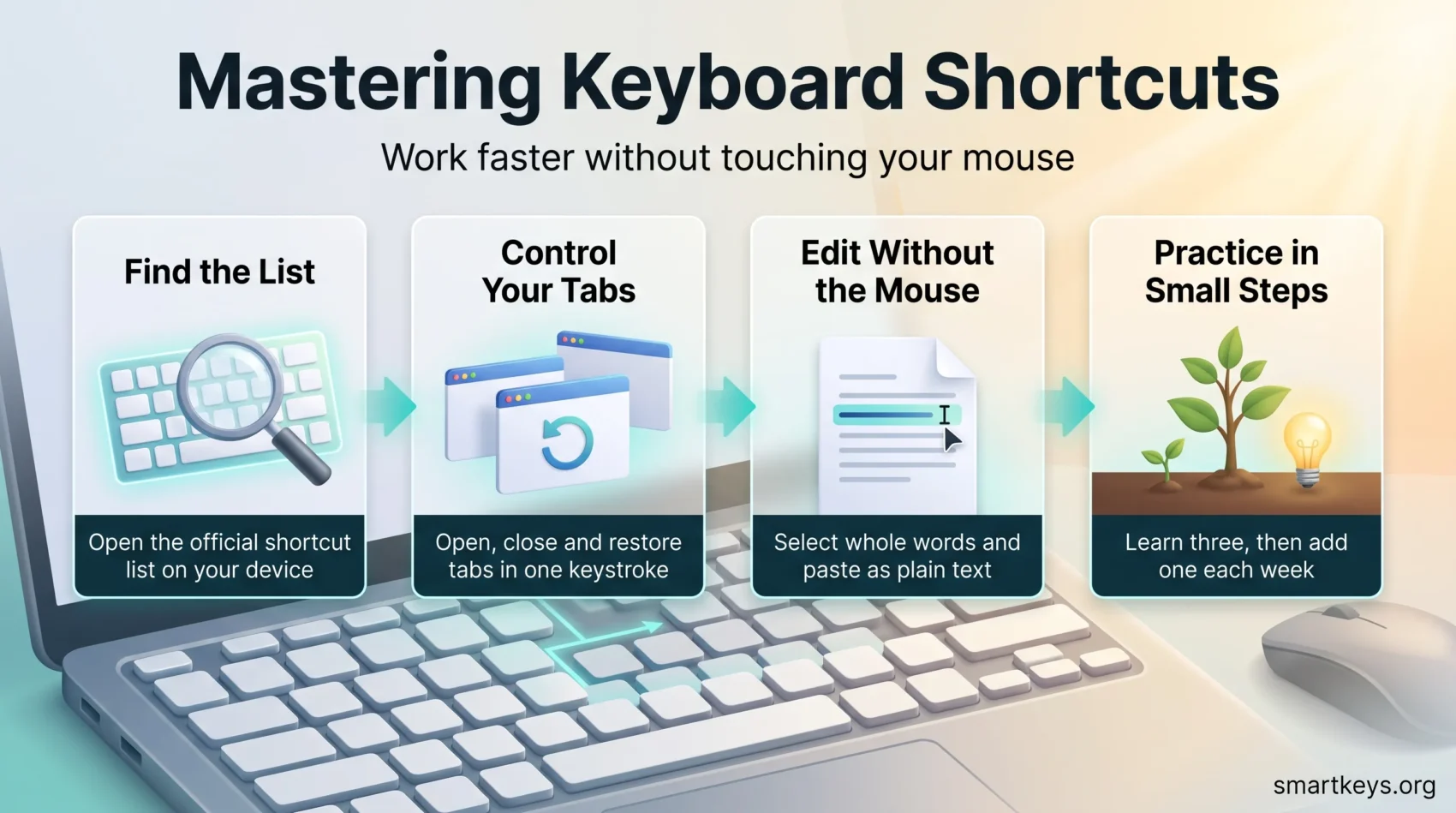
On a Chromebook: press Ctrl + Search + S to open the Shortcuts app. You can also select the time in the bottom right corner, open Settings, then go to Device, then Keyboard and inputs, and choose View keyboard shortcuts. The app groups everything by category, so you can browse rather than guess.
In Slack: press Ctrl + / on Windows and Linux or Command + / on Mac. The panel has a search box and organized sections.
With an external keyboard: if you plug a Windows or Mac keyboard into a Chromebook, the Windows key or the Command key stands in for the Search key. The actions are identical, only the key label changes.
Most of the browser shortcuts in this guide also work in Chrome on Windows, macOS and Linux. On a Mac, swap Ctrl for Command in almost every case. The ChromeOS system shortcuts, the ones involving the Search key or Show windows, are specific to Chromebooks.
The modifier keys that do most of the work
A handful of modifier keys carry nearly every shortcut you will use. Once you know what each one tends to mean, unfamiliar combinations start to make sense on their own.
Ctrl (or Command on a Mac) triggers commands: copy, paste, find, new tab. Shift extends or reverses whatever the base action does, so Ctrl + Tab moves forward through tabs and Ctrl + Shift + Tab moves back. Alt handles window and navigation actions. On a Chromebook, the Search key (the magnifier where Caps Lock usually sits) covers system-level functions.
Three navigation keys round it out. Tab moves focus to the next control and Shift + Tab moves back, which is how you fill in a form without touching the mouse. Enter activates whatever has focus. Esc cancels a dialog or stops a page from loading.
Combine modifiers with the arrow keys and you get precision. Ctrl + Left or Right jumps the cursor a whole word at a time. Shift + Left or Right selects one character. Ctrl + Shift + Left or Right selects a whole word.
Tabs and windows
Tab management is where most people notice the difference first. These work in Chrome on any operating system.
Open, close and restore
Open a new tab with Ctrl + T and close the current one with Ctrl + W. If you close the wrong thing, Ctrl + Shift + T reopens it, and pressing it repeatedly walks back through recently closed tabs and windows.
Move between tabs and windows
Ctrl + Tab moves one tab to the right and Ctrl + Shift + Tab moves left. Ctrl + 1 through Ctrl + 8 jump straight to a specific tab position, and Ctrl + 9 jumps to the last tab. To switch between application windows, hold Alt + Tab and release on the one you want.
Arrange windows on a Chromebook
- Dock a window to the left with Alt + [ or to the right with Alt + ] for side-by-side work.
- Maximize with Alt + = and minimize with Alt + –.
A useful pattern: dock your notes on one side and the document you are writing on the other. If you often work this way, a second monitor removes most of the window juggling altogether.
Moving around a page
Long pages are where mouse scrolling wastes the most time. These keys move you in bigger jumps.
On a Chromebook, Alt + Up and Alt + Down page up and down. Ctrl + Alt + Up goes to the top of the page and Ctrl + Alt + Down goes to the bottom.
Refresh a page with Ctrl + R. If the page still looks stale, Ctrl + Shift + R forces a hard refresh that bypasses cached files, which is worth knowing when a site you manage does not show your latest change. Esc stops a page that is hanging.
Adjust the view with Ctrl + + to zoom in, Ctrl + – to zoom out and Ctrl + 0 to reset to 100 percent. Alt + Shift + T moves keyboard focus to the browser toolbar, so you can reach its buttons with the arrow keys. On a Chromebook, holding Alt while you click acts as a right click when your device has no dedicated right mouse button.
Text editing without the mouse
Editing is the area where shortcuts change the work itself, not just its speed. Selecting exactly the words you meant to select is much easier with keys than by dragging.
Select and move precisely
Use Shift + Left or Shift + Right to select character by character for small fixes. Use Ctrl + Shift + Left or Ctrl + Shift + Right to select whole words, which stops you overshooting the end of a phrase.
To move without selecting, Ctrl + Left or Ctrl + Right jumps by word. On a Chromebook, Search + Left or Search + Right goes to the start or end of the line, and adding Shift to that selects everything between the cursor and the line boundary.
Cut, paste, undo and delete
Cut, copy and paste with Ctrl + X, Ctrl + C and Ctrl + V. The one most people miss is Ctrl + Shift + V, which pastes as plain text. That single combination saves you from importing a stray font and background color every time you move text between a web page and a document.
Undo with Ctrl + Z and redo with Ctrl + Shift + Z. Delete the word before the cursor with Ctrl + Backspace instead of holding Backspace down.
If most of your typing is repetitive, shortcuts are only half the answer. A text expansion tool that turns a short trigger into a full block of text handles the rest, and dictation is often faster than typing for first drafts.
Find, search and focus
Ctrl + F opens the find box on any page. Ctrl + G or Enter jumps to the next match, and Ctrl + Shift + G goes back to the previous one. Note that find only searches the content already loaded, so on a page that loads more items as you scroll you need to run it again.
Ctrl + L puts the cursor in the address bar with the current URL selected, so you can copy the link or type a new query straight away. Alt + D does the same thing. Type a site name and press Ctrl + Enter and the browser wraps it in www. and .com for you.
These pair well with a habit of searching rather than clicking. Instead of navigating a bookmark tree, press Ctrl + L, type two or three letters and let autocomplete finish it. If your bookmarks have grown past the point of usefulness, a digital declutter is worth an hour of your time.
Bookmarks, history, downloads and developer tools
Save the current page with Ctrl + D. Show or hide the bookmarks bar with Ctrl + Shift + B. Save every open tab into one new folder with Ctrl + Shift + D, which is the fastest way to park a research session you want to return to.
Open your browsing history with Ctrl + H and your downloads with Ctrl + J, so you can find a recent file without opening a separate file manager.
For anyone who works on websites, Ctrl + U shows the raw HTML of a page and Ctrl + Shift + I opens DevTools, the browser’s built-in inspection panel. Ctrl + Shift + C starts element selection and Ctrl + Shift + J opens the Console. If you never touch website code, you can skip this group entirely.
Slack shortcuts worth learning
Slack is where many people spend more of the day than they intend to. A few shortcuts cut the time each interruption costs, which supports any effort to set boundaries around instant messaging.
Press Ctrl + / (Windows and Linux) or Command + / (Mac) to see the full list inside the app. The ones that earn their place:
- Jump to a conversation: Ctrl + K on Windows and Linux, Command + Shift + K on Mac. Type a few letters of a channel or person and press Enter.
- Search: Ctrl + G searches the whole workspace, Ctrl + F searches the current conversation.
- New message: Ctrl + N.
- Next and previous unread channel: Alt + Shift + Down and Alt + Shift + Up.
- Back and forward through history: Alt + Left and Alt + Right.
- Format text: Ctrl + B for bold, Ctrl + I for italics, Ctrl + Shift + X for strikethrough.
- New line without sending: Shift + Enter.
- Mark as read: Esc for the current conversation, Shift + Esc for everything.
- Edit your last message: press the Up arrow in an empty message field.
- Switch workspaces: Ctrl + Tab and Ctrl + Shift + Tab.
Shift + Esc deserves a mention on its own. Clearing every unread badge in one keystroke is a small thing that stops the sidebar quietly steering your attention, which is a useful complement to working asynchronously wherever you can.
Chromebook system actions
These are the ChromeOS shortcuts that have no browser equivalent. They cover screen capture, security and status.
- Whole screen: Ctrl + Show windows captures the full display.
- Part of the screen: Shift + Ctrl + Show windows, then drag to select a region.
- Capture toolbar: Ctrl + Shift + Show windows opens the tool with recording and annotation options.
- Lock the device: Search + L.
- Sign out: Shift + Ctrl + Q, pressed twice.
- Toggle Caps Lock: Search + Alt.
- Open the status area (battery, Wi-Fi, time): Shift + Alt + S.
- Open notifications: Shift + Alt + N.
On a Chromebook tablet with no keyboard attached, press Power and Volume Down together for a screenshot.
Language and emoji
Switch input language with Ctrl + Shift + Space, which is the one to learn if you write in more than one language during the day. Open the emoji picker with Search + Shift + Space. Both leave the cursor where it was, so you do not lose your place mid-sentence.
Accessibility shortcuts on ChromeOS
These features are built into the operating system and switch on with a single combination. They are worth knowing even if you do not use them daily, because they also help in ordinary situations such as bright sunlight or a screen you are reading from across a desk.
- ChromeVox (the built-in screen reader): Ctrl + Alt + Z reads on-screen text and controls aloud.
- High contrast mode: Search + Ctrl + H inverts colors to make text easier to distinguish.
- Full-screen magnifier: Ctrl + Search + M.
- Highlight the launcher: Shift + Alt + L, so you can move through the shelf with the arrow keys.
- Highlight the bookmarks bar: Shift + Alt + B.
If you are setting up a workplace rather than a personal device, these belong in a wider conversation about making remote work genuinely accessible.
Virtual desks and multiple displays
A virtual desk is a separate workspace with its own set of open windows. One desk for writing, one for meetings and one for research keeps each context clean without closing anything.
Create a new desk with Shift + Search + =. Move between desks with Search + [ and Search + ]. Send the window you are in to the next desk with Shift + Search + [ or Shift + Search + ]. To move a window to another physical display, press Search + Alt + M.
Desks work best when each one has a purpose you can name. If they simply become three piles of the same clutter, the switching cost returns. The same principle applies to your physical setup, where a desk arranged by how often you reach for things beats one arranged by looks.
Files app shortcuts
Open the ChromeOS Files app with Shift + Alt + M. Select a file and press Space for a quick preview, which is enough to confirm you have the right document before sharing it.
Show hidden files and folders with Ctrl + . when you need to reach configuration files. Save with Ctrl + S and print with Ctrl + P in web apps and documents. Move through file lists with the arrow keys, then open with Enter or preview with Space.
Remap keys to fit your workflow
If a default mapping fights your habits, change it. On a Chromebook, open Settings from the time area, then Device, then Keyboard and inputs. Under Built-in keyboard you can reassign the listed keys, and you can restore the defaults at any time.
Two settings are worth a look. You can decide whether the top row behaves as function keys or as the ChromeOS media and brightness controls, and you can map F11 and F12 to a single action you use often. If you take dozens of screenshots a day, putting screen capture on one key rather than a three-key combination is a genuine saving.
Remap sparingly, though. Every custom mapping is one more thing that will not work on a borrowed machine.
The ten shortcuts to memorize first
If you learn nothing else from this guide, learn these. They cover the actions almost everyone repeats dozens of times a day.
- Ctrl + T opens a new tab.
- Ctrl + W closes the current tab.
- Ctrl + Shift + T reopens the tab you just closed.
- Ctrl + Tab moves to the next tab.
- Ctrl + F finds text on the page.
- Ctrl + L jumps to the address bar.
- Ctrl + Z undoes your last action.
- Ctrl + Shift + V pastes without formatting.
- Ctrl + Shift + R forces a hard refresh.
- Search + L locks a Chromebook when you step away.
Learn them in groups rather than one long list. The three tab commands belong together, as do the two search commands. Grouping gives your memory a structure to hang them on, much like attaching a new habit to one you already have.
How to actually remember them
The mistake is trying to learn twenty at once. Pick three, use them on real work for a week, and only then add more. A shortcut becomes automatic through repetition in context, not through a study session, which is the same reason very small habits stick better than ambitious ones.
Keep a short list visible for the first week or two. Four or five combinations written on a sticky note beat a printed cheat sheet you never look at.
When a shortcut does not work
- Test it in a blank tab or an incognito window. If it works there, a browser extension or a web app is capturing the keystroke.
- Check the app’s own list. Web applications frequently override browser defaults inside their editor.
- If you have remapped a key and your muscle memory keeps fighting it, set it back to the default. Consistency across devices usually beats a marginally better mapping.
- Remember which keyboard you are on. The Search key on a Chromebook, the Windows key on a PC and the Command key on a Mac occupy roughly the same role but sit in different places.
For a short, practical guide on building fast habits around these actions, check this 2-minute productivity rule. To pair practice with timed work, see focus sprints for productivity.
Conclusion
Shortcuts are not a productivity system. They are a way of removing friction from things you already do, and their value comes from how often you repeat those things.
Start with the ten above. Open the official list on your own device so you can look anything up in seconds. Add one new combination a week and let the rest come as you need them. Within a month or two you will reach for the keyboard first without thinking about it, and the mouse becomes what it should be: a tool for the few tasks that genuinely need pointing at something.
If you want to keep going, the natural next steps are tools that protect your attention and a look at your wider digital workflows, where the biggest savings usually hide.
Found this useful?
Make SmartKeys a preferred source on Google, and our articles will surface more often in your Top Stories, AI Overviews, and AI Mode.
Add as Preferred Source