Last reviewed: September 2026. All prices below were checked against vendor pricing pages in September 2026.
Stop retyping the same sentences. Text expansion turns a few keystrokes into a full reply, a signature or a three-paragraph template. It works in almost any field where you can type.
The idea is old. What changed is the market around it. Free tools now cover what used to cost money. AI writing help has moved inside the expanders. And team plans are sold on control rather than speed.
This guide explains what a text expander does, which tools are worth paying for in 2026, and how to build your first five snippets in about twenty minutes.
Key Takeaways
- A snippet swaps a short trigger for a long block of text. The time saved adds up across every repeated message.
- Free options are now good enough for most solo users: Espanso, Raycast Snippets, Beeftext and the free tiers of Text Blaze and TextExpander.
- Paid plans mostly buy three things: unlimited snippets, shared team libraries and admin controls.
- AI helps you draft and improve snippets. The expansion itself should insert the same approved text every time.
- Start with five frequent snippets and a naming rule, not with a 200-item library.
What text expansion is and why it pays off
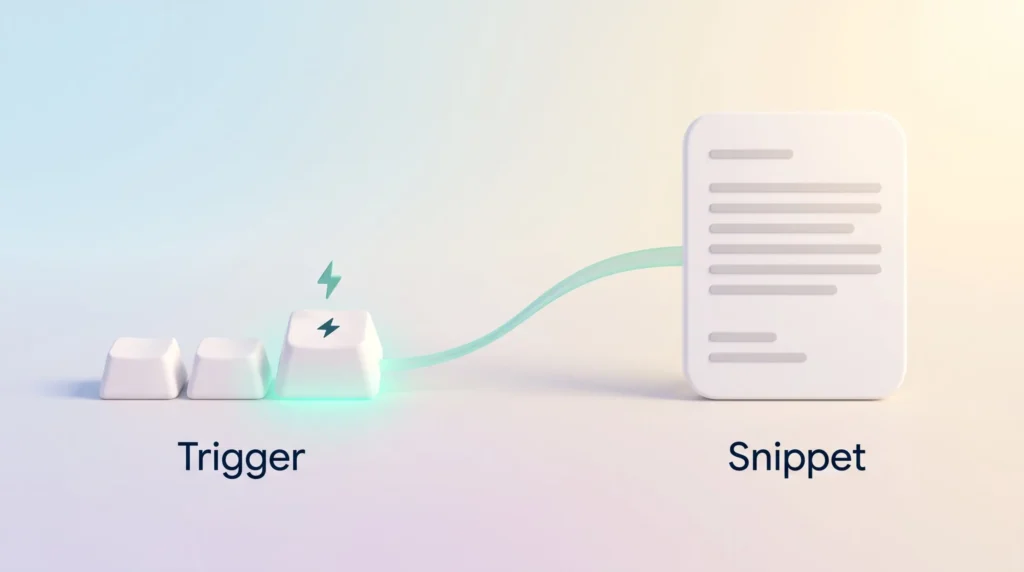
A text expander watches for a short trigger you define, such as ;;sig or ,,thanks. The moment you type it, the tool replaces it with stored content. That stored content is the snippet.
The math is simple. Say you type the same support reply forty times a week and each one takes ninety seconds. That costs you an hour a week. Cut each reply to five seconds and you keep most of that hour, every week, without typing any faster.
Three benefits stack up:
- Speed: fewer keystrokes, and less task switching to hunt through old messages for the right wording.
- Consistency: the approved wording goes out every time, not the version someone half remembers.
- Accuracy: no more mistyped account numbers, links or legal disclaimers.
Text expansion works best alongside two other input shortcuts. Use keyboard shortcuts for moving around your apps, and voice dictation for long, unstructured writing. If you already keep reusable documents, our guide to using templates for repetitive tasks covers the step above single snippets.
What changed for text expanders in 2026
If you last looked at this category a few years ago, three things are different.
Free tiers now cover most solo use
Espanso is free and open source under the GPL-3 license. It runs on Windows, macOS and Linux with no snippet limit. The trade-off: you configure it in plain text files rather than a visual app, although a graphical interface is planned. On Mac, Raycast, a keyboard-driven app launcher, includes snippets in its free plan. On Windows, Beeftext is a simple free app, and AutoHotkey covers people who want to script their own logic.
The paid vendors moved too. TextExpander now offers a free plan with unlimited stored snippets but only five active ones at a time. Text Blaze’s free plan also limits how many snippets you can use.
Built-in options exist, but they are basic. Apple’s Text Replacement on macOS and iOS handles simple swaps with no variables, and Gboard’s personal dictionary offers basic shortcuts on Android.
AI moved inside the tool
Text Blaze sells AI writing and editing as AI Blaze, and other vendors ship similar assistants. Think of AI as a setup helper. It can draft a snippet in seconds, but you still need to review the result, because the model does not know your edge cases or your policies.
For the wider picture of when AI should assist rather than decide, see our guide to AI augmentation. If you want AI to draft whole emails instead of templates, read our Fyxer review. And if you reuse AI prompts as much as text, a personal prompt library follows the same logic as a snippet library.
Teams pay for control, not typing speed
Business tiers now sell shared libraries, usage statistics, access controls and single sign-on (SSO), which lets staff log in with their company account. That is the main reason a team seat costs about twice as much as an individual one.
Text expander comparison: pricing and platforms in 2026
| Tool | Platforms | Free option | Paid entry (Sept 2026) | Best for |
|---|---|---|---|---|
| TextExpander | Mac, Windows, Chrome, iPhone, iPad | Yes (5 active snippets) | Pro $6/user/mo billed annually ($60/yr); Business $12/user/mo billed annually ($120/yr) | Teams needing shared libraries and mature admin controls |
| Text Blaze | Chrome, Windows, macOS | Yes (limited snippets) | Pro $2.99/mo billed annually ($3.49 monthly); Business $6.99/user/mo billed annually ($8.39 monthly) | Browser-based work in Gmail, Salesforce, Zendesk or LinkedIn |
| Espanso | Windows, macOS, Linux | Fully free, open source | None | People comfortable editing configuration files |
| Raycast Snippets | macOS | Yes, in the free plan | Raycast Pro $8/mo billed annually ($10 monthly), not needed for snippets | Mac users who already work from a launcher |
| Beeftext / AutoHotkey | Windows | Fully free | None | Windows-only setups; AutoHotkey for scripted logic |
Prices exclude tax and can change at any time, so confirm them on the vendor page before you buy. For a team of ten on the business tier, Text Blaze comes to roughly $839 a year and TextExpander to $1,200 a year.
Features worth comparing before you pay

Reliable expansion in the apps you actually use
This one feature decides everything. A browser extension will not fire in your desktop email client, and a Mac-only app leaves Windows colleagues out. Test your three most-used apps during the trial.
Placeholders, fill-ins and cursor control
Placeholders insert changing data automatically, such as today’s date or the contents of your clipboard. Fill-ins pause the expansion and ask you for details like a customer name or order number. Cursor positioning then drops you exactly where you need to type next. You will miss it once you have used it.
Search, tags and folders
A snippet library gets hard to use once it grows past a few dozen items without tags and search. For teams, shared folders matter more than the raw snippet count.
Security and admin controls
A text expander sees everything you store in it, so security matters for regulated work. Ask vendors for specifics:
- Encryption of stored data and of data in transit.
- SSO, plus SCIM, the standard that adds and removes users automatically when people join or leave.
- Audit logs that record who changed what.
- A signed data processing agreement.
TextExpander, for example, states that it holds SOC 2 and SOC 3 attestations, which are independent audit reports on security controls. It also offers a HIPAA business associate agreement for healthcare customers. Text Blaze reserves SAML SSO, SCIM and audit logs for its Enterprise plan. Check the current scope yourself before you buy. Your company’s rules on generative AI usage should also cover any AI features inside the tool.
Where snippets save the most time
- Support and customer success: confirmations, troubleshooting steps, refund policies, escalation notes.
- Sales and recruiting: outreach openers, follow-ups, scheduling links, offer language.
- Engineering: boilerplate code, terminal commands, pull request templates, incident updates.
- Writing and research: citation blocks, style notes, recurring disclaimers.
- Admin: addresses, bank details for invoices, meeting agendas, standard sign-offs.
Email is usually the biggest win. Our collection of email response templates gives you ready wording to turn into snippets, and the Inbox Zero method shows how fast replies fit into a clean inbox routine.
Snippets are also the lightest form of automation you can adopt. They are a good first step before triggers and integrations. When you are ready for more, our task automation playbook explains how to pick the right processes. The email workflow guide shows where templates end and automation begins, and our Workato vs Zapier comparison covers tools that connect apps without code.
Build your first five snippets in twenty minutes
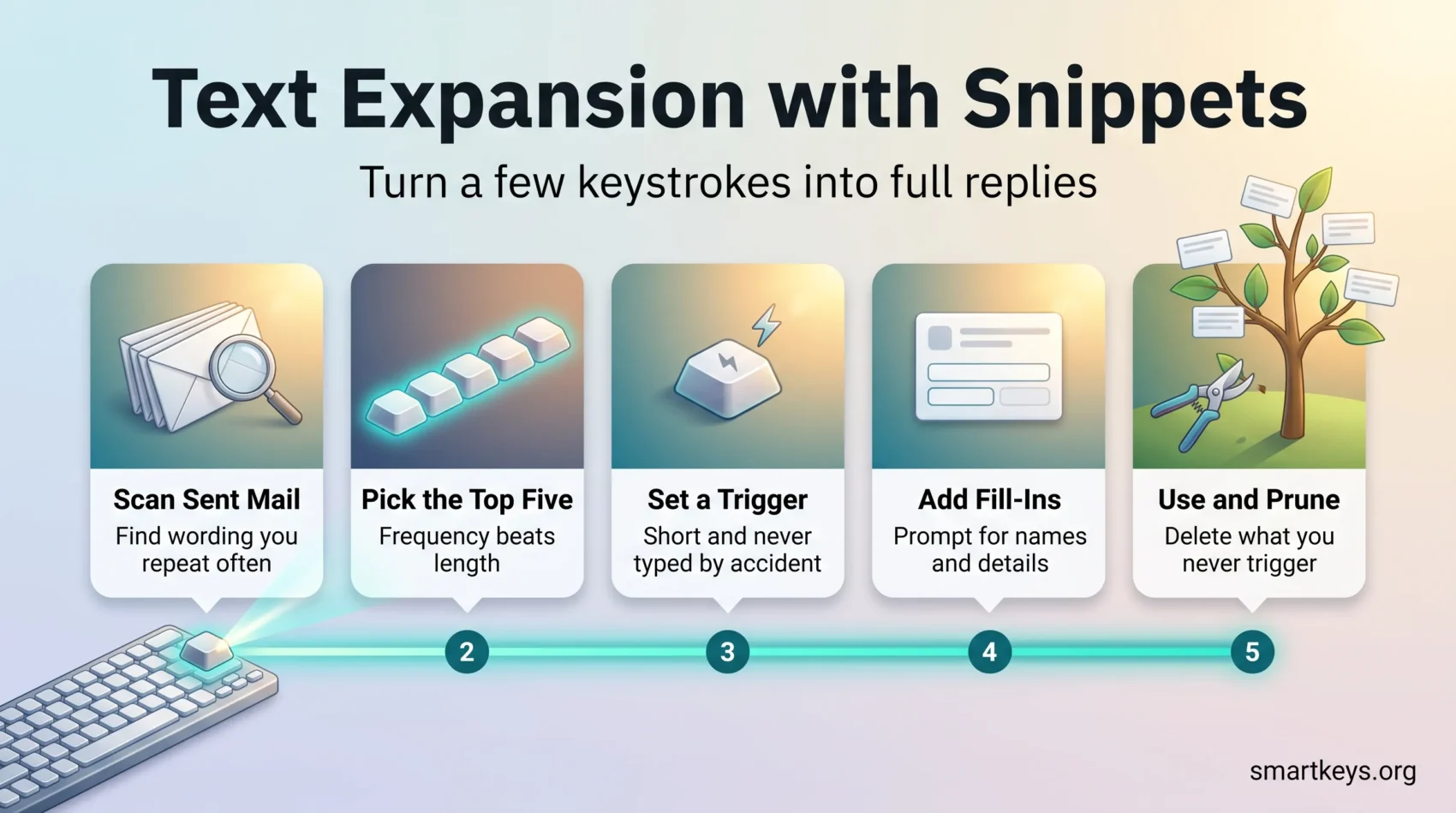
- Open your sent folder. Scan the last two weeks and look for repeated wording, not repeated topics.
- Pick the five most frequent. Frequency beats length. A phrase you send daily saves more than an essay you send monthly.
- Choose a trigger prefix. Use something you would never type by accident, such as
;;or,,, then a short word:;;refund,;;book,;;sig. - Add fill-ins where the text varies. One prompt for a first name beats editing the text after every expansion.
- Use them for a week, then prune. Delete what you never triggered and rename what you could not remember.
A consistent naming rule keeps a growing library usable. Prefix by function (;;em- for email, ;;dev- for code, ;;leg- for legal), keep triggers under eight characters, and never put a customer name in a trigger. To make the habit stick, tie it to something you already do. Habit stacking works well here: every time you catch yourself retyping a sentence, save it as a snippet right away.
Rolling it out to a team
Run a two-week pilot with a small group before you buy seats for everyone. Measure one thing, such as average handling time per ticket or messages sent per hour, and compare it with the two weeks before.
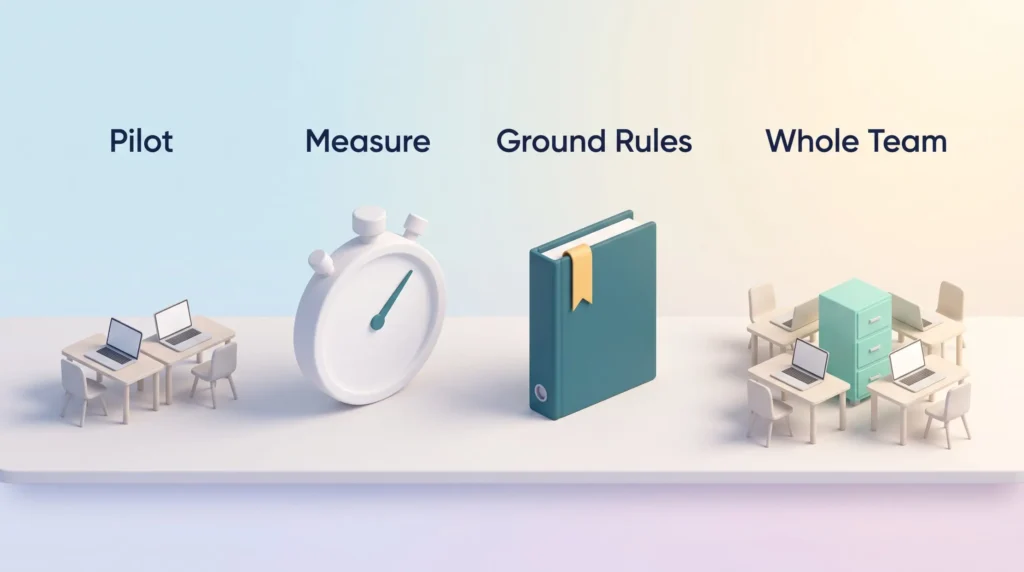
Then set ground rules early:
- Name one owner per snippet folder who approves wording changes.
- Agree on a naming rule before the library passes thirty items.
- Review shared snippets every quarter. Outdated pricing in a shared template spreads fast.
- Never store passwords, card numbers or full personal records in a snippet.
Shared snippets are lightweight documentation. If your team writes standard operating procedures, link each procedure to the snippets it uses so both stay current.
Vendors publish ROI case studies with large time savings. Treat them as a rough signal and measure your own pilot instead.
If part of your team works mainly from a phone, check mobile support carefully during the pilot. Support varies by keyboard and operating system, and our mobile productivity guide covers workarounds. Snippets also pair well with other focus tools and digital workflows.
Conclusion
Pick one tool and build five snippets this week. If you use a Mac with Raycast, start there for free. On Windows, try Beeftext. If you work mostly in Chrome, the free tiers of Text Blaze or TextExpander will show within a week whether you need a paid plan. Teams that need shared libraries and admin controls will usually end up on a business tier.
The habit matters more than the tool. Five snippets you actually use beat two hundred you forgot you made.
Found this useful?
Make SmartKeys a preferred source on Google, and our articles will surface more often in your Top Stories, AI Overviews, and AI Mode.
Add as Preferred SourceFAQ
What is text expansion?
Text expansion replaces a short trigger you type with a longer block of stored text. You define the trigger, for example ;;sig, and the snippet it turns into. The tool then inserts that snippet instantly in almost any text field, including email, chat, a CRM, a code editor or a web form. Snippets can also include variables such as today’s date, or fill-in fields that ask for a customer name. The main benefits are speed, consistent wording and fewer typos.
Is there a free text expander in 2026?
Yes, several. Espanso is free and open source on Windows, macOS and Linux with no snippet limit, but you set it up by editing configuration files. Raycast includes snippets in its free Mac plan, and Beeftext is a free Windows app. TextExpander now has a free plan with unlimited stored snippets but only five active at once. Text Blaze’s free plan also limits snippets. Paid plans make sense once you need many snippets or want to share them with a team.
How much does TextExpander cost?
As of September 2026, TextExpander has four plans. Free costs nothing and allows five active snippets. Pro costs $6 per user per month billed annually, or $60 a year, and removes the snippet limit. Business costs $12 per user per month billed annually, or $120 a year, and adds team features such as snippet requests, organization statistics and Google sign-in. Enterprise is priced on request. New accounts can preview advanced features for 30 days. Confirm current prices on the vendor page before you commit.
How much does Text Blaze cost?
Text Blaze has a free plan with a limited number of snippets. Pro costs $2.99 per month billed annually, or $3.49 if you pay monthly. Business costs $6.99 per user per month billed annually, or $8.39 monthly. Enterprise pricing is on request, and that tier is where SAML single sign-on, automatic user provisioning (SCIM) and event audit logs live. Ten Business seats on annual billing come to roughly $839 a year.
Are text expanders safe for sensitive information?
They can be, but only if you check the vendor and keep the most sensitive data out. The tool stores everything you put into a snippet, and cloud plans sync it to the vendor’s servers. Look for encryption of stored data and data in transit, single sign-on, role-based permissions, audit logs and a signed data processing agreement. Independent audit reports such as SOC 2 are a good sign. Whatever the tool, never store passwords, payment card numbers or complete personal records in a snippet.
Does AI make text expanders obsolete?
No, because the two solve different problems. An AI assistant writes fresh text each time, so every output needs a quick review before it goes out. A snippet inserts the same approved wording every time, which is exactly what you want for policies, legal lines, prices and standard replies. The practical split is to use AI to draft or polish a snippet once, review it, and then let the expander insert that fixed version from then on.
Do text expanders work on mobile?
Partly. Both major phone systems have basic built-in replacement: Apple’s Text Replacement on iPhone and iPad, and the personal dictionary in Google’s Gboard keyboard on Android. These handle simple swaps but not fill-ins or variables. Some vendors, such as TextExpander, also support iPhone and iPad. Mobile support is still narrower than on desktop, and it often depends on which keyboard you use. If your team works from phones, test the exact devices and apps during a pilot before you promise the same experience everywhere.
How do I measure whether text expansion is working?
Pick one metric before you start and compare two weeks before with two weeks after. Good choices are average handling time for support tickets, replies sent per hour, or how often people still edit a template by hand. For a simple business case, estimate minutes saved per person per day and multiply by headcount and working days. That number is usually enough to decide whether a paid subscription is worth it, or whether a free tool does the job.