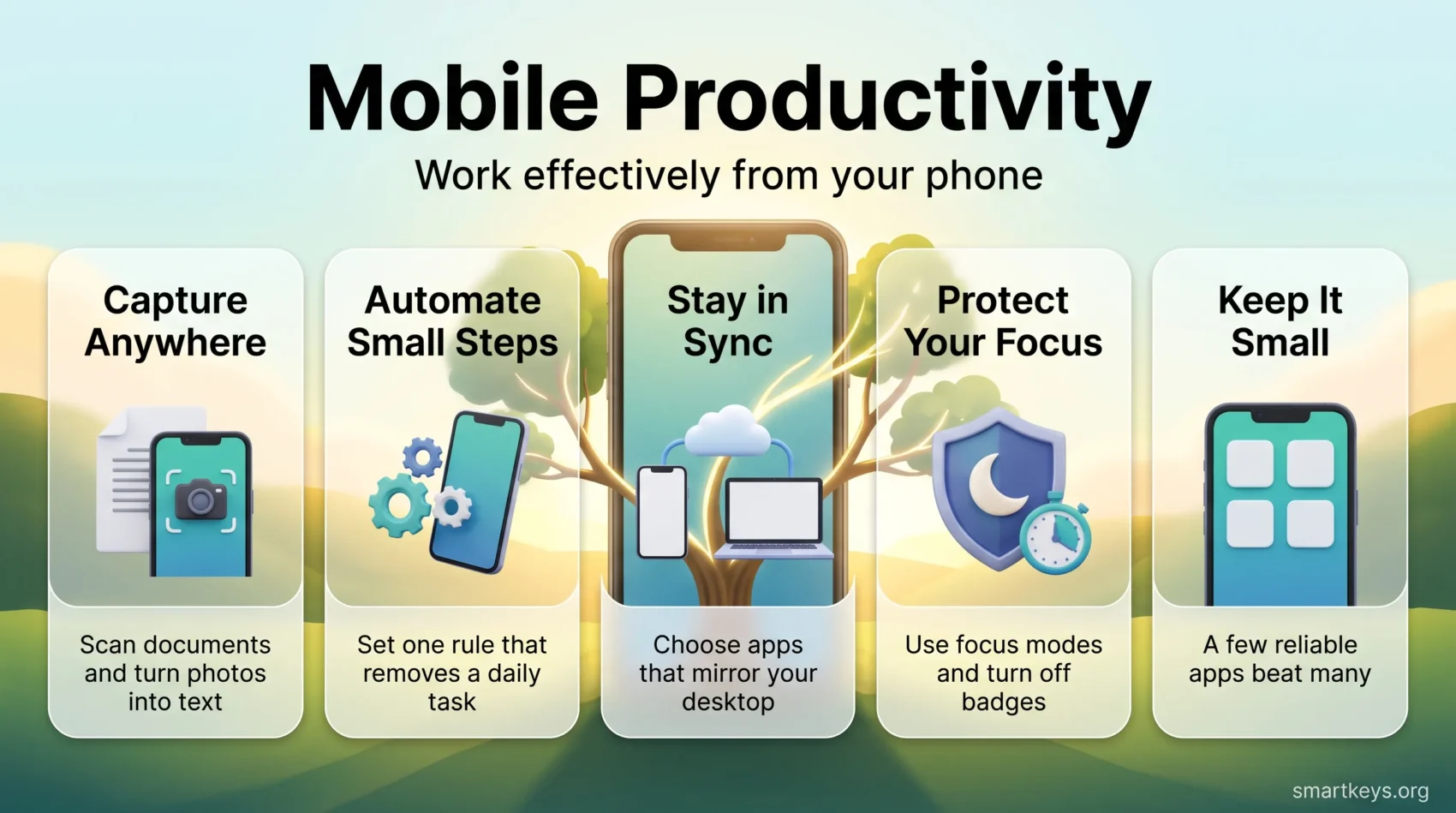
Your phone will never replace your desk, but it can carry a surprising share of your workday. Approvals, quick drafts, meeting notes, signatures, a scanned receipt: all of these can be finished in the minutes between other commitments, if your phone is set up for it.
This guide covers what actually works in 2026: which app categories earn a place on a small screen, what the tools cost now, and which habits protect your attention instead of adding another notification.
One warning up front: the goal is not to squeeze more work into more hours. It is to clear the repetitive parts and leave your longer focus blocks intact.
Key Takeaways
- Pair a small set of apps with a few firm habits. The habits matter more.
- OCR (optical character recognition, which turns a photo of text into editable text), AI drafting and mobile e-signatures remove the most taps.
- Free tiers have tightened since 2024. Check the current limits before you build a workflow on one.
- Pick tools that sync to your desktop, so nothing lives only on the phone.
- Start with two changes this week, then add more once they stick.
Why working from your phone can supercharge your day
Most workdays contain a lot of dead time: a delayed train, ten minutes before a call, a queue. Those gaps are too short for deep work but long enough to approve an invoice, reply to a blocked colleague, or capture an idea before it disappears. Clearing that small stuff from your phone protects the long blocks where your real work happens.
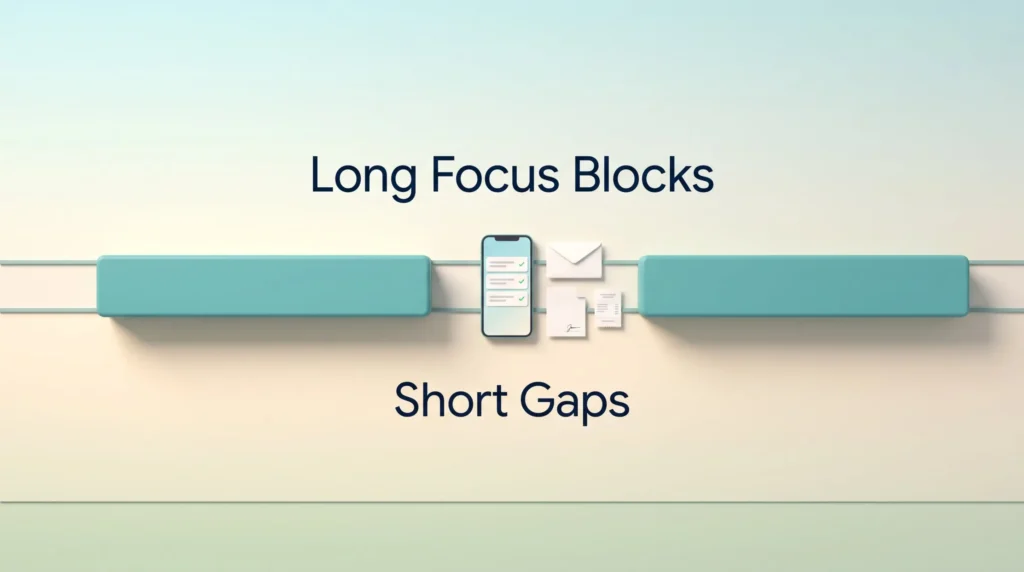
Modern phones make this practical. They mirror the desktop versions of most business apps, sync through the cloud, and offer search and dictation that cut typing to a minimum.
- Capture anywhere: photograph a document, record a thought, and use OCR to turn the image into text you can edit and search.
- Sync that holds: cloud services keep notes and tasks current, so you never work from an old version.
- Fast retrieval: system-wide search and dictation make a two-minute gap genuinely useful.
- Control over interruptions: focus modes and offline access let you decide when the phone is allowed to interrupt you. Our guide to managing work notifications covers the settings worth changing first.
“A few smart apps and sensible defaults turn spare minutes into forward motion.”
Set up well, a phone handles approvals and lets you decide things sooner. That is usually the whole benefit: fewer items waiting on you.
Best productivity apps for mobile: a curated roundup by category
Group apps by the job they do, not by brand. That makes it obvious when three tools do the same thing and none does it well.
Assistive tools
ABBYY FineReader is a strong OCR option for books, contracts and screenshots when you need a clean, editable conversion rather than a rough one.
Grammarly checks grammar and tone as you type. The free tier covers spelling and basic grammar, usually enough for email on a small screen.
DocuSign lets you review and sign from your phone. Signing a document someone sent you is free; sending documents out for signature needs a paid plan. Our DocuSign review goes through the tiers in detail.
ChatGPT is fastest for outlines, first drafts and summarising a long thread before you reply. Treat the output as a draft, never an answer.
Automation helpers
- IFTTT connects consumer services and smart devices with simple trigger-and-action rules.
- Apple Shortcuts chains steps on iPhone, so one tap or a Siri phrase runs a whole routine.
- Otter.ai transcribes meetings and makes the transcript searchable.
- Zapier handles business automation across apps like Mailchimp, Asana and your CRM.
Office essentials on the go
Google Workspace covers documents, spreadsheets, storage and calendar with real-time collaboration and automatic saving. Our Google Workspace review compares the plans.
Joplin is an open-source notes app with cross-platform sync and no vendor lock-in. Jotform builds forms quickly, and Lucidchart handles process diagrams your team can edit together.
“Pick a few tools and let them do the heavy lifting.”
Automation that saves you time (and taps)
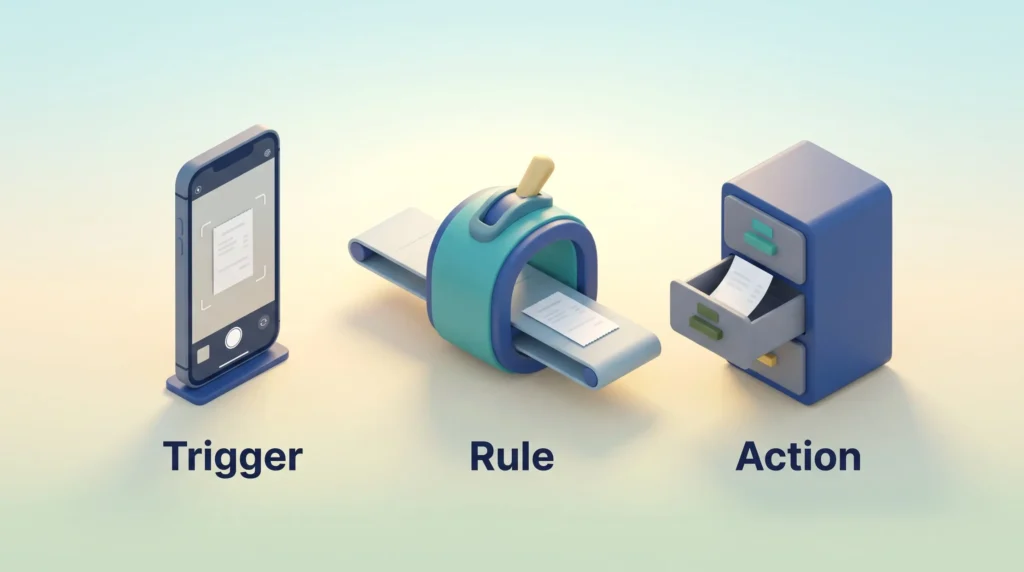
Automation means setting a rule once so a routine step happens by itself: a starred email becomes a task, a receipt photo lands in the right folder. On a phone this matters more than on a desktop, because every saved tap is one you would otherwise make with a thumb on a train. One thing has changed: the free tiers of the major automation tools are much tighter than they were a few years ago, so check the current limit before you plan around one.
IFTTT: move information between services and devices
IFTTT links triggers and actions across a wide range of consumer services and smart devices. The free plan is now limited to two active applets. Pro costs $2.99 a month for 20 applets and multi-action rules, and Pro+ costs $8.99 a month for unlimited applets, according to IFTTT’s own pricing page. Two applets is enough to test the idea, not enough to run on.
Apple Shortcuts: multi-step workflows from your iPhone
Shortcuts is free and built into iOS. It chains actions so one tap runs many steps: convert photos to a PDF and email it, or start a work playlist and timer together. Android’s Routines and Modes cover similar ground with a smaller library.
Zapier: business apps, from email to project tasks
Zapier is the one to reach for when a workflow crosses business systems. Its free plan allows 100 tasks a month and two-step workflows; paid plans start at $19.99 a month for multi-step automation. That free allowance runs out quickly if you automate anything busy, such as inbound leads. Our Workato vs Zapier comparison covers what changes when automation becomes a company-wide concern.
Otter.ai: live transcription and searchable notes
Otter.ai transcribes meetings live so you can listen instead of typing. Its pricing page lists a free plan of 300 transcription minutes a month with a 30-minute cap per conversation, and Pro at $16.99 a month billed monthly, or $8.33 billed annually, for 1,200 minutes and 90 minutes per meeting. Our guide to an AI meeting notes workflow shows how to turn transcripts into decisions rather than another archive.
- Start with one rule that removes a daily micro-task, not five that you will never audit.
- Use Shortcuts for anything that happens only on your own phone. It is free and does not count against a quota.
- Save the paid automation quota for workflows that cross systems, where a person would otherwise copy and paste.
- Check permissions when you set a rule up, and again if it stops firing.
- Write down your top automations somewhere your team can see them, so the knowledge does not sit in one person’s phone.
“Automations reduce context switching by handling repeatable steps the same way every time.”
Collaborate from anywhere: mobile apps for teams and projects
A shared task board only works if everyone can read it on a phone. That rules out a surprising number of tools with dense desktop layouts.
Task views that survive a small screen: Asana offers lists, boards and timelines, with a free tier for very small teams. Trello uses simple Kanban cards that read well on a phone. Miro adds a shared whiteboard for workshops. Our Asana vs Trello comparison covers which suits which kind of work.
- All-in-one hubs: Basecamp has moved away from per-user pricing. It now has a free tier for one project and up to five users, with paid plans from $25 a month up to $99 a month for larger teams and no per-user fee. Teamwork keeps per-seat pricing: a free plan for up to five users, then $9.99 per user per month billed yearly.
- Data and timelines: Airtable works as a flexible database with templates. GanttPRO focuses on Gantt charts, starting at $7 per user per month on the annual Core plan.
These figures come from the vendors’ own pricing pages and change often, so confirm before committing a team.
“Standardize intake with shared templates so tasks are complete and actionable the moment they are created.”
For a wider list of options and setup tips, see our roundup of productivity apps and our guide to task management.
Communication that cuts through the noise
Most phone overwhelm is a message problem, not an app problem. Fix where messages land and how fast people expect a reply, and the phone gets quieter by itself.
Email clients with smart features
Spark is free and built for fast triage, with swipe actions and a clean inbox view.
Canary Mail adds AI-assisted drafting, snooze, encryption and read receipts, with a usable free tier.
HEY takes a stricter approach: new senders wait in a screener until you approve them. It costs $99 a year for a personal account, or $12 per user per month for a custom domain. If your inbox is the bottleneck, our inbox zero method and email workflow guides pair well with any of these.
Real-time and asynchronous messaging
Slack separates direct messages, channels and calls, which helps people ask in the right place. Our Slack review covers the current plans.
Zoom Workplace adds AI summaries and light document editing to video, which makes short recorded updates a reasonable substitute for a meeting.
- Pick one email app and learn its triage gestures properly.
- Use filters, snooze and bulk actions to clear low-value mail in one pass.
- Agree channel norms in Slack so the same question is not asked in four places.
- Use threads, pins and saved items so decisions stay findable.
- On your phone, allow notifications for mentions and direct messages only.
Written updates that do not need an instant reply belong in asynchronous communication tools, which is what makes a phone workable across time zones.
“Set clear response expectations so your communication system serves your team, not the other way around.”
Focus, time management, and attention tools that work
Focus tools cannot create attention, but they can remove the easiest ways to lose it. Use one way to structure the session, one way to see where the time went, and one way to block the obvious traps.
Caveday: guided deep work sessions
Caveday runs live virtual coworking sessions of 30 minutes to three hours, with a facilitator who sets the intention and calls the breaks. The Starter Pass is $105 for three months, with a 14-day free trial. It works on body doubling: you focus better because other people are visibly working alongside you.
RescueTime: see where your hours actually go
RescueTime tracks app and website use and reports where your time went. The Focus plan is $9 a month billed monthly, or $7 billed annually, with a 14-day trial. Run it for a week before changing anything, then schedule demanding work in the hours the data says you are sharpest.
SaneBox and website blockers: tame inboxes and distractions
SaneBox sorts unimportant email into a separate folder so your main inbox holds only what needs you. There is a two-week free trial; check the current price, as tiers vary by number of accounts.
StayFocusd blocks distracting sites on a schedule, but it is a Chrome extension and runs on your computer, not your phone. On mobile, the equivalent is your phone’s own screen time limits and focus modes, which is where our guides to website blockers and focus mode are more useful.
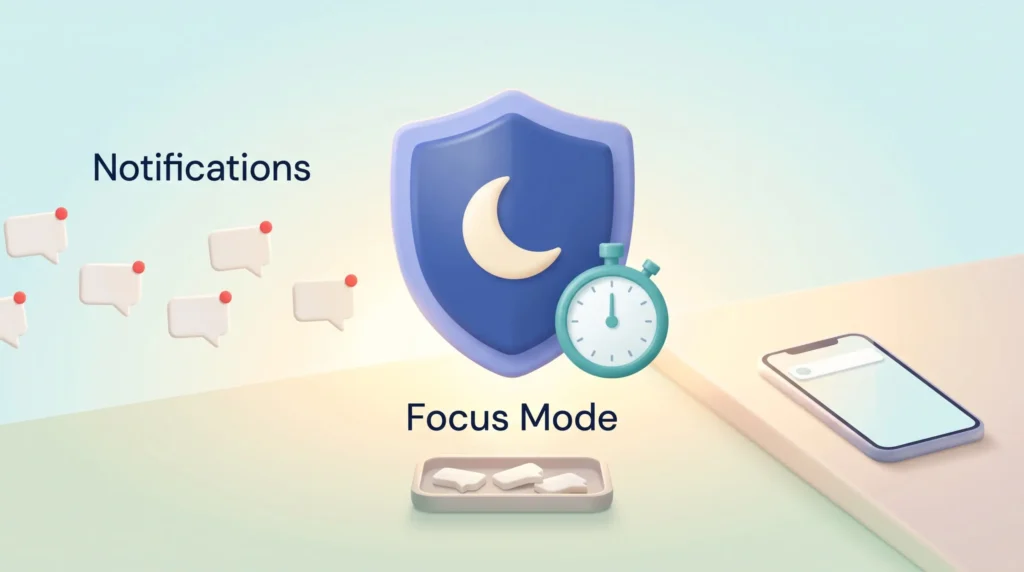
- Pair a timer with a focus mode, so the block is protected as well as scheduled.
- Turn off badges. A red dot is an interruption even when you ignore it.
- Track two things only: focused minutes and tasks finished. More metrics become their own distraction.
“Small systems for attention beat willpower alone; protect your peak hours and the rest of the day improves.”
Keep what helps and drop the rest after a month. A tool you stopped opening is not a system.
Mobile productivity tips you can put to use today
These take a few minutes each and pay back immediately.
Time-block with a timer you already own
Use the clock app to run 25-minute sprints with a real break after each one. The Pomodoro technique suits short gaps in a day; longer blocks are better handled with time blocking in your calendar.
Protect focus with a focus mode
Turn on a focus mode from Control Center on iPhone or Quick Settings on Android before any block of real work. Allow calls from two or three people so a genuine emergency still reaches you.
Search, listen, and save
Learn your phone’s system search properly: it jumps straight to a note, calendar entry or contact without opening the app first. On iPhone, Speak Screen (Settings, then Accessibility, then Spoken Content) reads documents and web pages aloud, which turns a commute into reading time.
- For long reads, use a read-it-later app that is still supported. Mozilla shut Pocket down in 2025, so anything saved there is gone; Instapaper, Readwise Reader and Raindrop are the common replacements.
- Move your worst time-sink app off the home screen, or delete it and use the browser version.
- Install your team’s core apps and sign in once, so a nudge does not wait for your desk.
- Set up text expansion for phrases you type often, and teach Siri contact relationships so you can say “text my boss” hands-free.
“Small habits, timers, quiet screens and quick access, add up to big gains.”
To-do lists, notes, and calendars that stay in sync
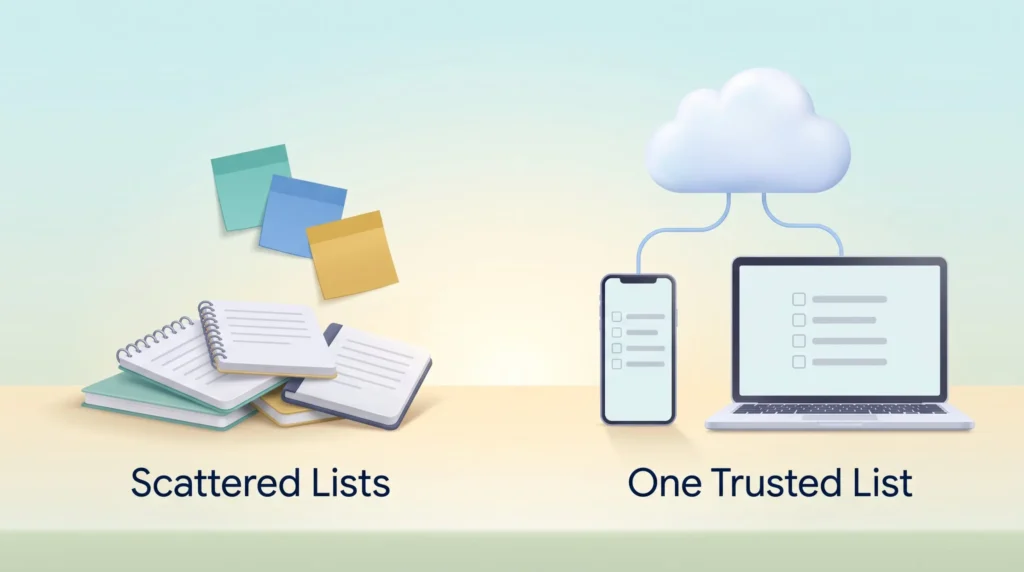
Scattered lists are the most common reason a phone feels chaotic. When capture, scheduling and reference each have one home, you stop searching and start finishing. Choose tools that sync to your desktop, so the phone is a window onto your system rather than a separate island.
Todoist, TickTick, Google Tasks and Evernote for unified capture
Todoist and TickTick both handle priorities, subtasks, reminders and simple sharing, and both open fast enough to catch a thought before it escapes.
Google Tasks is the pragmatic choice if you live in Gmail and Google Calendar, because an email can become a dated task without leaving the inbox.
Evernote stores mixed content well: images, audio, PDFs, with search that reaches inside them. Our Evernote vs OneNote comparison covers the trade-offs.
- Run one task app, not two. Two lists means neither is trusted.
- Give every task a date or a tag, so it surfaces when you can actually act on it.
- Attach the document to the task. Context on the phone saves a trip to the laptop.
- Turn action emails into tasks and archive the message. Keep the inbox for new mail only.
- Review the week once and plan each morning. Our guide to capturing tasks covers the routine in detail.
“Create one trusted task list and let your tools do the management.”
Mobile productivity: how to choose the right tools
Start from the work, not the app store. Write down the three things you most often need to do away from your desk, then judge every candidate against that short list.
Match features to workflows: integrations, offline access, and team support
Integrations first. A tool that already talks to your calendar and email removes copying by hand. One that does not will quietly create a second version of the truth.
Then check offline access honestly. Many apps show cached content but refuse to save an edit, which you discover mid-flight.
Finally, check team support: role-based permissions, mentions and shared views. These decide whether the tool still works when the team doubles.
- Start with workflows: list the must-have features that match how you already work.
- Prioritize integrations: every manual copy is a future error.
- Check the free tier’s real limits: task quotas and user caps have tightened across the market.
- Look at reporting and templates: they cut the manual updating that eats a manager’s week.
Run a two-week pilot with a few colleagues before you roll anything out, and write down the conventions you agree on. That document is what makes onboarding fast later. For the habits behind all of this, see our guide to remote work productivity.
Conclusion
Keep the stack small. A few reliable apps with good search, dependable sync and one or two automations will out-perform a phone full of half-used tools.
Do two things this week: turn on a focus mode for your main block of work, and set up one automation that saves a few minutes every day. Both take under ten minutes. Then review the setup once a month and delete what you stopped opening.
The point is not to work everywhere. It is to stop carrying unfinished small tasks around with you.
Found this useful?
Make SmartKeys a preferred source on Google, and our articles will surface more often in your Top Stories, AI Overviews, and AI Mode.
Add as Preferred Source