The internet hands you endless content, and that stream pulls your attention away in minutes. Tabs multiply, apps ping, and hours disappear into scrolling.
A website blocker is a piece of software that cuts off access to the sites and apps you keep opening by reflex. It does not ask you to be more disciplined. It simply removes the option for a set period, which is a much easier thing to sustain.
This guide covers the tools that hold up in 2026 and what each one costs. It also shows how to run your first focus session without locking yourself out of something you need.
Key Takeaways
- A blocker replaces willpower with a rule your software enforces for you.
- Covering phone and computer together closes the loophole of switching devices.
- Free browser extensions are the cheapest way to test the habit before you pay.
- Scheduling and locked modes are the two features that decide whether a tool sticks.
- Prices range from free to a one-time $45 licence or a $199 lifetime plan.
Why willpower loses to the feed
Social platforms and news sites are built around novelty and variable rewards, the same mechanism that makes slot machines hard to walk away from. You do not decide to lose twenty minutes. The design decides for you.
The scale of the problem is measurable. Research by Gloria Mark at the University of California, Irvine found that office workers hold their attention on one screen for about 47 seconds before switching. In 2004 the same measure was roughly two and a half minutes. Her earlier work on interruptions put the cost of a single one at around 23 minutes before people return to the original task.
A blocker breaks that loop at the one point where it can be broken: the moment you type the URL. Instead of the feed, you get a blank page or a short reminder. The reflex fails, and the decision comes back to you.
There is a second benefit that matters more over weeks than days. When distracting sites simply are not available, you stop spending energy resisting them. That freed-up attention is what makes longer stretches of deep, focused work feel possible again rather than exhausting.
How we judged these tools
Three questions decided which tools made this list.
Does it enforce reliably? A blocker that you can switch off in two clicks during a moment of temptation is a reminder, not a block. We looked at locked modes, password protection and uninstall guards.
Does it cover where you actually get distracted? A browser extension is useless if the pull is your phone. Cross-device coverage matters more than feature count.
Is the pricing honest? We checked the vendors’ own pricing pages in September 2026 rather than repeating figures from older roundups. Prices below are the published US list prices at that time and can change.
Freedom: the cross-device option
Freedom is the tool to pick when your phone is part of the problem. It blocks websites, mobile apps, desktop apps or the entire internet, and it syncs one session across macOS, Windows, iOS and Android. Chromebook gets website blocking through an extension.
Three features carry it. Scheduling sets recurring sessions so focus starts without a daily decision. Locked Mode stops you ending an active session early. Block All Except shuts off everything apart from the handful of tools you genuinely need, which is useful when your work lives in a browser.
Freedom’s published pricing is $8.99 per month, or $3.33 per month billed annually. A Premium Forever licence lists at $199, though the site was showing it at $99.50 in September 2026. There is a free tier and a trial, so you can test cross-device blocking before paying.
The trade-off is that you are paying a subscription for something a free extension does in one browser. That only makes sense if you genuinely switch devices, which most people do more than they think.
Cold Turkey Blocker: system-wide control on your computer
Cold Turkey Blocker works below the browser, so a block applies no matter which browser or program you open. It is a desktop tool for Windows and macOS with no mobile version.
You build custom lists of sites and applications, then either schedule recurring sessions or start one on demand. Two features set it apart. Frozen Turkey locks you out of the computer entirely for a set time, which is blunt but effective against mid-afternoon drift. Uninstall protection and locked time settings stop the obvious workarounds.
Blocker Pro is a one-time purchase, listed at $45 with free lifetime updates and one licence covering all the computers you personally use. There is a free version with basic website blocking.
Setup takes longer than an extension and the interface is functional rather than friendly. If your work happens on one computer and you want strong enforcement without a subscription, it is the best value on this list.
Free browser extensions: LeechBlock NG and StayFocusd
If you are not sure a blocker will help, start here. Extensions cost nothing, install in under a minute, and tell you within a week whether the habit is worth paying for.
LeechBlock NG runs on Firefox, Chrome, Edge and other Chromium browsers including Brave, Opera and Vivaldi. It is free. You can configure up to 30 block sets, each with its own sites, days and times, plus hourly limits such as ten minutes per hour. A lockdown button blocks immediately for a chosen duration, and you can password-protect the options page so you cannot casually undo your own rules.
StayFocusd takes the daily-cap approach on Chrome. You allow yourself a set number of minutes on chosen sites. When the budget runs out, those sites close for the rest of the day. Its Nuclear Option blocks irreversibly for a set window. The Chrome Web Store listing shows roughly 700,000 users and a 4.4 rating across about 8,800 reviews, and it was last updated in September 2026.
One caveat specific to Chrome. Google’s move from the Manifest V2 extension platform to Manifest V3 finished in 2026. The last V2 support left Chrome in July, and remaining V2 listings were pulled from the Web Store on 31 August. In practice most V2 extensions stopped working for ordinary users back in July 2025, so anything still working in your browser today is already V3 and unaffected. If a blocker you relied on quietly died, this is why.
The honest limitation of any extension: switching to a different browser, or picking up your phone, gets round it in seconds.
Mac tools for strict focus: SelfControl and Session
SelfControl is free, open source and deliberately unforgiving. You add sites to a blocklist, set a timer, and that is it. Restarting the Mac does not help. Deleting the app does not help. The block lifts when the timer runs out.
That makes it excellent for a deadline and risky for a normal workday. Build a narrow list first, because there is no way to add an exception once a session is running.
Session takes the opposite approach: a Pomodoro-style timer that blocks sites and mutes apps during each work interval. It connects to your calendar, silences Slack, and can trigger Apple Shortcuts so a focus block starts by itself after a meeting ends. It runs on macOS and iOS. The free tier covers basic timed sessions; Pro starts at $4.99 per month for automation and longer sessions.
If you already work in intervals, Session removes the manual step of starting the block. If you have not tried intervals yet, the Pomodoro Technique is a sensible place to start before adding software to it.
Friction instead of blocking: one sec
A hard block is not always the right answer. Some of the sites you open by reflex are ones you legitimately need a few times a day.
one sec adds a short breathing animation before a flagged app or site opens, then asks whether you still want to continue. It also counts how often you tried, which turns a vague sense of “I check X too much” into a number you can watch fall. It works as a browser extension on Chrome, Firefox, Safari and Edge, plus apps on iOS, Android and macOS.
The free version covers one app. Pro unlocks unlimited targets, website blocking and strict block sessions, with subscriptions starting around $2.99 per month and an annual plan the company quotes at $19. A lifetime option exists; the price moves, so check before buying.
Friction suits people who resent being locked out. The delay is only a few seconds, but it is enough to turn an automatic tap into a choice. That is the same mechanism behind a social media detox, without the all-or-nothing commitment.
Gamified focus: Forest
Forest rewards you for leaving the phone alone. Start a session and a virtual tree grows. Leave the app early and it dies. Over days you build a small forest, which sounds trivial and works better than it should, because it gives an invisible habit something visible to show for itself.
Forest costs $3.99 as a one-time purchase on iOS. On Android there is a free ad-supported version with a $1.99 Pro upgrade. The browser extension is free and syncs with the mobile app, so desktop and phone sessions feed the same forest. Coins earned in the app can fund real tree planting through the company’s partnership with Trees for the Future.
It is a motivation tool, not an enforcement tool. Nothing stops you closing it. Pair it with something stricter for work that genuinely cannot slip, and use it on its own when the goal is simply to check your phone less.
Which type fits how you work
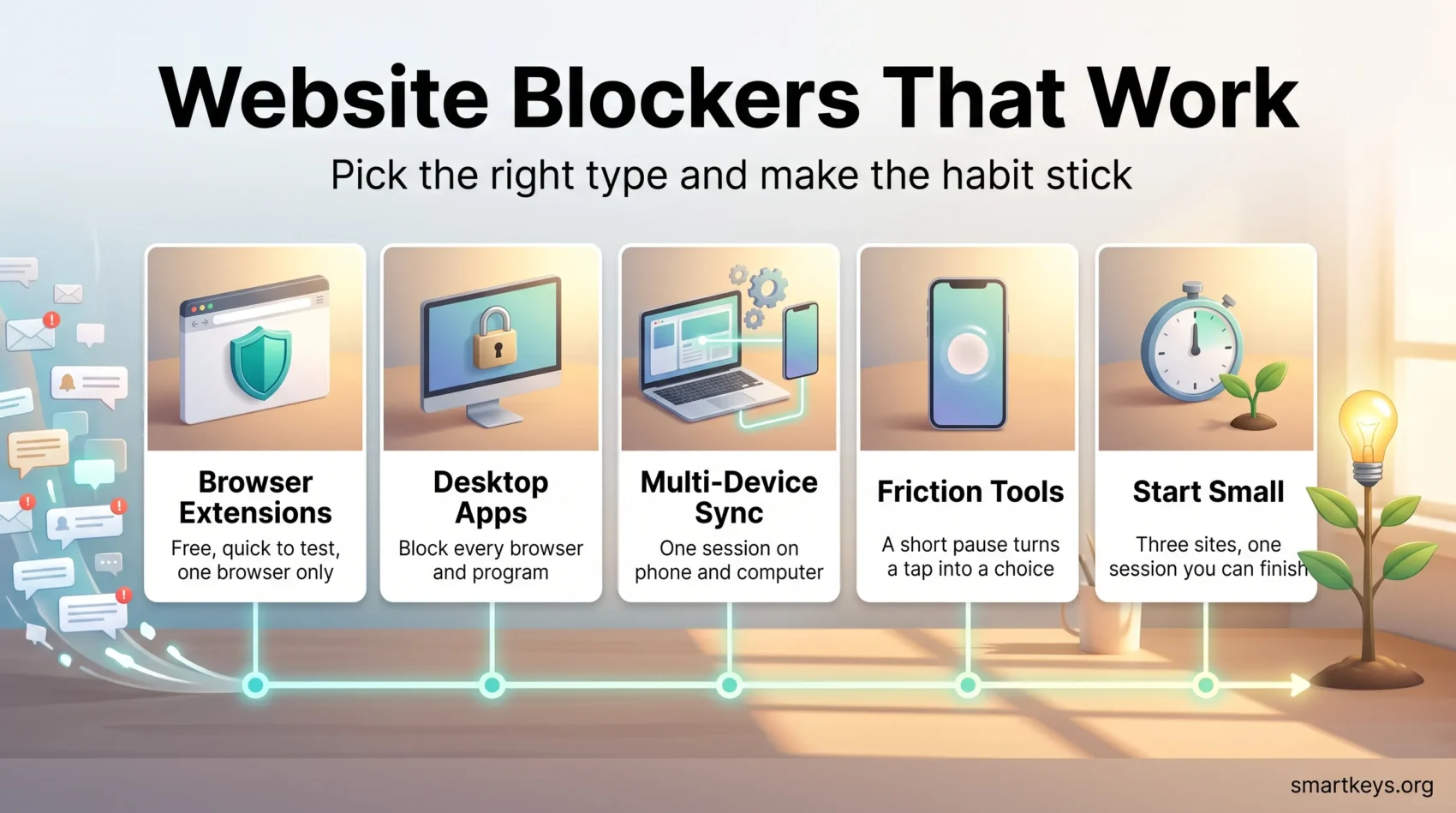
The three categories solve different problems, and picking the wrong one is the most common reason people abandon a blocker in week two.
A browser extension is enough when your distractions live in one browser on one machine, and you want to test the idea at zero cost. It is the right starting point for most people. It is also the easiest to bypass.
A system-wide desktop app makes sense when you catch yourself opening a second browser or a desktop app to get round the first block. Cold Turkey stops the app-hopping that defeats extensions.
A multi-device service earns its subscription only if the phone is the real leak. If you block Twitter on your laptop and then reach for your phone, you have not solved anything; you have added a step. Freedom is the main option here.
Whichever you choose, a blocker works best alongside a plan for the time it protects. Pairing it with time blocking or a team-wide focus time policy turns “do not go on Reddit” into “work on this specific thing until 11”.
The features that actually decide whether it sticks
Feature lists are long and mostly irrelevant. Four things matter.
Scheduling. Recurring sessions remove the daily decision to start. This is the single biggest predictor of whether people still use a blocker after a month, because a decision you never have to make is one you cannot get wrong.
Locked modes and uninstall guards. These exist for the ten seconds when you want the block gone. If a tool can be disabled in that window, it will be. Cold Turkey and SelfControl are strongest here.
Block All Except. Cutting the whole internet sounds appealing until your project management tool stops loading. An allowlist keeps the two or three things you need and removes everything else.
Cross-device sync. Only worth paying for if you actually switch devices. Be honest about this before buying a subscription.
Other extras, such as focus sounds, statistics and streaks, are nice but rarely the reason a tool succeeds or fails. Statistics do have one use: they show you which sites take the most time, which is often not the site you assumed.
What these tools cost in 2026
Prices below are published US list prices checked in September 2026 and may change.
- Free: LeechBlock NG, StayFocusd, SelfControl, plus the free tiers of Freedom, Cold Turkey, Session, one sec and Forest on Android.
- One-time: Cold Turkey Blocker Pro at $45; Forest at $3.99 on iOS and $1.99 on Android.
- Subscription: Freedom at $8.99 monthly or $3.33 monthly billed yearly; Session Pro from $4.99 monthly; one sec from about $2.99 monthly, quoted at $19 a year.
- Lifetime: Freedom Premium Forever listed at $199 and discounted to $99.50 at the time of checking.
A reasonable path: start free with an extension for two weeks. If it helps but you keep slipping on the desktop, buy Cold Turkey once. If you keep slipping on your phone, pay for Freedom. Skip lifetime licences until you have used the tool daily for a couple of months.
Set up your first session without regretting it
Most failed attempts come from starting too strict. Three steps keep the first week survivable.
Build a short blocklist. Write down the three or four sites and apps that actually take your time. Not ten. Add an allowlist for anything you need for the task at hand, such as your email client or documentation you look things up in.
Pick a length you can finish. Somewhere between 25 and 50 minutes is a reasonable first session, with a real break afterwards. Short, complete sessions build the habit faster than long sessions you abandon halfway, and the evidence on short breaks supports pausing rather than pushing through.
Close the device gap. If your phone is within reach, block it too or put it in another room. A block that covers only your laptop mostly teaches you to reach for your phone.
Save locked modes for later. Once you know how long you can actually work and what you need open, tightening the rules is easy. Locking yourself out on day one usually ends with the software uninstalled.
Mistakes that turn a good tool into an annoyance
Blocking too much. If the block gets in the way of legitimate work, you will disable it mid-session and probably not turn it back on. Start narrow.
Ignoring apps. Site-level rules do nothing about a desktop mail client or a phone app. Check both when you configure a block.
Treating the tool as the whole plan. A blocker removes a distraction. It does not tell you what to do instead. Decide the task before the session starts, or you will sit in front of a blocked browser doing nothing. Building a little self-discipline around what happens in the protected time is what makes the block worth having.
Leaving the settings unlocked when you know you are weak. The opposite mistake to over-blocking, and equally common. If you have disabled the block three times this week, that is the signal to turn on locked mode.
Forgetting the rest of the noise. Notifications, chat and email interrupt just as effectively as websites do. Blockers pair well with tighter notification settings and clear instant messaging boundaries.
Blockers are not parental controls
The two categories look similar and are built for opposite purposes.
Focus tools are made for adults blocking themselves. They emphasise flexible rules, schedules and self-set limits, and they assume you are both the person setting the rule and the person it applies to.
Parental control software adds content filtering, activity reports and location tracking so a caregiver can supervise a child. Those features are about oversight, not self-management, and using them on yourself tends to feel like surveillance without adding any real enforcement.
Pick a focus tool for your own work. Use parental controls only when you actually need content filtering for someone else.
Conclusion
Website blockers work because they move the decision away from the moment you are least able to make it well. You choose once, when you are calm, and the software holds the line when you are not.
Start with a free extension and a short session this week. If the block keeps holding but you keep switching devices, pay for cross-device coverage. If your work is desktop-bound, a single $45 licence solves it permanently.
The tool matters less than the routine around it. Combine blocking with a clear task, a realistic session length and a proper break. That gives you the thing the software cannot provide on its own: time you actually use.
Related reading
- Simple focus tools that help you concentrate
- How to build a longer attention span
- Single-tasking: doing one thing at a time
- Seven focus management techniques for distraction-free work
- Creating a digital detox routine
- How to combat digital fatigue
- Overcoming procrastination
- Setting boundaries to protect your personal time
- Managing your energy, not just your time
- Workspace optimization for better focus
Found this useful?
Make SmartKeys a preferred source on Google, and our articles will surface more often in your Top Stories, AI Overviews, and AI Mode.
Add as Preferred Source