You’re about to get a clear roadmap for building a system that moves your notes from capture to recall without friction. This intro points to real choices: Kindle Scribe’s long battery and ebook annotation, reMarkable’s paper-like displays, Supernote’s expandable storage, and lighter options like Kobo.
Use the right app or notebook for the job. Some tools shine for long reading and writing, while others win for quick capture and cross-device sync. Free services like OneNote, Apple Notes, and Google Keep pair well with heavier apps such as Notion when you need templates, tags, or AI prompts.
By the end you’ll know practical ways to combine devices, paper-like feel, and apps so your system fits your work and daily life. Expect simple setups, clear feature trade-offs, and a short list of smart purchases to start improving your experience today.
Key Takeaways
- Pick tools that match your reading and writing habits; e-ink for long reads, apps for quick capture.
- Look for features that save time: search, tags, templates, and sync across devices.
- Combine one main app with a lightweight option for meetings or quick lists.
- Choose a notebook or device that feels like paper if handwriting matters to you.
- Start with a small setup and refine it so your notes turn into action fast.
What you really want from digital note-taking today
The goal isn’t more pages — it’s faster recall and clearer next steps from what you write. You want a system that turns captured ideas into calendar events, tasks, or shared actions without extra friction.
Organize faster, recall better: map notes to actions by linking a page to a task or teammate the moment you create it. Use tags, backlinks, and quick search so you can pull an idea in seconds instead of scrolling forever.
Organize faster, recall better: mapping notes to actions
Start with simple workflows that connect a page to your calendar or task list. Design templates for meetings, reading logs, and project kickoffs so each new page begins with structure.
- One-click next steps: turn a bullet into a task or event.
- Tag and search: retrieve relevant notes in seconds.
- Split by purpose: reference, tasks, and thinking live in different places.
- Weekly review: a short habit that compounds progress.
Matching tools to your learning curve and workflow
Pick one familiar app and use it well before adding complexity. Add advanced features only when they speed up your work or improve recall.
Keep capture fast with lightweight apps you can open anywhere. Bridge handwriting and typed text by syncing or exporting so you don’t duplicate effort and your system stays usable.
How to choose a digital notebook or notes app without the overwhelm
Choose a single capture spot first — the rest follows from how you actually write and share. Start by matching the tool to your daily habits: do you draft by hand, or type first? That choice narrows the field quickly.
Paper feel, stylus, and latency: why writing experience still matters
If the pen doesn’t feel right, you won’t keep using it. Check screen texture, latency, and stylus ergonomics. Kindle Scribe has textured modes and a shortcut button on the pen. reMarkable offers a paper-like surface and adjustable front light. Supernote uses a durable nib and microSD support for flexible storage.
Storage, file formats, and export options you’ll actually use
Evaluate realistic storage needs. Scribe’s 16–64 GB and reMarkable’s 64 GB work if you export regularly. If you want expandable storage, pick a device with microSD.
- Files to prefer: PDF for sharing, images for quick posts.
- Export paths: choose devices that push to your cloud to avoid manual work.
- Templates & battery: favor devices with useful templates and battery life that fits your routine.
Best e‑ink digital notebooks: our present-day picks and who they fit
Decide whether you spend more time annotating books or drafting long-form pages before choosing a device. That choice quickly narrows which notebooks match your workflow.
Kindle Scribe
Reading-first with direct ebook annotations
The Scribe is built for reading and margin notes. It has a 10.2″ 300 ppi screen, warm front light, and 16–64 GB options. You can annotate Kindle books directly and use the stylus with an eraser and shortcut button.
reMarkable lineup
Paper-like feel across sizes
reMarkable Paper Pro (10.8″), Paper Pro Move (7.3″), and reMarkable 2 (9.7″) focus on distraction-free writing. Expect a very paper-like feel, week-plus battery life, and light, portable designs.
Supernote A5 & A6
Organization and durable pens
Supernote A5 Manta X2 gives you 300 ppi, 32 GB plus microSD, and ceramic-nib pens. The A6 Nomad is the travel size if you need a compact companion for quick notes and solid storage options.
Kobo Libra Color
Color E Ink trade-offs
Kobo adds color E Ink on a 7″ screen, 300 ppi mono and lower color resolution. It balances compact weight and long battery life for readers who want color highlights.
- Quick picks: Scribe for books; reMarkable for deep writing; Supernote for organization; Kobo for color.
- Storage & carry: watch internal tiers and microSD options when you choose.
Kindle Scribe deep dive: reading-first device that finally nails margin notes
If you want to keep focus on the text, Kindle Scribe blends a roomy screen with tools that make marking up pages feel immediate. This digital notebook is built around reading and in-line annotation, so your highlights and longer thoughts stay tied to the exact page.
The 10.2″ 300 ppi screen, adjustable warm light, and dark mode give crisp text and a pleasant feel for long sessions. Storage tiers of 16/32/64 GB and up to 12 weeks of battery life mean the device is ready when you are.
Why it’s great for annotating PDFs and Kindle books
The Scribe lets you write directly inside Kindle ebooks and open a linked notepad sidebar for longer entries tied to a book page. PDFs render cleanly and feel fluid thanks to low latency and the textured screen.
Stylus with eraser and shortcut button
The included stylus has a built-in eraser and a customizable shortcut you can set to highlighter or lasso. That speed matters when you are highlighting, selecting, and moving content across pages.
Templates, pen types, and limits to know
Choose from 18 templates and multiple pen styles—pen, pencil, marker, and fountain—each with several thicknesses to match your handwriting.
- Pros: direct ebook annotation, Audible support over Bluetooth, great handwriting feel.
- Cons: no Dropbox/Google Drive/OneDrive sync and handwriting search is limited to titles.
- Tip: pair Scribe with a desktop app for filing files and cross-note search if you need deeper organization.
reMarkable lineup at a glance: when distraction-free writing is your priority
If uninterrupted writing is your goal, reMarkable gives you a minimal canvas built to keep you in flow. The lineup focuses on a near-paper feel, simple tools, and long battery life so you spend time writing, not fiddling with settings.
Paper-like feel, battery up to two weeks, and tag workflows
The Paper Pro (10.8″) offers a 229 ppi display, adjustable front light, 64 GB storage, and weighs about 1.16 lb. It’s the best pick for long-form notes and sketching.
The Paper Pro Move (7.3″) brings a higher 264 ppi density, front light, 64 GB, and a featherlight 0.51 lb body for on-the-go writing.
The reMarkable 2 sits between them with a 9.7″ 226 ppi screen, 8 GB storage, and a 0.89 lb frame—balanced for many workflows.
Across models, battery runs up to two weeks. You can build simple tag workflows to surface related notes quickly, which helps the focused interface feel more searchable.
- You’ll choose reMarkable if you want a distraction-free canvas that feels close to paper.
- Lightweight designs make long writing sessions comfortable.
- Many users add an upgraded pen for eraser and shortcut features not included with the base stylus.
- For a month of steady focus, a reMarkable can reset scattered habits and help you build a clearer routine.
Supernote strengths: storage flexibility and linked headings for faster recall
Supernote stands out when you need expandable storage and a clear way to link headings across your notes. The A5 Manta X2 gives you a 10.7″ 300 ppi screen and 32 GB plus microSD, so your library grows without constant pruning.
The A6 X2 Nomad is the travel-friendly option. It fits daily to-do pages and quick capture while keeping the same reliable pen feel.
You can link headings and keywords across pages to build a navigable structure. That makes review faster and reduces time spent hunting for files.
- Storage: microSD expansion avoids juggling deletions.
- Writing & pen: ceramic-nib pens offer durable, smooth strokes for long sessions.
- Files & features: keep project folders by date, then jump between related sections.
Expect under a week of battery life with regular use. Pair Supernote with a desktop app to archive finished files and extend the device’s utility.
Choose Supernote when storage, organization, and a consistent writing experience outweigh deep app integrations.
Honorable mentions worth a look
Two alternative choices stand out when you need either tablet-style versatility or real paper with cloud backups. Both expand your toolkit without replacing the main picks.
Boox Note Air4 C: tablet-like versatility with a richer app ecosystem
Boox Note Air4 C behaves more like a tablet while keeping e-ink eye comfort. It replaces the Note Air3 C and gives you access to a broader set of apps and a more flexible OS.
If you need specific software or testing room for third-party tools, Boox grants those options. Expect more control, added complexity, and extra features compared with strict e-ink writers.
Rocketbook Fusion Plus: reusable paper with cloud destinations like Google Drive
Rocketbook Fusion Plus is a reusable paper system that uses Pilot Frixion pens. Write like you normally would, scan pages with the Rocketbook app, and send files to destinations such as Google Drive, OneNote, Slack, or Trello.
You can erase pages with a damp cloth and reuse templates for calendars, meetings, and project layouts. This keeps physical writing while giving reliable cloud backups for your notes and files.
- Who each suits: choose Boox if you want tablet-style apps and more features. Pick Rocketbook if you prefer real paper plus easy cloud sync.
- Both are solid options to add flexibility to your setup and complement your main devices.
Smart pens that bridge paper and cloud
If you prefer pen and paper, smart pens let your handwriting live online without changing how you write. They capture what you do on special pages and send it to an app so your notes become searchable.
Neo Smartpen M1+: thin, light, and a smooth Neo Studio app experience
The Neo Smartpen M1+ is the thinnest and lightest model I tested. It feels like a standard pen and stays comfortable during long writing sessions.
The Neo Studio app lets you search by page or date and change ink color and thickness. At about $129, it balances helpful features with a friendly price.
Moleskine Smart Writing Set: notebook + pen bundle to get you started
Moleskine bundles a well-made notebook and pen so you can start capturing notes right away. The Moleskine Notes 2.0 app is streamlined on iOS and Android, which keeps the setup simple.
Budget pick: Neo Smartpen Dimo pros and trade-offs
The Neo Smartpen Dimo costs about $59 and uses replaceable batteries. It records handwriting reliably but lacks calendar integrations like Google Calendar or Outlook.
- Why use one: keep the tactile feel of paper while gaining searchable, shareable notes.
- Trade-offs: weigh features and options against price—higher-end bundles smooth the workflow; budget picks may need extra steps.
- Battery: expect a month or more of casual use on some models, but check if the unit uses replaceable cells.
Bottom line: a smart pen can be the lowest-friction way to digitize your notes and complement your main apps for quick capture in meetings or on the go.
The best notes apps for different styles of taking notes
Match the kind of notes you write to the app that makes them easiest to find later. Below are practical choices so you can pick the right fit fast.
Microsoft OneNote
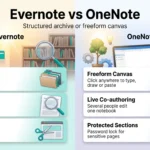
OneNote is free across platforms and gives you a true freeform canvas on desktop and mobile. Mix typed text, images, and ink without constraints. It uses OneDrive (5 GB free; upgrade options start at $1.99/month for 100 GB).
Apple Notes
Apple Notes is built into iOS and macOS. It syncs via iCloud (5 GB free), scans documents, and searches quickly. If you live in the Apple ecosystem, it’s fast and quietly powerful.
Google Keep
Google Keep is ideal for quick capture that follows you through Gmail, Docs, and Calendar. It appears in the right sidebar and ties into Google Drive (15 GB shared), making short reminders and lists simple.
Notion
Notion is the team option when collaboration, databases, and structured pages matter. Personal use is free; Notion AI is a $10/month subscription for summaries and smarter search.
Obsidian & Joplin
Obsidian and Joplin suit power users who want offline control. Obsidian adds bi-directional links and a knowledge-graph feel. Joplin is open source and gives you full Markdown and local storage options.
- If you work at a desktop, choose an app that opens instantly and indexes well.
- Test OneNote and Apple Notes first, then add Notion or Obsidian as needs grow.
- For hybrid audio or transcribed ideas, see this guide on audio notes organization.
Digital note-taking
Build a simple retrieval layer so your notes surface when you actually need them. Use search, tags, and backlinks together to turn scattered pages into a fast memory network.
Search, tags, and backlinks: the trio that supercharges recall
Make search your go-to habit. Short, descriptive titles and the first line of a page act as tiny previews that save clicks.
Tags should be light and consistent—use a handful you will reuse. Backlinks then stitch related pages together so context travels with each idea.
- Quick find: search for a keyword, then jump to tagged pages that matter.
- Cross-link: link meeting notes to project pages and reading highlights to tasks.
- Keep tags simple: avoid a big taxonomy; use memorable short tags instead.
Templates for meetings, reading notes, and project pages
Templates keep your pages consistent. Add fields for decisions, action items, owners, and references so your future self doesn’t guess the context.
- Create weekly review, 1:1 agenda, and research log templates you open often.
- Save snippets, images, and quotes in a single place and backlink them to relevant pages.
- Audit your features monthly—keep what helps, switch off what distracts.
Finally, use an app that supports these features and build the habit of quick capture from your phone. The tools matter, but the ways you use them make the difference.
Your ecosystem matters: iPad, E Ink, or desktop-first?
Pick an ecosystem that reduces friction for the apps and files you already use every day. Your choice should match how you read, write, and move between home, office, and commute.
When an iPad + Apple Pencil beats E Ink — and when it doesn’t
If you sketch, annotate PDFs heavily, or rely on many apps, an iPad plus Apple Pencil wins for speed and flexibility. GoodNotes or Notability on a recent iPad gives fast multitasking and broad app support at a competitive price.
But if eye comfort, a paper-like feel, and multi-day standby matter most, E Ink devices keep you focused and reduce screen fatigue. Kindle Scribe and other e-readers often hold battery for a week or two when idle.
File access: Dropbox, Google Drive, OneDrive, and vendor lock-in
Consider how you move files. iPad apps usually integrate with Dropbox, Google Drive, and OneDrive for easy export and sync.
Some E Ink options limit you to a vendor ecosystem. Confirm export paths so your files remain usable on desktop and other devices.
- Tip: aim for one primary device or app that covers ~80% of your day.
- Try before you buy: test writing feel and latency in store if possible.
- Balance: pair a focused E Ink reader with an iPad or laptop for flexible workflows.
Price, subscriptions, and long-term value
Think in terms of total ownership: one-time device price plus ongoing app fees. This framing helps you compare real costs, not just sticker shock.
Device costs vs. app fees: where your money actually pays off
Hardware is a one-time cost, while many services ask for a recurring subscription. A cheap device with constant app fees can cost more over a year than a pricier device you keep for years.
For basic sync and search, free tiers often suffice. OneNote uses OneDrive (5 GB free; 100 GB for $1.99/month). Apple Notes uses iCloud (5 GB free; $0.99/month for 50 GB). Google Keep shares 15 GB (100 GB at $1.99/month). Notion is free for personal use; Notion AI is $10/month.
Storage tiers and what happens when you hit limits
Storage fills fast when you add images, PDFs, and audio. Plan when you’ll move to a larger tier so backups and exports keep working.
- Options: start with free plans and watch usage for a few months.
- Practical tip: export regularly to avoid vendor lock-in and surprise costs.
- Small costs add up: nibs, cases, and extra storage over a month change the math.
- AI add-ons: pay only if the time saved justifies the subscription.
Bottom line: budget for both a reliable device and modest app fees so your setup stays useful without hidden expenses.
Setups that work: combining devices, apps, and pens
Let one device capture ideas and another refine them into clear, shareable files. This keeps each step focused: reading, drafting, and archiving all have their place.
Reading on Scribe, drafting on reMarkable, archiving to Google Drive
Use the Kindle Scribe for highlights and inline annotations while you read Kindle books or mark PDFs. Then move longer drafts to reMarkable where the paper-like feel helps you stay in flow.
Archive final files to Google Drive from your desktop so your library stays searchable and outside vendor ecosystems.
Paper capture with Rocketbook, then structure in OneNote or Notion
If you prefer paper first, write on Rocketbook and scan pages directly to cloud destinations. From there, refine and organize in OneNote or build project databases in Notion.
- Keep one app as your daily dashboard and one device for deep work to avoid context switching.
- Use a smart pen to sync meeting notes into your chosen app so everything lands in one place.
- Make a short list of destinations—one for reference, one for tasks—to prevent scattered files.
Weekly, move rough notes into your central system, tag them, and link related pages. Pick carry accessories you like so your setup stays ready for work.
Speed to note and speed to find: minimize your learning curve
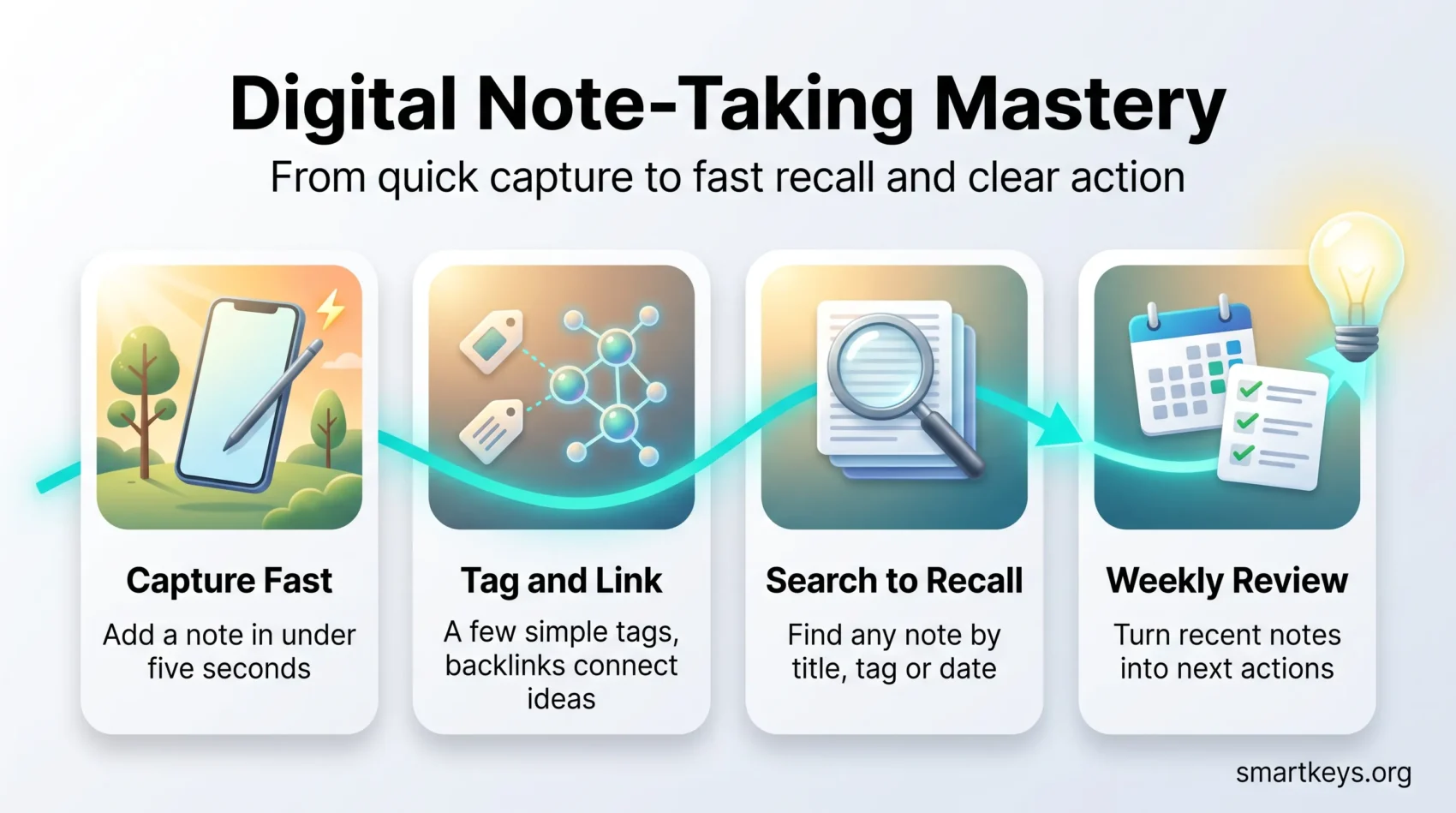
Treat quick capture as a habit: get ideas in before they vanish. Your system should let you add a note in under five seconds from phone or desktop—speed beats perfection.
Use simple titles and the first line of text as a tiny summary. That lets you scan a list fast without opening each page.
Pin your capture app to the home screen and menu bar. Add a keyboard shortcut for new notes so capture is reflexive.
- Master three actions first: capture, tag, and search.
- Start with one tag per note; too many tags create friction.
- Keep a daily list page for quick drops; file items in a short end-of-day cleanup.
Build ways to surface what matters—saved searches for “next actions” or a weekly agenda view of recent notes. Archive or delete aggressively so search results focus on current work.
Practice finding the same note three ways—by title, by tag, and by date—to train your muscle memory. The faster you file and find, the more likely your system sticks and compounds over time in practical ways.
Pro tips to make your notes stick
Set a simple weekly habit and your pages stop being archives and start driving work. Spend a short, fixed block each week scanning recent entries, extracting decisions, and building a tiny list of next actions.
Weekly review rituals that turn pages into progress
Block 20–30 minutes once a week. Open recent pages, highlight decisions, and create a single short list of follow-ups you can finish in a week.
- Write a one-sentence summary at the top of each page so context is obvious later.
- Keep lightweight checklists in meeting notes so action items are visible.
- Maintain a wins log to track momentum and stay motivated.
Linking highlights to actions and calendar events
When a highlight matters, link it to the project page or add a due date in your app so the insight becomes work, not clutter.
If you’re a writer, keep an ideas file and link each idea to a draft page so nothing dies in your inbox. Limit features to what helps you think—hide toolbars when you focus and revisit templates monthly to remove fields you never use.
Bottom line: your notes stick when they’re reviewed, tied to action, and easy to surface when you need them.
Conclusion
Tie everything together with a small routine: capture fast, review weekly, and archive reliably so your work moves from idea to action with minimal friction.
Choose one fast app for capture, one notebook or device for deeper writing, and a single archive where final files live. Keep these choices simple and test them for a few weeks.
Our picks balance comfort, focus, and flexibility so you can find options that fit your ecosystem and budget. Small changes—better templates, consistent tags, and a weekly review—deliver outsized results over a year.
Expect a bit of trial and error. Tweak what slows you down, keep what feels great, and watch your notes become a tool that helps you get a lot more done.
Found this useful?
Make SmartKeys a preferred source on Google, and our articles will surface more often in your Top Stories, AI Overviews, and AI Mode.
Add as Preferred Source