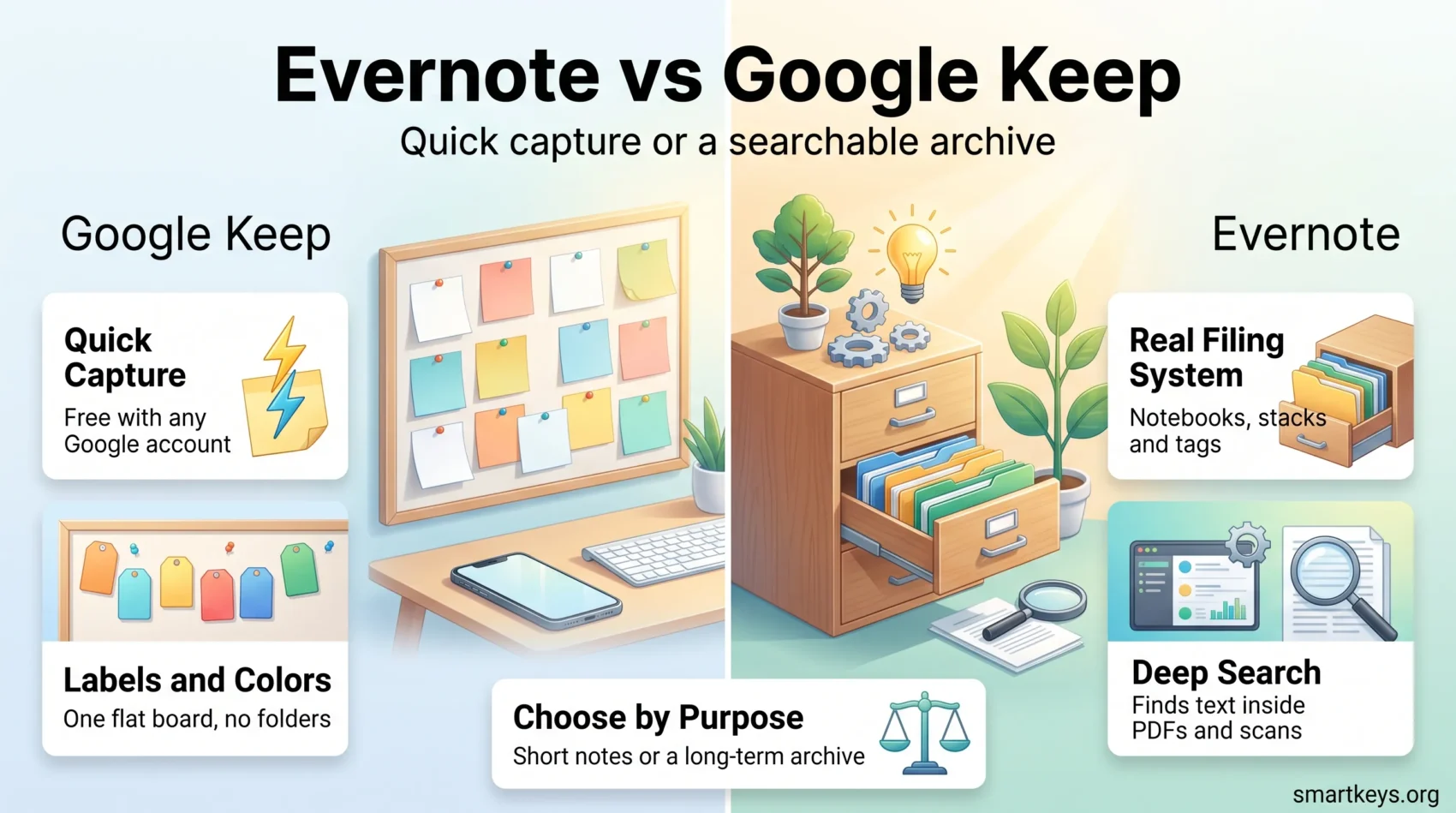
Evernote and Google Keep both store notes, and that is roughly where the similarity ends. Google Keep is a free capture tool built into your Google account. Evernote is a paid filing system for people who keep years of material and need to find it again. Picking the wrong one usually means paying for structure you never use, or losing notes in a wall of coloured cards.
This 2026 comparison covers what each app does, what Evernote now costs after its plans were renamed, and who each one suits.
Key Takeaways
- Google Keep is free with a Google account and has no paid tier of its own.
- Evernote’s free plan is capped at 50 notes, 1 notebook and 1 synced device, so it works as a trial rather than a long-term option.
- Evernote’s paid plans are Starter at $99 a year and Advanced at $249.99 a year, plus a custom-priced Enterprise plan.
- Keep organizes with labels, colours and pinning. Evernote uses notebooks, stacks and tags, which scales better past a few hundred notes.
- Evernote added an AI assistant, semantic search and meeting transcription in version 11. Keep leans on Gemini instead.
The short answer
If you mostly capture short things (a shopping list, a phone number, an idea before it disappears) and you already live in Gmail and Google Calendar, Google Keep is enough and it costs nothing. If you are building a reference library that you expect to search in three years, and you need PDFs, scans and web clippings in it, Evernote is the stronger tool and you will have to pay for it.
Most people do not need both. If you are still deciding what a note system should even do for you, our guide to digital note-taking is a better starting point than a feature list.
What Google Keep is
Google Keep is a free note app that ships with every Google account. It launched in 2013 and has stayed deliberately small. You open it, type, and close it. There is no folder tree to maintain and no setup to do.
That simplicity is the point. Keep is designed for the note you take in thirty seconds, not the document you write over a week.
Key features of Google Keep
- Colour coding and labels: Notes get a colour and one or more labels. There are no folders.
- Checklists: Tick-box lists that move completed items to the bottom.
- Reminders: Time-based reminders, and location-based ones that fire when you arrive somewhere.
- Voice notes: Record a note on mobile and Keep transcribes it alongside the audio.
- Drawings and images: Sketch by hand, or add a photo and pull the text out of it.
- Sharing: Add a collaborator by email and you both edit the same note live.
How it feels to use
Keep looks like a pinboard of sticky notes. Everything sits on one screen, sorted newest first, with pinned notes at the top. Finding something means searching or filtering by label, because there is nowhere to file it.
There is no dedicated desktop application. You use keep.google.com in a browser, or the Android and iOS apps. Gemini, Google’s assistant, can now read your Keep notes and answer questions about them or draft from them, though the more capable Gemini features sit behind a paid Google AI plan.
The honest limitation: Keep gets crowded. Past a few hundred notes, colours and labels stop being enough to tell things apart, and search becomes the only realistic way in. If your notes have started sprawling, a digital declutter usually helps more than switching apps.
What Evernote is
Evernote has been around since 2008 and is now owned by Bending Spoons, the software company that took it over after its long decline. It is a full note and document system: text, images, audio, PDFs, scanned paper and clipped web pages all live in the same searchable database.
In 2026 Evernote shipped version 11, its biggest release since 2020. It added an AI assistant built with OpenAI that answers questions about your own notes, semantic search that finds notes by meaning rather than exact wording, and recording that transcribes and summarises meetings.
Key features of Evernote
- Notebooks, stacks and tags: A real filing structure. Notebooks group notes, stacks group notebooks, tags cut across both.
- Rich formatting: Tables, headings, attachments and embedded files inside a single note.
- Web Clipper: Saves a whole page, a simplified article, or just a selection, and keeps the source link.
- Search inside attachments: Evernote reads text in images and PDFs, so a photographed receipt is findable by its contents.
- Tasks and calendar: Tasks live inside notes and can connect to an external calendar.
- AI features: AI Transcribe and AI-powered search on paid plans, with semantic search and AI Edit reserved for the top tier.
How it feels to use
Evernote asks more of you upfront. You decide where a note belongs, which tags it carries, and how the notebook structure is laid out. In exchange, a well-kept Evernote account stays usable at ten thousand notes, which is the scale where Keep gives up.
The mobile app handles handwriting, voice notes and document scanning, so a paper contract can become a searchable note in a few seconds. If capture is the part you struggle with, the habits in our guide to capturing tasks reliably apply to notes just as well.
Side by side: what actually separates them in 2026
The gap is not really about features. It is about how long you expect a note to matter.
Keep treats notes as temporary. Nothing is filed, everything is visible, and old notes drift down the board until you archive them. Evernote treats notes as records. Everything is filed somewhere, and the system is built so you can retrieve a note you have forgotten writing.

Price follows from that. Keep is free because it is a feature of Google’s wider suite, covered in our Google Workspace review. Evernote is a standalone product that has to pay for itself, which is why its free tier is now so tight.
The practical test: open the note you took six months ago. If you could find it in Keep, you do not need Evernote. If you could not, that is what you would be paying for. For a different set of trade-offs, our Evernote vs OneNote comparison covers the free alternative with real notebooks.
Notes and formatting
Keep gives you plain text, checkboxes, and recently some light formatting such as bold and headings. That is deliberate. There is no way to build a table or embed a spreadsheet, and long notes become uncomfortable to read.
Evernote gives you a proper editor: headings, tables, code blocks, embedded files, and attachments of most common types. A single Evernote note can hold a project brief, the signed PDF, and the meeting recording that produced it.
Media support splits the same way. Keep handles images, drawings and voice memos. Evernote adds PDFs, document scans, web clippings and arbitrary file attachments, and it indexes the text inside most of them. If you work mainly from recordings, our guide to organizing audio notes covers what to do with the transcripts either app produces.
Task management
Neither app is a project manager, and treating either as one is how people end up with three half-abandoned systems.
Keep is good at the small stuff. Checklists, a reminder tied to a time or a place, and a note pinned to the top of the board. It sits next to Google Calendar, so a reminder you set in Keep shows up where you already look.
Evernote’s Tasks are more structured. Tasks live inside a note, carry due dates and assignees, and can be collected into one view across notebooks. That works when a task needs its context (the brief, the contract, the email thread) attached to it.
If your task list is the thing that keeps failing, the problem is usually the method rather than the app. Our guides to using to-do lists effectively, running a personal kanban board and building a not-to-do list are worth reading before you switch tools again. Our roundup of productivity apps covers the dedicated task tools if you decide notes and tasks should live apart.
Organizing your notes
This is the clearest difference between the two.
How Google Keep organizes notes
Keep has one level: the board. You colour a note, add labels, pin the important ones and archive the rest. Search works well, and label filtering is fast.
What Keep cannot do is nest anything. There are no folders, no sub-labels and no way to group related notes into a container. Google’s own support forums are full of users who have hit the ceiling on how many labels they can create. For a handful of ongoing areas that is fine. For a research project with fifty sub-topics it is not.
How Evernote organizes notes
Evernote gives you notebooks for grouping, stacks for grouping notebooks, and tags that cut across the whole structure. A note about a client can sit in the Clients notebook, inside the Work stack, tagged both “invoice” and “2026”.
That is more work to maintain, and it is genuinely possible to over-engineer it. But it is the only one of the two that supports a real filing method. If you want a system rather than a pile, the approach in our Second Brain framework maps cleanly onto Evernote’s structure.
Sharing and collaboration
Keep’s sharing is one button. Add someone’s email address and they can view and edit the note immediately. There are no permission levels, which means every collaborator can also delete the contents. For a shared shopping list that is fine. For anything with consequences it is a real risk.
Evernote lets you set what a person can do with a shared note or notebook, so you can grant read access without granting edit access. You can also share by link or send a note by email.
Neither app replaces a proper collaboration platform. If several people need to edit the same document at once, a tool like those in our Airtable vs Notion comparison or a shared workspace such as Slack or Microsoft Teams is the better home for it.
Integrations
Keep’s integrations are almost entirely inside Google. It connects to Docs, Sheets, Calendar and Gmail, and a Keep note can be exported into a Google Doc in one click. Gemini can read and act on your notes. Outside Google, there is very little, and there is no official public API for third-party developers to build against.
Evernote connects outward: Google Drive, Slack, Microsoft Teams and Outlook, plus Zapier for everything else. The Slack and Teams connections sit on the top paid tier. If your notes need to reach other tools automatically, Evernote is the more flexible option.
For meeting notes specifically, both apps are now competing with purpose-built transcription tools. Our guide to an AI meeting notes workflow and our meeting notes template cover that ground.
Pricing in 2026
Google Keep
Keep is free. There is no Keep subscription, no upgrade prompt and no note limit. It comes with a personal Google account and with Google Workspace. The only thing you might pay for is a Google AI plan, which unlocks the more capable Gemini features that can work across your notes.
Evernote
Evernote renamed its plans after the Bending Spoons takeover. The old Personal and Professional tiers are gone. As of August 2026 the line-up is:
- Free: $0. Capped at 50 notes, 1 notebook, 1 synced device and 1 GB of monthly uploads.
- Starter: $99 a year, about $8.25 a month billed annually. 1,000 notes, 20 notebooks, 5 GB of storage, 3 devices.
- Advanced: $249.99 a year, about $20.83 a month billed annually. Unlimited notes and notebooks, plus semantic search and the Slack and Teams integrations.
- Enterprise: Custom pricing, quoted by sales.
Two things to watch. The advertised prices assume you pay a year upfront, so monthly billing costs noticeably more. And the 50-note cap is hard, not a warning.
Which one should you choose
Choose Google Keep if your notes are short, your volume is low, and you already work inside Google’s tools. It costs nothing, it is instant, and for most people it is genuinely sufficient.
Choose Evernote if you are keeping a searchable archive rather than a scratchpad, if you need PDFs and scans in the same place as your notes, and if permission control on shared notes matters. Budget for the Starter plan at minimum; the free tier will not last you a month of real use.
If neither fits, a different category of tool may suit better. Our guides to digital whiteboards and mind mapping cover when to reach for those. Whatever you pick, one trusted place beats three half-used ones, which is also the point of a working task management system.
Found this useful?
Make SmartKeys a preferred source on Google, and our articles will surface more often in your Top Stories, AI Overviews, and AI Mode.
Add as Preferred Source