Digital whiteboards have quietly become the meeting room for distributed teams. When a conversation needs a shared picture — a process, a roadmap, or a messy pile of half-formed ideas — an infinite canvas does what a video grid and a text document cannot.
Two things have changed since these tools first went mainstream. Google retired Jamboard at the end of 2024, pushing a large group of teams onto other platforms. And almost every serious whiteboard now runs AI directly on the canvas: clustering sticky notes, drafting diagrams from a prompt, and turning a two-hour workshop into a written summary.
This guide covers what digital whiteboards do well in 2026, which platforms are worth your budget, and how to run sessions that end in decisions rather than a colorful board nobody opens again.
Key Takeaways
- Digital whiteboards give remote and hybrid teams a shared visual space for planning, brainstorming, and reviews.
- Google Jamboard was permanently discontinued on December 31, 2024 — Miro, FigJam, and Lucidspark absorbed most of its users.
- AI on the canvas is now standard: sticky-note clustering, diagram generation, and board summaries, usually metered by credits.
- Miro leads on depth and templates, FigJam is cheapest for teams already using Figma, and Microsoft Whiteboard is free inside Microsoft 365.
- Boards only pay off with clear ownership: a named facilitator, a template, and a rule for what happens after the session ends.
- Treat a board as a living document, not a meeting artifact. Archive or delete stale boards on a schedule.
What a Digital Whiteboard Actually Is
A digital whiteboard is a shared, zoomable canvas that several people can edit at the same time. You drop in sticky notes, shapes, connectors, images, files, and comments, then arrange them until the structure of the problem becomes visible. Unlike a physical board, nothing is erased at the end of the day and nobody has to photograph the result.
The core feature set is fairly consistent across platforms: an effectively unlimited canvas, real-time multi-user editing with visible cursors, templates, voting and timers for facilitation, comments and @-mentions for asynchronous follow-up, and integrations with the tools where the work actually lands — Jira, Asana, Slack, Teams, Google Drive.
What separates the platforms in 2026 is depth: how good the template library is, how well the board handles a thousand objects without slowing down, what the AI can do without inventing nonsense, and how much administrative control your IT team gets.
Why Hybrid Teams Still Need a Shared Canvas
Flexible work is no longer a temporary arrangement. Microsoft’s 2021 Work Trend Index already found that 73% of employees wanted flexible remote options to stay, and the mixed model has since settled into the default for most knowledge work. That creates a specific gap: a video call gives you faces and a document gives you conclusions, but neither shows you the thinking in between.
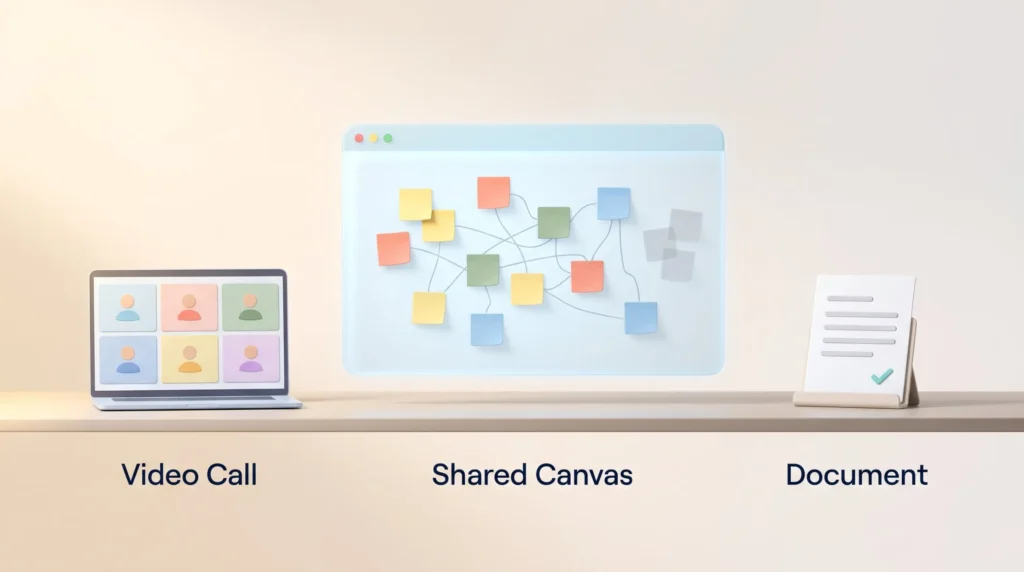
That gap is where whiteboards earn their place. A shared canvas makes the messy middle of a project visible to everyone at once — the dependencies, the open questions, the ideas that were rejected and why. It also levels the room. People who never interrupt on a call will happily add a sticky note, which is one reason facilitation techniques like silent meetings work so well on a board.
If you are still building the wider stack around this, our overview of team collaboration tools shows where whiteboards fit alongside chat, docs, and project management.
What Changed: Jamboard’s Exit and AI on the Canvas
Google Jamboard went read-only on October 1, 2024 and was shut down permanently on December 31, 2024, after which unsaved Jam files were deleted. Google chose to leave the category and instead point Workspace customers toward FigJam, Lucidspark, and Miro, all of which built import paths for Jamboard exports. If you still see Jamboard recommended in an older guide, that guide is out of date.
The second shift is AI moving onto the canvas itself. Miro now describes itself as an AI workspace and ships features that cluster sticky notes by theme, generate mind maps or diagrams from a prompt, summarize a full board, and chain several AI steps into a repeatable flow. Figma, Mural, and Lucid have shipped comparable assistants.
Two practical notes. First, AI capacity is metered — most vendors allocate monthly credits that do not roll over, so heavy users hit the ceiling long before the average user does. Second, clustering and summarizing are genuinely useful; asking a model to generate the ideas is usually not, because a board full of synthetic suggestions crowds out the thinking you called the session to do.
Benefits of Digital Whiteboards for Teams
Clearer Communication, Fewer Version Problems
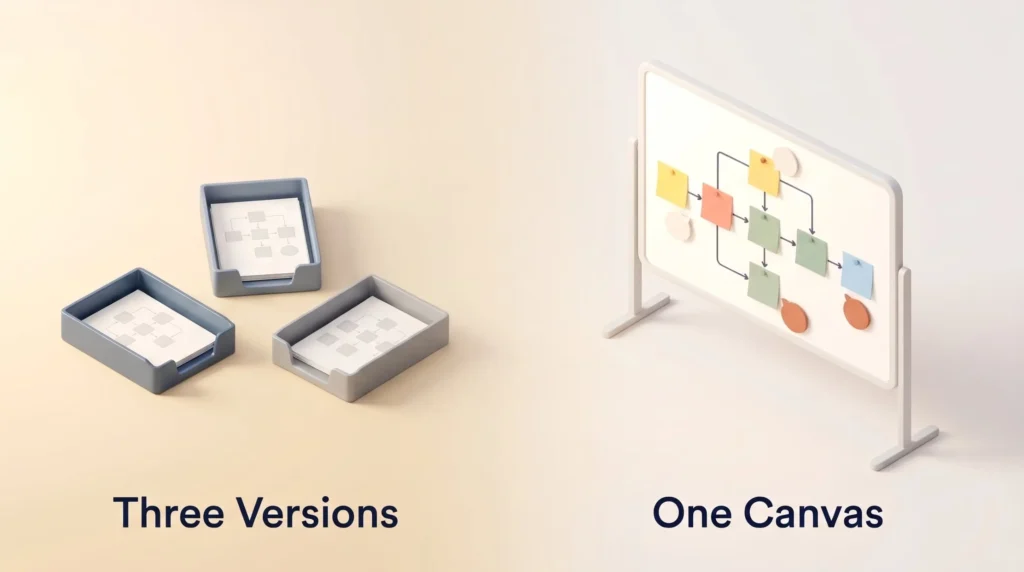
A board acts as a single reference point for a project. Instead of three slightly different diagrams in three inboxes, there is one canvas everyone can point at. Comments sit next to the object they refer to, so feedback keeps its context, and the discussion stays attached to the work rather than scattering across chat threads.
Visual structure also does real cognitive work. Grouping, spacing, and color carry meaning that prose has to spell out, which is the same principle behind visual thinking for task management.
Brainstorming That Works Live and Asynchronously
In a live session, everyone writes at once instead of waiting for a turn, which removes the bottleneck that makes verbal brainstorming so slow. Voting, dot-ranking, and timers then compress the decision that usually drags on for another meeting.
The asynchronous mode matters just as much. Open the board two days early, let people add ideas in their own time zone, and use the live hour only for clustering and deciding. That pattern pairs well with the wider case for asynchronous communication tools and is the single fastest way to cut a recurring workshop in half.
Better Structure for Workshops
Most whiteboard platforms ship templates for the frameworks teams already use: retrospectives, user journey maps, business model canvases, service blueprints, and the full design thinking sequence. Starting from a template removes the blank-canvas problem and gives participants an obvious place to put their contribution.
Online Whiteboard Software Compared in 2026
Prices below are list rates as of August 2026 and change regularly — confirm on the vendor’s pricing page before you commit.
- Miro — The most complete option, with more than 100 million users, roughly 250,000 customers, and over 5,000 templates including the community Miroverse library. The free plan allows 3 editable boards; Starter is $8 per member per month billed annually ($10 monthly); Business is $20 per member per month annually ($25 monthly) and adds SSO, guest editing, and two-way Jira and Asana integrations. Enterprise is quote-only from 30 members. AI credits are allocated per plan and do not roll over. If you are weighing it against a dedicated diagramming tool, see our Lucidchart vs Miro comparison.
- FigJam — Figma’s whiteboard, and the cheapest sensible option if your team already lives in Figma. Since Figma’s 2025 packaging change, FigJam access comes bundled with seat types rather than sold separately: the free Starter plan includes 3 shared FigJam boards, and a Collab seat on the Professional plan costs about $3 per user per month annually ($5 monthly) for people who need whiteboard editing but not design tools. Lighter and more playful than Miro, with fewer power features.
- Mural — Built around workshop facilitation, with strong session controls, timers, and private-mode voting. A free tier covers 3 murals; the standard team plan sits near $10 per member per month on annual billing. Worth shortlisting if facilitation is your main use case rather than diagramming.
- Lucidspark — Pairs tightly with Lucidchart, which makes it a good fit when a loose brainstorm needs to become a formal process diagram. The free tier includes 3 editable boards.
- Microsoft Whiteboard — Included with Microsoft 365 and embedded in Teams meetings. Fewer facilitation and administration features than the dedicated platforms, but hard to argue with when the license is already paid for and your governance rules are already in place.
- Zoom Whiteboard — Bundled into paid Zoom Workplace plans and usable inside or outside a call. Convenient for teams that run everything in Zoom; not a replacement for a full visual workspace.
- Apple Freeform — Free on Mac, iPad, and iPhone, supporting up to 100 collaborators. Fine for informal sketching in an all-Apple team, with no admin controls to speak of.
- Canva Whiteboards — Sits inside Canva, so a brainstorm can turn straight into a presentation or a marketing asset without an export step.
- Conceptboard — The option teams usually shortlist for European data protection requirements, with EU hosting and on-premises deployment available.
How to Choose the Right Platform
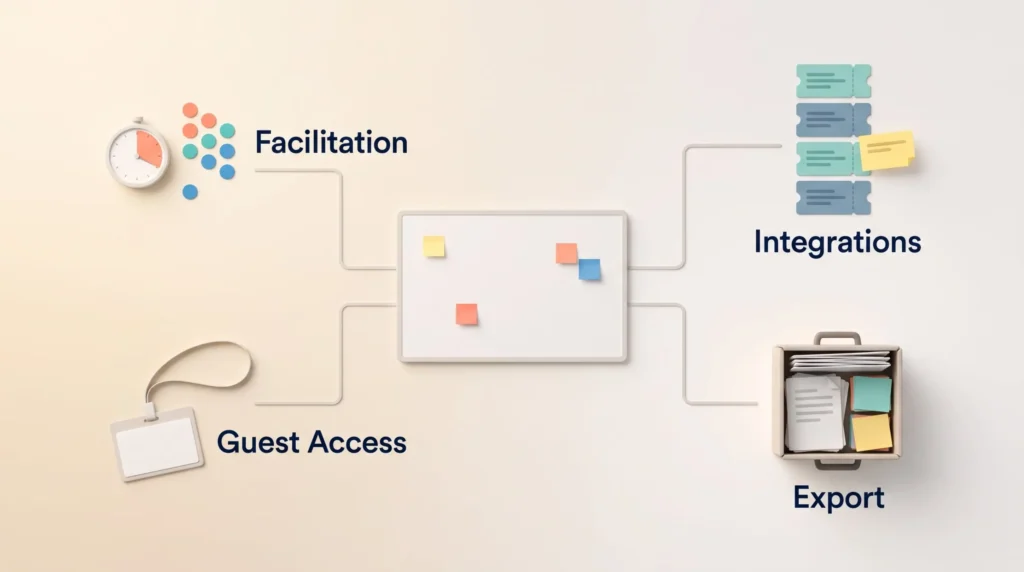
Features That Actually Matter
Most buyers over-index on the canvas and under-index on everything around it. Check these first:
- Canvas performance: Open a template with several hundred objects and see whether it still scrolls smoothly.
- Facilitation controls: Voting, timers, follow-mode, and private writing decide whether a workshop runs itself or needs constant shepherding.
- Guest and client access: Some plans charge for external editors and some do not. This single line often decides the total cost for agencies.
- Integrations: Two-way sync with your project tracker means a sticky note can become a real ticket instead of dying on the board.
- Multi-device support: Tablet and touch behavior varies widely, and it matters if anyone sketches by hand or joins from a meeting-room display.
- Export and portability: Check what leaves the platform if you switch. Jamboard taught a lot of teams that lesson expensively.
- Administration and compliance: SSO, retention rules, and data residency usually sit on the higher tiers, so factor them into the price you actually pay.
How to Compare a Shortlist
Pick two or three candidates and run the same real session on each — not a demo, an actual meeting you had scheduled anyway. Then compare four things: how quickly a new participant found their way around, whether the feature set covered your core use case without workarounds, what the plan costs at your real seat count including guests and AI credits, and how mature the product is (release cadence, support quality, and whether the roadmap moves).
Using Whiteboards for Project Work
Flowcharts, Diagrams, and Shared Structure
Beyond brainstorming, whiteboards are efficient places to draw the shape of a project: process flows, dependency maps, org structures, architecture sketches. Template libraries cover most standard notations, and connectors that stay attached when you move a box save more time than they should.
The payoff is comprehension. A dependency that takes three paragraphs to explain becomes obvious as a diagram, which shortens the review and reduces the number of people who nod along without following.
Progress, Ownership, and Version History
Boards also work as lightweight tracking surfaces. Assign an owner and a due date to each sticky note, and the board doubles as a status view that everyone can read at a glance. Version history — available on most paid plans — lets you see what changed and when, which settles the “I thought we agreed on the other option” conversation quickly.
One caution: a whiteboard is a thinking space, not a system of record. Once a decision is made, move it into your tracker and your meeting notes. Boards that try to be the source of truth for delivery tend to go stale within a month.
How to Run a Session That Produces Decisions
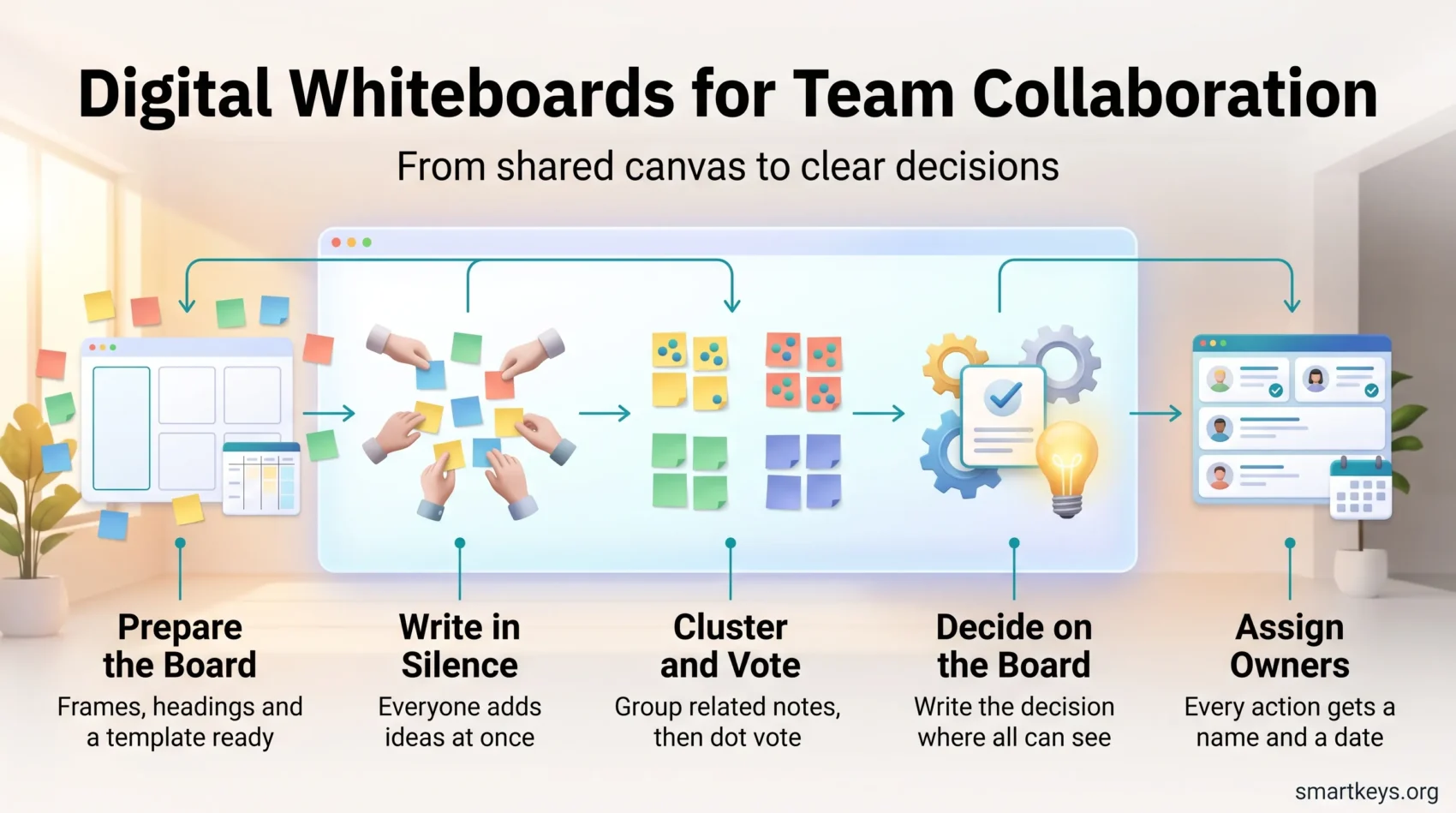
The tool is rarely the reason a whiteboard session fails. The facilitation is. A few habits make the difference:
- Name one facilitator. Someone owns the agenda, the timeboxes, and the closing summary. Shared responsibility means nobody does it.
- Prepare the board before the meeting. Frames, headings, and instructions in place, so the first five minutes are not spent explaining where to write.
- Start with silent writing. Five quiet minutes of individual input produces more range than an open discussion, and it prevents the loudest voice from anchoring the room.
- Cluster, then vote, then decide. Group related notes, use dot voting to narrow, and end with an explicit decision written on the board.
- Use color deliberately. One dimension per color — status, owner, or theme, not all three. The same logic applies as in any color coding system.
- Close with owners and dates. Every session ends with named actions. Without this step, the board becomes decoration.
If some participants are in a room and others are remote, give everyone their own device rather than sharing one screen. That single rule does more for equal participation than any feature, and it sits at the heart of good hybrid meeting etiquette.
Rolling Digital Whiteboards Out Across Your Business
Start from the use case, not the tool. Identify two or three recurring sessions that visibly struggle — a quarterly planning workshop, a retrospective, a customer journey review — and run those on the board first. Success in a real meeting spreads faster than any internal announcement.
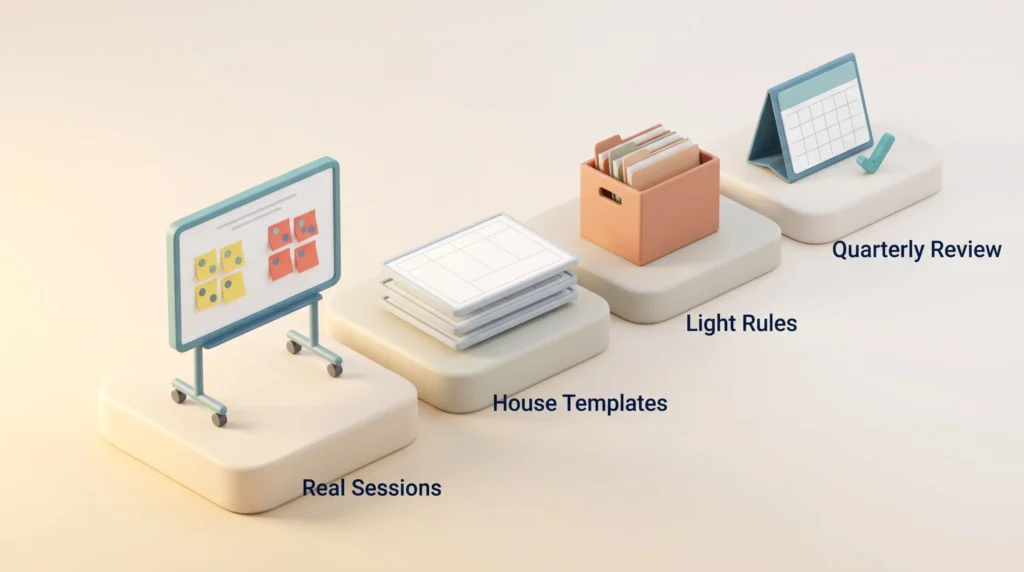
Build a small set of house templates so people are not designing a board from scratch each time, and store them where they are easy to find. Offer one short training session rather than a lengthy course; most people need twenty minutes and one worked example. Then set light rules: naming conventions, where boards live, who can invite guests, and when boards get archived.
Finally, review after a quarter. Ask which sessions genuinely improved, which reverted to slides, and whether the plan tier still matches how you work. It is common to find you are paying for guest editing nobody uses, or hitting AI credit limits that make the next tier worth it.
Mistakes That Kill Whiteboard Adoption
- The board that never closes. Sessions that end without decisions teach people that whiteboards are where ideas go to be forgotten.
- Board sprawl. Hundreds of untitled boards make search useless. Name them, file them, archive them.
- Recreating a document. If the content is linear text, write a doc. Canvases are for structure, not paragraphs.
- Meeting theater. A beautifully arranged board is not the same as a decision — the point is to shorten the work, not to decorate it. The same trap shows up in any conversation about effective meetings.
- Ignoring the exit path. Before you standardize on a platform, know how you would get your content out of it.
Conclusion
Digital whiteboards have settled into a clear role: they are where distributed teams do their thinking out loud. The category is more mature than it was three years ago — one major platform has left the market, AI has moved onto the canvas, and pricing has shifted toward metered features — but the fundamentals have not changed. A shared visual space makes complex work legible and gives quieter colleagues a genuine way in, which is a large part of building inclusive and engaging workspaces.
Choose the platform that matches your actual sessions rather than the longest feature list, invest more in facilitation than in tooling, and make sure every board ends with a decision and an owner. Do that, and the canvas stops being another subscription and starts being the place your team’s best work begins. For the wider picture of how this fits your week, see our guide to hybrid work productivity.
Found this useful?
Make SmartKeys a preferred source on Google, and our articles will surface more often in your Top Stories, AI Overviews, and AI Mode.
Add as Preferred Source