You can reclaim time and calm by cleaning up how you use devices, apps, and accounts. A digital declutter is a deliberate audit of your whole digital setup: you delete what you no longer need, reorganize what stays, and add a few small habits so the mess does not build up again.
The scale of the problem is easy to underestimate. In a December 2024 survey of 1,000 US adults by AllAboutCookies, respondents reported more than 1,000 unread emails, 15 open browser tabs, and 17 unread social notifications on an average day. Roughly three in four said digital clutter has a negative effect on their life.
None of that clutter is dramatic on its own. Together it quietly competes for the attention you need for real work.
This guide covers why the cleanup is worth doing, how to run it area by area (phone, feeds, inbox, files, photos), and which habits stop the results unraveling within a month.
Key Takeaways
- Decide what the declutter is for, so every deletion serves a purpose.
- Audit devices, apps, emails, photos, and notes with one repeatable plan.
- Use quick wins such as photo culls, inbox filters, and app cuts to build momentum.
- Turn off default notifications so your phone works to your schedule.
- Book a short weekly reset and a longer monthly one, or the clutter returns.
Why a Digital Declutter Matters Right Now
Small interruptions add up. A ping here, an open tab there, and your day splinters into dozens of tiny losses.
The scale is now measurable. Microsoft’s Work Trend Index special report “Breaking down the infinite workday”, published in June 2025, found that employees are interrupted roughly every two minutes during core working hours by a meeting, an email, or a chat message. Its most heavily connected users received about 275 such interruptions a day.
Those interruptions arrive through tools you control. Every app you keep, every alert left switched on, and every newsletter you never cancel adds another tap on the shoulder.
There is a quieter cost too. Unused apps, dozens of open tabs, and a crowded inbox sit in the back of your mind as unfinished business. You are not working on any of it, yet it keeps surfacing.
Cal Newport’s Digital Minimalism (2019) makes the practical case: organize technology around what you actually value, and run a 30-day reset to find out what that is. Jenny Odell’s How to Do Nothing (2019) adds a useful reframe, treating attention and maintenance as real work rather than wasted time.
The goal is not less technology for its own sake. It is a right-sized setup: enough tools to do the job, few enough that you are not managing them all day. If interruptions are your main problem, our guide to managing work notifications covers the settings side in more depth.
Set Your Intent: Goals, Boundaries, and a Simple Game Plan
Decide what matters most before you delete anything. Pick one clear purpose: more focus, more free hours, or less mental noise. Write it somewhere you will see it during the cleanup.
Then separate essentials from extras. Keep the tools you need for work during defined hours, and pause the optional ones (entertainment, social feeds, games) for 30 days.
- List your top two or three reasons, so borderline decisions get easier.
- Run a 30-day pause on optional tools, then reintroduce only the ones you missed.
- Set guardrails: a no-device evening window, a 10-minute cap on message checks, and the phone out of arm’s reach while you work.
- Bank one small win today and plan one bigger change this week.
When the 30 days are up, bring tools back one at a time. Give each a job, a rough time budget, and a place to live on your device. Anything that fails that test does not come back. A structured digital detox routine works well as the pause phase.
Start with Your Phone: Edit, Contain, Maintain
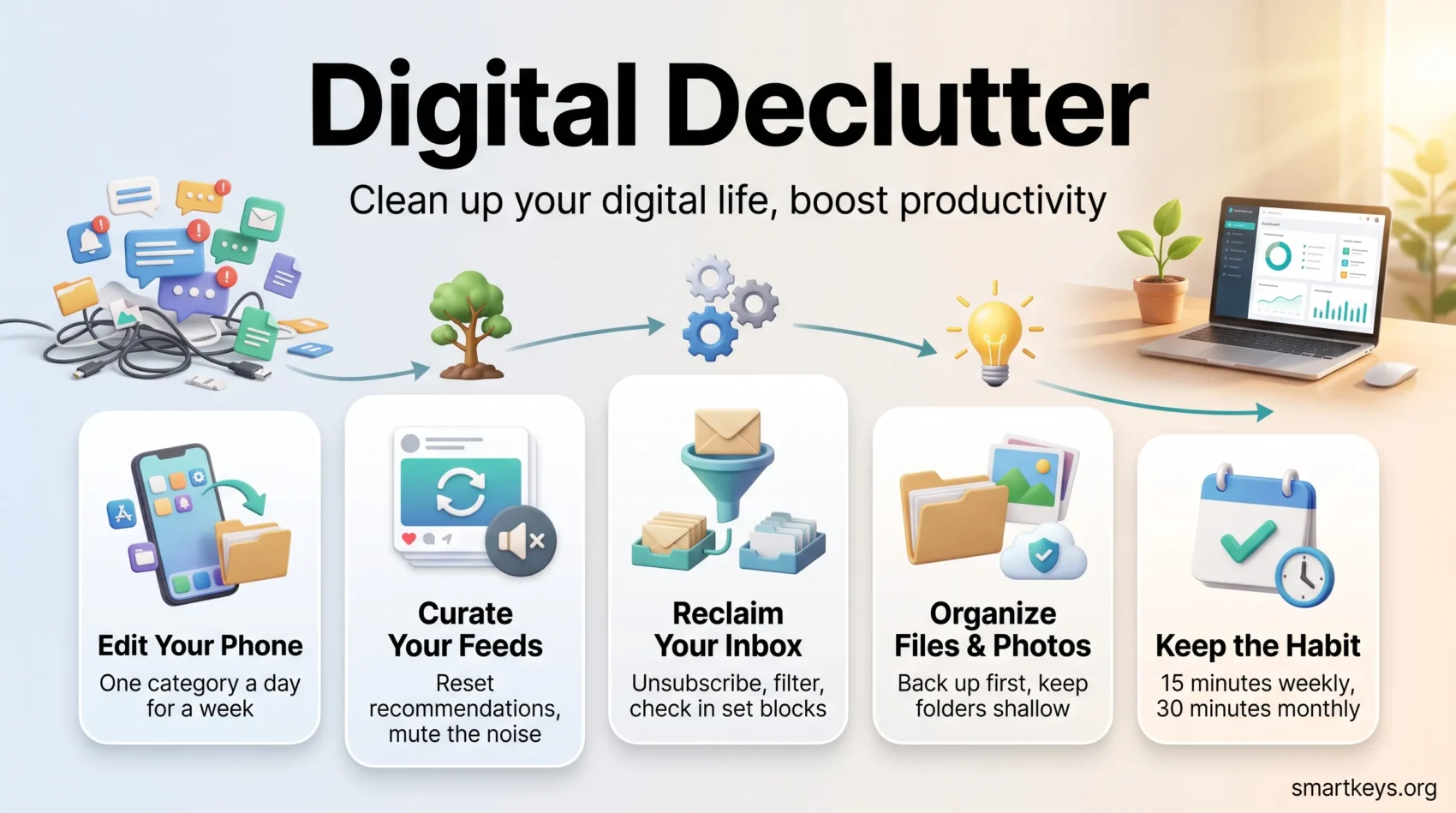
Your phone is where the fastest wins are. It is also where most people give up, because they try to do it all in one sitting. Split it across a week instead, one category a day.
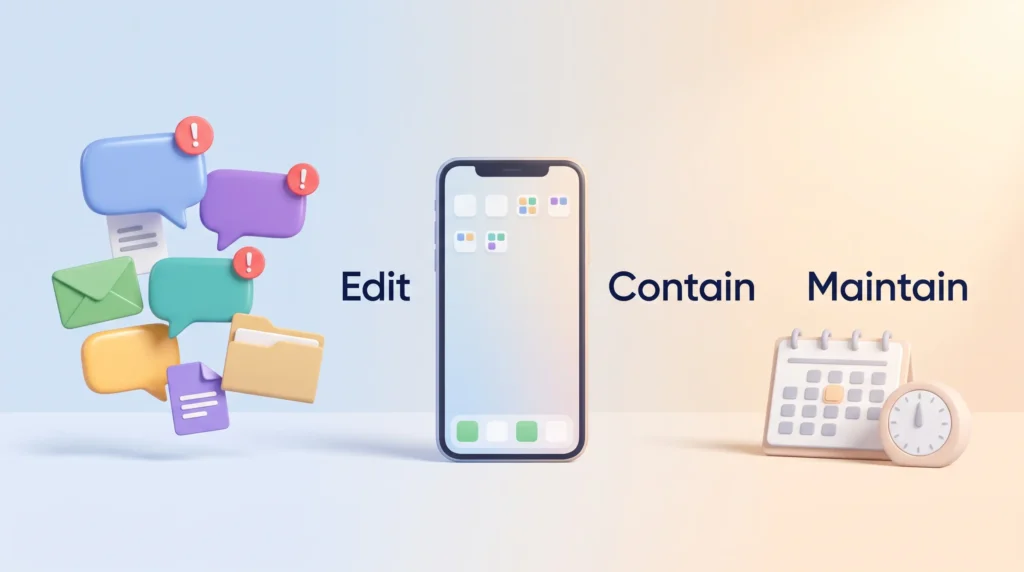
Edit: a seven-day checklist
Day 1: contacts. Day 2: apps, notifications, and subscriptions. Day 3: text messages, call logs, and voicemails. Day 4: files and downloads. Day 5: notes. Day 6: bookmarks and open tabs. Day 7: photos.
Each session should take 15 to 20 minutes. If a category runs longer, stop and finish it next month.
Contain: folders and a quieter home screen
Group what survives. Sort the remaining apps into folders by what you use them for, not by category names from the app store. Keep each folder to about nine apps so everything stays visible on one page.
Move anything you open less than weekly off the home screen. Then let the phone enforce the quiet: Focus modes on iPhone and Focus mode on Android both allow only the notifications you choose during set hours. Our guide to setting up Focus mode on iPhone covers the profiles that make this stick.
Maintain: a monthly 15-minute sweep
Put a recurring 15-minute calendar block on the first Monday of each month: delete apps you did not open, cancel stale subscriptions, archive old message threads, and move stray files into place.
- Turn off default notifications and keep only calls, calendar alerts, and messages from named people. This single step removes more interruptions than anything else on the list.
- Prune photos on the device first for a quick storage win, then back up what remains.
- Pin the notes and emails you open daily so they stay one tap away.
Refresh Your Social Media Feeds and Recommendations
If your feed no longer reflects what you care about, reset it rather than scrolling past it. Instagram has a built-in option to reset suggested content, which clears the topics its ranking system has learned. TikTok and YouTube offer similar controls for clearing watch history and recommendations.
Then curate who you follow. Unfollow accounts that no longer earn the space. Where unfollowing would cause friction, mute instead: you keep the connection without the stream. Lists and close-friends groups let you check a small chosen set rather than an endless feed.
Use the built-in controls
Tap the menu on a post and choose “Interested” or “Not Interested” to teach the ranking system what you want more of. Instagram’s Hidden Words setting filters captions and comments containing phrases you specify, which mutes a news cycle without leaving the platform.
Make scrolling a decision, not a reflex
While you are in the settings, check what each platform shares by default. Privacy options change with almost every update, and the defaults rarely favor you.
Remove the apps from your phone and use the browser version on a laptop instead. That small amount of friction turns scrolling into a decision. Schedule defined blocks for it, and switch off every non-essential alert so the feed cannot pull you back mid-task.
“Train the algorithm by choosing less noise and more of what matters.”
- Reset recommendations once, then prune follows during your monthly sweep.
- Use mute and lists to protect relationships while protecting your attention.
If feeds are the main drain on your week, a structured social media detox goes further than curation alone. If the real problem is the sheer number of work tools competing for your attention, our guide to digital overload covers that side.
Reclaim Your Inbox: Emails, Filters, and a Workflow That Holds
Email responds well to a few deliberate moves. Start with a short triage: delete the obvious junk, unsubscribe from every newsletter you have not opened in a month, and let a bulk tool handle the rest.
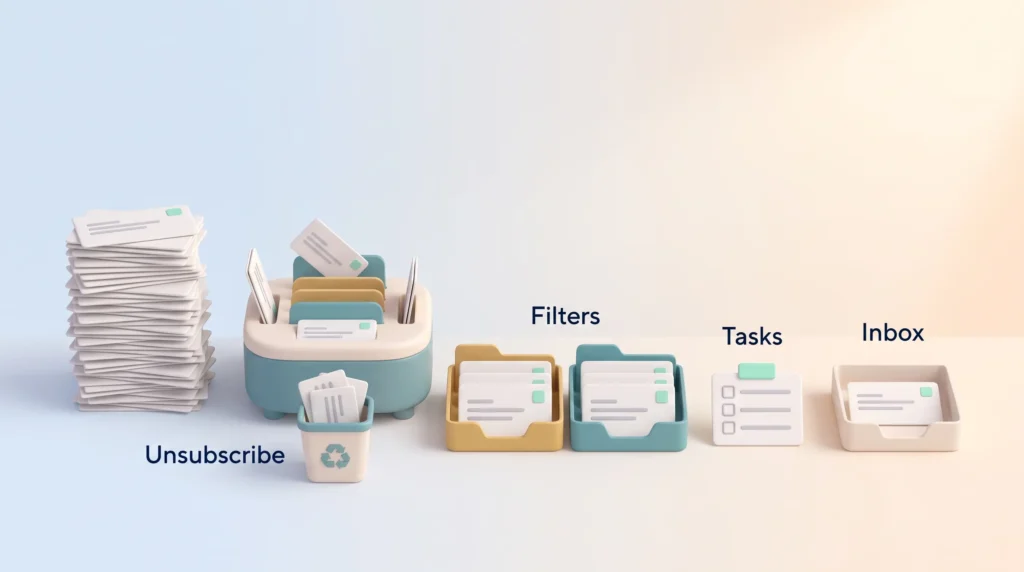
Triage: unsubscribe, filter, and when to declare inbox bankruptcy
Gmail and Outlook both put a one-click unsubscribe link at the top of marketing messages, and tools such as Clean Email do the same job in bulk. Once the volume drops, build filters that route receipts, confirmations, and system alerts straight into folders you review at set times.
If your unread count runs into the thousands, consider inbox bankruptcy: archive everything older than 30 days in one move and start clean. Nothing is deleted, so anything important stays searchable. Our guide to the Inbox Zero method explains how to keep it at zero afterwards, and Inbox Infinity covers the opposite approach for people whose volume makes zero unrealistic. If the backlog itself is the problem, start with clearing an email backlog.
Folders, labels, and templates
Create a short list of folders or labels that mirror real categories: work, travel, finance, reference. Keep it short enough to remember, or you will stop filing.
Write a handful of templates for replies you send every week. Our guide to email response templates has starting points, and writing clearer emails covers how to cut the follow-up questions that generate more mail.
Stop using email as a to-do list
When a message needs action, put that action in your task manager with a due date, then archive the email. The inbox becomes a delivery channel again rather than a list of open commitments. Our guide to task management covers the capture habits that make this work.
Check email in scheduled blocks (morning, midday, late afternoon) instead of continuously. Email batching explains why grouped checks cost less attention. The same logic applies to chat: our guide to instant messaging boundaries covers response-time tiers for Slack and Teams.
- Quick win: bulk unsubscribe, then filter low-priority senders out of the inbox.
- Processing habit: delete it, delegate it, answer it in under two minutes, or turn it into a scheduled task.
- Send less: fewer emails out means fewer replies in.
Organize Your Desktop, Files, and Folders for Speed
Back up before you reorganize, so you can move things around without worrying about losing them. An external drive plus a backup service such as Backblaze, IDrive, or Carbonite covers the local side; Dropbox, Google Drive, or iCloud syncs whatever you are actively working on.
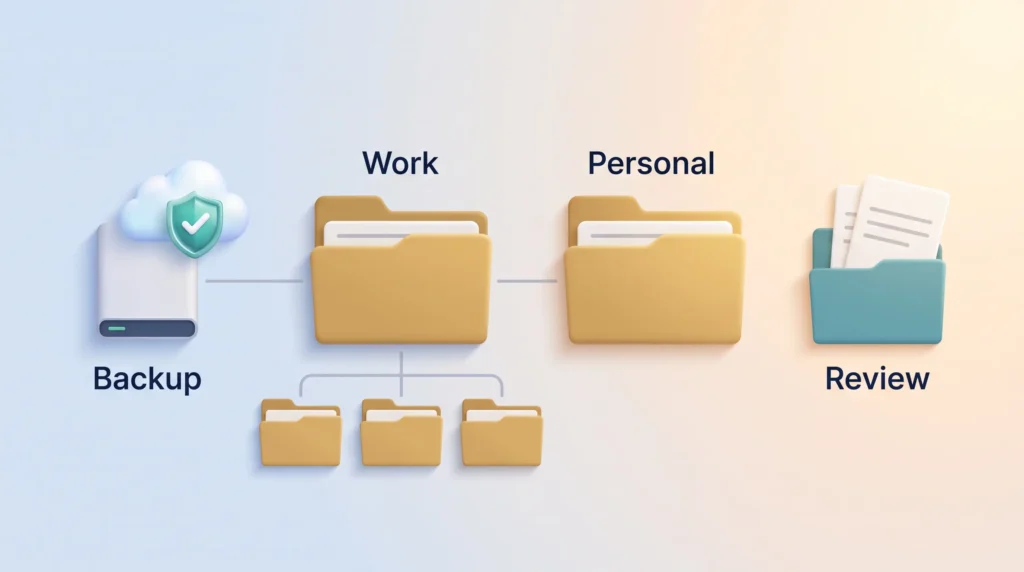
Then audit what you have. Check where files, photos, and archived email actually live. Note which folders hold client work, tax records, and reference material, since those are the ones worth protecting.
A hierarchy simple enough to use
Keep two top-level folders: Work and Personal. Under Work, add Clients, Projects, and Archive. Resist more levels. A structure you can scan in two seconds beats a perfect taxonomy you must think about.
What to do with files you cannot decide about
Do not let one uncertain file stall the whole cleanup. Create a folder called Review, move anything you are unsure about into it, and put the month in the folder name. If you have not opened anything in there after three months, delete the folder without going through it again.
This single habit removes the most common reason digital cleanups stall: the worry that you are about to delete something that turns out to matter.
Naming and tidy habits
Name files consistently, for example 2026-04-12_ProjectName_Client. Dates first means the folder sorts itself chronologically.
Treat the desktop as a landing strip, not a filing cabinet: everything that lands there gets moved or deleted before you finish for the day. The physical version of this is covered in our guide to desk organization.
- Empty the Downloads folder weekly. It is usually the largest single source of digital clutter.
- Run a seven-step tune-up across a week: downloads, files, passwords, apps, bookmarks, settings, photos.
- Move passwords into a manager and delete any plain-text lists in notes or spreadsheets.
- Review browser extensions and connected apps twice a year. Each one holds access to your data and quietly slows things down.
- Check who can still open your shared folders and links, and switch off the access nobody needs anymore.
A repeatable five-step loop, borrowed from the factory floor
If you want a system rather than a one-off cleanup, use the five-step loop that factories have run for decades to keep workshops tidy, known in lean manufacturing as 5S. It maps onto files almost directly: sort (delete duplicates and finished versions), set in order (name and place whatever stays), clean (empty Downloads, clear browser caches, close shared links nobody uses), standardize (one naming rule and one folder template, written down), and sustain (a short recurring block in the calendar).
The order is the point. Sorting first means you never spend an afternoon organizing files you were going to delete anyway, and the last two steps are what stop the whole thing unraveling again by next quarter. The same sequence works for a shared team drive, with one difference: agree the naming rule with the people who use it before you rename anything.
Short monthly passes save large amounts of time. Keep active folders near the top and archive finished projects. The payoff is faster search and less friction every time you go looking for something. If you also keep research and reference material, our second brain framework explains how to organize notes so you can find them again.
Photos, Music, and Media: Free Space and Find Things Again
A tidy media library is mostly about having one library instead of five. Move every photo into a single Photos folder, then back it up locally and in the cloud. For large collections, keep the bulk on an external drive and sync only recent material.
Organize by year, then by event or place. Folder names like 2026 > Vacation_Beach keep the structure shallow, so finding a specific shot takes seconds. Clear obvious duplicates and burst sequences first: they free the most space for the least effort.
Pull images off social platforms too. Most offer a data download that includes your albums. Add those to your main library and you stop relying on a company to preserve your memories. Phone photos sync through iCloud Photos or Google Photos, or transfer by cable if you would rather keep them off cloud services.
Music benefits from the same treatment. Use one Music folder organized as Artist > Release. MusicBrainz Picard, a free open-source tool, fixes inconsistent track metadata and flags duplicates.
Digital Declutter Habits: Maintenance, Time, and Tools
Set a weekly reset and a monthly tune-up so clutter never grows back into a project. Fifteen minutes a week keeps downloads, tabs, and notes under control. Thirty minutes a month is enough to trim older files and close out stalled tasks.
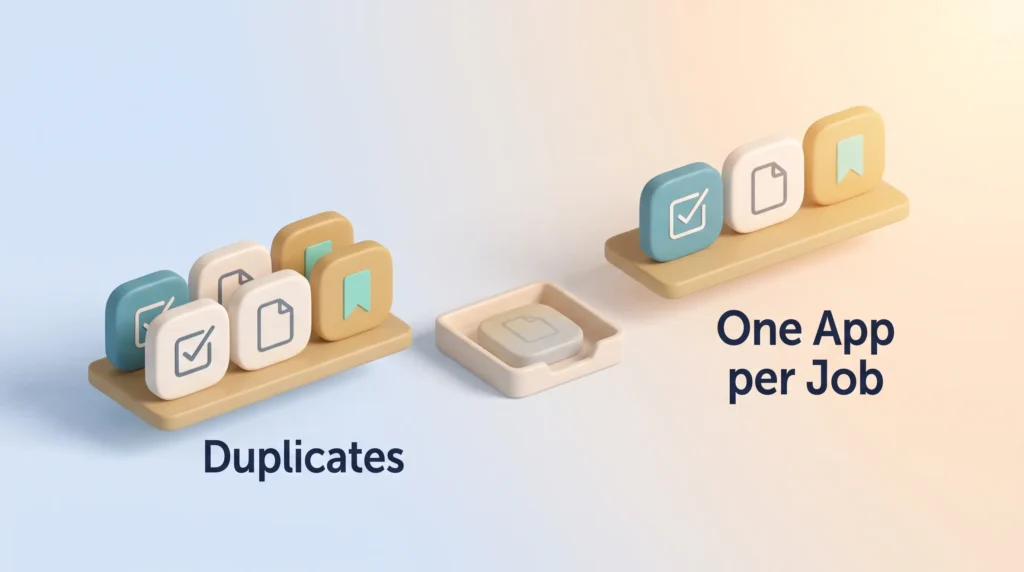
Weekly and monthly routines
Keep sessions short and specific. Use the weekly slot to clear downloads, collapse open tabs into a saved session, and file quick notes. Use the monthly block to audit folders, cancel unused subscriptions, and remove stale apps. Attaching this to an existing weekly review beats creating a separate ritual you have to remember.
Limit apps and manage accounts
Pick one app per job: one task manager, one notes app, one read-later tool. Duplicates multiply the small decisions you make each day, since you first have to remember where something lives.
One rule keeps that stable: one in, one out. When you install something for a job an existing tool already does, delete the older one the same day, before you start using both.
Read-later tools changed in 2025. Mozilla shut Pocket down on 8 July 2025 and closed data exports that October, so long-standing Pocket libraries are gone. Instapaper, Readwise Reader, and Raindrop.io are the common replacements.
Review saved logins in your password manager and delete accounts you no longer use. Turn on two-factor authentication for email, banking, and the password manager itself first, since those protect everything else. For recurring charges, Rocket Money (formerly Truebill) works, and so does your bank’s recurring-payments view, which is free.
News and content diet
Group the sources you genuinely read in an RSS reader such as Feedly, so you visit one place instead of ten. RSS, short for Really Simple Syndication, lets a reader app pull new articles from sites automatically.
Send long articles to your read-later tool and close the tab. Keep social apps off the phone, schedule desktop sessions instead, and mute non-essential alerts so you decide when to look.
“Small, steady habits save you a lot of time and keep your work calmer.”
- Quick rule: 15 minutes weekly, 30 minutes monthly.
- Batch emails and messages into set times rather than checking continuously.
- Keep a short friction list: three small tweaks you can make today to cut noise.
Once the noise drops, use the space you have freed. Our guides to deep work and focus tools cover what to do with a quieter calendar.
Conclusion
You now have a working blueprint for a digital declutter that audits, deletes, and reorganizes so your devices support your work instead of competing with it.
Start with one item today: mute notifications, empty Downloads, or archive a bulky inbox. A small completed step builds more momentum than a large plan you never begin.
If email is the worst of it, archive everything older than 30 days in one move, then rebuild with filters and scheduled checks. For feeds, reset recommendations and set defined windows for scrolling. For files, standardize names and move every password into a manager.
Choose the simpler option each time: fewer apps, fewer feeds, fewer steps between you and the work. If focus is still hard afterwards, our guide to focus management techniques picks up where the cleanup leaves off.
Found this useful?
Make SmartKeys a preferred source on Google, and our articles will surface more often in your Top Stories, AI Overviews, and AI Mode.
Add as Preferred Source