
Most people lose a few minutes every day to logins. They retype passwords, wait for reset emails, or message a colleague to ask for the shared account details. None of this feels like a big deal on its own. Across a whole team and a whole year, it adds up to a steady drain on focus.
A password manager fixes much of this quietly. It is an app that stores your logins in an encrypted vault, fills them in for you, and creates strong new passwords when you need them. You only remember one master password, the single password that unlocks the vault.
This guide explains where password managers save time in daily work, how they help teams share access safely, what the current security rules say, and how to pick a tool that fits your team.
Key Takeaways
- Password managers cut the small, repeated delays of typing, resetting and hunting for logins.
- Shared vaults replace spreadsheets, sticky notes and passwords pasted into chat.
- Current NIST guidance favors long passwords, no forced periodic changes and support for password managers.
- Breach alerts and two-factor authentication limit the damage when a login leaks.
- Passkeys are growing fast, and most password managers now store them too.
What a Password Manager Actually Does
Think of a password manager as a locked digital safe that also works as an assistant. The safe part is the vault. Everything inside it is encrypted, which means it is scrambled so that only someone with your master password can read it.
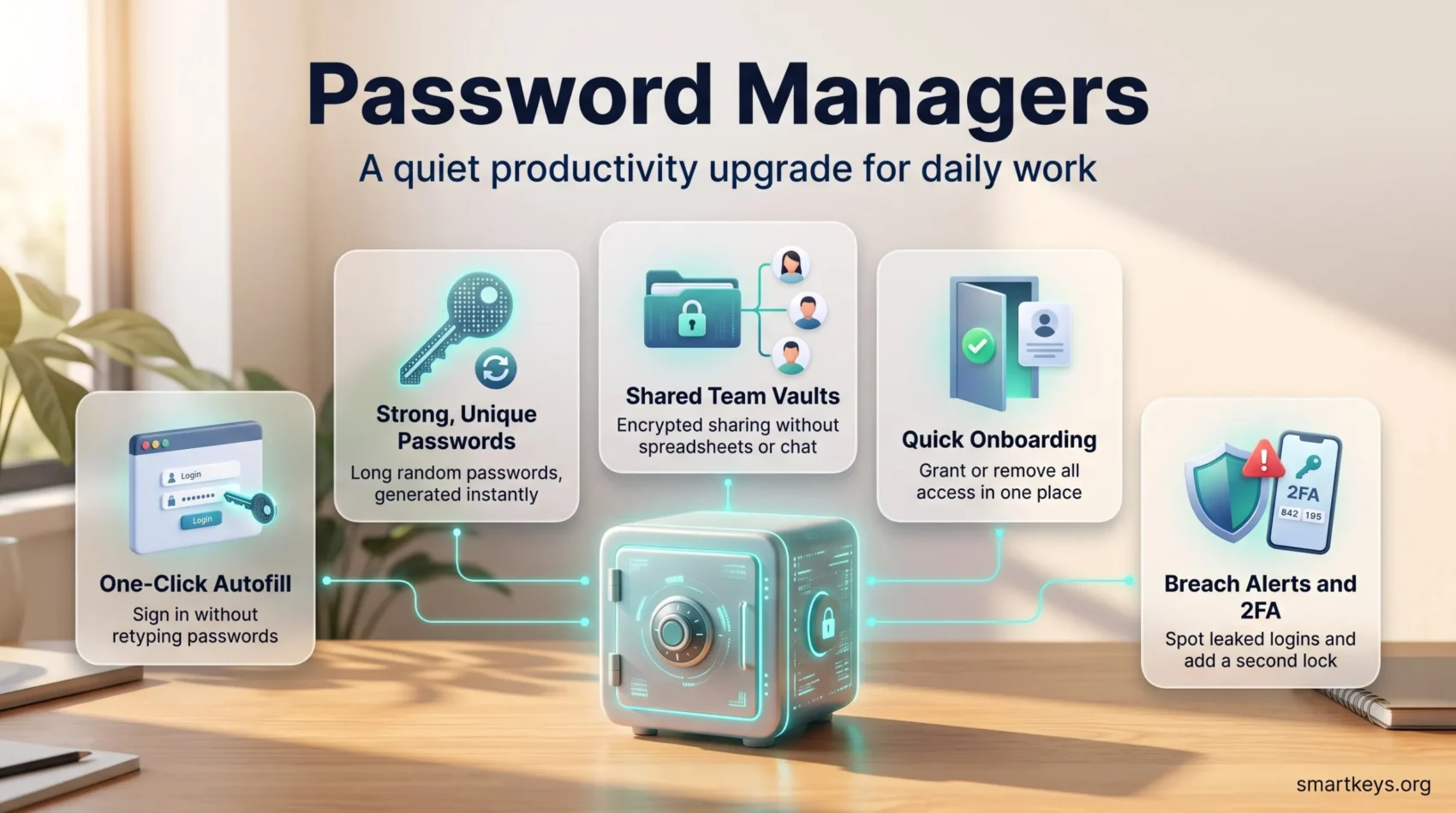
The assistant part is what saves time. A browser extension or mobile app recognizes the website you are on and offers the matching login. When you create a new account, it suggests a long random password and saves it automatically.
Most tools also store payment cards, secure notes and one-time codes for two-factor authentication. Many now store passkeys as well.
Where the Time Goes Without One
Login friction rarely shows up in a time audit, because each incident is short. Yet it happens in many small forms:
- Forgotten passwords: You click “reset”, wait for the email, create a new password, and then forget that one too.
- Lockouts: Too many wrong attempts can block an account until IT support steps in. Now two people have lost time.
- Hunting for shared logins: Someone needs the social media account or the supplier portal and has to ask around.
- Context switching: Every interruption pulls you out of focused work. Getting back into a task takes longer than the interruption itself, as our guide on task switching explains.
The problem grows with every app a team adds. If your company struggles with work tech overload, a password manager will not reduce the number of tools. That is a job for SaaS consolidation. It does make moving between the tools you keep much smoother.
Autofill: Faster Sign-Ins Without Retyping
Autofill is the feature people notice first. You open a login page, click once, and the username and password appear. On a phone, the app usually asks for your fingerprint or face scan and then fills in the details.
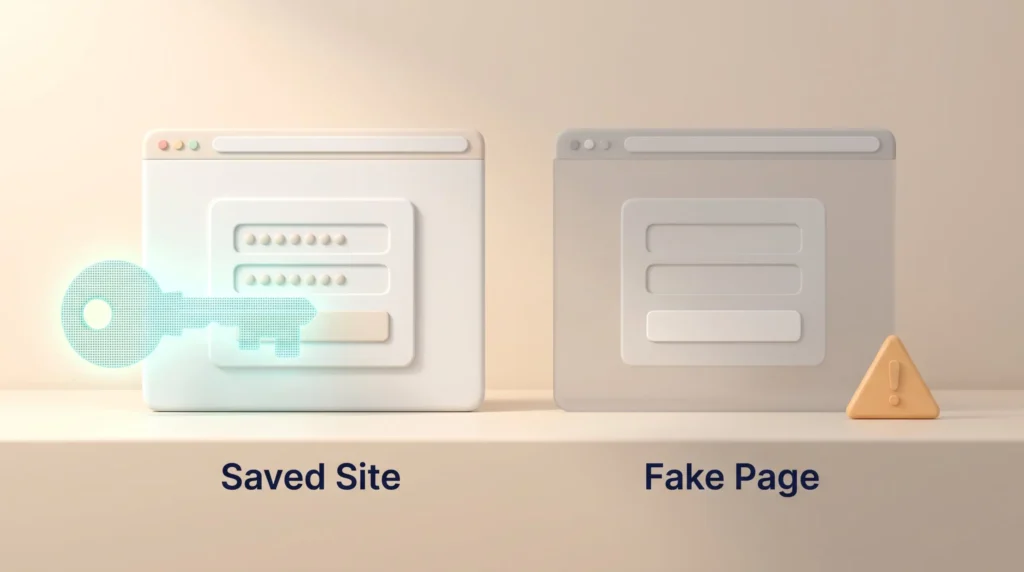
Autofill also adds a hidden security benefit. The password manager only offers a login on the exact website it was saved for. If a phishing email sends you to a fake page with a slightly different address, the manager stays silent. That silence is a useful warning sign.
For people who work across many accounts, such as freelancers juggling client tools, this matters every day. Our freelancer productivity hacks show how small time savings like this compound over a week. Autofill also pairs well with keyboard shortcuts: most password manager extensions open their fill menu with a single key combination, so your hands never leave the keyboard.
Strong, Unique Passwords Without the Memory Work
Password advice has changed. The US National Institute of Standards and Technology (NIST) publishes the digital identity guidelines that many companies follow. Its current version, SP 800-63B-4, was finalized in 2025. The key points are simple:
- Length beats complexity: Passwords used on their own must be at least 15 characters. Forced mixes of symbols and numbers should not be required.
- No routine changes: Services should not force password changes on a schedule. A change is required only when there is evidence of compromise.
- Password managers are welcome: Services must allow password managers and autofill, and should allow pasting passwords.
- Blocklists: New passwords should be checked against lists of common or leaked passwords.
A password manager makes these rules easy to follow. Its generator creates long, random passwords in one click. Because you never type them, length costs you nothing. The most important rule remains: never reuse a password. If one site leaks, reused passwords let attackers try the same login everywhere else.
Protect the vault itself with a long master password. A passphrase of several unrelated words is easier to remember than a short, complicated string. Then turn on two-factor authentication for the vault.
Shared Vaults: Team Access Without Spreadsheets
Many teams still share logins through spreadsheets, emails or chat messages. Those copies are hard to track and easy to leak. They are a classic form of shadow IT, where people work around official tools because it feels faster. A clear BYOA policy helps, but people also need a convenient alternative.
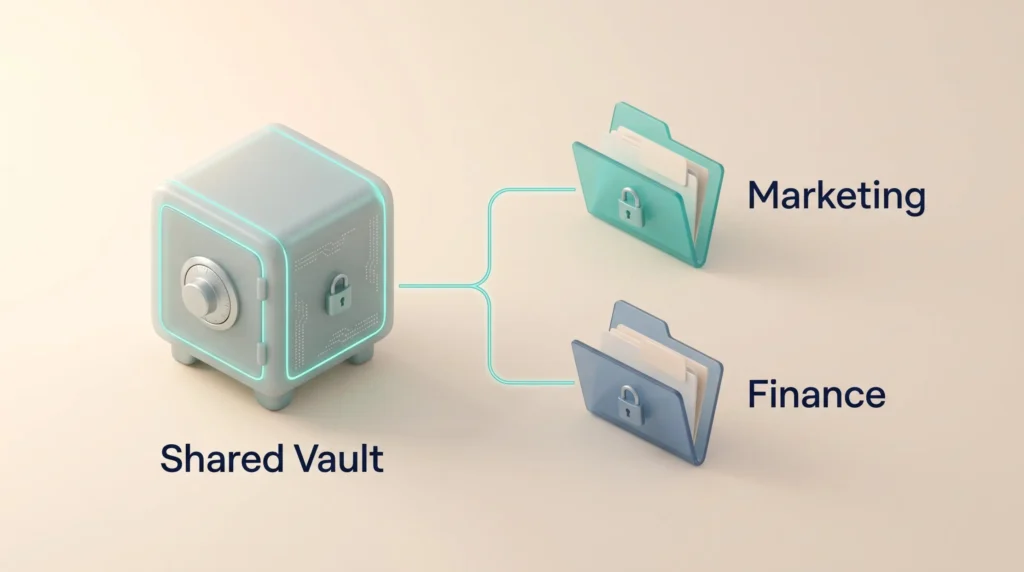
A business password manager offers a safer shortcut. Administrators create shared folders, often called vaults or collections, and decide who can see each one.
Encrypted Sharing of Sensitive Logins
A shared item stays encrypted when it moves between colleagues. You can share logins, company cards or secure notes without the details ever appearing in an inbox. When a password changes, everyone with access sees the new version automatically. Nobody needs to send an update.
Setting Clear Access Permissions
Permissions decide who can view, use or edit each item. A typical setup keeps personal employee logins private and puts team logins in shared collections. For example, the marketing team gets the social media accounts, while finance gets the banking portal.
- Clear access rules: Agree on which accounts belong in shared collections and who owns each one.
- Least privilege: Give each person access only to what their role needs. This is a core idea behind zero-trust security.
- Audit trails: Business plans log who accessed or changed an item, which helps when something goes wrong.
Shared vaults also build confidence in distributed teams. Our guide on digital trust in remote teams covers the policy side of this.
Faster Onboarding and Offboarding
Password managers save the most time when people join or leave. Without one, a new hire spends the first days collecting logins from different colleagues. With one, an administrator adds them to the right collections, and the access is ready on day one. That fits naturally into a structured remote onboarding process.
Offboarding is just as important. When someone leaves, removing them from the password manager cuts access to every shared login at once. Business plans can also connect to identity systems such as Microsoft Entra ID or Okta. These are the central directories that manage company accounts, so access follows the employee record automatically.
Breach Alerts and Two-Factor Authentication
Even strong passwords can leak when a service you use gets hacked. That is why most password managers include breach monitoring. They compare your saved logins with known leaks and flag weak, reused or exposed passwords. You fix the flagged accounts first, instead of guessing where the risk is.
Stolen logins remain a real threat. The 2026 Verizon Data Breach Investigations Report found that credential abuse was the first step in 13% of breaches, down from 22% a year earlier. Exploited software vulnerabilities started 31% of breaches and overtook stolen credentials as the top entry point for the first time in nearly two decades. That does not make passwords safe. Attackers simply pick whichever door is easiest, as our overview of cybersecurity trends shows.
Two-factor authentication (2FA) is the second lock on that door. It asks for a second proof, such as a code from an app or a tap on a security key. Many password managers can store these codes too. For remote teams, our guide to cybersecurity in remote work explains how 2FA fits into a wider security setup.
One limit remains: a password manager cannot stop a caller who pretends to be your CEO and asks for access. Our article on deepfake fraud shows how these attacks work.
Passkeys: The Next Step After Passwords
Passkeys are a newer way to sign in without a password. Instead of typing something secret, your device confirms it is you with a fingerprint, a face scan or a PIN. The login is tied to the real website, so a fake site cannot steal it.
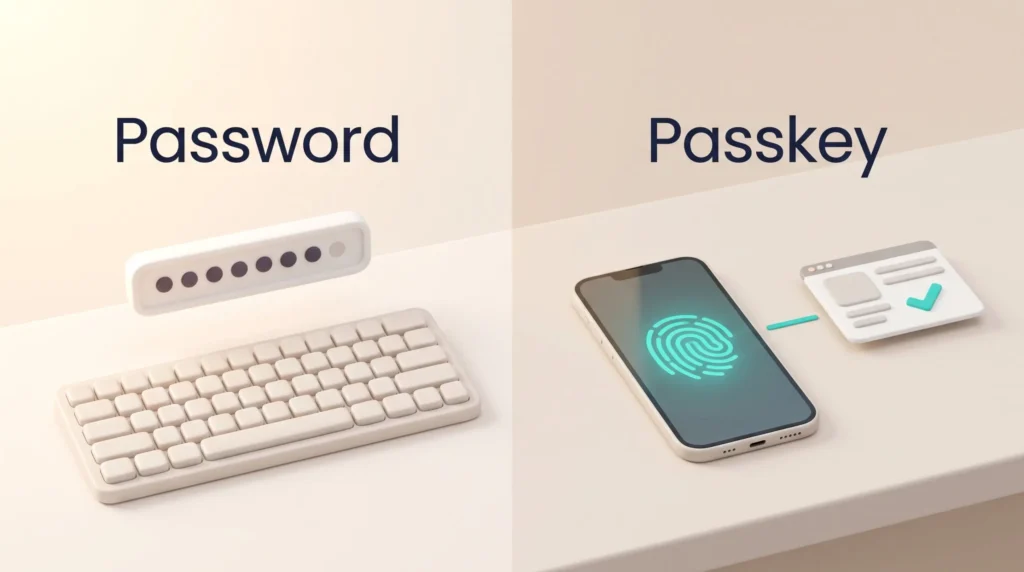
The practical gains are clear. According to the FIDO Alliance Passkey Index 2025, participating services saw a 93% sign-in success rate with passkeys, compared with 63% for other methods. Sign-ins took about 8.5 seconds instead of 31.2 seconds with conventional multi-factor login. Some companies reported up to 81% fewer sign-in related help desk incidents.
Passkeys do not make password managers obsolete. Many services still only accept passwords, and passkeys need a safe place to live. Most password managers now store and sync passkeys across devices. They are closely related to the biometric authentication many companies already use for remote work. In the longer run, approaches such as decentralized identity could go further by letting people hold verified credentials themselves.
How to Choose a Password Manager for Your Team
Start with how your team works, not with a feature list. These questions narrow the choice quickly:
- Devices: Does the tool work on every system your team uses, such as Windows, Mac, Linux, Android and iPhone, plus the main browsers?
- Sharing: Can you create shared collections with clear permissions?
- Admin controls: Does it offer audit logs, policies and a way to recover accounts when someone forgets the master password?
- Integrations: Does it connect to the identity system you already use for single sign-on (SSO), which lets people log in to many apps with one company account?
- Security basics: Look for zero-knowledge encryption, meaning the provider cannot read your vault, plus 2FA and breach reports.
Prices change often, so check the vendor page before you buy. At the time of writing in late 2026, list prices with annual billing look like this:
- Bitwarden: Free plan for individuals. Teams costs $4 per user per month and Enterprise $6. Enterprise adds SSO, policies and a free Families plan for each user.
- 1Password: The Teams Starter Pack costs $24.95 per month for up to 10 members, and Business costs $8.99 per user per month. Business includes a free Families plan for every user. Both come with a 14-day trial.
- Dashlane: The free plan ended in September 2025, so Dashlane is now a paid product only.
- Built-in options: Apple’s Passwords app and the password managers in Chrome and Edge are free. They work well for individuals but offer few admin controls for teams.
Use the trial period to test real workflows. Install the browser extension, share one collection, and ask a few colleagues to use it for a week. The best tool is the one people actually use every day.
A Simple Rollout Plan
A password manager only helps if people move their logins into it. A short rollout plan avoids a half-used tool:
- Start with shared accounts. Move the logins that people ask about most. This delivers quick wins.
- Import personal logins. Most tools can import passwords saved in browsers. Delete the old browser copies afterwards.
- Turn on 2FA for the vault. Make this a requirement for every user.
- Fix the breach report. Change reused and exposed passwords, starting with email and finance accounts.
- Write it down. Add the password manager to onboarding and offboarding checklists.
This process is also a good moment to declutter your digital life. Close old accounts you no longer use. Every forgotten account is one more login that could leak.
Conclusion
A password manager is not an exciting tool, and that is the point. It removes dozens of small interruptions and makes long, unique passwords and 2FA the easy default. For teams, shared vaults and faster onboarding turn access from a daily annoyance into a managed process.
Choose a tool that works on all your devices, test it with real workflows, and roll it out in small steps. Then the time savings follow on their own.
Found this useful?
Make SmartKeys a preferred source on Google, and our articles will surface more often in your Top Stories, AI Overviews, and AI Mode.
Add as Preferred SourceFAQ
What is a password manager?
A password manager is an app that stores your logins in an encrypted vault and fills them in when you need them. You only remember one master password to unlock the vault. The app also generates long, random passwords for new accounts, so every account gets a unique password. Most tools work as browser extensions and mobile apps and sync across your devices. Many also store payment cards, secure notes, two-factor codes and passkeys. For teams, business versions add shared collections, permissions and audit logs.
How does password autofill work?
Autofill lets the password manager enter your username and password for you. When you open a login page, the browser extension or mobile app recognizes the website and offers the matching login. One click or a fingerprint scan fills in the fields. The manager only offers logins on the exact site they were saved for. That means it stays silent on a fake phishing page with a similar address, which is a helpful warning sign that something is wrong.
Can I share my passwords with team members?
Yes, business password managers let you share logins securely through shared collections. The details stay encrypted and never appear in an email or chat message. Administrators set permissions that decide who can view, use or edit each item. When a shared password changes, everyone with access gets the new version automatically. When someone leaves the company, removing them from the password manager cuts their access to all shared logins at once.
Is two-factor authentication necessary if I use a password manager?
Yes, two-factor authentication (2FA) is still important. A password manager makes passwords strong and unique, but a password can still leak when a service gets hacked. 2FA asks for a second proof, such as a code from an authenticator app or a tap on a security key. That stops an attacker who only has the password. Turn on 2FA for the password manager itself first, because the vault protects all your other accounts. Then enable it on email, finance and admin accounts.
Can a password manager reduce IT support requests?
Yes, it usually reduces the routine requests caused by forgotten passwords and lockouts. People no longer need to remember individual passwords, so fewer of them trigger resets. Shared collections also cut the questions about where to find team logins. Onboarding and offboarding become faster because access is granted or removed in one place. How much time a company saves depends on how many apps it uses and how consistently people use the password manager.
What should I look for in a business password manager?
Start with device support: the tool should work on every operating system and browser your team uses. Then check sharing features, permissions and audit logs. Zero-knowledge encryption, meaning the provider cannot read your vault, should be standard. Larger teams benefit from single sign-on integration and account recovery for forgotten master passwords. Compare prices on the vendor pages, because they change often, and use a free trial to test real workflows with a few colleagues before you commit.
Is the password manager built into my browser or phone enough?
For individuals, a built-in option such as Apple’s Passwords app or the password manager in Chrome or Edge is often enough. These tools are free, generate strong passwords and warn about leaked ones. They work best if you stay within one ecosystem. For teams, they fall short: they offer few admin controls, limited sharing permissions and no central offboarding. A dedicated business password manager is the better choice once several people need access to the same accounts.
Do passkeys replace password managers?
No, passkeys and password managers work together. A passkey lets you sign in with a fingerprint, face scan or device PIN instead of a password, and it cannot be phished on a fake website. But many services still only accept passwords, and passkeys need a secure place to be stored and synced. Most password managers now store passkeys alongside passwords, so one tool covers both. Over time, you will type fewer passwords, but you will still need a place to manage your logins.