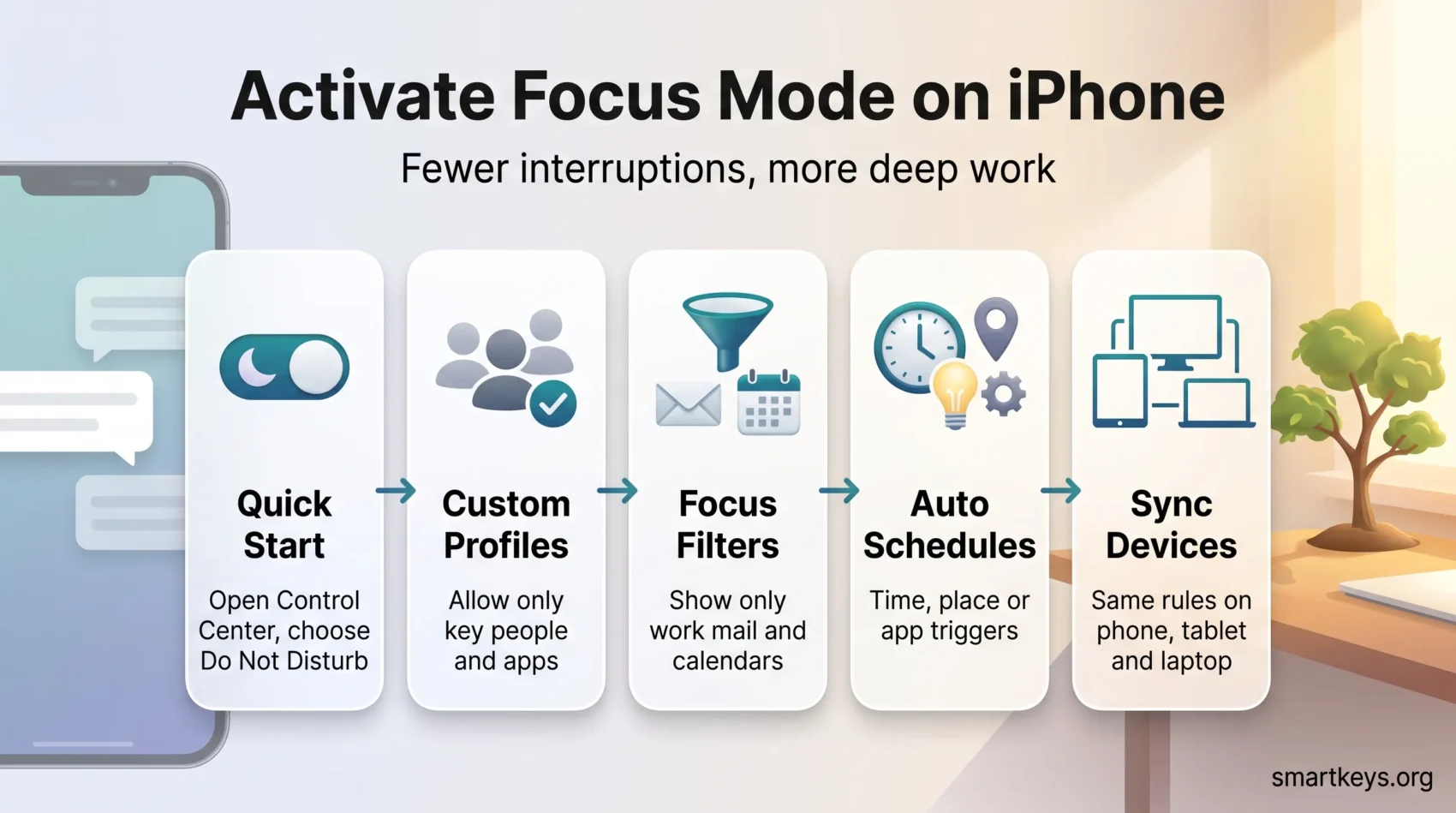
Your phone interrupts you more often than any colleague does. Microsoft’s Work Trend Index found that people working in Microsoft 365 get pinged roughly every two minutes during core hours — about 275 interruptions a day from meetings, email, and chat. Focus mode is the built-in answer on iPhone: it silences most notifications and lets only the people and apps you pick break through.
You can start with a preset like Work, Personal, or Sleep, or build a custom profile in Settings. Flip it on for ten quiet minutes, or schedule it around the blocks where you do your hardest thinking.
Switching it on also changes your Lock Screen and Home Screen, so visual clutter fades along with the buzzing. That pairing is what makes the habit stick: fewer alerts and fewer tempting icons.
This guide is current for iOS 26 and flags what changes when iOS 27 arrives in September 2026. If your files and desktop are also a mess, start one step earlier with decluttering your digital workspace.
Key Takeaways
- Focus mode cuts notification volume without taking you offline.
- Do Not Disturb is the zero-setup option; custom profiles are for repeatable routines.
- Focus filters narrow what you see inside Mail, Calendar, and Messages, not just what pings you.
- Reduce Interruptions lets Apple Intelligence decide which alerts are urgent enough to break through.
- Schedules by time, place, or app make quiet windows automatic instead of a decision you have to remember.
- Pair phone rules with a browser blocker so both screens follow the same plan.
What focus mode is, and why it matters in 2026
Apple introduced Focus in 2021 as an upgrade to Do Not Disturb. Instead of one blunt switch, you get named profiles that decide who reaches you, which apps may notify you, and what your screen looks like while the profile runs.
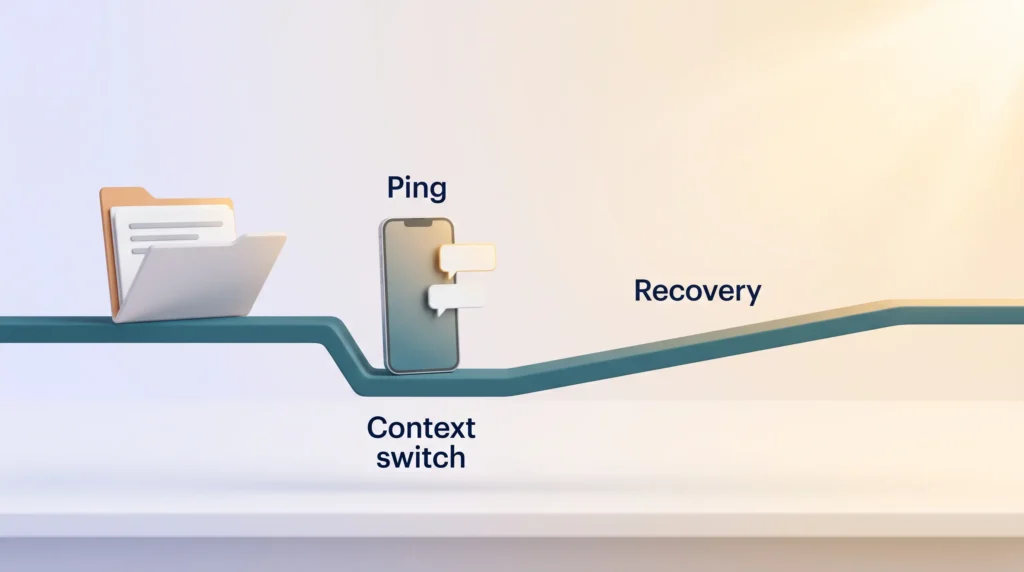
The case for using it has only grown. Alongside the two-minute interruption figure, Microsoft counted an average of 117 emails and 153 Teams messages per weekday for the typical knowledge worker. Each ping looks trivial on its own. Together they set the tempo of your entire day.
The real cost is the recovery, not the ping
A notification does not just steal the three seconds you spend glancing at it. It forces a context switch, and getting fully back into a demanding task takes far longer than the interruption itself. That is the tax deep work pays for an open notification policy.
Focus mode attacks the volume side of that equation. It will not fix a calendar packed with meetings — for that you need team-wide no-meeting hours — but it removes the interruptions you actually control.
What Focus controls
- People: which contacts can reach you, plus Emergency Bypass for the few who always should.
- Apps: which apps may notify you, and whether time-sensitive alerts still get through.
- Screens: which Lock Screen and which Home Screen pages appear while the profile is active.
- Content: Focus filters limit what you see inside supported apps.
- Status: Share Focus Status tells contacts your notifications are silenced.
Quick start: turn on Focus from Control Center
Instant quiet is one swipe away, with no setup at all. Use this before a meeting, during a call, or when you need to finish something in the next twenty minutes.
Tap the Focus button to silence notifications now
Swipe down from the top-right corner of the screen (swipe up from the bottom edge on iPhones with a Home button) to open Control Center. Tap Focus, then choose Do Not Disturb.
That is it. Alerts pause immediately, and a small indicator appears in the status bar and on your Lock Screen so you can confirm at a glance that quiet is on.
Do Not Disturb versus a custom profile
Do Not Disturb is broad and instant. A custom profile takes a few minutes to build but pays that back every day, because it keeps the right channels open. Here is the short version:
| Option | Setup time | Best for |
|---|---|---|
| Do Not Disturb | None | A quick, total pause before a call or a 20-minute sprint |
| Custom Focus (Work, Deep Work, Sleep) | 5–10 minutes once | Recurring blocks where a few people and apps must still reach you |
| Reduce Interruptions | None, needs Apple Intelligence | Letting the system judge urgency when you cannot predict it yourself |
Set up a custom Focus in Settings for Work, Personal, or Sleep
Open Settings > Focus. You will see the built-in options — Do Not Disturb, Personal, Work, Sleep, Driving, Fitness — and a plus button in the top-right corner to create your own.
Name custom profiles after the task, not the mood: Deep Work, Writing, Client Calls, Training. A specific name makes it obvious which one to reach for.
Allow the people and apps you still need
Under People, choose Allow Notifications From and add the handful of contacts who genuinely cannot wait: your manager, your partner, the school. Picking an allow list is far faster than silencing contacts one by one.
Do the same under Apps. Most people end up with two or three — Phone, Calendar, and whatever tool their team actually runs on. If chat is the main offender, tighten it at the source too by setting clear instant messaging boundaries.
Cut visual temptation with screen options
Under Options, decide whether silenced notifications still appear on the Lock Screen, and turn on the dimmed Lock Screen so a quick glance is less rewarding. Give each profile a distinct color and icon so you recognize the active mode instantly in the status bar.
- Link a plain Lock Screen wallpaper with no news or social widgets.
- Link a custom Home Screen page holding only the apps that block needs.
- Add a schedule so the profile turns itself on by time or location.
Fine-tune Focus filters and Apple Intelligence
Filters are the underused half of Focus. Silencing a notification stops the ping; a filter changes what you see when you open the app anyway.
Add filters for Mail, Calendar, and Messages
Go to Settings > Focus, pick a profile, then Focus Filters > Add Filter. Choose Mail and select only your work account, or choose Calendar and show only the calendars relevant to that block. Safari can open a specific Tab Group; Messages can hide conversations you have muted.
The effect is quiet in a different way: you open Mail and simply do not see the personal inbox that would have pulled you sideways. Note that filters are configured per device, so set them again on your iPad and Mac.
Schedule by time, place, or app
Use Add Schedule to trigger a profile automatically — weekday mornings, arriving at the office, or opening a specific app. Automatic activation is the difference between a feature you like and a habit you keep.
Reduce Interruptions and Intelligent Breakthrough
On iPhones that support Apple Intelligence (iPhone 15 Pro and newer), you also get a Reduce Interruptions profile. It works like any other Focus, with one difference: the Intelligent Breakthrough & Silencing setting sits at the top, is on by default, and cannot be switched off in this profile.
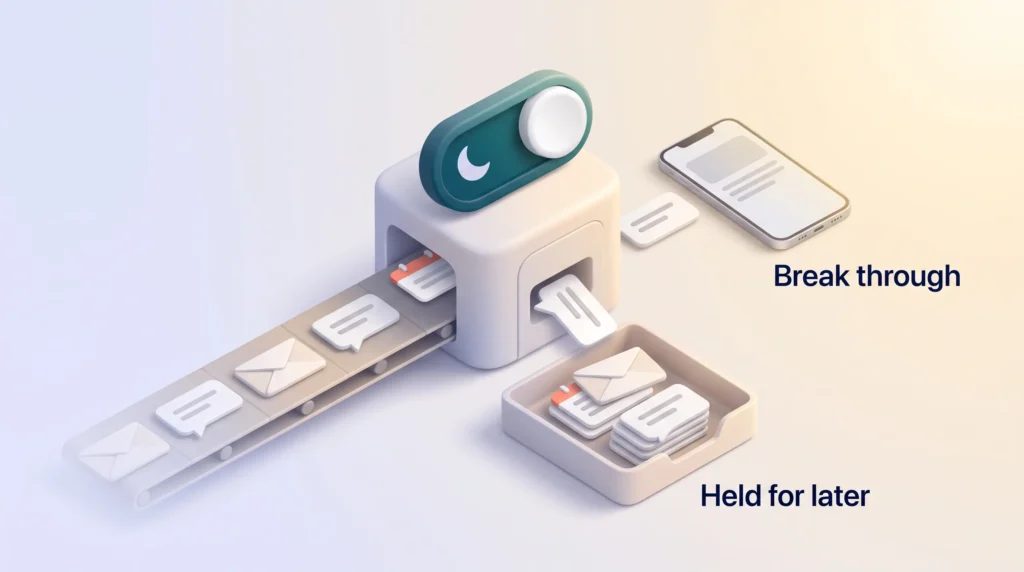
With it on, the system reads context — time, calendar, sender, message content — and decides which alerts are urgent enough to break through. Everything else is held back and surfaced later. You can still override the judgment by adding people and apps to the allow list, and those edits teach the system what counts as urgent for you.
Other profiles offer the same toggle, so you can add a layer of AI triage to your own Deep Work setup without giving up manual control.
What changed for Focus in 2026
Focus has been stable for a few releases, which is good news if you set it up once. The notable points for this year:
- iOS 26 is the current release and carries Focus largely unchanged, inside the Liquid Glass redesign of Control Center and the Lock Screen.
- Reduce Interruptions has matured from a novelty into the default choice for people who cannot predict which alerts will matter.
- iOS 27 was announced at WWDC in June 2026 and ships in September. It is a stability-focused release, but Shortcuts gains better Focus automation triggers, so you can fire actions whenever any profile turns on or off — useful for smart-home routines and time tracking.
Nothing here forces you to rebuild your setup. If your profiles work on iOS 26, they will carry over.
Keep Focus in sync across your devices
A profile that only silences your phone while your Mac keeps buzzing is not much of a system.
Turn on Share Across Devices
Open Settings > Focus > Share Across Devices and enable it. Your profiles and their people and app rules travel to any Apple device signed in to the same account, so switching one on anywhere switches it on everywhere.
Share Focus Status, thoughtfully
Enable Share Focus Status so contacts see that your notifications are silenced rather than assuming you are ignoring them. It cuts follow-up nudges and sets expectations without explaining yourself. You can enable it per app, so work chat can show your status while everything else stays private.
Two things to check after you turn sync on: filters do not travel, so add Mail and Calendar filters on each device, and confirm scheduled profiles actually fire on the Mac, where automation is easier to miss.
Extend Focus to the browser
Silencing your phone does nothing about the tab you open out of habit. A browser layer closes that gap.
FocusMode for Chrome (version 2.8.5, updated May 2026, around 10,000 users at a 4.7-star rating) puts a deliberate pause in front of distracting sites and asks how long you intend to stay. You edit the blocked and allowed lists, customize the intervention text, schedule rules by day and time, and start strict sessions for high-stakes work. Browsing analytics stay in your browser rather than on a server.
It is not the only option. one sec, LeechBlock NG, AppBlock, and FocusGuard all sit at different points on the friction scale — see the wider comparison of website blockers for focus time before you commit to one.
Build a routine that actually holds
Settings are the easy part. The routine around them is what decides whether any of this survives a busy week.
Match blocks to profiles
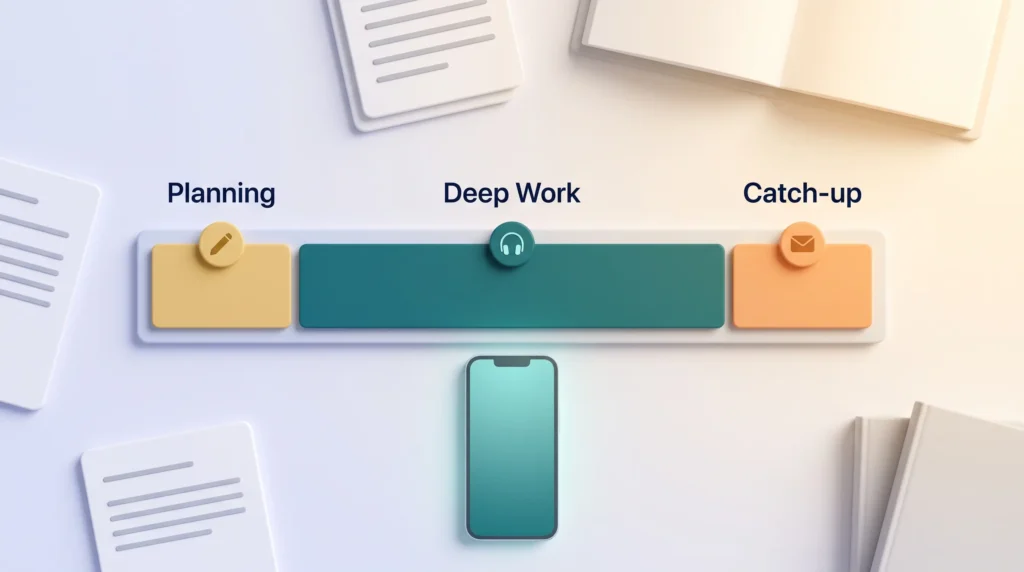
Map two or three daily blocks and give each one an intention and a matching profile: morning planning, a long mid-day deep work block, a late-afternoon catch-up. Then set schedules so the phone follows the plan without being asked. Time blocking and Focus profiles are the same idea applied to your calendar and your device.
Start with one block, not seven
One protected 60-minute block, running every weekday for two weeks, beats an elaborate six-profile system you abandon by Thursday. If a full hour feels like too much, run Pomodoro intervals inside the block and let the profile stay on the whole time.
A tidy screen and predictable rules make deep work less fragile.
Review what breaks through
Once a week, look at what actually interrupted you. Anything that reached you but did not deserve to comes off the allow list. Anything you missed and needed goes on. Three or four rounds of this and your profile stops being a guess. For more angles on protecting attention, see these focus management techniques.
Conclusion
Focus mode works when it is boring: a few profiles, a schedule, and a weekly tidy-up.
Start with Do Not Disturb from Control Center today. Build one custom profile this week with a short allow list, a plain Lock Screen, and a schedule. Add Mail and Calendar filters once that sticks, and turn on Share Across Devices so the rules follow you.
Then try a single 60-minute block and see what breaks through. Refine from there rather than trying to design the perfect setup up front. For the wider picture on what should reach you during working hours, see our guide to managing work notifications.
Found this useful?
Make SmartKeys a preferred source on Google, and our articles will surface more often in your Top Stories, AI Overviews, and AI Mode.
Add as Preferred Source