
You find a good article, but you have no time to read it right now. So you save it. A week later you have forty saved articles, a dozen open tabs and three newsletters you meant to finish. A read-it-later backlog fixes this, as long as you treat it as a system and not as a digital junk drawer.
Saving more links does not mean you read more. A list that keeps growing often makes reading feel like a debt and adds to your digital overload. This guide aims for the opposite: a short, trusted queue you actually work through.
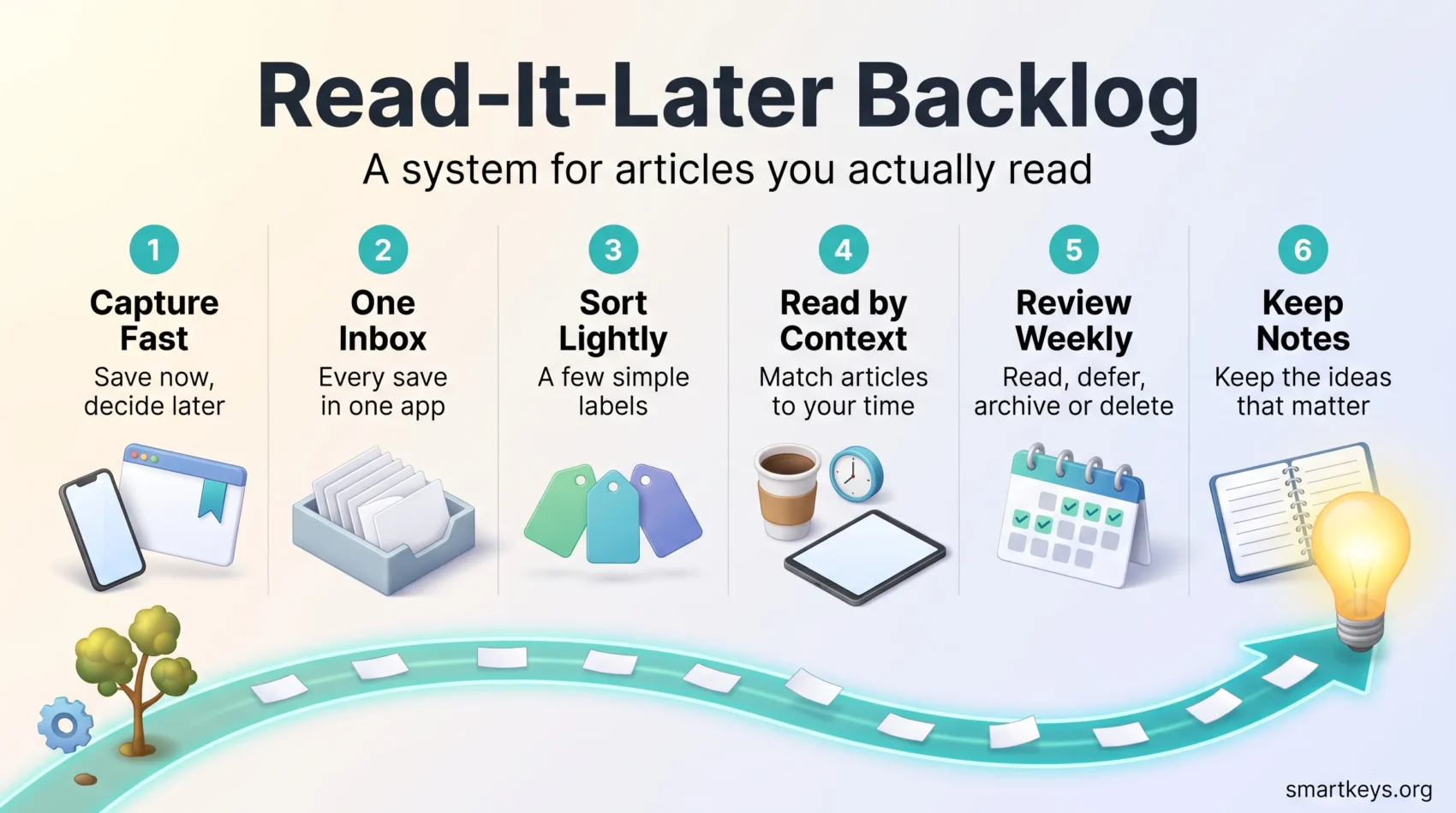
Below you will find a simple workflow in six steps: capture, collect, sort, choose, review and turn what you read into notes. It works with any app and does not require a complicated productivity setup.
Key Takeaways
- A read-it-later backlog is a short-term queue of articles you plan to read soon, not a permanent archive.
- Save quickly, decide later. Separating capture from reading protects your focus.
- Use one app as your single inbox for new saves, and keep a way to export your data.
- Choose what to read by the time and attention you have, not by the date you saved it.
- A short weekly review and a cap on unread items keep the list small enough to trust.
What a Read-It-Later Backlog Is and What Belongs in It
A read-it-later backlog is a list of articles, videos or newsletters you saved to read in the near future. Think of it as a waiting room, not a library. Items come in, get read or deleted, and leave again.
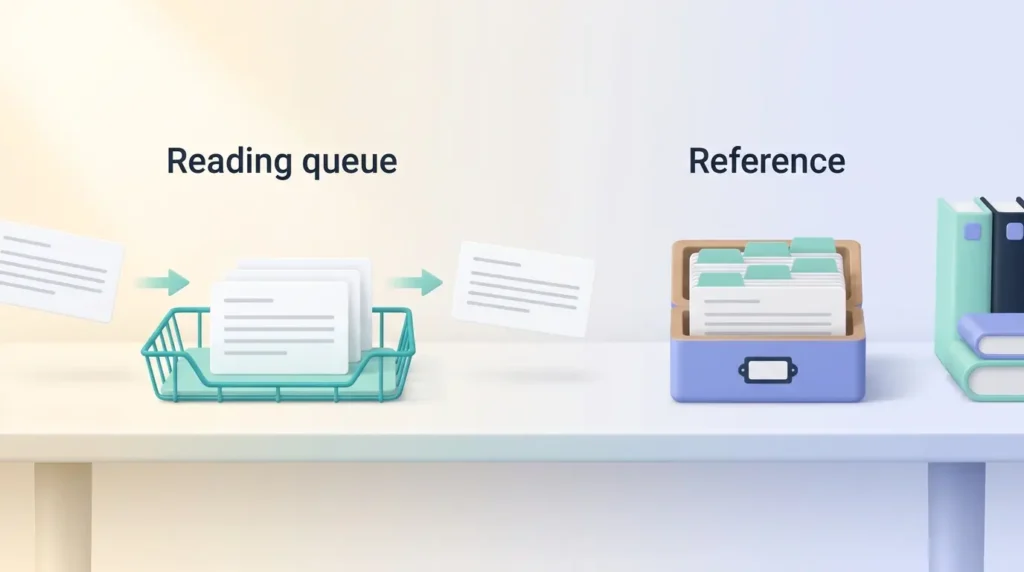
This sounds obvious, but most people mix up two different things. A reading candidate is something you plan to read. A reference bookmark is something you want to find again later, such as a pricing page, a tutorial or a template. Reference material belongs in a bookmark manager or note app. If you want a structure for that, the PARA method sorts files and notes by how actionable they are.
Every item in your queue should have a reason to be there. Maybe it supports a current project, answers a question you have, or feeds a topic you are actively learning. If you cannot name the reason, the item probably does not belong in the queue.
Deleting an item is not failure. A small, relevant queue gets read. A huge one gets ignored.
Capture First, Decide Later
The first habit is the simplest one: when you find something interesting, save it and move on. Do not start reading in the middle of another task. This is the same idea behind good task capture. You get the thought out of your head and into a trusted system, then you return to what you were doing.
Use whatever capture tool is fastest: a browser extension, your phone’s share button, or an email address that forwards newsletters into your app. One click or tap is the target. If saving takes longer than that, you will start leaving tabs open instead, which leads straight to tab overload.
Why wait to judge an article? Because the moment of discovery is a bad moment to decide. You are curious, but you are also busy. A day or two later, many saved items look less important. Separating collection from reading lets you filter with a clear head, and it keeps each unfinished article from becoming another open loop that pulls at your attention.
Bring Your Saved Articles Into One Place
Most people collect reading material in several spots: starred emails, bookmarks, chat messages to themselves and a notes app. Together they form a scattered pile you never fully see.
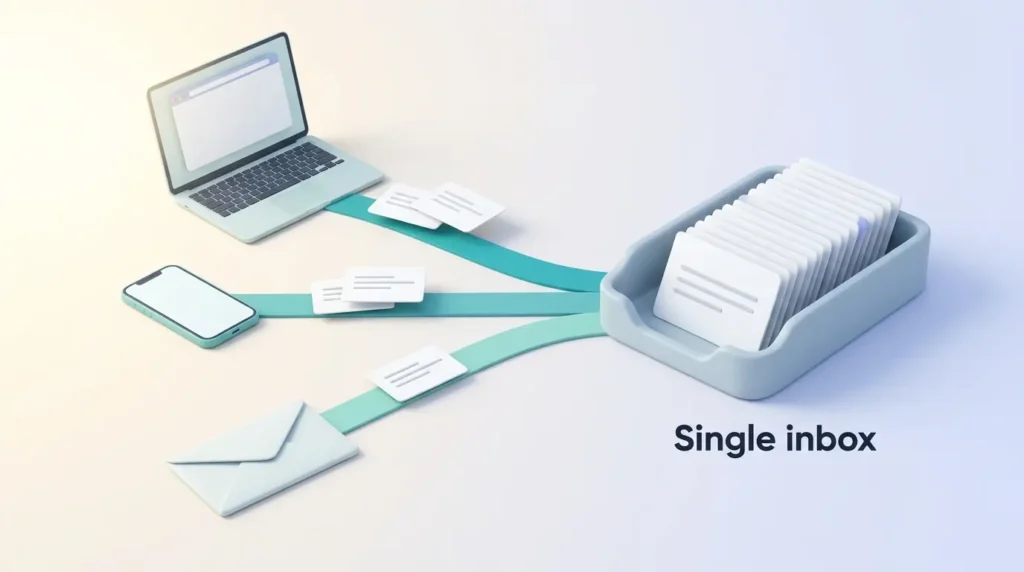
Pick one app as your single inbox for new saves. Then route everything there:
- Browser: install the app’s extension and use it instead of bookmarking.
- Phone: add the app to your share menu so saving takes one tap.
- Newsletters: many read-it-later apps give you a dedicated email address. Subscribe with it, and your inbox stays cleaner. This pairs well with Inbox Zero.
- RSS feeds: RSS lets you follow websites without visiting them, and some apps pull feeds in directly.
One more rule: make sure you can get your data out. Pocket, once one of the most popular read-it-later apps, shows why. Mozilla shut the service down on July 8, 2025. According to Mozilla’s support page, exports closed on November 12, 2025, and user data was then queued for deletion. Anyone who missed that window lost their saved lists. Before you commit to any app, check that it offers an export, and run one every few months.
Choose a Read-It-Later App That Fits Your Workflow
The best app is the one you open every day. Before comparing brands, decide what you actually need. Do you read mostly on a phone or a computer? Do you want offline reading, audio playback or highlights that flow into your notes? Do you need Android support?
Here is how four common options compare as of late 2026. Prices change often, so check the vendor’s page before you subscribe.
- Instapaper: a clean, distraction-free reader that has been around since 2008. Saving is free and unlimited. Premium costs $5.99 per month or $59.99 per year according to Instapaper’s pricing page and adds full-text search inside your saved articles, unlimited notes and text-to-speech. Since early 2026, sending articles to a Kindle also requires Premium.
- Readwise Reader: handles web articles, PDFs, newsletters, RSS feeds and e-books in one place, with strong highlighting. There is no permanent free plan. Reader alone costs $7.99 per month billed yearly, and the full Readwise bundle, which also syncs highlights from Kindle books, costs $9.99 per month billed yearly, according to Readwise’s pricing page. Monthly billing costs more, and every plan starts with a 30-day free trial.
- Matter: a polished reading app for iPhone, iPad and the web, known for natural-sounding audio. The free tier covers saving and reading. Premium, which adds features like higher-quality text-to-speech, costs about $60 per year. There is no native Android app.
- Raindrop.io: strictly a bookmark manager, but many people use a collection inside it as a reading queue. The free plan includes unlimited bookmarks. The paid Pro plan adds full-text search and permanent copies of saved pages, so they survive if the original site goes offline.
If you prefer listening to reading, a dedicated text-to-speech tool such as Speechify can turn saved articles into audio for your commute. Whatever you choose, weigh platform support, exports and the company’s track record above any single feature.
Sort Your Reading Queue Without Overcomplicating It
Sorting should take seconds, not minutes. If organizing your queue starts to feel like a project, the system is too complex.
Start with three or four labels, for example:
- Priority: needed this week for work or a decision.
- Work: useful for your job, but not urgent.
- Learning: topics you are actively building skills in.
- Someday: interesting, but optional.
Most apps show an estimated reading time. Use it. A five-minute piece and a 40-minute essay need very different moments in your day. You can also tag items by context. Use “desk” for articles with charts or code that read badly on a phone, and “audio” for pieces that work well as listening.
Avoid deep folder trees and long tag lists. Every extra label adds a small decision at capture time, and small decisions add up.
Choose What to Read Based on Your Time and Attention
Reading in the order you saved things rarely works. Instead, match the article to the situation you are in. Here is a simple way to do it:
- Five-minute gaps: while waiting for a meeting or a coffee, read short pieces.
- Commutes and travel: download articles for offline reading before you leave, or switch to audio. Our guide to a productive commute has more ideas for that time.
- Dedicated sessions: keep long, demanding pieces for a block of deep work time, when you can think about what you read.
- Across devices: let your app sync your reading position, so you can start on a phone and finish on a laptop.
A fixed reading slot helps too. Attach 15 minutes of reading to an existing routine, such as your first coffee. This technique, called habit stacking, makes reading automatic. To get through more material in that time, these speed reading techniques explain what helps and where comprehension drops.
Review Your Backlog Each Week and Keep It Manageable
Even with good habits, a queue grows. A short weekly check keeps it under control. Ten minutes is enough, and it fits neatly into a broader weekly review if you already do one.
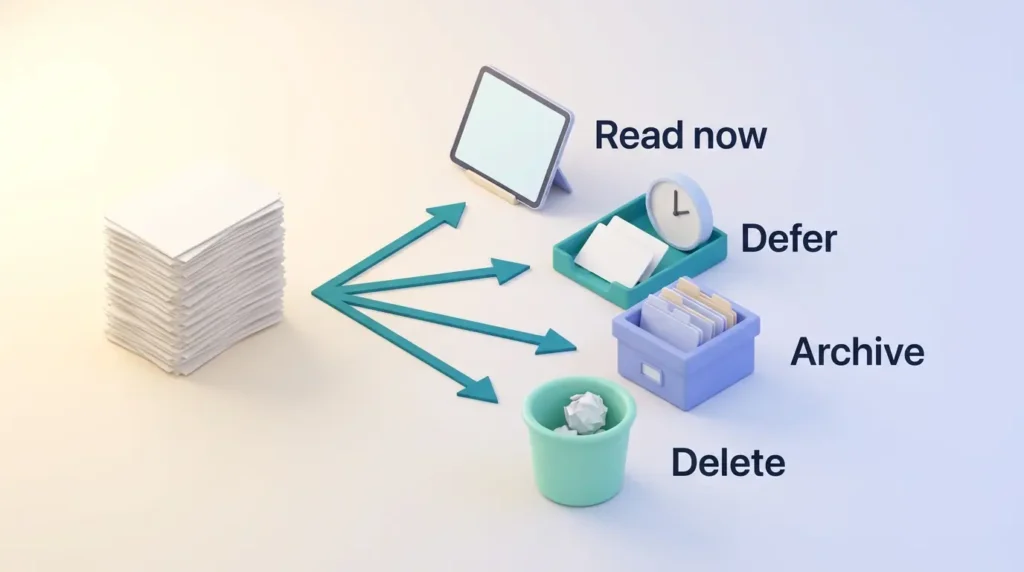
Go through new and old items and give each one of four outcomes:
- Read now: it is still relevant and you will read it this week.
- Defer with a reason: keep it, but only if you can say when or why you will read it.
- Archive as reference: move it to your bookmark manager or notes.
- Delete: it no longer matters. No guilt.
Then set a cap, for example 30 unread items or five long-form pieces at once. When you hit it, read or delete something before saving more. Without a limit, the queue slowly turns into the archive you were trying to avoid.
The same thinking applies to email, chats and feeds. Our guide to digital decluttering covers those areas.
Turn Articles You Read Into Useful Notes and Ideas
Reading only pays off when something sticks. Skip saving every good sentence. Highlight the few points that matter for a current project, a decision or a topic you are learning.
Many reading apps can send highlights to a note app automatically. Readwise Reader, for example, can export to tools like Obsidian or Notion, so your highlights land next to your other notes. If you already keep a second brain, which is a personal system for storing and finding ideas, your reading notes should flow into it. For general note habits, see these digital note-taking tips. AI workspaces such as Fabric can also link saved articles with notes and files, which helps when you look for a source months later.
After you finish an article, take five seconds to decide its next step. Will you apply an idea, share it with a colleague, file it as reference or simply let it go? That small decision turns reading into results instead of quiet accumulation.
Conclusion
A read-it-later backlog works when it stays small and purposeful. Save quickly, collect everything in one app, sort with a few simple labels, and pick articles based on the time you actually have. Once a week, read, defer, archive or delete.
The Pocket shutdown is a useful reminder: your reading list depends on a service you do not control. Choose an app that fits your routine, keep an export, and treat the queue as a tool, not an obligation.
Found this useful?
Make SmartKeys a preferred source on Google, and our articles will surface more often in your Top Stories, AI Overviews, and AI Mode.
Add as Preferred SourceFAQ
What is a read-it-later backlog?
A read-it-later backlog is a short-term queue of articles, newsletters and other content you have saved to read soon. It is different from a bookmark collection. Bookmarks are reference material you want to find again, while a backlog holds things you actually plan to read. Items should move through the queue: you read them, archive them as reference or delete them. When a backlog only grows and nothing leaves, it stops being useful and starts to feel like a debt. Keeping it small and reviewing it weekly is what makes it work.
How do I choose the right read-it-later app?
Choose the app that fits the devices and habits you already have. First check platform support, since Matter, for example, has no native Android app. Then pick the features that matter most: offline reading, audio, full-text search or highlight export. Finally, confirm that the app lets you export your data. Instapaper, Readwise Reader, Matter and Raindrop.io are common choices, and most offer a free tier or trial, so test one for two weeks before paying.
What happened to Pocket, and where can I move my reading list?
Pocket no longer exists. Mozilla shut the service down on July 8, 2025, and the export option closed on November 12, 2025, according to Mozilla’s support page. If you exported your list in time, most alternatives can import a Pocket export file, including Instapaper, Readwise Reader, Matter and Raindrop.io. If you did not export, the data cannot be recovered from Pocket. The lesson for any new app is simple: pick one that supports exports and save a copy of your list every few months.
How many unread articles is too many?
There is no universal number, but a good test is whether you can scan the whole list in a minute or two. Once you cannot, the queue is too long to trust. A cap of a few dozen unread items, plus a smaller limit for long pieces, is a reasonable start. The exact figure matters less than having a limit. When you reach it, read or delete something before saving anything new. That rule forces regular decisions and keeps the backlog from turning into an archive.
How often should I review my backlog?
Once a week is enough for most people. A ten-minute review lets you remove outdated or duplicate items, archive reference material and pick a few articles for the coming days. Heavy savers can add a quick daily glance at new items, but the weekly pass does the real cleanup. Attach it to a fixed moment, such as Friday afternoon, so it does not slip.
What should I do with the notes I take from articles?
Keep only the notes that support a current project, decision or learning goal, and store them where you already keep your other notes. Many reading apps export highlights automatically to tools like Obsidian or Notion. After finishing an article, decide its next step: apply an idea, share it, file it or let it go. Notes that never connect to your work rarely get read again, so capture a few useful points instead of everything that sounded interesting.