Open tabs start out useful. You keep a page because you are comparing two products, because a document is half finished, or because an article looks worth reading later. Then the tab strip shrinks into a row of favicons (the tiny site logos on each tab), and you forget why half of them are there.
Tab overload is a decision problem more than a memory problem. Every tab you did not close is a small unfinished job in your line of sight. That is why a crowded browser feels tiring even when the computer runs fine. This guide covers how to clear a crowded browser, what your browser does on its own, when an extension helps, and how to keep the count down.
Key Takeaways
- Tabs pile up because closing one means deciding, so the cost is attention, not memory.
- Four buckets (active, reference, read later, done) clear a crowded window fast.
- Chrome, Firefox, Edge and Safari all build in tab groups, and Chrome, Firefox and Edge now offer vertical tabs too.
- Extensions such as OneTab pay off mainly if you park big research sessions.
- A short weekly review stops the count creeping back up.
Why Tab Overload Costs You More Than Memory
The usual complaint is that tabs eat RAM, the working memory your computer uses for open programs. That is real but fixable. The bigger cost is your attention.
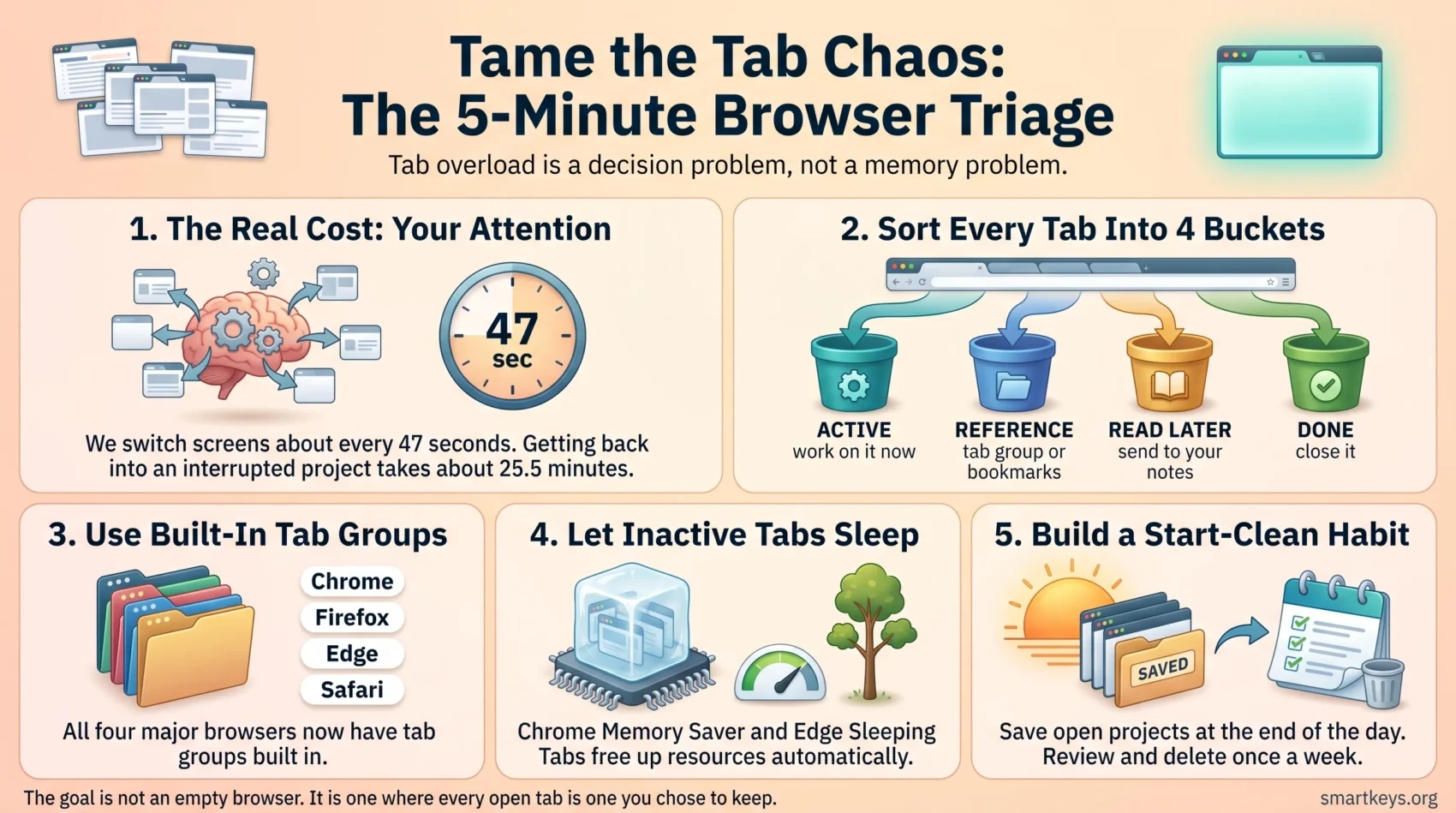
Gloria Mark, a researcher at the University of California, Irvine, has measured how long people stay on one screen before switching. It was about two and a half minutes in 2003, 75 seconds by 2012, and around 47 seconds in her more recent observations. Measured by project rather than by screen, getting back to an interrupted project took about 25 and a half minutes on average.
A wall of tabs feeds that pattern. Each visible tab is a prompt to switch, and switching is what fragments a day. It is the mechanism behind task switching and the reason multitasking hurts more than it helps. Unfinished tabs also act like open loops: your mind keeps them warm because nothing has marked them as done.
The Five-Minute Tab Triage
Before installing anything, clear what is there. Start by naming your triggers. Most tabs come from a small set of habits, usually price comparisons, research, recipes, trip planning and half-finished documents.
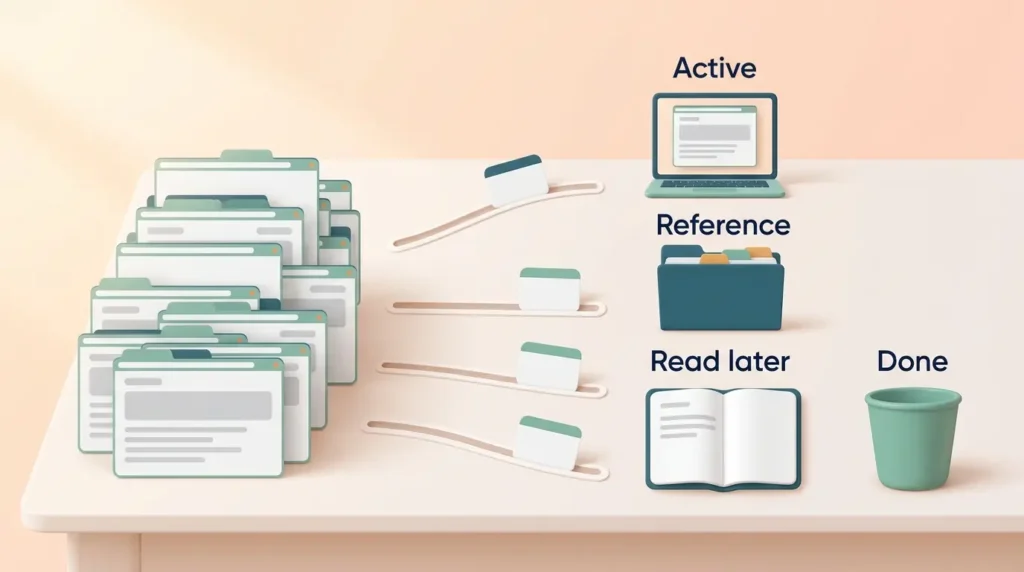
Then sort every tab into four buckets:
- Active: you will work on it within the hour. Keep it open.
- Reference: needed for a current project, not right now. It belongs in a tab group or bookmark folder.
- Read later: interesting, not urgent. Send it to a reading list or your notes.
- Done: the question is answered or the page is a duplicate. Close it.
Close in batches. In Chrome, Firefox and Edge, hold Ctrl (Cmd on a Mac) to click several tabs, then close or move them together. Dragging a selection into a new window splits a mixed session into one window per project. A few keyboard shortcuts beat any extension for speed here.
The hard bucket is “read later”. If those pages move to a list you never open, you have only relocated the clutter. Send them to your note-taking system or second brain, and do a brain dump at the same time to catch the tasks hiding behind them.
What Your Browser Already Does
Tab groups used to be an extension feature. All four major browsers now build them in.
Chrome: right-click a tab, add it to a new group, then set a name and color. Clicking the label collapses the group without closing anything, and saved groups follow you to other signed-in devices. Since April 2026, desktop Chrome can also show tabs in a vertical sidebar: right-click the window and choose “Show Tabs Vertically”. Memory Saver, under Settings and Performance, deactivates tabs you have not touched and reloads them when you return. Google publishes no savings figure for it.
Firefox: tab groups arrived on April 29, 2025, after roughly 4,500 votes made them the most requested idea on Mozilla Connect, the browser’s feedback forum. Drag one tab onto another to create a group, then name and color it. Firefox 136, released in March 2025, added vertical tabs, which help when you run more tabs than fit across the top.
Edge: background tabs go to sleep after two hours of inactivity by default. Microsoft says this cuts CPU use (the load on your processor) to a minimum and releases some memory, and a sleeping tab wakes instantly instead of reloading. The Performance Detector flags the background tabs using the most resources.
Safari: Tab Groups sync through iCloud, so a group built on a Mac also appears on your iPhone. A shared Tab Group can have up to 100 participants, who see changes in real time.
Two older features still earn their place. Pinning keeps the tabs you use all day at the left edge, shrunk to icons. Bookmark folders outlive the session and work in any browser. Color coding makes both faster to scan, and the same folder logic as the PARA method (projects, areas, resources, archives) keeps bookmark folders from turning into a second junk drawer.
When an Extension Is Worth Installing
An extension is a small add-on that changes how your browser works. Add one only if the built-in tools have failed you, usually when you need to park large research sessions out of the browser.
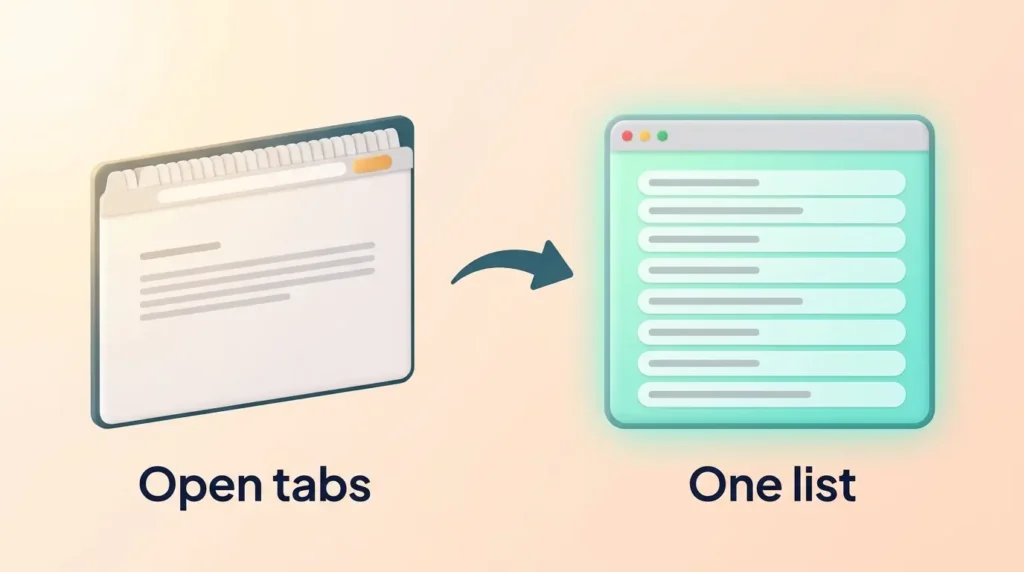
OneTab turns every open tab into a single list on one page, restorable one by one or all at once. Its “save up to 95% memory” line comes from its own before and after example, so treat it as a vendor claim, not an independent test. As of October 2026, its Chrome Web Store listing shows about two million users, a 3.8 rating from roughly 14,600 reviews, and an October 2026 update. It also runs on Firefox, Edge and Safari.
Tab Manager Plus suits people who want to search rather than archive. It lists every tab and window, filters by title and URL, highlights duplicates, and can cap the number of tabs per window. Its Chrome listing shows 200,000 users, a 4.5 rating from about 1,100 reviews, and a version 7.0 update in October 2026.
One caution: an extension can read what you browse, so check its permissions before you install it. And remember that time spent organizing is not work. Our roundup of productivity apps covers the wider toolset.
Keeping the Count Down
Triage is a one-off; staying tidy needs a habit. At the end of the day, save what is still open into a named group or bookmark folder and start the next morning from a clean window. Once a week, delete the saved groups whose project has finished. A simple file naming convention makes saved downloads findable later.
It also helps to fix what generates the tabs. When most arrive from notifications or a scroll break, tightening notification settings, using focus mode or setting website blockers removes the source, not just the symptom. If the setup feels heavy overall, a digital declutter or a digital detox routine is the next step. Our guides to digital overload, digital fatigue and rebuilding your attention span go deeper.
The goal is not an empty browser. It is one where every open tab is one you chose to keep.
Found this useful?
Make SmartKeys a preferred source on Google, and our articles will surface more often in your Top Stories, AI Overviews, and AI Mode.
Add as Preferred SourceFAQ
Why do I end up with so many browser tabs open?
Because closing a tab means making a decision, while leaving it open costs nothing in the moment. Each tab is an unfinished job: a comparison you have not concluded, an article you meant to read, a form you did not submit. The browser keeps no record of why you saved any of them, so within a day you face icons with no context. Naming your triggers, such as shopping or trip planning, shows which habit to fix.
How many tabs should I keep open?
There is no research-backed number, and any figure quoted online is a rule of thumb, not a finding. A better test is whether you can say out loud what each open tab is for. If you can, the count is fine, whether that is five or fifteen. If you cannot, you are carrying pages that only add noise. One window per project, plus a few pinned tabs, usually works.
How do I create tab groups in Chrome, Firefox, Edge and Safari?
All four build it in. In Chrome and Edge, right-click a tab, add it to a new group, then set a name and color; clicking the label collapses it out of the way. In Firefox, drag one tab onto another, then name and color the group. In Safari you create a Tab Group from the sidebar. Chrome groups sync to your signed-in devices and Safari groups sync through iCloud, so an extension is rarely needed.
Can I show browser tabs vertically instead of across the top?
Yes, in Chrome, Firefox and Edge without any extension. Desktop Chrome added native vertical tabs in April 2026: right-click the browser window and choose “Show Tabs Vertically”. Firefox has offered vertical tabs since version 136 in March 2025, and Edge has them too. A vertical list shows full page titles instead of tiny icons, but it does not reduce the number of tabs.
Do tab manager extensions really save memory?
They can, because storing tabs as a list removes the live pages from memory. Be careful with the numbers. OneTab’s “up to 95%” figure comes from its own before and after example, not independent testing, and your result depends on what those tabs contained. Your browser may get you most of the way anyway: Chrome’s Memory Saver deactivates unused tabs and Edge sleeps background tabs after two hours. Neither publishes a percentage, so try those first.
How do I save tabs to read later without keeping them open?
Move them somewhere you actually return to, otherwise you have only relocated the clutter. A bookmark folder called “Read this week” works, and so does pasting the links into your notes with one line on why you saved each one. That line makes the list usable later. Extensions such as OneTab do the same in bulk, turning a window into one saved list. Whichever you pick, book a slot to read it, or the archive nags exactly as the tabs did.