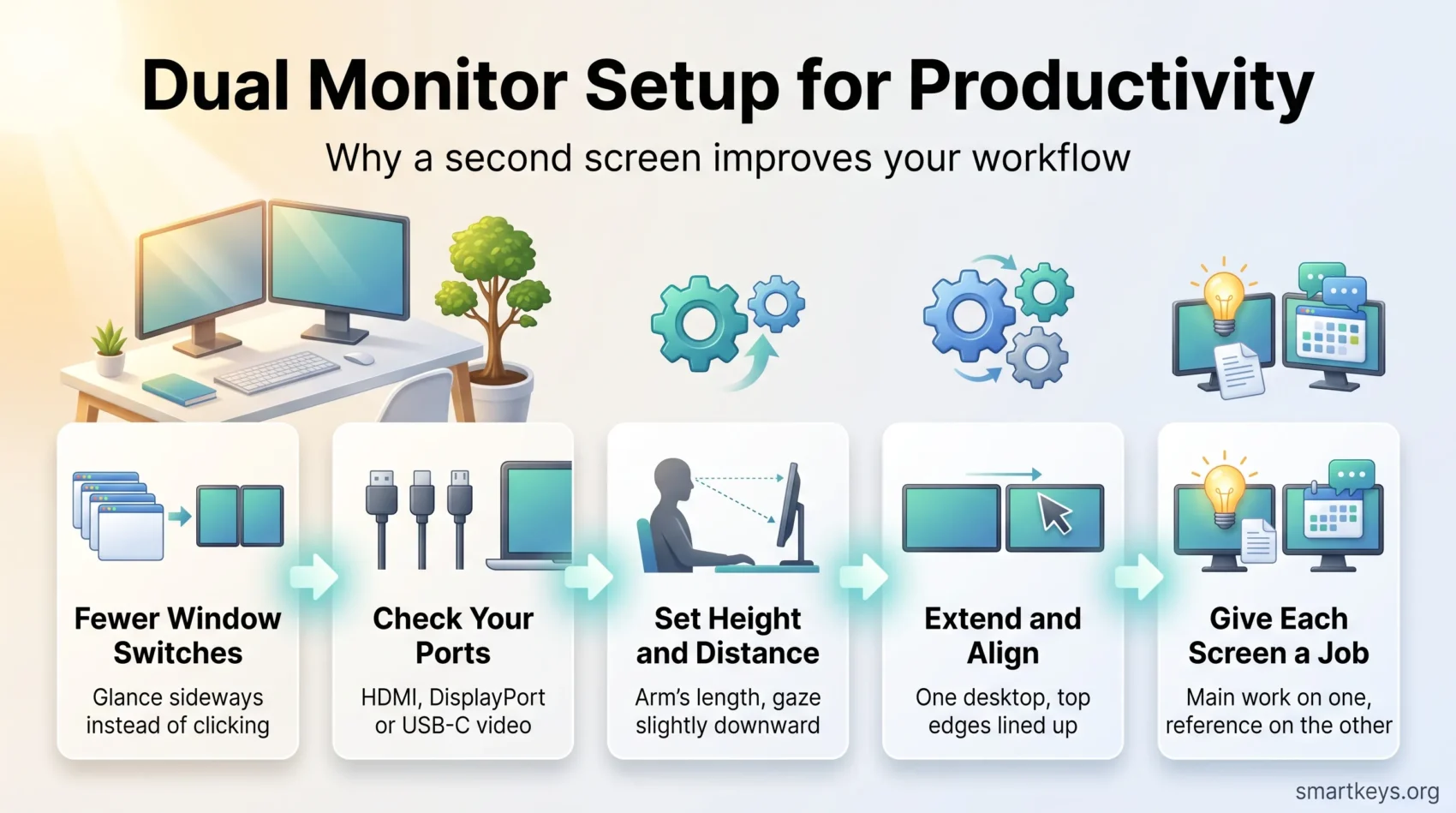
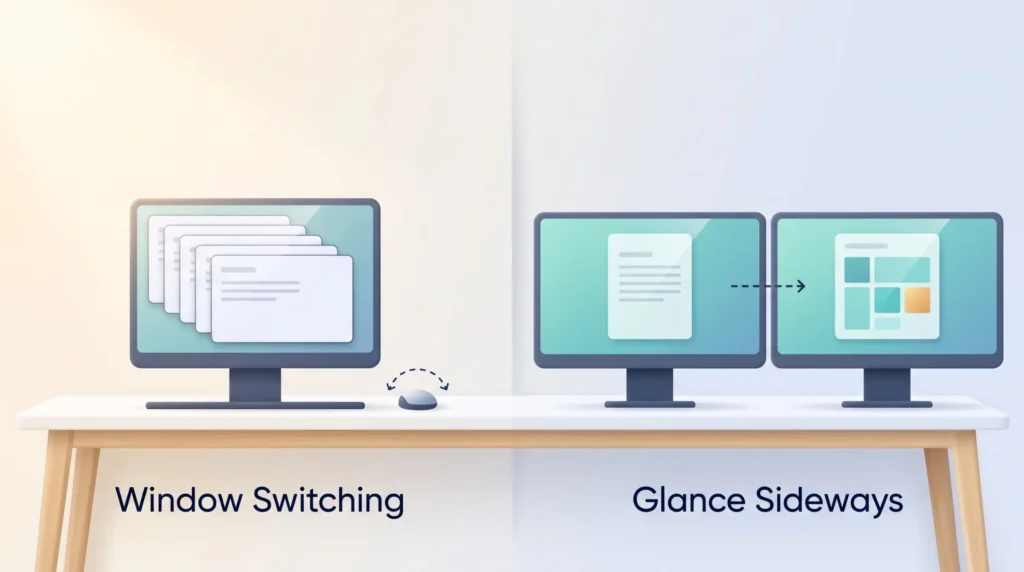
A second screen buys you space, not magic. It lets you keep the thing you are working on in front of you while email, chat, a spreadsheet or a reference document stays visible beside it. Instead of minimising and restoring windows all day, you turn your head.
That sounds small. In practice it removes one of the most common interruptions of desk work: losing your place because the window you needed was buried behind three others. Almost every current laptop and desktop can drive two displays, so the real question is whether the setup earns its desk space.
A second screen is one piece of a broader workspace optimization plan, and this guide focuses on the dual monitor setup for productivity: what the research supports, how to choose and connect a second monitor, how to set it up in Windows and macOS, and how to position both screens comfortably.
Key Takeaways
- A second screen mainly reduces window switching, which is where the time goes.
- Research supports a preference for dual monitors and moderate efficiency gains, not a fixed percentage.
- Match resolution and refresh rate where you can, so windows and the pointer behave predictably.
- Ergonomics decide whether the setup helps: screens at arm’s length, top edge at or just below eye level.
- Give each screen a job. One for focused work, one for reference and communication.
What a second screen actually does for your work
More space means fewer interruptions of your own making. Every time you minimise a window to find another, you lose a second to navigation and a little more to remembering where you were. The gain is not that you read two things at once, because attention does not work that way. It is that switching becomes a glance instead of a sequence of clicks. Our guide to the real cost of task switching explains where that time goes.
What the research supports, and what it does not
The honest summary is mild and positive, not dramatic. A systematic review by Gallagher and colleagues, published in Human Factors in 2021, pooled 18 studies on single versus multiple monitor use in office work. It found strong evidence that people prefer two screens, and moderate evidence that multiple displays improve task efficiency and cut the interactions needed to manage windows. The review also flagged a trade-off: multi-monitor setups can push users into non-neutral neck postures, which is why the ergonomics section below is not optional.
You will also see the claim that multiple displays raise productivity by 42%. That number comes from a Jon Peddie Research survey of over 1,000 users, last repeated in 2017. It records what people expect to gain, not a measured result.
Where the benefit is biggest
The gain scales with how much comparing you do. Reading one thing while producing another benefits most.
- Writing from sources: draft on one screen, research on the other. Pairs well with a solid digital note-taking system.
- Spreadsheets: data on one side, the report or model on the other.
- Design and code: the editor on the main screen, previews or tickets beside it.
- Calls: share one screen while notes and chat stay private on the other.
If your day is mostly single-app work, better keyboard shortcuts or stricter notification settings will change more than a second monitor.
Two screens make a good workflow faster. They do not repair a chaotic one.
What you need before you start: screens, ports and cables
Check three things before you buy: what your computer can output, what your desk can hold, and what you look at all day.
Choosing displays: size, resolution and refresh rate
Pick a size and resolution that match your tasks. For general office work, a 24 to 27 inch panel at 1080p or 1440p is comfortable. Designers, video editors and anyone reading dense documents benefit from higher resolution, because the extra pixels become usable workspace rather than just sharper text.
Matching both screens is the easy path. Identical size, resolution and refresh rate means windows keep their proportions when dragged across and the pointer travels at a consistent speed. Mixing models works, but expect to adjust scaling so text looks the same size on both.
Ports and cables: HDMI, DisplayPort and USB-C
Count the video outputs on your computer. Most current laptops and graphics cards drive two external displays; three or more usually needs a dock or daisy chaining.
Then match each output to a monitor input. HDMI is the most common. DisplayPort tends to carry higher resolutions and refresh rates on the same cable. USB-C carries video only if the port supports DisplayPort Alt Mode, and a data-only USB-C port is the most common reason a new screen stays black.
- Note which port each display will use before ordering cables or adapters.
- Buy cables rated for the resolution and refresh rate you want, not the cheapest available.
- Short on outputs? Check whether your monitors support DisplayPort daisy chaining, which links screen to screen.
Desk, stands and the ergonomics that decide comfort
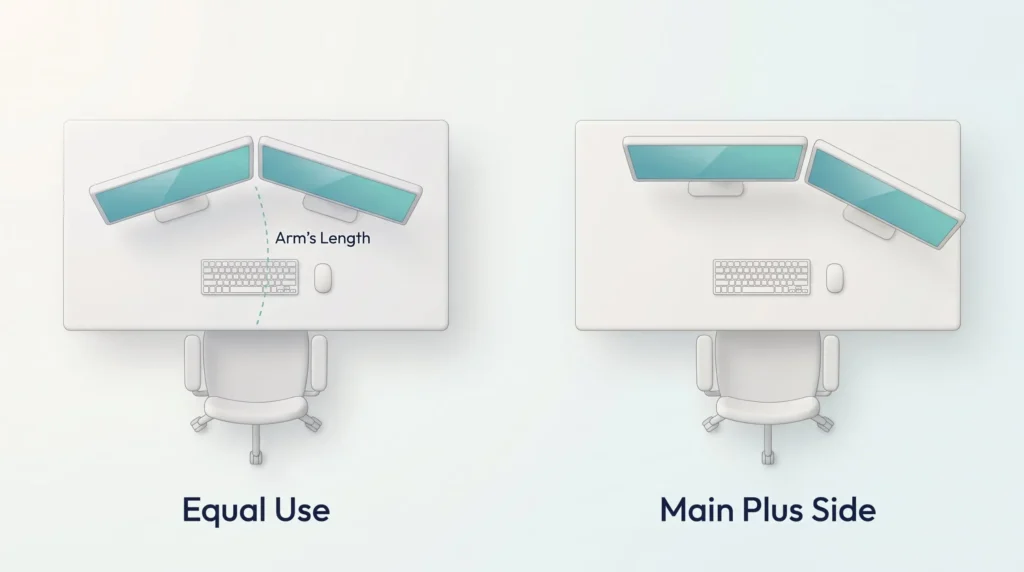
This is the part people skip, and the part the research warns about. The Canadian Centre for Occupational Health and Safety recommends a viewing distance of roughly 40 to 74 cm, about an arm’s length, with the screen positioned so your gaze falls slightly downward rather than up. Monitors above eye level cause more discomfort than monitors slightly below it.
For two screens, CCOHS suggests two layouts. If you use both equally, place them in front of you with the inner edges touching, angled slightly inward like an open book. If one does most of the work, put that one straight ahead and angle the second beside it. Keep both at the same height and distance.
Monitor arms beat stands here, because they set height and angle independently and free the desk underneath. Our guides to organising your desk and workplace ergonomics cover the rest.
Tip: Measure desk depth first. If you cannot sit an arm’s length from both screens, a smaller pair beats a larger pair pushed too close.
Physical setup: connecting the screens
Map the ports before you plug anything in. Power down the computer, put each monitor on its stand or arm, and route the cables so they will not pinch when you slide the screens into place. Then connect each display with its matching cable.
- Tighten thumbscrews on DisplayPort connectors and seat HDMI plugs fully. Loose connections cause flicker that looks like a driver fault.
- Select the correct input in each monitor’s menu before you boot. Many screens do not switch automatically.
- When daisy chaining, connect computer to first monitor and first monitor to second, then enable DisplayPort multi-stream in the first screen’s menu.
- Power on and confirm both screens wake. If one stays dark, change one thing at a time.
Tidy the cables while you still remember which is which. Labelling them now keeps the setup serviceable, and it fits alongside a wider digital declutter and our guide to decluttering your digital workspace.
Configure your display settings step by step
This takes five minutes and decides whether the setup feels natural or irritating.
Windows 11
Open Settings > System > Display and click Identify. A number appears on each screen so you can tell which is which in the settings panel.
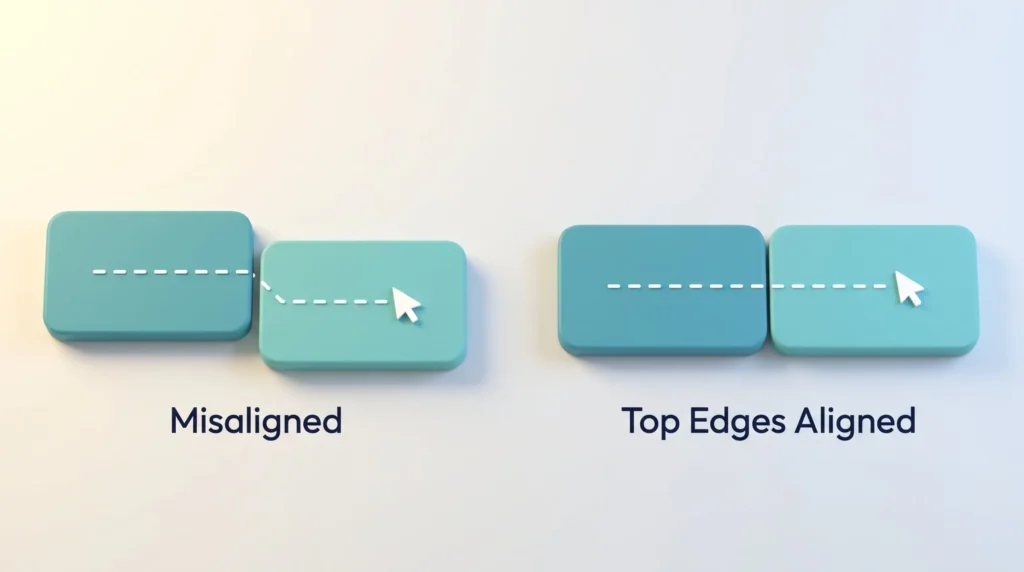
Drag the display rectangles to match where the monitors sit, then align their top edges. Misaligned rectangles are why a pointer seems to jump at a screen border. Click Apply and test by sweeping the mouse across.
Under Multiple displays, choose Extend these displays for one continuous desktop. Duplicate mirrors the image and suits presenting only. Windows key + P switches modes without opening Settings. Select your preferred screen and tick Make this my main display so the taskbar and new windows open there. Then set each monitor to its native resolution and use Scale and layout so text looks the same size on both.
Two settings matter if you dock a laptop: Remember window locations based on monitor connection restores your layout when you reconnect, and Minimize windows when a monitor is disconnected controls what happens when you unplug.
macOS
Open System Settings > Displays and click Arrange. Drag the rectangles to match your physical layout, aligning the tops. To choose the main display, drag the white menu bar strip onto the screen you want it on; the change applies immediately and the Dock follows. Uncheck Mirror Displays for an extended desktop. Each display keeps its own resolution and scaling, set by selecting it in the sidebar.
Tip: If windows land on the wrong screen after every restart, check the arrangement and main display setting first.
Make the layout work: roles, habits and window management
Space only helps if each screen has a job. Put creation on your main screen: the document, the code, the design, the spreadsheet. Put reference and communication on the second: research, chat, calendar, dashboards. Stable roles turn the setup into a habit rather than a daily decision.
- Snap windows to halves or thirds instead of resizing by hand. Windows 11 uses Windows key + arrow keys; macOS offers tiling from the green button menu.
- Reopen the same apps on the same screens. Predictability is most of the benefit.
- Rotate the second monitor to portrait for long documents, code or chat threads.
- Match brightness and contrast in each monitor’s own menu, so moving a window does not change how it looks.
One warning. A second screen makes it easy to keep distractions permanently visible. If chat and email sit on the side panel all day, you have built a dashboard for interruptions. Close them during focus blocks. Our guides to deep work, protected focus time and single-tasking cover how to hold that line, and the focus tools roundup lists software that enforces it.
Two screens also brighten a room more than people expect. If you squint by late afternoon, workspace lighting beats turning the brightness up, and regular movement breaks do more for eye strain than any display setting.
Troubleshooting: what to check when something is off
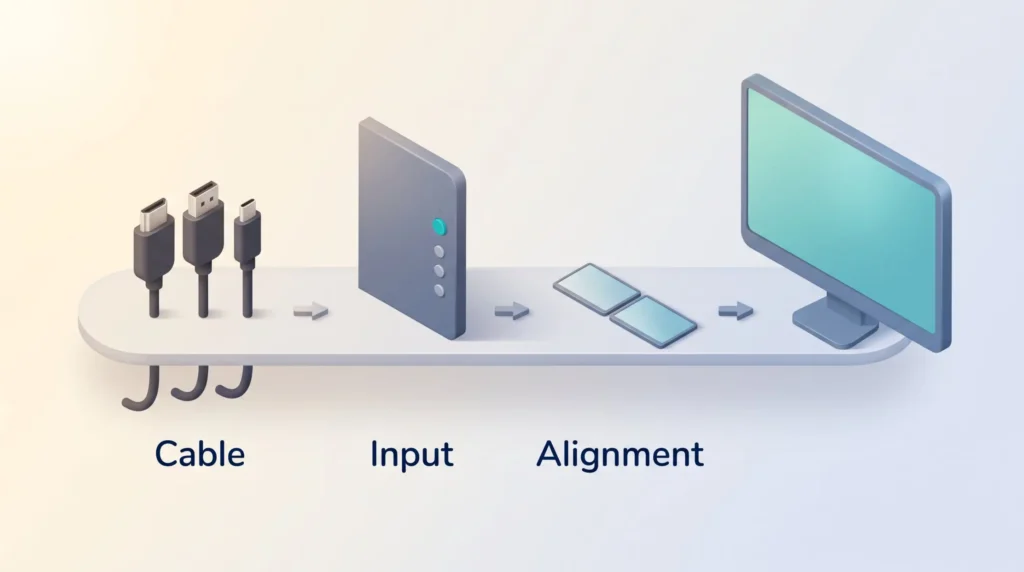
Most dual monitor problems are cable, input or alignment faults. Check them in that order.
A display is not detected
Check the physical path first. Reseat both ends of the cable and confirm the monitor is set to the right input in its own menu. Then click Detect in Windows display settings, or hold Option and click Detect Displays on macOS.
Restart after reseating anything, since many HDMI and DisplayPort handshake faults clear with a reboot. If the screen still does not appear, test the same cable and port with another device to find out whether the cable, the port or the monitor is at fault. On Windows, update the graphics driver before replacing hardware.
Text, windows or the pointer look wrong
If text is blurry or icons are the wrong size, set each display to its native resolution, then adjust scaling per screen until text matches. If the pointer jumps between screens, drag the display rectangles so their top edges line up. If windows open on the wrong monitor after a restart, check the main display setting and, on Windows, that the option to remember window locations is on.
Laptops and docking setups
A laptop with one video output can still run two external screens through a USB-C or Thunderbolt dock, which adds ports and usually supplies power over the same cable. Check the dock’s specification for how many displays it drives at your target resolution, because that limit comes from the dock and the laptop together.
Portable USB-C monitors are the travel version, running from one or two cables with no extra software on most machines. Our guides to a productive home office and hybrid work cover keeping two locations usable.
Keep a box of spare cables and adapters. Isolating a fault takes minutes when you can swap parts.
Conclusion
A second screen is a modest, reliable improvement rather than a transformation. The evidence points to real efficiency gains and a clear preference among people who use two monitors, alongside a real ergonomic risk if the screens sit too high or too far apart.
So spend the effort where it pays. Get the height and distance right, set the arrangement and main display once, give each screen a fixed role, then leave it alone. If something stops working, check ports, inputs, resolution and alignment before buying new hardware. For the rest of the desk, see our guides to workspace optimisation and standing desks.
Found this useful?
Make SmartKeys a preferred source on Google, and our articles will surface more often in your Top Stories, AI Overviews, and AI Mode.
Add as Preferred Source