Tools
Tools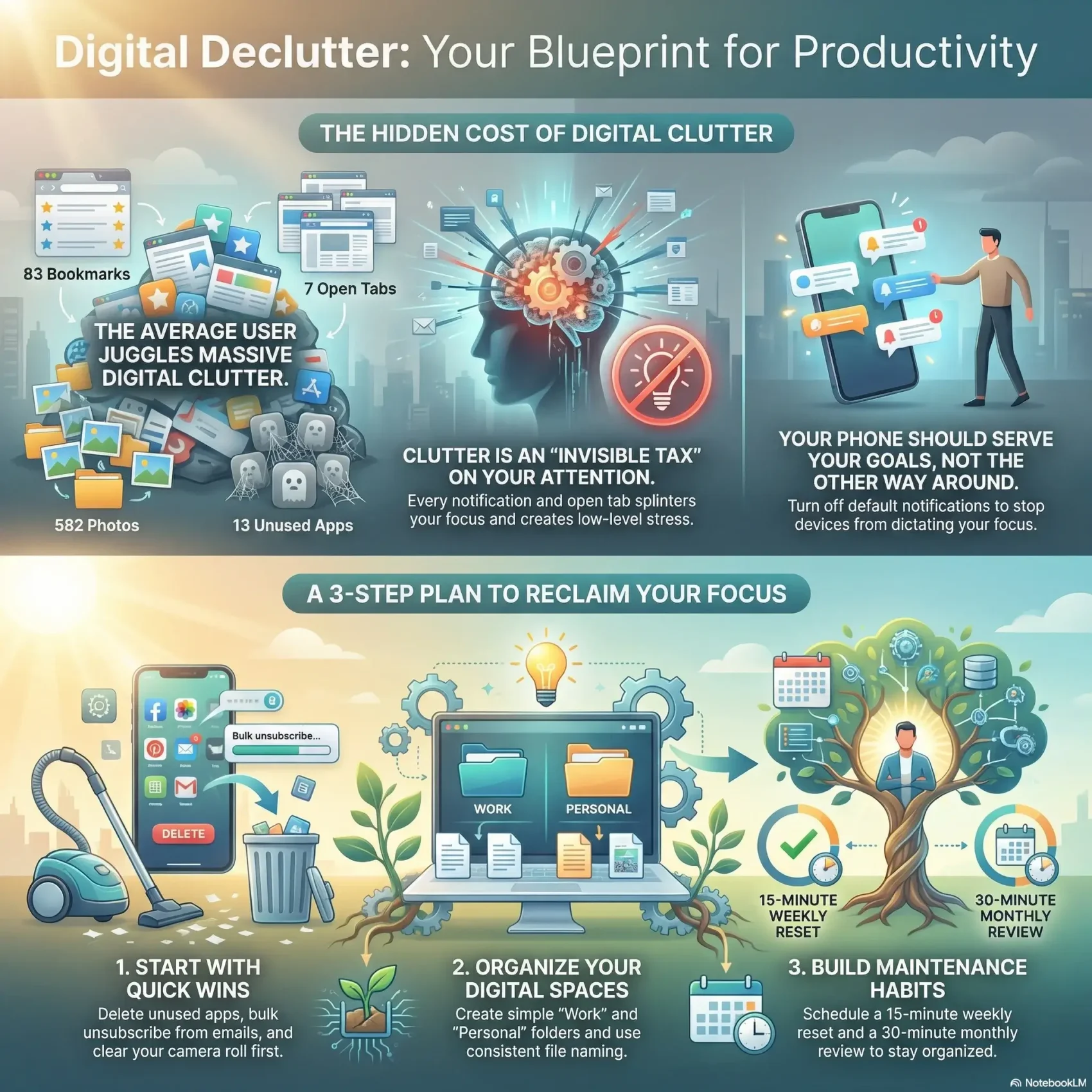
Last Updated on March 16, 2026
You can reclaim time and calm by cleaning up how you use devices, apps, and accounts. A focused digital declutter audits your whole ecosystem: delete what you don’t need, reorganize what stays, and set simple habits to keep it that way.
Many Americans juggle 83 bookmarks, seven open tabs, 582 saved photos, and 13 unused apps. That lot of clutter eats attention and makes work harder.
Start small: clear your camera roll, reset social media recommendations, and tidy your inbox with tools like Unroll.Me or Clean Email. Authors such as Cal Newport, Jenny Odell, and Svend Brinkmann show why less noise helps you focus.
This section guides you through reasons to act, practical ways to trim notifications and emails, and a short list of first steps that free up space and time for the things that matter.
Key Takeaways
- Define what a declutter means for your life so you can reclaim time and attention.
- Audit devices, apps, emails, photos, and notes with a simple, repeatable plan.
- Use quick wins—photo culls, inbox filters, and app cuts—to build momentum.
- Apply research-backed tips from books that champion focus and intentional use.
- Turn off default notifications so your phone serves your goals, not the other way around.
- Prioritize inbox and home screen cleanups for the biggest impact on focus.
Why a Digital Declutter Matters Right Now
Small interruptions add up: a ping here, an open tab there, and your day splinters into tiny losses of time. You pay an invisible tax on attention whenever your phone buzzes or a feed updates.
The hidden cost is real. Unused apps, dozens of open tabs, and a crowded inbox create low-level stress. Even unread emails and saved photos tug at your mind and reduce focus on the work that matters.
Authors like Cal Newport, Jenny Odell, and Svend Brinkmann offer practical reasons to act now. Newport teaches you to organize technology around values. Odell shows maintenance counts as productive work. Brinkmann urges environmental fixes so fewer feeds and posts tempt you.
For example, shifting from constant inbox checks to scheduled blocks wins back time and attention. Trim alerts, collapse feeds, remove apps you don’t use, and put key folders where you can find them quickly. The goal is not zero technology, but a right-sized setup that helps you do better work and enjoy more time with people.
Set Your Intent: Goals, Boundaries, and a Simple Game Plan
Decide what matters most so every action aligns with your goals. Set one clear purpose—more focus, extra time, or less mental clutter—and write it where you can see it.
Separate essentials from extras. Keep the technology and apps you need for work during defined hours. Pause optional media and entertainment for a 30-day reset.
- List your top reasons for the change so choices match your goals.
- Use a 30-day step: remove optional tools, then reintroduce only those that save time or help tasks.
- Set guardrails: no-tech windows, a 10-minute timer for messages, and phone-out-of-reach rules.
- Create simple rules for email, folders, and task processing to reduce daily friction.
- Capture one small win today and one bigger change this week to build momentum.
After 30 days, bring tools back carefully. Give each app a purpose, a time limit, and a folder or slot so your life and work stay focused.
Start with Your Phone: Edit, Contain, Maintain
A quick, focused pass over your phone gives you immediate wins and frees up mental space. Use a one-category-per-day list so edits feel doable, not overwhelming.
Edit: a seven-day checklist
Day 1: Contacts. Day 2: Apps, notifications, subscriptions. Day 3: Text messages, call logs, voicemails. Day 4: Files and downloads. Day 5: Notes. Day 6: Bookmarks and tabs. Day 7: Photos.
Contain: folders, color, and Shortcuts
Group apps into color-coded folders and title each folder with an emoji. Keep folders to nine apps so everything stays visible. On iOS, use Shortcuts to customize an app icon or color for function-based groups.
Maintain: a monthly 15-minute sweep
Make it simple: set a calendar reminder for 15 minutes each month to rerun the list. Delete unused apps, cancel stale subscriptions, archive old messages, and move files where you’ll find them later.
- Turn off default notifications and keep only what matters—this step reduces interruptions fast.
- Prune photos on-device for quick space wins and back up the rest.
- Star or pin the notes and emails you use daily so they stay easy to access.
Refresh Your Social Media and Instagram Recommendations
If your feed no longer reflects what you care about, reset it. Start with Instagram’s recommendation reset to wipe lingering topics and give your account a clean slate.
Curate who you follow. Unfollow accounts that don’t serve you, or use mute to keep relationships without the stream. Create lists or close-friends groups so you check only focused content, not an endless feed.
Use built-in controls
Tap the three dots on posts and choose Interested or Not Interested to teach the algorithm what you want more of. Add Hidden Words to filter captions with phrases you never want to see.
Make scrolling intentional
Schedule short blocks for social media and remove apps from your phone so access becomes deliberate. Turn off nonessential notifications to stop being pulled into posts while you work or relax.
“Train the algorithm by choosing less noise and more of what matters.”
- Reset recommendations, then prune follows monthly.
- Use mute and lists to protect relationships and focus your time.
- Share controls with teens and family so everyone can shape healthier media use.
For a step-by-step plan to tidy other areas like inboxes and folders, see this guide to decluttering your workspace.
Reclaim Your Inbox: Emails, Filters, and an Organized Workflow
Taming your email starts with small, deliberate moves that save big blocks of time. Begin with a short triage session: delete obvious junk, unsubscribe from newsletters, and let a tool handle bulk cleaning so you get immediate wins.
Inbox triage: unsubscribe, filters, and when to declare inbox bankruptcy
Use services like Unroll.Me or Clean Email to bulk unsubscribe and create filters that skip low-priority messages. If your inbox is thousands deep, consider inbox bankruptcy—select all and archive to start fresh.
Folders and labels that match your life; templates for faster replies
Create simple folders or labels that mirror real categories: work, travel, finance, and reference. Keep the list short so you actually use it.
Build a few templates for common replies to save time and keep tone consistent across emails.
Stop using email as a to-do list: move tasks to your app and time-block checks
When a message requires action, add it to your task manager (for example, Todoist via Gmail plug-in), set a due date, and archive the original. That prevents email from becoming your task list.
Check email in scheduled blocks—morning, midday, and late afternoon—and use filters to route receipts, confirmations, and alerts into folders you review at set times.
- Quick wins: bulk unsubscribe and filter low-priority emails to focus on what matters.
- Process habit: delete, delegate, respond in two minutes, or schedule as a task.
- Send less: the fewer emails you send, the fewer you receive—sometimes a call is the better example of efficiency.
Organize Your Desktop, Files, and Folders for Speed
Back up first. Start with one hardware drive and one cloud service so you can reorganize without fear. Use an external drive plus a service like Backblaze, iDrive, or Carbonite and sync active work via Dropbox, Google Drive, or iCloud.
Do a quick audit. Check where files, photos, and emails live now. Note which folders hold client work, taxes, and reference material.
Simple hierarchy that works
Keep two top-level folders: Work and Personal. Under Work add Clients, Projects, and Archive. Keep the list short so you can scan quickly.
Practical naming and tidy habits
Name files consistently (YYYY-MM-DD_Project_Client). Move everything off the desktop into the right folder—your desktop should be a clean place to land, not a filing cabinet.
- Clear Downloads regularly to free space and speed up your machine.
- Run a seven-step tune-up over a week: Downloads, Files, Passwords, Apps, Bookmarks, Settings, Photos.
- Store passwords in a secure manager and delete plaintext lists.
Small, monthly passes save huge time. Keep active folders near the top and archive older projects. The payoff is less noise, faster search, and a calmer place to get your best work done.
Photos, Music, and Media: Free Space, Find Joy
A tidy media collection makes it faster to relive memories and to find a playlist that fits your mood. Start by centralizing every photo and music file into one reliable library so you stop hunting across devices.
Centralize and protect. Move all photos into a single Photos folder, then back it up with one hardware drive and one cloud option. For large libraries, use an external drive for the bulk and a cloud service for active sync.
Organize by year, then by event or place. Name folders like 2024 > Vacation_Beach and keep the structure shallow so finding a shot takes seconds. Remove obvious duplicates and near-bursts first to reclaim space.
Move images off social platforms and your phone. Download albums you want to keep (for example, Facebook’s album download), then delete copies from the feed if you prefer a single, true archive. Sync phone images with iCloud Photos or Google Photos, or connect your device to a computer for transfer.
Music matters too. Use one Music folder with Artist > Release Name. Run MusicBrainz Picard to fix metadata and sweep for duplicate tracks. Build a few high-value playlists in a streaming app—by mood, era, or work—to play without hunting.
- Centralize your library, and back it with one hardware and one cloud copy.
- Use year/event folders and remove duplicates to free space fast.
- Sweep music metadata and keep one clear folder structure for easier playback.
Digital Declutter Habits: Maintenance, Time, and Tools
Set a weekly reset and a monthly tune-up so clutter never grows into a problem. A 15-minute weekly pass keeps downloads, tabs, and notes tidy. A 30-minute monthly review lets you trim older files and close stalled tasks.

Monthly and weekly routines
Keep sessions short and specific. Use the weekly slot to clear downloads, collapse tabs with OneTab, and archive quick notes. Use the monthly block to audit folders, cancel unused subscriptions, and delete stale apps on phone and computer.
Limit apps and manage accounts
Pick one app per job: one to-do, one notes app, one read-it-later tool. Migrate duplicates into your chosen tools to cut switching costs. Review passwords and remove old logins from your manager. Rotate strong passwords quarterly.
News and content diet
Group your favorite sources in an RSS reader like Feedly. Send long reads to Pocket or Instapaper and clear the tab pile. Remove social media apps from your phone, schedule desktop sessions, and mute nonessential notifications so you control when you look at a feed.
“Small, steady habits save you a lot of time and keep your work calmer.”
- Quick rule: 15 minutes weekly, 30 monthly.
- Batch emails and messages into set times.
- Create a short friction list—three tiny tweaks that reduce noise today.
Conclusion
You now have a clear blueprint for a digital declutter that audits, deletes, and reorganizes so your devices help rather than distract.
Start with one list item today: mute notifications, clear Downloads, or archive a bulky inbox. That small step builds momentum fast.
If emails overwhelm you, archive in one move and rebuild with filters and scheduled checks. For social media, reset recommendations and check feeds in planned windows only.
Centralize photos by year and event, standardize folders and file names, and rotate critical passwords. Do a brief monthly sweep to keep organization simple.
Choose the simpler way: fewer apps, fewer feeds, and fewer steps. Your phone and accounts should support your work, friends, and life—not the other way around.