Tools
Tools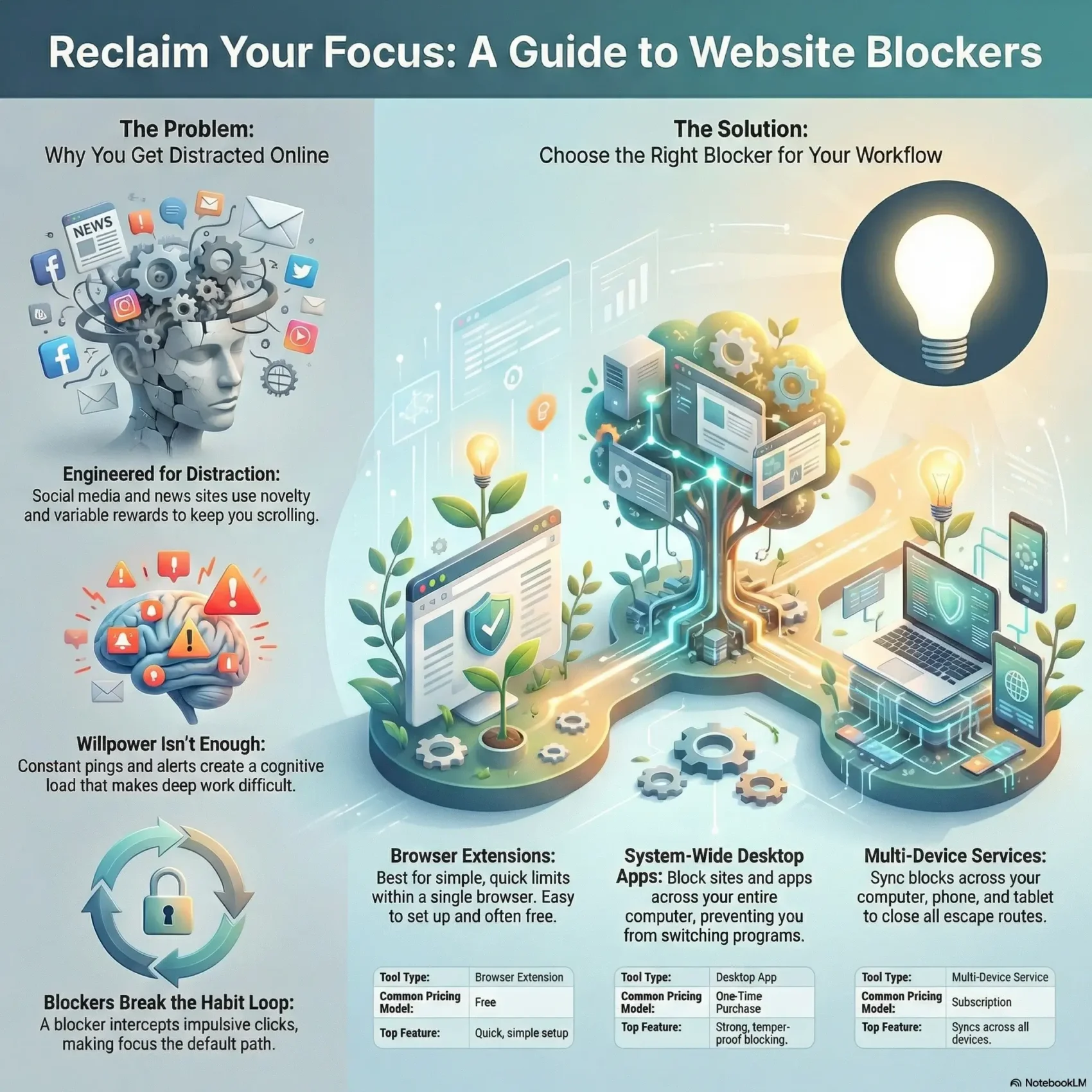
Last Updated on March 19, 2026
The internet hands you endless content, and that stream can pull your attention away in minutes. Tabs multiply, apps ping, and before you know it, hours of your time vanish into scrolling.
You don’t need more willpower. A simple block app cuts access to your top time wasters so you can get started on the work that matters. Covering computers and phones together keeps loopholes closed across devices.
With the right features—scheduling, locked modes, and cross-device sync—you’ll protect your attention and build reliable focus habits. That means fewer interruptions, better productivity, and more freedom to shape your day.
In this guide, you’ll learn how a focused block makes it harder to open distracting apps or any distracting website during deep work. You’ll also get a quick preview of top options like Freedom and single-device tools to match your needs.
Key Takeaways
- A block app reduces reliance on willpower and limits online distractions.
- Cross-device coverage closes loopholes between your phone and computer.
- Features like scheduling and locked modes keep momentum during focus time.
- Using a blocker can make starting work easier and boost productivity.
- Choose tools that match your routine—single-device or cross-device like Freedom.
Why you keep getting derailed online—and how website blockers help you refocus
Algorithms and pings are engineered to hijack your focus, leaving willpower fighting a losing battle. Social media and news websites use novelty and variable rewards to keep your time and attention. Setting time limits alone often fails because the design pulls you back in the moment a notification appears.
A blocker intercepts a browser or app request and gently or firmly reroutes you to a reminder to return to work. That simple interruption breaks the loop and lowers the constant pull of distraction.
Blocking lifts cognitive load so you can enter deeper work faster and boost productivity across your day. When distracting sites aren’t available, focus becomes the default. You choose which sites and apps to restrict and use features like timers and schedules to match your natural rhythms.
- Why distractions happen: notifications, novelty, and variable rewards.
- When to use strict blocking versus soft nudges for lasting habits.
- How common browsers and sites pull you in — and how a block removes the way back during focus time.
Search intent and how this product roundup helps you choose faster
This guide is organized for one goal: get you back to productive work fast by matching tested tools to real use cases.
We ran hands-on tests across platforms and focused on workflows people actually use. That means you’ll see which browser extension or system-level app fits your routine without guesswork.
Below you’ll find concise comparisons that cut through marketing. Each entry highlights setup time, reliability under pressure, and the core feature that makes the tool worth trying.
- Clear use-case mapping so you choose an extension or a full app quickly.
- At-a-glance pros and cons that matter in daily time management.
- Pricing pointers — free, one-time, or subscription — to match your budget.
- Feature priorities: schedules, timers, and locked modes explained simply.
“Pick for your workflow, not for a headline feature.”
Follow the quick comparisons below to narrow options and avoid switching later. You’ll save time and protect your focus and productivity from day one.
How we chose the best tools for blocking distractions
Our selection leaned on reliability over marketing claims. We wanted tools that actually enforce your focus during work sessions, not just promise it.
Must-have criteria
Core checks: can the tool block custom lists of websites and apps? Does it support schedules or timers and resist tampering during a session?
Nice-to-have features
We noted extras that improve comfort and long-term habits, like cross-device sync, focus sounds, and analytics. These make sessions easier to keep but aren’t deal-breakers.
Testing sources and hands-on evaluation
We installed and configured each app, ran multiple sessions, and tried common evasion tactics to see how modes like Locked Mode or Frozen Turkey perform.
- You’ll see the exact must-haves we used for blocking and time limits.
- We measured setup time, enforcement under stress, and session persistence through system changes.
- Encouragement features were judged for how they support habits rather than punish users.
Result: tools that start fast, enforce predictably, and give you clear control over settings and modes outperform flashy but fragile options.
Top multi-device website blocker leaders for work and study
When your phone and desktop stay in sync, distractions lose their escape routes and focus becomes easier to keep.
Freedom stands out for cross-device control. It blocks distracting websites, mobile apps, desktop apps, or the entire internet and syncs across Mac, Windows, iOS, and Android. Chromebook and Linux get coverage via an extension.
Core Freedom features to know
- Scheduling — set recurring sessions so focus happens automatically.
- Locked Mode — prevents quitting an active session to reduce backsliding.
- Block All / Block All Except — quick ways to restrict the internet while keeping essentials available.
- Blocks desktop apps like Outlook, Mail, and Steam alongside sites and phone apps.
- Optional Focus Sounds and synced sessions across devices for consistent routines.
Why multi-device blocking matters
When you block sites or an app on one device but not the other, a quick switch can undo your progress. Multi-device blocks close that loophole and keep sessions honest.
Pricing snapshot: monthly $8.99, yearly $39.99 (~$2.42/mo), or a Forever license for $199. A free trial is available so you can test cross-device blocking before you commit.
Tip: choose Locked Mode for strict deep work and flexible sessions when you need quick checks during study or collaborative work.
Best system-wide desktop app to block websites on Mac and Windows
Cold Turkey Blocker brings system-level control so distractions stop no matter which app you open. It’s a desktop-first solution for deep work on Windows and macOS.
What it does: Cold Turkey lets you create custom lists to block websites and block apps across all browsers and programs. You can schedule recurring focus sessions for your work day or start a manual session when you need immediate concentration.
- Frozen Turkey mode can lock you out of your computer for a set time to remove mid-day temptations.
- Uninstall and time setting protection prevent casual tampering and keep sessions intact.
- Pro is a one-time $39 purchase that unlocks unlimited schedules, desktop app blocking, and stricter enforcement.
The setup can feel technical at first, and there’s no mobile version, so plan your workflow accordingly. Start with lighter limits and test schedules. If you still slip, enable stricter modes and tighten settings to protect your focus and productivity during key blocks of time.
Best free browser-based website blockers for quick wins
Free browser extensions can give you quick wins when you need focus without installing extra software. They act fast, set simple time limits, and let you test a habit before committing to a full app like Freedom.
LeechBlock NG
LeechBlock NG works on Chrome, Firefox, Edge, and Opera. It supports multiple groups with schedules, per-hour time limits, and lockdown modes.
Why users like it: you can lock settings during active blocks and tailor rules by day or hour. It’s powerful for heavy custom rules without cost.
StayFocusd
StayFocusd is a Chrome-only extension that sets daily time limits per site.
It’s versatile for users who need a simple cap rather than a complete ban. The setup is quick and the interface is clear.
Limit
Limit gives simple daily caps on specific sites. It’s free, minimal, and great if you want to build better habits with almost no setup.
Pause
Pause adds a brief calming screen—default five seconds—before a distracting site loads. It comes pre-seeded with fifty common sites and lets you change the delay.
This small pause often reduces impulse clicks and improves focus without heavy-handed blocking.
“Extensions are fast to try, but remember: they can be disabled and features vary by version and browser.”
- Compare extensions if you want quick blocking without system installs.
- Pick LeechBlock NG for rules and lockdowns across browsers.
- Choose StayFocusd or Limit for easy daily caps on Chrome.
- Try Pause if you prefer gentle friction over hard blocking.
- If you need cross-device enforcement, pair these options with a tool like Freedom.
Best website blockers for Mac users who need strict focus
Mac users who need strict focus often want tools that remove temptation entirely instead of negotiating with it.
SelfControl: the nuclear option you can’t disable
SelfControl is a free macOS app that blocks by URL and refuses to be undone until the timer ends.
Even deleting or rebooting won’t stop an active session. Use it when you need a last-resort, tamper-proof mode to protect deep work time.
Tip: build a tight list of essential sites so you don’t accidentally block tools you need for a task.
Session: Pomodoro timer plus automatic site and app blocking
Session pairs a Pomodoro-style timer with rules that mute apps and pause distracting sites during work periods.
It integrates with your calendar, mutes Slack, and can trigger Apple Shortcuts to automate flow between meetings and focus sessions.
The free tier covers basic use; Pro (from $4.99/month) unlocks advanced automation and longer sessions. Set gentle break windows so blocking doesn’t stall your workflow.
- SelfControl = extreme, irreversible enforcement for desperate focus.
- Session = structured Pomodoro flow with calendar and app integrations.
- Pick SelfControl for hardcore mode; choose Session for guided, automated sessions that fit your day.
Friction-first focus: tools that slow you down instead of hard blocking
A gentle pause can give you room to choose rather than react when a distracting link calls.
Friction-first tools add small delays or friendly nudges that interrupt automatic habits. They are great when you want flexibility without a full lockout.
One sec: breathing pause and impulse tracking
One sec delays opening flagged sites with a calming breathing animation. It counts how often you tried to open a page so you see your pattern over time.
The extension works across Chrome, Firefox, Safari, and Edge. Mobile apps are on Android and iOS with paid plans starting at $2.99/month or a $39.99 lifetime option.
PawBlock: soft nudges with animal prompts
PawBlock (Chrome, Firefox) uses cute animal messages to encourage you to leave a tab. You can choose soft nudges or flip to a hard block for tougher moments.
- Why it helps: small friction breaks the reflex and builds better habits.
- Use these tools when you need gentle control and awareness, not total lockout.
- Pair them with stricter apps websites controls if you later need stronger protection.
Gamified focus apps that help you build better browsing habits
If strict locks feel punitive, play-based focus tools make staying off your phone feel rewarding instead.
Forest: grow virtual trees, cut down scrolling
Forest turns staying away from social media and sites into a small game. You plant a tree and it grows while you work. If you leave early, the tree dies.
The app rewards short wins and builds streaks so your habits improve over the day. You earn coins that can fund real-world reforestation through Trees for the Future.
- You learn how Forest turns time off websites and your phone into a motivating loop.
- Use its Chrome extension or mobile app (about $3.99 on iOS and Android) to keep the same routine across devices.
- Forest is ideal when social media is your main distraction and you want a light-touch approach instead of strict enforcement.
- Stack Forest with a stricter app during high-stakes work to protect long focus sessions and boost productivity.
Why try it: gamified rewards and a charitable angle make staying focused feel meaningful, not punitive.
Compare top website blocker types: browser extension vs. system-wide vs. multi-device
Not all blocking tools work the same; pick the one that fits how you actually work day-to-day.
When a browser extension is enough for your workflow
Use a browser extension when you need simple site limits inside one browser. Free options like LeechBlock NG give flexible rules and time limits with almost no setup.
They’re fast to try, but easy to bypass by switching browsers or using another profile.
Why system-wide blocks stop app hopping
System-level apps like Cold Turkey Blocker prevent app switching and can block sites across all browsers and desktop apps.
That stops the common escape: when a tab gets blocked, you don’t just open another app or browser to continue scrolling.
The case for syncing blocks across all your devices
Multi-device tools such as Freedom sync blocks across desktop and mobile so sessions stay intact when you step away from your desk.
Compare options by budget and version: free extensions, one-time desktop licenses, or month-to-month subscriptions.
- Casual limits: browser-only extensions for low-stakes work.
- Strict focus: system apps for desktop, anti-tamper features, and uninstall guards.
- Full coverage: synced blocks across devices to protect time on phone and computer.
For scheduling and routine setup ideas, try a short guide to time-blocking workflows to pair your tool with proven habits.
Features that matter: scheduling, time limits, locked modes, and more
Smart enforcement features turn good intentions into repeatable habits by removing small choices that sap your focus. The right mix of scheduling, strict modes, and selective allowances makes focus feel automatic instead of slippery.
Scheduling and recurring sessions to build consistent habits
Scheduling lets you set automatic, recurring sessions so you don’t decide each day. Tools like Freedom offer recurring sessions that reduce decision fatigue and make focus part of your routine.
Locked Mode and uninstall guards to prevent backsliding
Locked modes stop you from quitting an active session, and uninstall protection prevents easy tampering. Cold Turkey’s Frozen Turkey and uninstall guards are designed for moments when willpower isn’t enough.
Block All vs. Block All Except for deep work
Block All can cut the internet entirely for full concentration. Block All Except lets only essential sites and apps through so your core tools remain available.
- Use time limits for short sprints and full sessions for deep work.
- Align session timing across devices so no loopholes appear.
- Balance strict modes with occasional flexibility to protect long-term productivity and habits.
Tip: Start small—schedule short recurring sessions, then increase length as your focus improves.
Pricing and plan highlights: free, monthly, annual, and lifetime options
Pricing varies widely, so match cost to the coverage and enforcement you actually need.
Free tools: try browser-based options first to see real gains without spending. LeechBlock NG, SelfControl, PawBlock, Pause, and Limit give quick wins. A single browser extension can limit websites and shave minutes off distracting sessions.
Budget-friendly one-time licenses
Cold Turkey Blocker is the clearest long-term value if you work on a desktop. A one-time $39 Pro unlocks strong enforcement and app blocking across your computer without monthly fees.
Subscription and lifetime tiers
Freedom offers three main options: $8.99 per month, $39.99 per year (~$2.42/month), or a Forever license for $199. These plans cover multiple devices and synced sessions, which matters if you need consistent rules across phone and desktop.
Other paid app versions to consider
- Forest: about $3.99 on iOS/Android — gamified focus for short sessions.
- Session Pro: starts at $4.99/month — calendar integration and automation.
- one sec: $2.99/month or $39.99 lifetime — gentle friction and impulse tracking.
Quick guide: start free with an extension. Move to a one-time desktop license if you only need strict desktop enforcement. Choose Freedom or a subscription when you want synced control across devices and apps.
Use cases: studying, remote work, creative deep work, and burnout prevention
Practical focus routines map to real tasks—study blocks, deep creative sessions, and after-hours boundaries each need different enforcement.
Students and academic research sessions
When you research or study, set scheduled windows that limit social media and distracting sites while still allowing journals and libraries. Use short, repeatable sessions for reading and longer blocks for writing.
Tip: schedule recurring study time so you don’t choose whether to start each day.
Remote teams, Slack silence, and calendar-aligned focus
For remote work, align focus blocks with your calendar and mute team chat. Session can integrate with calendar and Slack to automatically silence notifications during concentrated time.
Freedom helps by scheduling cross-device sessions so your phone and desktop follow the same plan.
Creative work and burnout prevention
Protect creative stretches by curating which sites and apps are allowed. Use limits for low-stakes tasks and full sessions for deep work.
Boundaries: Cold Turkey can block work apps after hours so you reclaim off-duty time and reduce burnout.
- You’ll see how students can set research windows that block social media but permit academic resources.
- Calendar-aligned time blocks and Slack mutes help remote users finish focused sprints.
- Match features to scenarios — scheduled sessions for classes, flexible blocks for project days.
Set up your first focus session the right way
Start your first focus session by choosing a setup you can actually stick with. Pick simple rules that match your current habits so the plan feels doable.
Create a realistic blocklist and whitelist for essential sites
List the top sites and apps that steal your time and add them to a focused block. Whitelist one or two essential tools so research and necessary tasks stay open.
Choose session length, breaks, and time-of-day schedules
Start with short sessions you can complete—try 25–50 minutes with a 5–15 minute break. Schedule recurring sessions to build habits and protect prime productive hours.
Sync across devices so your phone doesn’t become the loophole
Use a tool with cross-device sync so blocks follow you between desktop and phone. When needed, escalate to Locked Mode or lock edits during active sessions to keep settings intact.
- Tip: test limits, then increase session length as your focus improves.
- Use automation features to map sessions to your calendar and daily routine.
Common mistakes to avoid when you block websites and apps
Common setup mistakes can turn a promising focus tool into a daily annoyance. Over-blocking essential websites or tools often creates friction that makes you disable the tool mid-session.
Don’t set sessions longer than your current stamina. If a session drains your energy, it wastes time and discourages you from trying again.
Remember app-level distractions. Some apps bypass site limits, so check both sites and apps when you configure a block. Skip locking edits at your own risk — loose settings let users change rules during temptation.
Also build habits: schedule breaks, plan recovery time, and increment session length slowly. Neglecting habit-building makes any tool less effective over weeks.
- Start simple: block a few top distractions, not everything at once.
- Test short sessions and adjust settings as your focus improves.
- Cover apps and sites so a quick switch doesn’t undo progress.
Tip: iterate slowly—small wins keep productivity high and prevent abandoning the app.
Website blockers vs. parental controls: what’s the difference?
If your goal is better concentration, pick a tool built to support your workflow rather than surveillance.
Focus apps are made for adults. They help you reclaim time and reduce multitasking by limiting distracting sites and apps. Their goal is improved productivity and clearer habits, not monitoring.
Parental control tools serve a different purpose. They add content filters, location tracking, and activity reports so caregivers can protect minors. Those features are about safety and oversight, not self-directed focus.
- You’ll learn that adult tools prioritize flexible rules, schedules, and gentle nudges to support your daily routine.
- Parental controls include reporting and device-level limits that may feel intrusive for adult users.
- Choose the right control approach: pick options that match your need for autonomy, not ones built for supervision.
Quick tip: use a productivity-focused blocker for work sessions and a parental tool only when you need content filtering or family safeguards. That keeps your setup simple and effective.
Staying ethical and flexible: when to use strict modes and when to dial back
Deciding when to lock everything down or nudge yourself gently takes a little strategy and honesty. Use a website blocker in critical windows to stop urgent distractions and protect nonnegotiable commitments.
Set clear time limits for high-stakes tasks. Strict mode helps when deadlines or meetings demand uninterrupted time. It removes temptation and raises short-term productivity.
After a deadline, step down intensity so you can get back to sustainable flow. Reduce hard limits to gentle nudges and short breaks. This helps rebuild energy and keeps your habits positive.
Ethical use matters. If blocks affect teammates or shared work, involve them before you lock tools. Agree on allowed features and which websites must stay accessible for collaboration.
“Use limits and modes as tools for growth, not punishment.”
- Match options to task type: strict for focus sprints, lighter for creative work.
- Review your settings weekly and adjust limits as your habits change.
- Treat the blocker as a way to shape healthy routines, not to shame lapse.
Do this and you’ll protect time, maintain focus, and make thoughtful adjustments that boost long-term productivity.
Conclusion
A clear start: pick one short session and let enforcement handle temptation while you do the work.
You’ve seen how website blockers help protect your time and attention so you can focus on meaningful tasks.
We covered free and paid options, when to use a browser tool, a desktop solution, or a synced, multi-device website blocker.
Now you know how to shape sessions and settings that support steady productivity without over-restriction.
Next step: block a handful of websites or apps, run a short session, and celebrate the small win that beats repeated distractions. Repeat.