Tools
Tools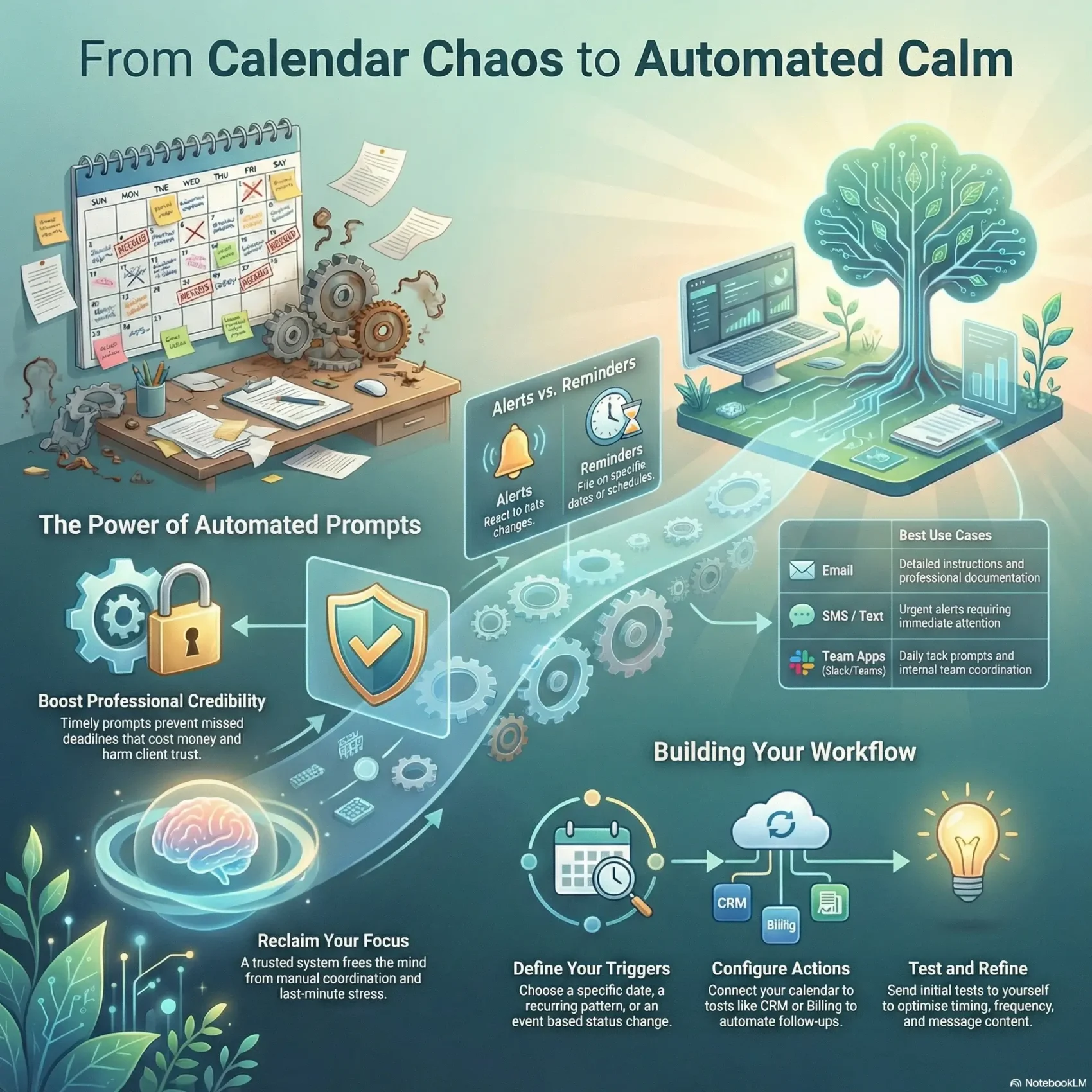
Last Updated on March 27, 2026
You need a simple way to stop relying on memory and start trusting a reliable system that delivers the right information when you need it.
This article shows how a reminder setup sends prompts across email, text, or app alerts so you stay on time for meetings, medical appointments, and business deadlines.
You’ll get a clear walkthrough that explains what the system does and why it matters. It will outline how integrations with calendar software and other tools let you consolidate notifications and avoid juggling multiple apps.
We also cover security, so you know how encryption and secure access protect your data while the workflow runs in the background. By the end, you’ll see how this setup can give you back valuable time and help users focus on high-impact tasks.
Key Takeaways
- You will learn what an effective reminder system does and why it matters to your business.
- Integration with calendars and software consolidates information and reduces duplicate entries.
- Security features like encryption keep your data safe while the system runs.
- Workflows and templates make setup fast, even if you’ve never built one before.
- The setup saves valuable time and lets your team move from manual follow-ups to strategic work.
Why automated reminders matter right now
A well-timed nudge can stop penalties, protect relationships, and keep work moving smoothly. In business, timely prompts prevent missed deadlines that cost money and harm client trust.
You gain professional credibility by sending the right information before a due date. Employees use these cues to prioritize tasks and reduce last-minute stress, which boosts productivity and morale.
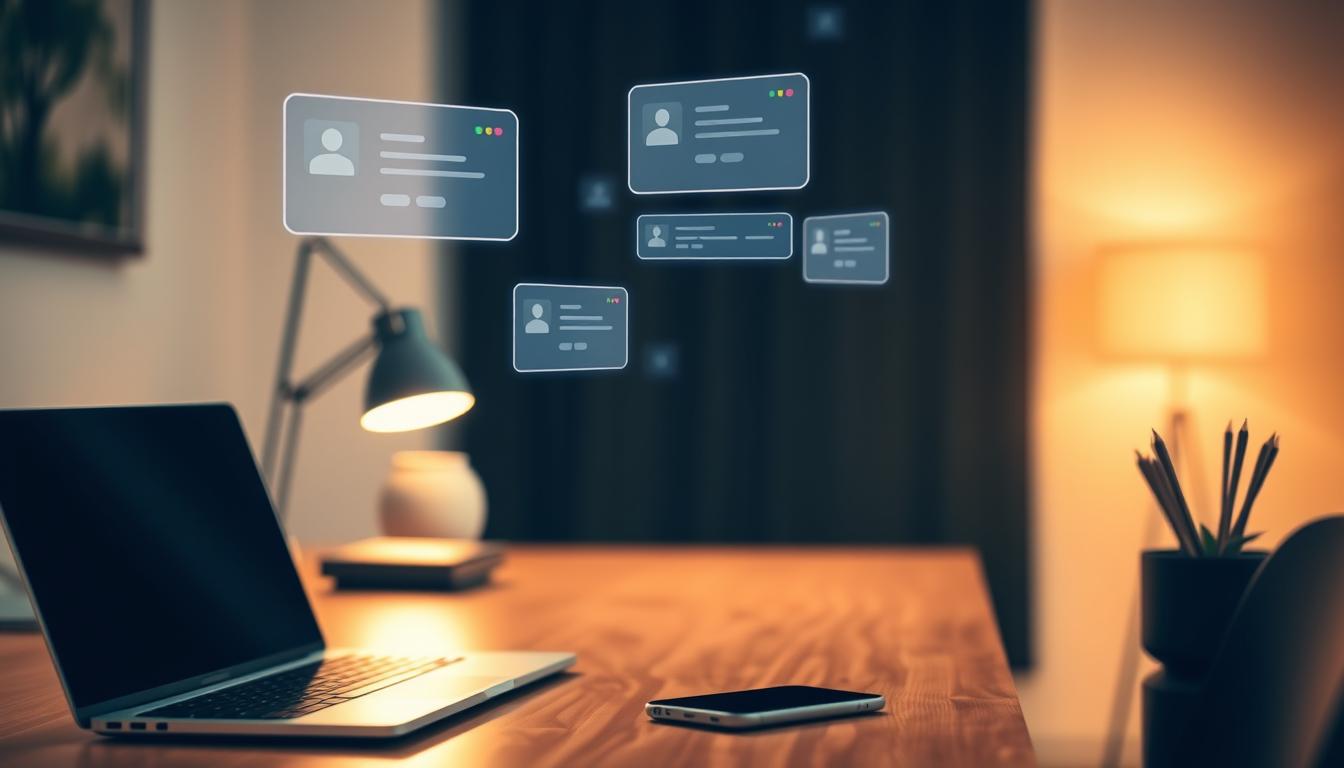
Modern reminder systems deliver via email, text, or apps so users get alerts wherever they are. That reach means fewer follow-ups, less manual coordination, and more focus on high-impact work.
For example, a payment reminder sent three days before a due date prevents escalations and preserves cash flow. Tuning your workflow so prompts arrive when they help most will shape positive user behavior and keep teams aligned.
- Prioritize: Match intent with timing so tasks get attention before deadlines creep up.
- Protect revenue: Well-timed notices reduce risk and signal reliability to clients.
- Free focus: A trusted system frees you from constant calendar checks.
Automated reminders, alerts, and how they work
Understand how alerts and calendar-based reminders connect so you don’t miss key tasks. Alerts react to data changes; reminders fire on set dates or times. Both run alone or inside a larger workflow to reach the right recipients.
Alerts vs. reminders: right information at the right time
Alerts notify stakeholders when records change—new form entry, status update, or a missed payment. They are reactive and keep data-driven teams informed.
Reminders are schedule-based. You set a date or recurring schedule and the system sends a prompt so owners act at the right time.
Triggers and actions: schedule-based and event-based workflows
Map each trigger to a clear action so your workflow is predictable and auditable.
- Schedule trigger: every weekday at 3 p.m. → action: send an email and post in Slack (example).
- Event trigger: CRM status change → action: notify account manager and create a task.
- Recurring: daily, weekly, or monthly runs for routine follow-ups.
Channels and frequency: email, SMS, app notifications, daily to monthly
Choose channels—emails, SMS, Slack, Teams, or app notifications—based on where your recipients pay attention.
Frequency matters: daily nudges differ from monthly summaries in tone and purpose. You can batch updates or send one-by-one messages to reduce noise.
For a quick how-to, see the linked guide to build reliable to-do lists and tie them into your workflows.
Set up calendar alerts the right way: a step-by-step guide
Start by choosing tools that talk to each other so your calendar and task system stay in sync. This makes the rest of the setup fast and reliable.
Choose your calendar and workflow software
Pick a calendar and a workflow app that integrate with your stack. Make sure they support the trigger types and actions you need.
Define the trigger
Decide whether the trigger is a specific date/time, an event, or a recurring schedule. This heartbeat controls when your workflow runs.
Configure actions
Set actions to send emails, post messages in chat, or create a task in Trello or Asana.
For example, build a Zap: create a new Zap, choose Schedule by Zapier as the trigger (daily or weekly), then add an action like sending a Gmail email or posting to Slack.
Test, refine, and select recipients
Test using your own account first—tests send real messages, so start with a direct message to yourself.
Iterate on timing, frequency, and message content, and document one example configuration for reuse.
- Tip: Include clear subject lines and links so recipients know the next task.
- Tip: Choose recipients and confirm delivery permissions before rollout.
Integrate your reminder system with the tools you use
A connected stack ensures client touchpoints and billing notices fire without manual steps. Link your CRM, billing, and team tools so the right person gets the right message at the right time.
Connect CRM and billing to automate client and payment reminders
Your CRM centralizes client history, preferences, and billing status. When a field updates, the system can trigger renewals, quotes, or invoices automatically.
Tie billing to your workflow so monthly statements and follow-ups send on schedule. This reduces manual checks and improves cash flow for your business.
Use team chat and task apps for on-time notifications and task creation
Route notifications through the channels your teams prefer—email, SMS, Slack, or Microsoft Teams—so nothing gets missed.
Set actions that also create a task in your project app. That way, a ping becomes trackable work instead of a lost note.
“Integrations cut duplicate data and free your team to spend valuable time on client relationships.”
- Mirror your revenue cycle: lead → quote → invoice → follow-up.
- Standardize templates so emails and messages stay on-brand.
- Keep a shared integration map so ops know where workflows originate.
Optimize your reminder system for timing, data, and trust
Optimize when and how you send messages so people respond before deadlines arrive. Personalization and clear calls-to-action help recipients know the exact action and due date.
Personalization and timing: send at the right time and cadence
Personalize content with names and context. Match the frequency to the audience—morning summaries, daily, weekly check-ins, or a monthly recap.
Tune send times to the right time of day and adjust frequency when engagement drops. Small changes to cadence often improve response behavior.
Reporting and analytics: measure delivery, opens, and behavior
Track delivery rates, opens on emails, and interactions with notifications. Use analytics to see which cadence drives action.
Build workflow health dashboards that surface failures, retries, and aging items so you fix issues before they impact teams.
Security and privacy: protect user data and enterprise accounts
Encrypt data end-to-end and enforce role-based account controls. Share only the minimum information needed in messages to respect user privacy.
“Test actions and alerts in sandbox environments before production to protect real recipients.”
- Document software configurations and retention policies.
- Review monthly performance and iterate on the workflow.
- Audit access and log changes for faster incident response.
Conclusion
Finish strong, and pick one recurring need to automate today.
Start with a single trigger, map a clear workflow, and send concise messages through the channels your users prefer. This approach saves you time and cuts human error across email, app, or chat notifications.
Use frequency and message options deliberately so each reminder helps, not nags. Test one path, measure opens and delivery, then expand what works.
When you follow this plan, the system moves routine work off your plate and into reliable execution. Implement one workflow, show value, then scale—your business will gain time and fewer missed tasks from steady, useful information.