You need clear answers about AI presenter videos before you spend budget on one. This guide gives an honest look at how Synthesia turns a script, a slide deck, or a web page into a polished presenter-led video without cameras or crews.
Expect details on avatar realism, wardrobe and background options, template workflows, and language support. We focus on whether the tool fits everyday business use and how it helps you publish consistent video at scale.
We also cover the enterprise side: shared workspaces, roles, LMS exports, and security. You will find current 2026 pricing, realistic performance expectations, and the cases where a different tool is the better call.
Key Takeaways
- You can produce presenter-led video without cameras, which removes the slowest part of production.
- Stock avatars, templates, and brand kits keep output consistent when many people contribute.
- Enterprise controls and SCORM exports make it workable for regulated training teams.
- Built-in access to cinematic models such as Veo and Sora adds B-roll without a second subscription.
- Plans are metered in video minutes, so estimate your monthly output before you pick a tier.
At a glance: is Synthesia the right AI video generator for business use?
Synthesia is an AI video platform built for repeatable, presenter-led business video. You paste a script, pick a digital presenter, and the platform generates a narrated video with matching lip movement. There is no camera, no studio booking, and no separate editing pass.
That focus matters. Most AI video tools chase cinematic footage. Synthesia optimizes for the boring, high-volume work: compliance modules, onboarding, product explainers, and internal announcements that have to look the same every time.
Quick verdict and who should choose it
If you need predictable, branded training and internal communication at scale, Synthesia is a strong default. You benefit most when speed, consistency, and governance matter more than cinematic flair. If you mainly want expressive marketing footage, look elsewhere.
Create your first AI video for freeWhy teams prefer controlled, predictable results
- Templates and brand kits: every update stays on brand with almost no design effort.
- Shared workspaces and role controls: approvals and reviews stop living in email threads.
- One-click translation and LMS exports: localization and distribution become routine steps, not projects.
- Security foundations: SOC 2 and GDPR features give IT and legal something to sign off on.
What you can build with Synthesia
Your team can spin up presenter-led training and explainers without booking talent or a production crew. That changes who can make video: a subject matter expert can publish a module without involving a video editor at all.
Training, onboarding, explainers, and internal comms
You can produce presenter-led training that walks people through processes, policies, and tools. These videos replace long slide decks and one-way emails with a human guide, which is the format most corporate remote learning programs are moving toward.
Onboarding stays consistent across roles and regions. When a policy changes, you edit the script and re-render the affected scenes instead of rebooking a shoot. That is the practical reason remote onboarding teams adopt it first.
Product explainers combine avatars, slides, and screen recordings, so you can teach a workflow step by step. Short modules also fit neatly into a microlearning strategy, where a five-minute clip beats a two-hour course.
What is new in 2026: bigger avatar library, more languages
Recent updates focus on avatar realism, small gestures, and more wardrobe and background options. Those details are what keep a viewer watching past the first thirty seconds.
Templates and brand kits lock fonts, motion, and color, so multiple contributors still produce consistent video.
Synthesia now advertises support for 160+ languages and accents and more than 1,000 AI voices, which turns localization into a repeatable step rather than a separate production pipeline. A built-in AI Playground gives you access to cinematic models including Veo 3.1 and Sora, so you can drop generated B-roll into key moments without leaving the editor.
- Non-technical contributors can create and update videos directly.
- Realistic presenters hold attention better than voiceover over slides.
- Templates keep messaging on brand when dozens of people publish.
Key features that make video production faster and more consistent
A handful of features do most of the work here. You get a short path from script to finished clip, plus the guardrails that keep output consistent across teams.
Stock avatars and custom avatars
Synthesia lists 240+ stock avatars with natural gestures, selectable clothing, and logo options. How many you can actually use depends on your plan: the free tier gives you 9, Starter 125+, Creator 180+, and Enterprise the full library.
For a familiar face, you can create a personal avatar from a webcam recording, or book a studio capture for higher fidelity. Interactive avatars, which listen and respond in real time, extend the same models into conversational use cases.
Explore the 240+ avatar libraryTemplates, brand kits, and branded pages
Templates and brand kits lock fonts, colors, and motion so every video looks like it came from the same team. Branded video pages let you publish a clean, hosted page for learners or employees instead of emailing files around.
Translation, dubbing, and 160+ languages
One-click translation rewrites both the script and the on-screen text, then re-voices the avatar. AI dubbing handles existing footage. A multilingual player can even switch automatically to the viewer’s language, which removes the need to maintain one video per market. If your organization already runs real-time translation tools for meetings, this is the same idea applied to recorded content.
Screen recording, LMS export, and team collaboration
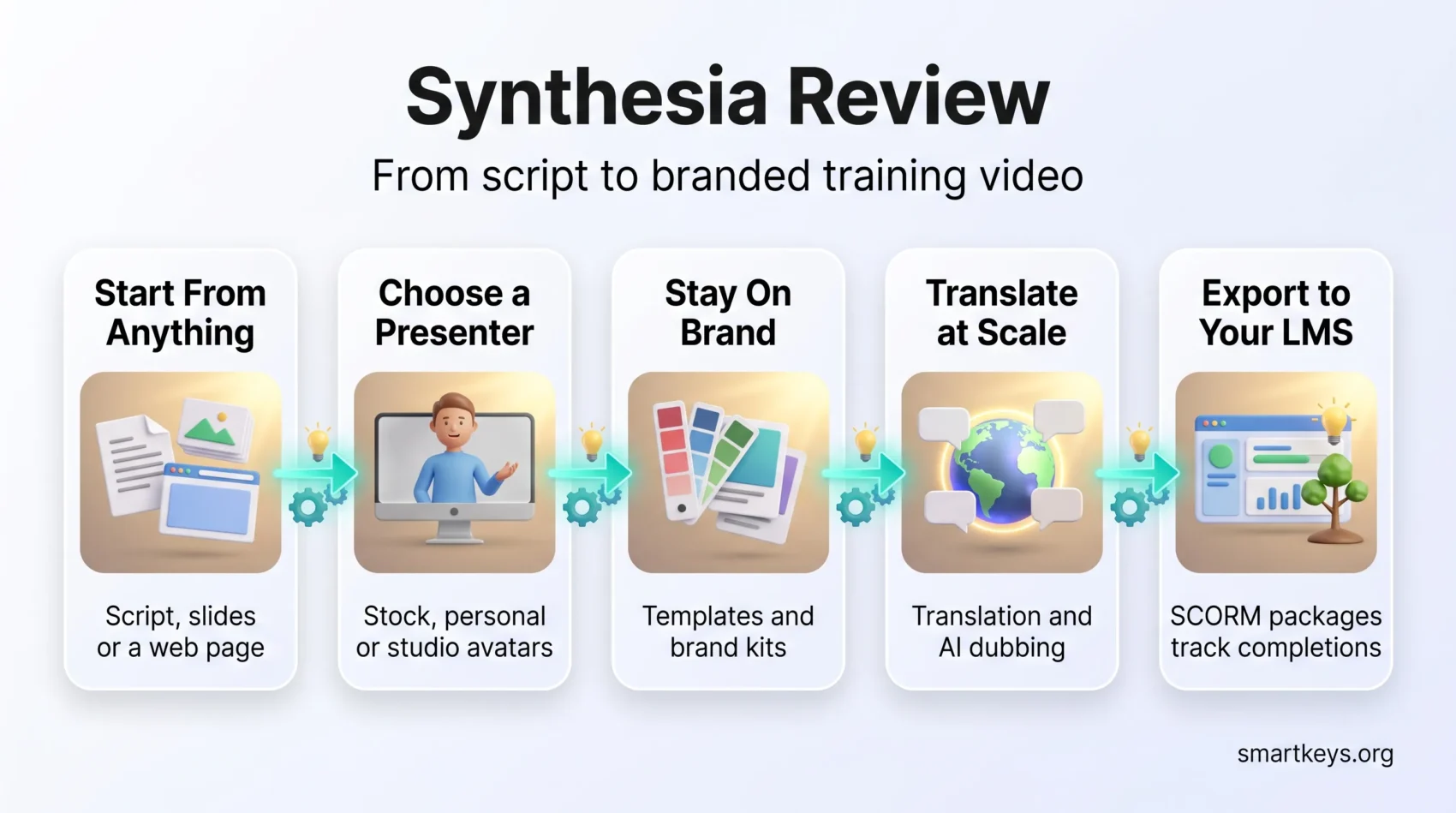
Record app demos with synced narration, convert a PPT, PDF, or URL into editable scenes, and export SCORM packages to your learning platform so completions are tracked. Teams running corporate edtech stacks usually plug it in at exactly that point.
- Shared workspaces, roles, and real-time editing remove version chaos.
- APIs and branded pages standardize how content reaches your systems.
- Governance features (SOC 2, GDPR) support secure scaling.

User experience: from script to finished video in minutes
Synthesia uses a scene-based editor rather than a timeline. Each scene holds one block of script, one avatar setup, and its own visuals. That structure is what makes edits cheap: you change one scene and re-render that scene only.
Turn text into video instantlyScene-based editing, gestures, and animations
Add small gestures and adjust enter and exit animations so presenters feel natural on screen. Each scene can use its own language, voice, and timing.
The editor also lets you position the avatar, insert pauses, and set word-level pronunciations. That last control matters more than it sounds: product names and acronyms are where AI narration usually goes wrong.
Script assistant, subtitles, and audio controls
The built-in AI script assistant drafts scene copy from a short brief, then you adjust tone and flow. Automatic closed captions help with accessibility and with viewers who watch without sound.
Per-scene voices let you localize sections precisely without duplicating a project. The screen recorder captures app windows, trims clips, and syncs audio for clean tutorials.
- Multiple aspect ratios (1:1, 9:16, 16:9) make it easy to repurpose one asset.
- Downloads come as MP4 in Full HD 1080p, which is plenty for an LMS or intranet.
- The dashboard is simple enough that non-editors contribute without training.
Avatar quality: how natural do the presenters feel?
Whether a presenter feels believable comes down to three things: lip sync, small gestures, and wardrobe that matches the context. Get those right and viewers stop noticing the avatar.
Lip sync, gestures, and wardrobe customization
Lip sync has matured to the point where speech and mouth movement line up across most supported languages and accents. Narrated video no longer feels obviously synthetic.
Small gestures such as nods, eyebrow raises, and head turns add human cues. They make an explanation feel conversational rather than read aloud.
Clothing recoloring and background choices let you match brand visuals or context. You can add a logo to the wardrobe or put a presenter in a lab coat for a technical demo.
When to use a personal avatar instead of a stock one
Use a personal avatar, recorded from a webcam, when you need a quick, recognizable update from a real person. It is fast and works well for one-off messages from a manager or founder.
Choose a studio-grade capture for executive communication, regulated content, or high-volume training. Studio sessions produce higher fidelity and stay consistent across hundreds of videos.
- Lip sync holds up across languages.
- Gestures make presenters more personable.
- Brand teams can control wardrobe and logos.
- Personal avatars are fast; studio avatars give the best consistency.
Templates and design options for producing video at scale
Templates give you a blueprint, so teams do not start from a blank canvas. Synthesia ships purpose-built templates for common formats such as onboarding, policy updates, and product walkthroughs, and each one sets pacing and visual hierarchy for you.
Shutterstock media, Icons8 graphics, and brand consistency
Built-in Shutterstock images and video plus Icons8 icons let you add visuals without a separate license. That removes a licensing step for teams that would otherwise buy stock separately.
Brand kits and branded video pages lock typography, colors, and layouts so every clip matches your identity.
- Adjust fonts, colors, alignment, and scene layouts to match your design system.
- Upload logos and internal assets so video matches the rest of your material.
- Save layout patterns for multi-module courses and recurring announcements.
Mixing avatars, B-roll, and icons lets you tell a step-by-step story that is easy to follow. The guardrails mean non-designers can ship work that still looks art-directed.
Synthesia pricing in 2026: what each plan actually includes
Synthesia meters output in video minutes, not in videos. A ten-minute allowance is roughly four short modules a month, so the honest first step is estimating your publishing cadence.
What the free plan really covers
The free Basic plan is a sandbox. You get 10 minutes of video per month, 9 avatars, and access to the language library. The catch is the one that trips people up most: free and trial accounts cannot download their videos. You can preview and share, but the MP4 stays out of reach until you upgrade.
Start with a free accountStarter and Creator compared
Starter costs $18 per month billed yearly, or $29 billed monthly. It includes 120 video minutes a year (10 a month), 125+ avatars, up to 3 personal avatars, AI dubbing, logo removal, and 1 editor seat plus 3 guests.
Creator costs $64 per month billed yearly, or $89 billed monthly. It raises you to 360 minutes a year (30 a month), 180+ avatars, 5 personal avatars, branded video pages, interactive videos, API access, priority support, and 1 editor plus 5 guests.
The gap between the two is mostly minutes and API access. If you publish weekly, Starter runs out fast.
Enterprise and how to judge the value
Enterprise is custom-priced and adds unlimited minutes, the full 240+ avatar library, unlimited personal avatars, SAML single sign-on, live collaboration, SCORM export, and a dedicated customer success manager.
- Annual billing cuts the monthly rate by roughly a third on both paid tiers.
- Compare the cost against what one filmed training video costs you today, including the reviewer time it consumes.
- Count minutes per creator, not per company. One person publishing weekly can absorb a whole Starter plan.
Performance and output: rendering, resolution, and quality
Render time shapes your publishing schedule, so it is worth measuring early. Standard avatar scenes are quick and predictable, which is the main reason production teams like the platform.
Generated B-roll behaves differently. Fast cinematic modes typically return an 8-second clip in a couple of minutes, while high-realism models can take considerably longer. Plan those inserts ahead of a deadline rather than during final review.
Preview mode is deliberately low fidelity and skips full avatar animation, so you can check pacing quickly. The final render produces complete motion and downloads as MP4 at Full HD 1080p, which is fine for an LMS, an intranet, or a training room screen.
Practical tips for smoother video generation
- Split projects into short scenes so you re-render only what changed.
- Keep modules short. Shorter clips render faster and people finish them.
- Use brand templates to avoid rework and inconsistent motion settings.
- Balance the audio inside the editor before you submit the final render.
Render times still vary with length, complexity, and queue load. Track the average across a few projects so you can forecast delivery dates instead of guessing.
Security, compliance, and governance for regulated teams
If you publish training at scale, your security posture needs to be as consistent as your messaging. Regulated industries need content that is auditable and repeatable, not just fast to produce.
Enterprise controls, disclosures, and auditability
SOC 2 and GDPR compliance form the baseline that lets IT and legal clear the vendor. Synthesia also publishes AI disclosure and consent workflows, which document how likenesses and voice models are used. That documentation is the piece most generative AI usage policies ask for.
- Governance: roles, permissions, versioning, and audit trails keep content review traceable.
- Shared workspaces: collaboration without files circulating outside the platform.
- Compliance output: SCORM exports and closed captions support regulated training and accessibility rules.
“Clear ownership, review pathways, and structured audits reduce the risk of unvetted messaging.”
Synthesia states that it is used by more than 50,000 teams and over 90% of Fortune 100 companies. Treat those as vendor claims, but they do indicate that the compliance processes have been tested by large buyers. Before you scale, align avatar usage, voice cloning consent, and retention rules with your own workplace data privacy rules. If you operate in the EU, synthetic presenters also fall under transparency duties, which our guide to EU AI Act compliance covers in plain terms.
Real business results: what the published case studies show
Synthesia publishes customer case studies with named metrics, which is more than most tools in this category do. The figures below come from those write-ups, so read them as customer-reported outcomes rather than independent benchmarks.
Training at scale
Zoom reports producing 200+ micro videos in roughly six months and creating them about 90% faster than before, with subject matter experts freeing up 15 to 20 hours a month.
Heineken trained 70,000 employees worldwide. Booz Allen Hamilton built an eight-hour course in three weeks. Boldyn Networks reports 95% course completion rates, and Brinks produced 15 training videos in a single day.
Productivity and cost savings
Moody’s reports an 87% cut in video production time and SAP about 70% faster internal asset creation. Five Below reports a 97% reduction in production costs. Mondelez says roughly 100 hours of localization work was completed in about ten minutes. Zoom put its saving at up to $1,500 a month per employee previously spent on video creation.
Sales enablement and internal comms
- TD SYNNEX reports 80% less time spent per enablement asset, the kind of gain that shows up across wider sales enablement programs.
- Cox Communications reports 95% faster speed to market for its video content.
- Consistent formats cut manager review time as much as they cut production time.
Bottom line: the pattern across these stories is the same. The savings come from volume and repetition, not from any single video.
Pros and cons: what reviewers say
G2 gives a useful read on how teams actually use the product. Synthesia holds a rating around 4.6 out of 5 from roughly 2,800 reviews on G2, which is high for a category this crowded.
The recurring themes are consistent. Reviewers praise how quickly a script becomes a finished video and how believable the presenters look for training content. Complaints cluster around plan limits rather than quality.
What reviewers like
- Ease of use: the learning curve is gentle enough for people who have never edited video.
- Output quality: finished videos meet internal comms and LMS standards without touch-up.
- Realistic avatars: presenters are believable enough that training feels human-led.
- Speed: teams cut days of shooting and editing down to an afternoon.
Common complaints
- Avatar and minute caps on lower tiers frustrate teams that publish often.
- Emotional range is limited. Scripts that need real feeling still read flat.
- Deeper visual customization often requires an upgrade, which surprises Starter users.
“Strengths are speed, ease, and realism; watch the plan limits if you need broader customization.”
How Synthesia compares to other AI video generators
Not every AI video tool aims at the same balance between craft and scale. Match the tool to your workflow, your budget, and the type of output you actually ship.
Veo 3.1: cinematic realism versus predictable production
Veo 3.1 is strong on short, cinematic shots with real emotional nuance, and it is reachable from inside Synthesia’s AI Playground. It renders brief clips quickly but costs more per second and offers limited post-editing.
Sora: storytelling power versus speed
Sora handles multi-scene storytelling and natural dialogue well. Expect slower renders, higher cost, and less predictable throughput, which makes it awkward as the backbone of a weekly publishing schedule.
Kling: price to quality for creative clips
Kling delivers solid image-to-video quality with built-in sound at a friendlier price. It suits marketing visuals, though its emotional realism sits below Veo and Sora.
Avatar and voice alternatives worth checking
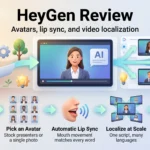
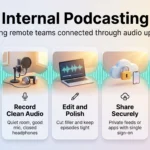
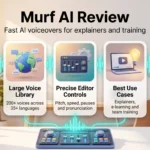
If avatar expressiveness matters more to you than governance, our HeyGen review covers a more expressive alternative. For voice-only work with no visual presenter, see our Murf AI review or, for long-form listening and document narration, our Speechify review. For short-form product ads, our Creatify review is the closer match, and teams that need a steady stream of scripted social clips should look at our Syllaby review. If audio is the better format for your internal updates, our Jellypod review pairs well with an internal podcast program.
Comparison table
| Feature | Veo 3.1 | Sora | Kling | Synthesia |
|---|---|---|---|---|
| Best for | Cinematic shots | Storytelling | Marketing clips | Training and scale |
| Render speed | Fast, short clips | Slow | Moderate | Predictable |
| Team features | Limited | Limited | Basic | Strong |
| LMS export and governance | No | No | No | Yes |
When Synthesia is the right pick, and when it is not
The decision comes down to one question: do you need repeatable training video, or do you need cinematic storytelling?
Best fits: branded training, onboarding, product explainers, and internal communication that you have to update regularly. Synthesia standardizes modules with templates, localizes them quickly, and exports them to an LMS. That combination makes day-to-day video work reliable for large teams, including cross-border teams that need the same message in ten languages.
When it is not ideal
If you want a long-form cinematic piece, advanced camera movement, or frame-level editing, a creative-first generator fits better. Veo and Sora offer richer visuals at the cost of slower renders and less control over the workflow. Immersive formats are a different discipline again; our look at VR employee training covers where that makes sense.
- Pick Synthesia for repeatable, branded training and fast policy updates.
- Pick creative tools for heavy visual effects or art-driven pieces.
- Combine both by using generated B-roll inside Synthesia scenes.
Getting started: build a video from a script, slides, or a URL
Start a project by importing slides, pasting a script, or converting a URL into editable scenes. Any of the three gives you a scene outline to work from, which is faster than building from scratch.
From idea to first draft
Paste your script, import a PPT or PDF, or point the tool at a web page to generate a scene outline. Use the AI script assistant for a first draft, then fix tone and timing yourself. The draft is a starting point, not a finished script.
Pick a template that matches your brand kit so fonts and colors are already approved, then add Shutterstock or Icons8 assets where a visual explains more than words.
Tips for producing on-brand video quickly
- Choose an avatar and voice, then add screen recordings for any software demo.
- Keep scenes short. They render faster and hold attention better.
- Set pronunciations and pauses for product names and acronyms.
- Turn on subtitles for accessibility and silent viewing.
- Publish to a branded page or push the SCORM package to your LMS.
- Agree a file naming convention and a short QA checklist before you scale.
Quick tip: work in scenes so you only re-render what you edited. It keeps delivery predictable.
Advanced workflows: custom avatars, dubbing, and generated B-roll
The advanced setup combines a custom presenter, translated audio, and cinematic inserts into one repeatable pipeline.
Create a personal or studio-grade custom avatar for a consistent spokesperson across modules. Webcam captures suit fast updates; studio captures suit anything that will be watched by thousands of people.
AI dubbing on paid tiers translates a master video into other languages while keeping timing and visuals intact. That is usually cheaper than rebuilding each localized version, and it is how teams keep a growing library current. If you are choosing a platform to host that library, our comparison of Kajabi and Teachable and our overview of AI learning platforms are useful next reads.
Combining cinematic B-roll
Drop Veo or Sora clips into key moments to add polish without rebuilding scenes. Generated clips consume separate credits, so watch the balance if cinematic inserts become a habit rather than an accent.
APIs, LMS export, and team workflows
API access on Creator and Enterprise plans, plus branded pages, lets you push videos and metadata into your own portals. SCORM export tracks completions and scores in your learning system. If you are building full courses rather than standalone clips, our LearnWorlds review looks at a dedicated course platform that pairs well with these exports.
- Team collaboration: shared workspaces, roles, and real-time editing keep reviews short.
- Standardize templates per department so brand guardrails survive contact with volume.
- Treat Synthesia as the hub for narration and structure, and pull in B-roll only where it earns its place.
Conclusion
Synthesia earns its place when video is a recurring operational task rather than a creative project. Run a short pilot so you can measure time saved, completion rates, and quality against your current process instead of against a demo.
Start small. Pick one training or communication use case, build it with a template and a consistent avatar, and see how long the second and third videos take. That ratio tells you more than any feature list.
When you need cinematic moments, add generated B-roll rather than switching platforms. If your goal is repeatable, on-brand output for day-to-day business use, this is a workflow you can scale with confidence.
Scale your video production nowFound this useful?
Make SmartKeys a preferred source on Google, and our articles will surface more often in your Top Stories, AI Overviews, and AI Mode.
Add as Preferred Source