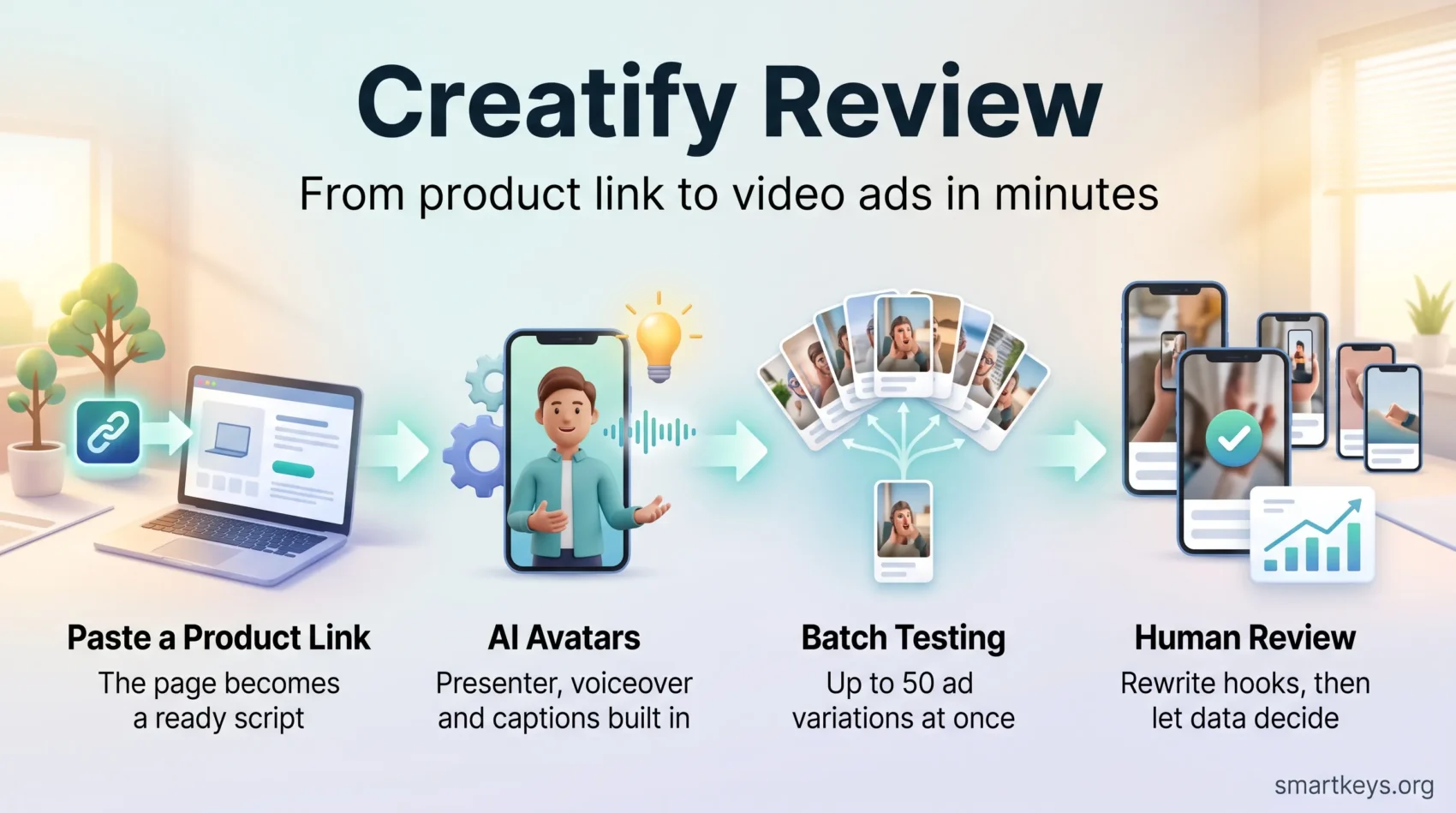
You need video ads that go live fast and actually sell. Creatify is an AI video tool that takes a product page link and turns it into short, ready-to-post ads, complete with a presenter, a voiceover and captions.
That means no camera, no studio booking and no editor on standby. You paste a URL, pick a format, and get a first cut in minutes.
This review covers what the platform does well in 2026 (speed, templates and AI avatars), where it stops being enough, and what it costs once credits are factored in. Creatify says more than 18,000 brands and agencies use it, and it holds a 4.8 out of 5 rating on the software review site G2 across roughly 1,700 reviews.
Key Takeaways
- Creatify converts a product link into short video ads without a shoot or an editor.
- Templates, AI avatars and a simple built-in editor keep production time low.
- Batch generation creates up to 50 variations at once, which suits heavy ad testing.
- Plans start free and run to 39 and 99 US dollars per month, billed by credits.
- Scripts and avatars need a human pass; the tool is fast, not finished.
Quick verdict: who Creatify is best for right now
If you need product-focused clips that convert, Creatify gets you from page to publish in minutes.
Best fit: a small brand, a creator, or a lean marketing team running TikTok, Instagram Reels or Meta campaigns. It works best when your product page is detailed and you know which angle you want the ad to take.
Why it works: the URL-driven flow plus templates let you produce many short videos quickly. You can spin up ad variations, test different opening hooks and ship content without hiring a video editor.
- Fast demos: product link to finished ad in minutes, which matters when a campaign launches this week.
- Scale testing: batch renders make it cheap to try different hooks, lengths and formats.
- Limitations: it will not build your creative strategy, grade colour like a post-production suite, or rescue a thin product page.
Also watch the credit maths. Longer videos and repeated renders burn through an allowance quickly. If your product page has weak images or vague copy, fix that first: the AI writes better scripts from better source material. The same logic applies to personalised product experiences, where the quality of your input data sets the ceiling.
Try Creatify for FreeCreatify Review
Paste a product page link and the platform proposes scripts, visuals and ready-to-test short videos.
What the tool is and how it makes short video ads
Creatify converts a single URL into multiple short video options. It reads the product page, pulls the title, the images and the description, then builds a script around them. You choose the platform, the audience, the tone and the format, then pick an avatar (a computer-generated presenter who speaks your script) and a voice.
The dashboard is organised around a few creation modes: URL to Video, AI Avatars, Product Ads, Batch Generation and Ad Flow, a node-based editor where you connect steps of an ad into a repeatable chain. A built-in editor lets you adjust captions, music, calls to action and voiceovers before you export.
Pro plans add a Performance Agent, which connects to your Meta, Google, TikTok or AppLovin ad accounts so you can ask questions about which creatives are working. That is a meaningful change from earlier versions, which produced ads but told you nothing about their results.
Key takeaways from hands-on testing
- Output is fast, but you still direct the angle. Left alone, the scripts read competent and generic.
- It performs best when the product page has clear titles, sharp images and strong copy, since those assets feed the script.
- Batch generation and custom avatars help you scale tests across formats and markets.
- Renders are quick, but quality control is on you. Plan a review pass before anything goes live.
Core features that matter for marketers: AI avatars, scripts and templates
You can turn product pages into polished short videos without juggling four separate apps. That matters when speed and consistency drive your results, which is increasingly the norm across current digital marketing practice.
One product URL becomes video ads with avatars, voiceovers and music. The platform pulls titles, images and descriptions from your page, so you start from a draft rather than a blank timeline.
The main creation tools
- URL to Video: the core flow, turning any product link into a ready-to-post ad.
- AI Avatars: choose a stock presenter, or build a custom avatar when you want one recognisable face for every video.
- Product Ads: clean product shots and simple animations, useful when you want the item on screen rather than a talking head.
- Batch Generation: up to 50 variations at once, built for testing.
- Ad Flow: a node-based editor where you wire together the steps of an ad so the same recipe can be reused.
Script angles, tones and caption editing
You pick a script angle such as how-to, brand story or problem and solution. Tone presets (casual, motivational, direct) keep the voice consistent across a campaign, which supports the wider goal of a coherent brand story.
Caption editing and calls to action are built in, so each clip can carry your wording rather than a generic default. Voiceover and music layers set the mood.
One honest caveat: reviewers repeatedly describe the generated scripts as formulaic. Expect to rewrite the opening line yourself. That is minutes per ad, not an afternoon, but it is not zero.
“Fast URL-to-video workflows let you run more ad tests and learn what moves the needle.”

From link to ad in minutes: your step-by-step workflow
Start by pasting the product page URL so the system can fetch titles, images and descriptions.
Five steps from page to finished clip
1. Add your product URL. The tool imports assets from the page, so you skip manual uploads. This is where a well-built product page on a platform like Shopify pays off.
2. Pick platform specs. Choose TikTok, Instagram or Meta, then set the aspect ratio and length to match the placement.
3. Select or write a script. Choose an angle, then preview the voices so the tone fits your audience.
4. Choose an avatar. Pick a stock presenter, or create a custom avatar for a consistent on-brand face.
5. Use the editor. Adjust captions, pacing, music and the call to action, then render.
- Download the finished video in minutes, then export alternative versions for other placements. Formats matter here, since most product discovery now happens on a phone.
- Preview voices before the final render. A re-render because of the wrong voice costs credits for no gain.
- Repeat the process to turn one link into a set of publish-ready ads.
Templates, customization options and the video editor
Templates, subtitle presets and a timeline view give you a fast route to consistent videos. You pick a template, apply a subtitle style, and swap product shots without briefing a designer.
Templates and subtitles: faster iteration without a designer
Reusable layouts keep fonts, colours and calls to action steady across a campaign. Creatify lists several hundred ad templates on paid plans, with more unlocked at the higher tier.
Quick tip: save your favourite subtitle style and reuse it. That removes a decision from every video. If you also design static assets, a template-driven design tool gives you the same benefit.
Built-in editor: trimming, captions, music and CTAs
The editor is deliberately simple. Trim clips, fix captions, choose music, add a call to action, render. That is enough for most social ads and it keeps the publishing cadence high.
Users do report that longer timelines can lag or freeze. Leave a buffer if you are working to a same-day deadline.
Where customization hits its limits
Titles, captions, music and basic overlays are well covered. Anything beyond that is not. There are no keyframe animations, no custom transitions and no frame-accurate control over text timing. Heavy colour grading and motion graphics still belong in dedicated software such as Premiere Pro or DaVinci Resolve.
In practice: use Creatify for the routine volume, and an external editor for the hero piece that carries a launch. You get speed where speed matters and polish where polish matters.
Avatars and voiceovers: realism, custom options and languages
The right avatar and the right voice can lift a product video from ignorable to clickable. Convincing lip-sync matters most in short ads, where attention is measured in seconds.

Realistic lip-sync and where it shines
In short clips the lip-sync holds up well, and viewers stay with the message rather than noticing the technology. The picture changes with length. Reviewers consistently note that realism drops past the one-minute mark, with visible lip-sync drift and stiff head movement.
Use avatars for quick demos, problem-and-solution hooks or testimonial clips of 15 to 45 seconds. For anything longer, film a person.
Custom avatars and picking the right voice
A custom avatar lets you present product details without filming, which saves real time on recurring content such as weekly launches or restock announcements. Custom avatar slots sit on the Pro plan and above.
Preview the voices before you render. Tone and pacing change how an ad lands, so test two or three options. If voice quality is your deciding factor, it is worth comparing against a dedicated AI voice tool or an avatar-first platform.
See Creatify’s Avatars in ActionLanguage coverage and where it thins out
Creatify supports more than 75 languages. Widely spoken ones such as Spanish, French, German and Italian sound natural enough for paid campaigns. That makes it workable for selling across borders.
Smaller language groups are weaker. If you are targeting a market with fewer speakers, render one test video and have a native speaker listen to it before you commit to a batch. For comparison, avatar tools that focus on corporate localisation, such as Synthesia, cover more languages.
“Match your avatar and script to the ad angle, then iterate on whatever drives results.”
- Avatars work best in short formats with tight pacing.
- Preview voices for tone, and test smaller languages before batching.
Testing at scale: batch generation and faster campaigns
When you need many ad ideas quickly, batch generation turns one concept into dozens of testable clips.
Batch mode for hooks and A/B tests
Batch generation produces up to 50 variations in one go, which gives you a spread of hooks and formats without extra filming. Keep the length and aspect ratio constant so the comparison stays fair. A/B testing means running two versions against each other and keeping the winner.
This is the strongest argument for the tool: ad accounts reward volume of tested creative, and manual production cannot keep pace.
Best practices: preview, rotate, and watch the credits
- Use batch runs to create several hooks and angles, then let the ad platform pick the winner.
- Rotate avatars every few weeks so your audience does not tune out the same face.
- Preview voices before rendering, since re-renders cost credits.
- Track credit use closely. Longer videos and many variations consume noticeably more.
- Feed the results back into your next batch. Behavioural data from your ad account tells you which hook to make more of.
Real-world results: what users report on quality, speed and support
Marketers keep highlighting one benefit above the rest: shorter production cycles that keep campaigns fresh. On G2, ease of use is the single most cited strength, and the score sits at 4.8 out of 5 across roughly 1,700 reviews.
Ad performance and an editor people actually use
Users report strong results on Meta and TikTok placements and describe the built-in editor as straightforward. An editor a marketer can operate without training removes the queue in front of every piece of content.
Time savings for small teams
Small teams and solo creators turn a product link into publish-ready video and skip the shoot entirely. That removes location costs, talent fees and scheduling, so you get more ads per month at a lower unit cost. It is the same pattern behind many direct-to-consumer brands.
Common pain points
Three complaints come up repeatedly.
Formulaic scripts. The AI writes clean copy that sounds like every other AI ad. Teams report spending 15 to 30 minutes editing each script to match their brand voice.
Render quality on edge cases. Avatars occasionally produce glossy skin artefacts or awkward movement, which means a re-render.
Credits running out. Starter plan users often exhaust their monthly allowance early, because iterations and discarded drafts consume credits too.
- Preview before rendering to catch avatar issues cheaply.
- Buy credits for two to three times the number of ads you plan to run.
Pricing and plans in 2026: what to consider before you buy
Before signing up, translate credits and renders into a monthly campaign cost. Creatify publishes four tiers.
- Free: 0 US dollars, 10 credits per month, access to 300 AI actors. Exports carry a watermark, so treat it as a trial rather than a working plan.
- Starter: 39 US dollars per month, 100 credits, no watermark, videos up to 2 minutes, 200 or more ad templates, one seat.
- Pro: 99 US dollars per month, from 300 credits, 1,500 AI actors, 3 custom avatars, videos up to 10 minutes, competitor ad tracking and the Performance Agent, up to 5 seats.
- Enterprise: custom pricing, with done-for-you production, white-label options and a dedicated account manager.
Annual billing is discounted by up to 50 percent compared with paying monthly.
How to estimate your run rate: decide how many finished ads you need each month, then multiply. Independent reviewers put a standard 30-second ad at roughly five credits, which works out near 1.65 US dollars on the Pro plan. Because a share of drafts get discarded, plan for two to three times your target ad count.
Compare that against the alternative. One filmed product video with a freelancer, a location and an edit costs more than a month of Pro. The trade is unit cost against ceiling quality, a familiar calculation for anyone tracking how e-commerce budgets are shifting. Decide which ads justify premium production, reserve budget for those, and improve your product pages first: better inputs mean fewer wasted renders.
Test Creatify’s AI Video Builder“Budget for testing, but keep money aside for a few flagship shoots.”
Performance insights: where Creatify ends and analytics begin
Producing assets quickly is not the same as knowing which one works. Creatify has narrowed this gap in 2026. The Performance Agent on Pro plans connects to Meta, Google, TikTok and AppLovin accounts, so you can ask which creatives are performing instead of exporting spreadsheets.
It is still a reporting layer, not a full analytics stack. It tells you which ad wins, not what that means for customer lifetime value, repeat purchases or margin.
What to pair it with
For the wider picture, keep using your ad platform’s own reporting and, once the volume justifies it, a proper business intelligence tool that joins ad spend to revenue. That is where you find out whether cheap clicks turned into profitable customers.
For competitive context, Creatify’s competitor ad tracking on Pro shows what rivals are running. Treat it as inspiration for hooks, not a strategy. If your goal is a broader ad creative workflow, our review of AdCreative AI covers a tool built around scoring creative before launch.
- Keep Creatify as the production engine and let your ad account decide the winners.
- Feed the results back into product page copy, script angles and editor tweaks.
“Ship assets fast, then let the data tell you which ones to scale.”
Finished clips still need distribution, so plan how they fit into your social channels and your publishing schedule.
Conclusion
Start Creating with CreatifyOne URL, a handful of short videos, and a campaign that keeps moving.
Creatify earns its place as a volume tool. It is the fastest way to turn a product link into short video ads when speed is the constraint. Start with detailed product pages, preview voices, rotate avatars and watch your credits.
Use batch generation to widen the test set, then let your ad data decide what to scale. For the flagship piece that carries a launch, bring in a real shoot. Video is only one part of a working short-form content pipeline.
The honest summary: Creatify buys speed and volume at a low unit cost. It does not buy a creative strategy, and every script still needs a human pass. Judge it on that basis and it delivers.
Found this useful?
Make SmartKeys a preferred source on Google, and our articles will surface more often in your Top Stories, AI Overviews, and AI Mode.
Add as Preferred Source