You’re building a single command center that helps you start each morning with clarity instead of scattered tabs. This guide shows you how to turn one simple tab into the first place you open to plan your work.
You’ll learn how to pick the right components and connect live views from tools you already use. The steps are friendly and step-by-step, so setting up a clean layout feels easy, not overwhelming.
Define what progress looks like for you, then map it into a layout that makes the next step obvious. We include practical examples and lightweight widgets so you spend less time clicking and more time doing.
By the end, you’ll have a repeatable template that adapts as goals change and keeps your flow intact. Expect tips to avoid common pitfalls like cramming too much or tracking metrics you never use.
Key Takeaways
- Make one tab your daily command center to start each morning focused.
- Choose a few live widgets that show meaningful progress at a glance.
- Design a clean layout that makes the next step obvious.
- A lightweight start view plus deeper widgets keeps friction low.
- Use a repeatable template you can tweak as your goals evolve.
Why build a productivity dashboard right now
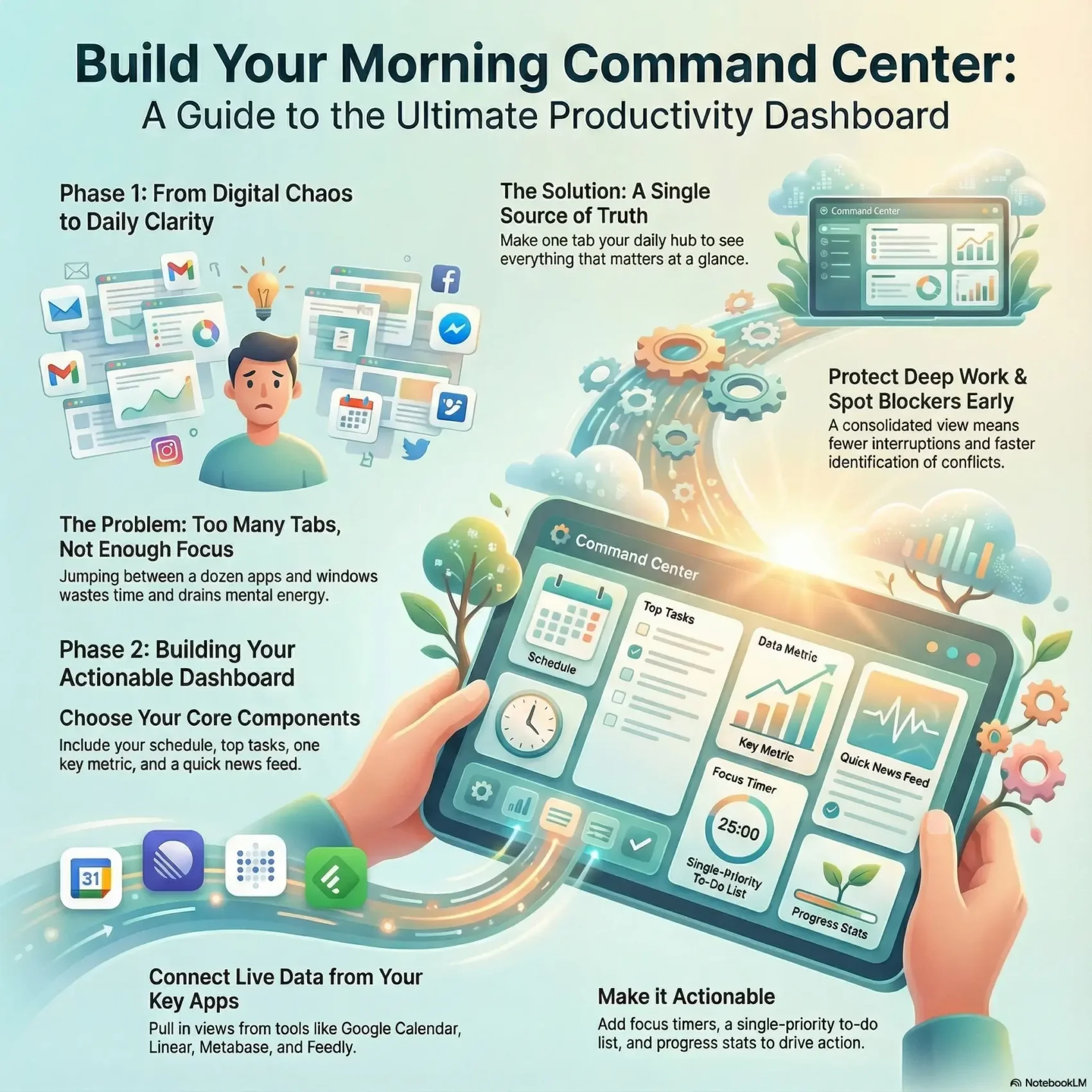
Start your day by making one tab the clear place where you check what matters most. When you open a new tab that shows calendar events, project tasks, analytics, headlines, and weather, you remove the guesswork from your morning routine.
Too often you jump across a dozen browser windows and lose minutes chasing context. A single source of truth cuts those swaps and helps you keep focus when it counts.
- See everything at a glance: Snapshots from Google Calendar, Linear, Metabase, Techmeme/Feedly, and local weather pack into one view.
- Protect deep work: Less tab overload means fewer interruptions and clearer blocks of time for real work.
- Spot blockers early: A consolidated view reveals scheduling conflicts and analytics trends fast.
Tools like Momentum turn the new tab into a focused start page with prompts and to‑dos that reduce distraction. If you want app ideas to pull into this home base, see a list of the best productivity apps to connect.
Plan your dashboard: goals, metrics, and daily workflow
List two to three result-focused goals and then pick the few measurements that show progress by day, week, and month. This keeps your view tied to real performance instead of noise.
Define what “progress” means for your day, week, and month
Write down outcomes first, then name one metric for each horizon. Keep those metrics visible so you can judge wins quickly.
Choose the few activities you need to see every morning
- Calendar blocks for the morning;
- Top three tasks you must finish;
- A trending key metric that affects your weekly goal.
Map goals to data sources and apps you already use
Translate each goal into a specific data source — Google Calendar for meetings, Linear for tasks, Metabase for KPIs. Group widgets by the decision you need to make first.
Keep it lean: if a widget doesn’t drive an action, move it to a secondary view. Use consistent naming and ordering so your eyes land in the same spot each morning. Pick elements that update automatically to save you time and reduce manual work.
Set up your new tab as a focused home base
Turn the tab you open first into a calm place that sets your day’s intention. A clean start page removes noise and helps you choose one meaningful action before you dive in.
Turn your New Tab page into a distraction-free start page: use a single daily prompt that asks, “What is your main focus for today?” Seeing this every morning keeps your focus steady when the inbox or a meeting tries to pull you away.
Add a daily focus prompt, to‑do list, weather, and inspiring quote
Keep a short, reorderable to‑do with only today’s tasks so the page is a place for action, not backlog storage.
Surface a one-line quote to nudge your mindset during lulls. A small weather widget shows the next few days so you can plan breaks and commutes without opening another app.
Use ambient sounds, timers, and themes to support deep work
Choose a calming theme and soft ambient sounds or built‑in music to cue concentration. Add a focus timer to protect blocks of time and return the tab to a quiet place when you stop.
- Set the new tab to a calming home base so each morning begins with intention.
- Keep widgets minimal for fast scanning and quick action from any browser window.
- Test and tweak the layout for a week to see what truly helps your flow.
Core components to include in your productivity dashboard
Pick a handful of live modules that surface what needs your attention in under five seconds. Keep the layout ordered so your morning flow goes: schedule, tasks, metrics, then optional reading.
Schedule and meetings: show today’s Google Calendar snapshot so you can spot meeting gaps and prep time without opening another tool.
Work tracking: pull your top tasks from a project management app like Linear and display a single column of what must move today.
Performance and usage analytics: add a compact Metabase or Google Analytics widget to monitor one key metric. This keeps the important data visible without a deep dive.
Reading and research: include a short feed from Techmeme or Feedly to stay current on industry activity without falling into a reading rabbit hole.
Context cards: use weather, clock, a friendly greeting, and a short motivational quote to ground your energy and set the tone for the day.
- Keep each component scannable under five seconds and link to the underlying apps for deeper work.
- Arrange modules to favor action over distraction so activity leads instead of follows.
- Revisit layout weekly and lean on automatic updates so management overhead stays low and your view stays trustworthy.
For a curated list of useful integrations, see the best productivity apps to connect.
Connect your data without friction using Snapshots
Bring the views you rely on into a single page without a heavy setup step. Plus lets you capture Snapshots — live views from Google Calendar, Linear, Metabase, Google Analytics, Techmeme/Feedly, and Google Weather — and drop them onto a Plus Page in moments.
Pull live views from apps into one page with zero heavy setup
Use Snapshots to pull live views from each app so everything you need updates automatically with almost no setup time. The visual tile mirrors the source, so what you see matches your analytics and usage.
Update or swap widgets as priorities change over months
As goals evolve over months, swap widgets in seconds. Add a campaign analytics view during launches and remove it when priorities shift.
Embed the same views in Notion, Google Slides, or share to Slack every morning
- Centralize fast: keep today’s calendar, this week’s tasks, and a top KPI trend on one page.
- Portability: embed the exact Snapshot in Notion, drop it into Google Slides, or subscribe to send it to Slack each morning.
- Design for scanning: standardize tile sizes and titles so your eyes learn the layout and you save time.
- Reduce fragility: rely on visual Snapshots instead of brittle connectors to preserve accurate usage and data views.
Make it actionable: focus timers, to‑dos, and progress stats
Make your work sessions count by choosing a timer that fits the task and your energy level. A clear timing method removes guesswork and helps you move from planning into doing.
Pick Pomodoro, countdown, or stopwatch to manage time
Use a Pomodoro for deep bursts, a countdown for fixed deliverables, or a stopwatch when you’re experimenting. Momentum’s Focus Timer supports all three, so you can match the tool to the work.
Show one priority at a time on your to‑do list
Keep a single top task visible so you avoid multitasking and pick the action that moves the needle. Let other items stay hidden until you finish the priority.
Track daily, weekly, and monthly performance stats
Log Focus Stats to spot patterns across the day, week, and month. Use those trends to decide which tasks deserve more time or which habits to change.
Layer ambient sounds or music to stay in the zone
Ambient tracks and brief quotes act as reliable cues to begin deep work. Add a friendly clock greeting so your morning ritual feels consistent and calm.
“Small, repeatable sessions beat endless, unfocused time blocks.”
- Link timers to task categories (writing, code review) so sessions become rituals.
- When a session ends, capture one sentence about progress to build momentum.
- Use the data to adjust how you spend your time and boost overall performance.
Share with teams and scale your dashboards
When everyone sees the same morning snapshot, decisions move faster and meetings shrink. Build a shared view that makes priorities visible and reduces back-and-forth across apps.
Create a team view to keep everyone on the same page
Make a single shared page that highlights today’s schedule, the top three tasks, and one or two KPIs.
This gives your group a clear sense of what great work looks like today.
- Standardize project tiles so teams across functions read the same fields and status labels.
- Spin up function-specific variants as you grow, reusing core tiles but tailoring metrics.
- Give section ownership to the people closest to the work so updates stay accurate and avoid a single point of management.
Automate morning updates to your team’s channels
Use Plus Snapshots to send a visual summary to Slack every morning. Subscriptions make this fully automatic, so no one must take screenshots or stitch reports.
Embed the same Snapshot in Notion pages or Google Slides for stakeholders to follow asynchronously.
- Automate a short post to Slack every morning to keep updates lightweight and consistent.
- Use shared embeds as the source of truth for standups—schedule, blockers, and metric deltas—so meetings stay short and focused.
- Pick a simple tool for sharing and stick with it so the team forms a habit quickly.
“Align around facts, not anecdotes—let the shared view drive your standups.”
Conclusion
,Make your morning scan so quick it becomes a habit you actually keep.
Start each day with one clear priority, a short list of tasks, and a tiny performance tile that shows whether you’re on track.
Use Plus Snapshots to pull live views from Google Calendar, Linear, Metabase, Google Analytics, Techmeme/Feedly, and Weather, then share that visual summary to Slack or embed it in Notion or Slides for your team.
Lean on a New Tab setup like Momentum for a daily focus prompt, to‑dos, timers, and a favorite quote to reset attention.
Swap widgets over months as goals shift. The aim is steady progress, not perfection, so design a friendly hub you’ll open every morning and use to get real work done.
Found this useful?
Make SmartKeys a preferred source on Google, and our articles will surface more often in your Top Stories, AI Overviews, and AI Mode.
Add as Preferred Source