Tools
Tools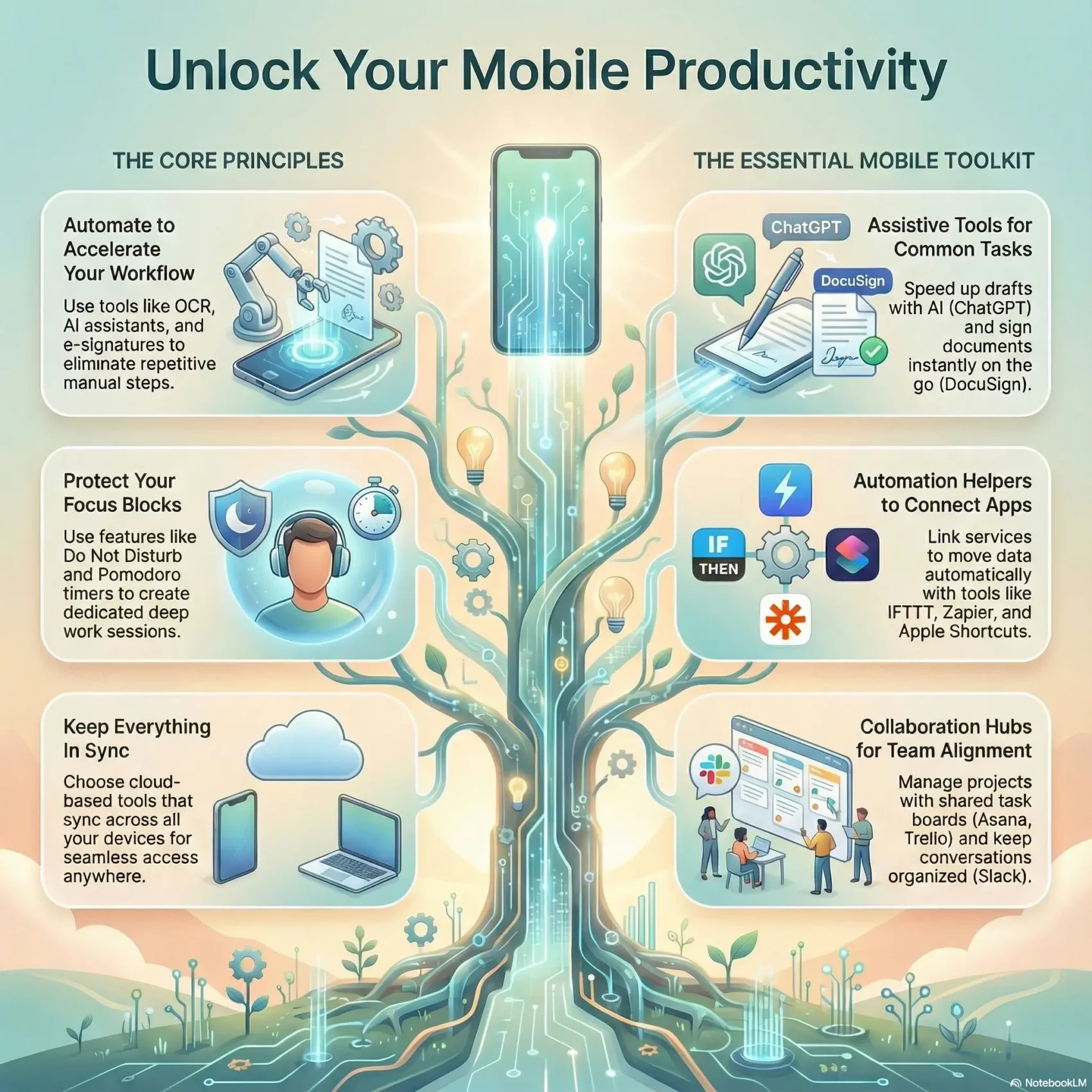
Last Updated on January 17, 2026
Your phone can be a reliable hub for getting work done without turning every hour into a rush. The right apps and simple habits let you cut repetitive tasks and keep more energy for meaningful work.
You’ll see how OCR, AI helpers, and instant e-signatures remove friction when you’re away from a desk. Tools like ABBYY FineReader for capture, ChatGPT for quick drafts, DocuSign for signatures, and Grammarly for clearer writing make common tasks faster.
We’ll focus on practical categories: assistive, automation, office, collaboration, and focus tools that work across devices. The goal is not to cram more in, but to clear repetitive work, organize information once, and reclaim time for what matters.
Key Takeaways
- Pair a few good apps with simple habits to protect your focus.
- Use OCR, AI, and e-signatures to cut steps and save taps.
- Choose tools that sync across devices and match your needs.
- Start with small setup steps and sensible defaults.
- Apply quick wins now, then scale strategies as work grows.
Why working from your phone can supercharge your day
Your phone can turn idle minutes into decisions made and tasks moved forward. That reclaimed time helps you finish small items and protect bigger blocks of focus in your day.
Modern mobile devices mirror desktop apps and sync through the cloud. Built‑in search and dictation cut friction. You get quick access to contacts, calendar entries, files, and fast math without extra taps.
- Always-with-you capture: snap documents, record thoughts, and use OCR to convert images to editable text.
- Seamless sync: cloud services keep notes and to-dos current so you never chase versions.
- Powerful features: Spotlight-like search, dictation, and AI helpers make short moments useful for real work.
- Practical control: Do Not Disturb and offline modes let you manage interruptions and stay productive on travel days.
“A few smart apps and sensible defaults turn spare minutes into forward motion.”
With the right setup, you handle approvals, route information to the right services, and make faster business decisions. For most people, this is a calmer, more reliable way to get things done.
Best productivity apps for mobile: a curated roundup by category
This curated list groups the best apps by role so you can pick the right tool for each task. Below you’ll find assistive helpers, automation aids, and office essentials that work across devices.
Assistive tools
ABBYY FineReader excels at OCR for books and legal files and can pull editable text from screenshots. Use it when you need crisp conversions fast.
Grammarly cleans up text and style on the fly. The free tier covers grammar and spelling; tune tone for email or reports.
DocuSign lets you review and sign documents from your phone; signing is free, sending for signatures needs a paid plan.
ChatGPT speeds drafts, outlines, and quick research so you can structure information and move forward.
Automation helpers
- IFTTT links services with community applets to automate simple flows.
- Shortcuts (Apple) chains steps like playing a podcast after your alarm.
- Otter.ai captures meeting notes with searchable transcripts.
- Zapier handles business automations—connect Mailchimp, Asana, and more.
Office essentials on the go
Google Workspace gives Docs, Sheets, Drive, and Calendar with real‑time collaboration and auto‑save.
Joplin is a private notes app with cross‑platform sync. Jotform builds forms fast, and Lucidchart maps processes for team editing.
“Pick a few tools and let them do the heavy lifting.”
Automation that saves you time (and taps)
When you wire triggers across apps, common steps happen without extra taps or thought. Automation turns repeatable actions into a quiet system that frees you to focus on real work.
IFTTT applets to move info between services and devices
IFTTT links triggers and actions across a wide range of services and smart devices. It starts free and has a large community library of applets you can copy and tweak.
Apple Shortcuts to trigger multi-step workflows from your iPhone
Shortcuts chains actions so one tap or a Siri phrase runs many steps. Use it to convert photos to PDFs, email documents, or start a morning routine after dismissing your alarm.
Zapier zaps for business apps, from email to project tasks
Zapier is built for business workflows. Its starter tier is free and helpful for rules like adding customers to Mailchimp, creating Asana tasks, or sending confirmations.
Otter.ai for live meeting transcriptions and quick notes
Otter.ai captures meetings with accurate live transcription. The free plan gives 300 minutes/month; Pro raises that to 1,200 minutes and adds file uploads.
- Start with IFTTT to shuttle info automatically—save tagged photos to cloud storage or log calls to a spreadsheet.
- Build Shortcuts to collapse multi-step routines into one tap or a voice command.
- Use Zapier when your workflows span business apps so CRM, mailing lists, and project boards stay in sync.
- Capture meetings with Otter.ai so you can listen, not type, while the app creates searchable notes.
- Combine triggers across your system—calendar events, location arrivals, or incoming email—to set status, notify a channel, or create tasks instantly.
“Automations reduce context switching and save time by handling repeatable steps the same way every time.”
Start small with one rule that removes a daily micro‑task. Test permissions, set fallbacks for critical flows, and document your top automations so teammates can reuse them.
Collaborate from anywhere: top mobile apps for teams and projects
The right apps keep everyone aligned so projects move forward even when people are apart. Use a mix of focused task boards, all‑in‑one hubs, and data tools to match how your teams actually work.
Task views that stick: Asana gives lists, Kanban, and timelines and is free to start. Trello uses simple Kanban cards with assignees and due dates. Miro adds collaborative whiteboarding with built‑in calls for workshops.
- All‑in‑one hubs: Basecamp centralizes tasks, notes, and files ($15/user). Teamwork is friendly for SMBs ($10.99/user). Wrike and Zoho Projects add advanced management features and granular permissions when you need scale.
- Data and timelines: Airtable is a flexible relational database with templates; GanttPro focuses on Gantt charts from about $9.99/user/month.
“Standardize intake with shared templates so tasks are complete and actionable the moment they’re created.”
Pick Asana or Trello to give your team clear task ownership and flexible views. Use Miro to bring cross‑functional collaboration into brainstorms. For a one‑place hub, try Basecamp or Teamwork.
For more recommended tools and setup tips, see this list of essential productivity apps to match your team’s workflow.
Communication that cuts through the noise
Clear communication tools let you cut noise and keep the right messages front and center. Pick clients and chat systems that help you triage fast, reply clearly, and avoid repeated questions.
Email clients with smart features
Spark focuses on email organization with keyboard shortcuts and a clean interface. It’s free and speeds triage on your phone.
Canary Mail adds AI‑assisted drafting, snooze, encryption, and read receipts on a generous free tier.
Hey rethinks how mail lands with an “Imbox,” labels, and subject renaming for $99/year.
Real-time and async messaging
Slack supports DMs, channels, and group calls so people can pick the right place to ask questions.
Zoom Workplace layers AI and lightweight document editing onto video, making short recordings and quick alignments easy.
- Choose an email app that speeds triage: Spark, Canary Mail, or Hey.
- Use filters, snooze, and bulk actions to clear low‑value messages.
- Set channel norms in Slack so the company stays aligned and fewer questions repeat.
- Lean on threads, pins, and saved items to surface decisions without re-reading long text.
- Turn on notifications for mentions only on your phone to protect focus while staying reachable.
“Set clear response expectations so your communication system serves your team, not the other way around.”
Focus, time management, and attention tools that work
Focus tools help you protect blocks of work and make quiet, measurable progress each day. Use a mix of guided sessions, tracking software, and simple blockers so you can shape rituals that stick.
Caveday — guided deep work sessions
Caveday runs structured focus sessions with built‑in breaks and friendly facilitators. Plans start at $19.99/month.
Book a Caveday session when you need accountability; facilitators help you set an intention, work in sprints, and take real breaks.
RescueTime — behavior insights and your productive hours
RescueTime tracks app and website usage to show where your time goes. Pricing starts at $12/month.
Run it for a week to spot patterns, then schedule focus hours during your peak periods. Use the data to protect those blocks moving forward.
SaneBox and StayFocusd — tame inboxes and block distractions
SaneBox auto‑sorts non‑important emails so important messages stay visible. Try the 14‑day free trial; plans begin at $7/month.
StayFocusd is a free Chrome extension that blocks distracting sites by schedule or time limits. Use it to enforce rules during work blocks.
- Pair a Pomodoro timer with Do Not Disturb to protect short bursts of deep work.
- Turn off badges and silence non‑essential notifications during scheduled focus times.
- Track two simple metrics—focused minutes and completed tasks—to measure what matters and get more things done.
“Small systems for attention beat willpower alone; protect your peak hours and the rest of the day improves.”
Iterate: keep what helps you do your best work and drop the rest. These apps and habits make time feel more intentional and help people in business get practical results.
Mobile productivity tips you can put to use today
Make your device an extension of your workday by shaping notifications, timers, and quick access. These small moves free up attention and help you finish real work in short bursts.
Time-block with Pomodoro and your clock
Use your phone’s clock to run 25-minute Pomodoro sprints. Set a follow-up timer for a true break so you return fresh. This simple rhythm makes the most of short pockets of time during the day.
Protect focus with Do Not Disturb
Flip on Do Not Disturb from Control Center (iPhone) or Quick Settings (Android) before deep work. It silences non-urgent pings and improves notification management.
Search, listen, and save
Master Spotlight or Android search to jump to notes, calendar entries, email, and apps in one step. Turn on iPhone’s Speak Screen (Settings > Accessibility > Speech) to have documents, email, and web pages read aloud.
- Save long reads to Pocket; it syncs with desktop so you can pick them up later.
- Delete your biggest time‑sink apps and use white noise or a focus playlist instead.
- Install team apps and sign in once for instant access and proper notifications.
- Try a faster keyboard and teach Siri contact relationships so you can “text my boss” hands‑free.
“Small habits—timers, quiet screens, and quick access—add up to big gains.”
To-do lists, notes, and calendars that stay in sync across devices
A single, well-organized system for tasks and notes frees you from scattered lists. When capture, scheduling, and reference live in one place, you spend less time hunting and more time doing.
Pick tools that sync to desktop and phone so you always have access to context and documents.
Todoist, TickTick, Google Tasks, and Evernote for unified capture
Todoist and TickTick give clean to-do list management with priorities, subtasks, reminders, and sharing for simple team work.
Google Tasks plugs into Gmail and Calendar so emails become dated tasks that show up in your schedule.
Evernote stores rich notes—images, audio, PDFs—and fast search so you can find the right note or document in seconds.
- Pick one reliable to-do list app (Todoist or TickTick) so you avoid scattered commitments.
- Add due dates, reminders, and tags to surface tasks when you can act on them.
- Attach documents to tasks or notes for instant context across devices and desktop.
- Turn action emails into tasks, archive the message, and keep your inbox for new mail only.
- Review your week every Friday and plan each morning to keep expectations realistic.
“Create one trusted task list and let your tools do the management.”
For a curated list of helpful productivity apps, see productivity apps that match different workflows and business needs.
mobile productivity: how to choose the right tools for your needs
Choosing the right apps starts with your workflows. List the must-have features you need — calendar sync, recurring tasks, quick capture, and offline access — and use that list to filter options.
Match features to workflows: integrations, offline access, and team support
Prioritize integrations that move information automatically between services like Slack, Asana, Mailchimp, and Google Workspace. This reduces copy‑and‑paste work and keeps data current across systems.
Confirm true offline access so you can open tasks, documents, and boards on flights and sync later to your devices. Check role‑based permissions and shared views so teams and members collaborate without confusion.
- Start with workflows: list must-have features that match how you already work.
- Prioritize integrations: automation keeps information flowing between apps.
- Check team support: permissions, @mentions, and shared views that scale with management needs.
- Evaluate management tools: reporting, templates, and automations to reduce manual updates.
Run a two‑week pilot with a small group to test speed, reliability, and notifications. Document your stack — apps, automations, and conventions — so onboarding is fast and your project norms are clear.
Conclusion
Use a small stack, and let automation handle routine steps so you reclaim time for real work.
Choose a few reliable apps with fast search (Spotlight), solid sync (Google Workspace, Evernote), and simple automation (IFTTT, Shortcuts, Zapier).
Start with two actions this week: enable Do Not Disturb for deep focus and add one automation that saves minutes daily. Try tools with good mobile apps so approvals, messages, and project nudges are easy from your phone.
Review your setup monthly. Drop unused software, share wins with the team, and favor tools that support both web and desktop access.
The goal is simple: use thoughtful tools and habits to finish tasks faster, reduce friction, and enjoy more time outside of work.