Tools
Tools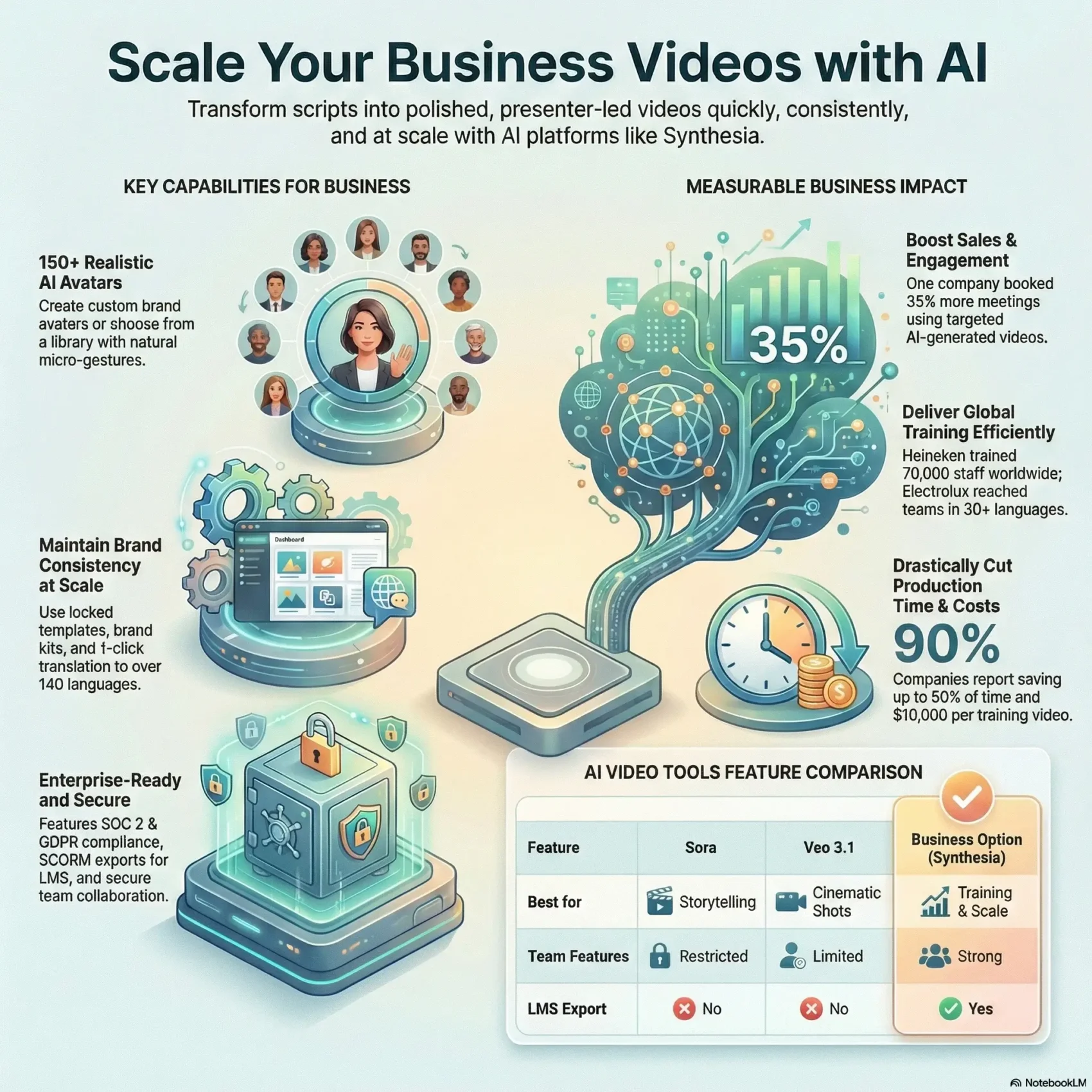
Last Updated on February 2, 2026
You need clear answers about AI-driven presenter videos for work. This guide gives an honest look at how the platform turns scripts, slides, or web pages into polished presenter-led video without cameras or crews.
Expect details on avatar realism, clothing and location customization, template workflows, and global language support. We focus on whether this tool fits your business use and how it helps deliver consistent video content at scale.
We also cover enterprise features like shared workspaces, roles, LMS exports, and security. You’ll learn about performance, pricing tiers, and when this is the best video solution for training, onboarding, and internal comms today.
Key Takeaways
- You can make presenter-led video without cameras, speeding up production.
- Realistic avatars and templates help keep brand consistency at scale.
- Enterprise controls and LMS exports make it suitable for regulated teams.
- Integrations with Sora and Veo add B-roll and creative options.
- Understand pricing tiers to estimate cost per output and team bandwidth.
At a glance: Is Synthesia the best AI video generator for business use today?
This snapshot helps you see why many businesses pick this solution for repeatable video work. It turns scripts, slides, or documents into presenter-led content without cameras or heavy editing. You get fast, consistent outputs that non-technical teams can deliver.
Quick verdict and who should choose it
If you need predictable, branded training and internal comms at scale, this is often one best choice. You’ll benefit when speed, consistency, and governance matter more than cinematic flair.
Create your first AI video for freeWhy enterprises and teams prefer controlled, predictable results
- Templates and brand kits: keep every update on-brand with minimal effort.
- Shared workspaces and role controls: tighten approval and collaboration across teams.
- 1-click translation and LMS exports: localize and distribute training quickly.
- Security foundations: SOC 2 and GDPR-ready features help meet compliance needs.
Synthesia Review
Your team can now spin up presenter-led training and explainers without booking talent or a production crew.
What you can create:
What you can create: training, onboarding, explainers, and internal comms
You can produce clear, presenter-led training modules that explain processes, policies, and tools. These videos replace long slide decks and one-way emails with a human guide.
Onboarding stays consistent across roles and regions. Quick edits help you update content when policies or products change.
Product explainers combine avatars, slides, and screen recordings so you can teach workflows and features in a guided way.
What’s new right now: avatars, templates, and 140+ languages
Recent updates focus on avatar realism, micro-gestures, and more clothing and location options. That adds nuance and keeps viewer attention.
Templates and brand kits lock down fonts, motion, and color so multiple contributors still create consistent video content.
With support for 140+ languages, localization becomes a repeatable step rather than a separate production pipeline. Integrations with creative tools like Sora and Veo let you add cinematic B‑roll to elevate key moments.
- Non-technical contributors can create videos and update assets directly.
- Realistic presenters increase engagement and help retention.
- Templates speed up production and keep messaging on-brand.
Key features that would make your video production faster and more consistent
A set of practical features helps you scale video creation without losing quality or control. You get fast paths from script to finished clip and governance that keeps outputs consistent across teams.
Realistic studio avatars and custom avatars
You can pick from 150+ realistic avatars with micro‑gestures, clothing, and logo options to fit tone and context. For a personal touch, create custom avatars via webcam or studio capture.
Explore the 150+ Avatar LibraryTemplates, brand kits, and branded pages
Templates and brand kits lock fonts, colors, and motion so every video looks on brand. Branded video pages let you publish consistent content for learners or employees.
Translation, dubbing, and 140+ languages
Automatic translation and AI dubbing support more than 140+ languages, letting you localize scripts and voices in a click.
Screen recording, export to LMS, and team collaboration
Record demos with synced narration, convert PPT/PDF/URL into polished videos, and export SCORM to your LMS to track learning.
- Shared workspaces, roles, and real-time team collaboration remove version chaos.
- APIs and branded pages help standardize distribution across your systems.
- Enterprise governance and compliance (SOC 2, GDPR) support secure scaling.

User experience: from script to professional video in minutes
A scene-first workflow gives you clear control over pacing and edits. You’ll work in a scene-based editor that keeps structure tidy and makes it easy to iterate on specific parts of your video.
Turn text into video instantlyScene-based editor, micro‑gestures, and granular animations
Add micro‑gestures and fine-tune enter/exit animations so presenters feel natural on screen. Each scene can use its own language, voice, and timing.
The editor lets you position avatars, tweak pauses, and set word-level pronunciations for clear delivery.
Script assistant, subtitles, pronunciations, and audio controls
The built-in AI script assistant drafts scene copy from your brief, then you tailor tone and flow. Auto closed captions boost accessibility and training compliance.
Voices per scene let you localize sections precisely without duplicating projects. The screen recorder captures app windows, trims clips, and syncs audio for clean tutorials.
- Multiple aspect ratios (1:1, 9:16, 16:9, etc.) help repurpose assets fast.
- Exports up to Full HD 1080p keep content crisp for LMS and internal portals.
- The dashboard is intuitive, so non-editors can contribute confidently and speed approvals.
Avatar quality and realism: how natural do presenters feel?
How natural a presenter feels hinges on lip sync, micro‑gestures, and wardrobe choices. You want presenters who match voice, movement, and context so learners stay focused.
Lip-sync, micro gestures, and clothing/location customization
Lip-sync has matured enough that speech and mouth movement align across many languages and accents. This makes narrated video easier to trust.
Micro gestures—small nods, eyebrow raises, and head turns—add subtle human cues. These cues improve the training experience and make explanations feel conversational.
Clothing recoloring and background choices let you match brand visuals or context. You can add logos to wardrobe or pick a lab coat for technical demos. That design control keeps content consistent.
When to use personal or enterprise custom avatars
Use personal custom avatars created via webcam when you need quick, personalized video updates. They’re fast and good for one-off messages.
Choose studio-grade custom avatars for executive, regulated, or high-volume training. Studio captures deliver higher fidelity and consistent outputs across many videos.
- Lip-sync feels natural across languages.
- Micro gestures make presenters more personable.
- Brand teams can fine-tune wardrobe and logos for compliance.
- Personal avatars are fast; enterprise avatars give the best consistency.
Templates and design options that let you create videos at scale
Templates give you a fast blueprint so teams can produce polished training clips without starting from scratch.
You get 65+ purpose-built templates that guide pacing and hierarchy. That helps viewers scan and retain key points.
Shutterstock media, Icons8 graphics, and brand consistency
Pull from Shutterstock’s stock images and videos plus Icons8 animated and static icons to add clarity without extra licensing work.
Brand kits and branded video pages lock typography, colors, and layouts so every clip matches your identity.
- Customize fonts, colors, alignment, and scene layouts to match your design system.
- Upload logos and internal assets to keep video content cohesive across teams.
- Save layout patterns for multi-module courses and recurring announcements.
Mix avatars, B‑roll, and iconography to tell step-by-step stories that are easy to follow. Design guardrails let non‑designers ship work that still looks professionally art‑directed.
Pricing and plans: what you get per month on each tier
Choose a plan that matches how often you publish and how many minutes you need each month. Pricing maps to output and governance, so pick the tier that fits your team cadence.
Free plan limits and what “free credits” really cover today
The free plan is a sandbox. You get 9 avatars and roughly 3 minutes per month for testing core features.
Start with a free accountNote: the free plan also includes 360 B‑roll credits. That equals about seven 8‑second 720p clips you can use for intros or transitions.
Starter vs Creator: minutes per month, avatars, and branding
Starter (annual $18/mo or $29 billed monthly) gives 10 minutes per month, 125+ avatars, watermark removal, and 1 editor + 3 guests.
Creator (annual $64/mo or $89 billed monthly) raises you to 30 minutes per month, 180+ avatars, up to 5 personal avatars, AI dubbing, branded pages, API, and priority support.
Enterprise and value analysis
Enterprise offers unlimited minutes, 230+ avatars, SCORM export, advanced governance, and a dedicated CSM for scaled workflows.
- Plans start annual vs monthly—annual billing usually gives better unit cost.
- Estimate ROI by comparing internal filming costs saved and faster time-to-publish per video.
- Consider minutes per creator and your quarterly release cadence when choosing a tier.
Performance and output: minutes per video, rendering, and quality
How long a clip takes to render will shape your publishing schedule and team cadence. You need predictable turnarounds so launches and training waves stay on track.
What to expect: short B‑roll clips generated via integrated Veo fast modes often finish in under two minutes for 8‑second segments. Sora-style high‑realism clips can take much longer — plan up to ten minutes per clip in some tests.
Preview mode is optimized for speed and shows lower fidelity without full avatar animation. Final renders produce complete motion and full quality at up to 1080p, suitable for LMS, intranet, and training rooms.
Practical tips for smoother video generation
- Break projects into scenes so you only re-render edited parts and keep times predictable.
- Keep minutes per video short for microlearning; shorter segments render faster and aid retention.
- Use brand templates to avoid rework and consistent motion settings that won’t clog queues.
- Balance and finalize audio inside the editor before submitting the final render for a professional video output.
Rendering times vary by length, complexity, and queue load. Track average render duration across a few projects so you can forecast delivery dates reliably.
Security, compliance, and governance for regulated industries
Your security posture should be as consistent as your messaging when you publish training video at scale. Enterprises need controls that make content safe, auditable, and repeatable across teams.
Enterprise-grade controls, disclosures, and auditability
SOC 2 and GDPR certifications form the baseline so legal and IT can sign off on vendor risk. Transparent AI disclosures and consent workflows help you document how content and voice models are used.
- Governance: roles, permissions, versioning, and audit trails keep content creation auditable.
- Shared workspaces: enable secure team collaboration without sacrificing data hygiene.
- Compliance outputs: SCORM exports and closed-captioning support regulated training and accessibility.
“Clear ownership, review pathways, and structured audits reduce the risk of unvetted messaging.”
Used by 50,000+ companies and 90%+ of Fortune 100, the platform shows maturity in processes and controls. If your policy is strict, align avatar usage, voice models, and retention rules with IT and legal before you scale. That step makes it easier to choose the one best approach for secure, compliant, ai-powered video across your organization.
Real business results: case studies that show measurable impact
Data from enterprise programs reveals the time and cost wins that come from repeatable video production. These examples show how your team can scale training, speed onboarding, and save money without long shoots.
Training at scale
Global rollouts prove the approach works. Zoom cut production time by 90% and made 200+ micro videos in six months, saving up to $1,500 per employee.
Heineken trained 70,000 staff worldwide. BSH reached 60,000 people with 70% more efficient training. Electrolux taught 15,000 stakeholders in 30+ languages.
Productivity and cost savings
Teleperformance reports saving up to 5 days and $5,000 per video. DuPont cut traditional shoot costs and saved up to $10,000 per training video.
Sales enablement and internal comms
- Infinite Peripherals booked 35% more meetings within 48 hours after four targeted videos.
- Consistent formats reduce manager time-to-approve and employee time-to-understand.
- Over the years teams build repeatable playbooks that compound benefits each quarter.
“These outcomes highlight measurable ROI for training, onboarding, and internal communications programs.”
Bottom line: if your business use calls for faster rollouts, short-form video offers clear, measurable gains.
Pros and cons from users: what G2 reviewers say
G2 feedback gives you a clear snapshot of how teams actually use the product. Ratings sit around 4.7–4.8 from roughly 2,000 reviews, showing strong overall satisfaction.
G2 counts and comments highlight common wins and limits. Many users point to a smooth editor that turns scripts into finished video quickly. Quality and realistic avatars are praised for making training feel more human.
Top pros
- Ease of use: 1,059 mentions — a gentle learning curve helps non‑editors ship content.
- Quality: 676 mentions — final video often meets LMS and internal comms standards.
- Realistic avatars: 626 mentions — reviewers like the believable presenters for training.
- Fast creation: 520+ mentions — teams cut shoot and edit time compared to live production.
Common cons
- Avatar limits and tier caps (about 330–345 mentions) — teams ask for more slots in lower tiers.
- AI limitations (≈301 mentions) — edge cases need more nuanced emotion or scripting help.
- Customization gaps (≈227 mentions) — some users want deeper control without upgrading plans.
“Strengths are speed, ease, and realism; watch plan limits if you need broader customization.”
In short, users report a positive experience for business workflows and internal video. Weigh your avatar and customization needs against the plan limits before you commit.
How Synthesia compares to other AI video generators
Not all AI video generators aim for the same balance between craft and scale. You should match a tool to your workflow, budget, and the kind of output you need.
Veo 3.1 vs the business option: cinematic realism vs predictable production
Veo 3.1 shines for short, cinematic shots with emotional nuance. It renders very fast for brief clips but costs more and limits post-editing and regional access.
Sora vs the business option: storytelling power vs access and speed
Sora excels at multi-scene storytelling and natural dialogue. Expect slow renders (~10 minutes per clip), steeper cost, and invite-only access that can block broad team adoption.
Kling vs the business option: price-to-quality for creative clips
Kling gives strong image-to-video quality and built-in sound at a favorable price. It’s great for marketing visuals, though emotional realism sits below Veo and Sora.
- Pairing: use the business-focused platform for presenter-driven modules and add Veo or Sora B‑roll when you want filmic moments.
- For most teams, templates, roles, and LMS export shorten cycles more than extra cinematic polish.
Comparison table: business workflows, avatars, team features, and LMS export
| Feature | Veo 3.1 | Sora | Kling | Business option |
|---|---|---|---|---|
| Best for | Cinematic shots | Storytelling | Marketing clips | Training & scale |
| Render speed | Fast (8s) | Slow (~10m) | Moderate | Predictable |
| Team features | Limited | Restricted | Basic | Strong |
| LMS export & governance | No | No | No | Yes |
“Video generators differ by core strengths — pick based on workflow needs versus filmic ambitions.”
When Synthesia is the one best choice—and when it’s not
Deciding which tool to use comes down to whether you need predictable, repeatable training or cinematic storytelling.
Best fits: pick this platform when you need branded training, onboarding, product explainers, or internal comms that you can update in minutes.
It excels at standardizing modules with templates, fast localization, and LMS exports. These features make day-to-day video work reliable and governed for large teams.
When it’s not ideal
If your goal is a long-form cinematic short, advanced camera moves, or frame-level editing, a creative-first generator is a better match.
Veo and Sora offer richer visual effects and filmic B‑roll at the cost of slower renders or limited access. Blend those tools for standout visuals while keeping the main narrative in the business-focused workflow.
- Pick this tool for repeatable, branded training and quick policy updates.
- Choose creative tools for heavy visual effects or art-driven pieces.
- Combine B‑roll from cinematic tools with your main scenes to get the best of both worlds.
“Match tools to outcomes: operational communication versus cinematic storytelling need different stacks.”
Getting started: create video from scripts, slides, or URLs
Kick off a new video project by importing slides, pasting a script, or converting a URL into editable scenes. This gives you a clear outline to work from and speeds the path from idea to finished clip.
From idea to generate video: outlines, templates, and AI writing
Start by pasting a script, importing PPT/PDF, or converting a web page to build a structured scene outline. Use the AI script assistant to generate a first draft, then refine tone and timing.
Pick a template that matches your brand kit so fonts and colors are pre-approved. Add Shutterstock or Icons8 assets for clarity and polish.
Tips for creating on-brand, professional video content fast
- Choose an avatar and voice, and add screen recordings for software demos.
- Keep scenes short; microlearning clips render faster and retain attention.
- Use pronunciations and pauses in the video editor to boost clarity.
- Add subtitles for accessibility and low-audio viewing.
- Export up to 1080p and host on your LMS or branded pages.
- Create a naming convention and a simple QA checklist for faster approvals.
Quick tip: iterate in scenes so you only re-render edited parts and keep delivery predictable.
Advanced workflows: custom avatars, dubbing, and B‑roll generation
Advanced workflows let you stitch custom spokespeople, translated audio, and cinematic inserts into one repeatable pipeline.
Create personal or studio-grade custom avatars for consistent spokesperson messaging across modules. Use webcam captures for rapid updates and studio captures when fidelity matters.
AI dubbing on higher tiers translates a master video into many languages while keeping timing and visuals intact. This speeds localization and keeps voice and pacing consistent.
Combining cinematic B‑roll
Blend Veo or Sora clips into key moments to add cinematic polish without rebuilding scenes. Your free credits let you generate about seven 8‑second 720p inserts each month. Monitor those free credits so cinematic inserts don’t exhaust your plan.
APIs, LMS export, and team workflows
Use API access (Creator+) and branded pages to push content and metadata across portals. You can export lms packages (SCORM) to track completion and scores.
- Team collaboration: shared workspaces, roles, and real-time editing keep reviews fast.
- Standardize templates per department to keep brand guardrails in place.
- Treat this video tool as the central hub for narration and structure; pull B‑roll only where it adds value.
“Maintain a content calendar and localization pipeline to keep multi-region programs on schedule.”
Conclusion
Synthesia Review closes with a practical recommendation for your team. Test the platform with a short pilot so you can measure time saved, engagement, and quality in your workflows.
Start small by picking one training or comms use case. Use templates and custom avatars to speed video production and to create videos that stay on brand.
When you need cinematic inserts, combine one best B‑roll source from other video generators with the platform’s structured workflow. If your goal is repeatable, on‑brand output for day‑to‑day business use, this approach helps you scale with confidence.
Scale your video production now