Tools
Tools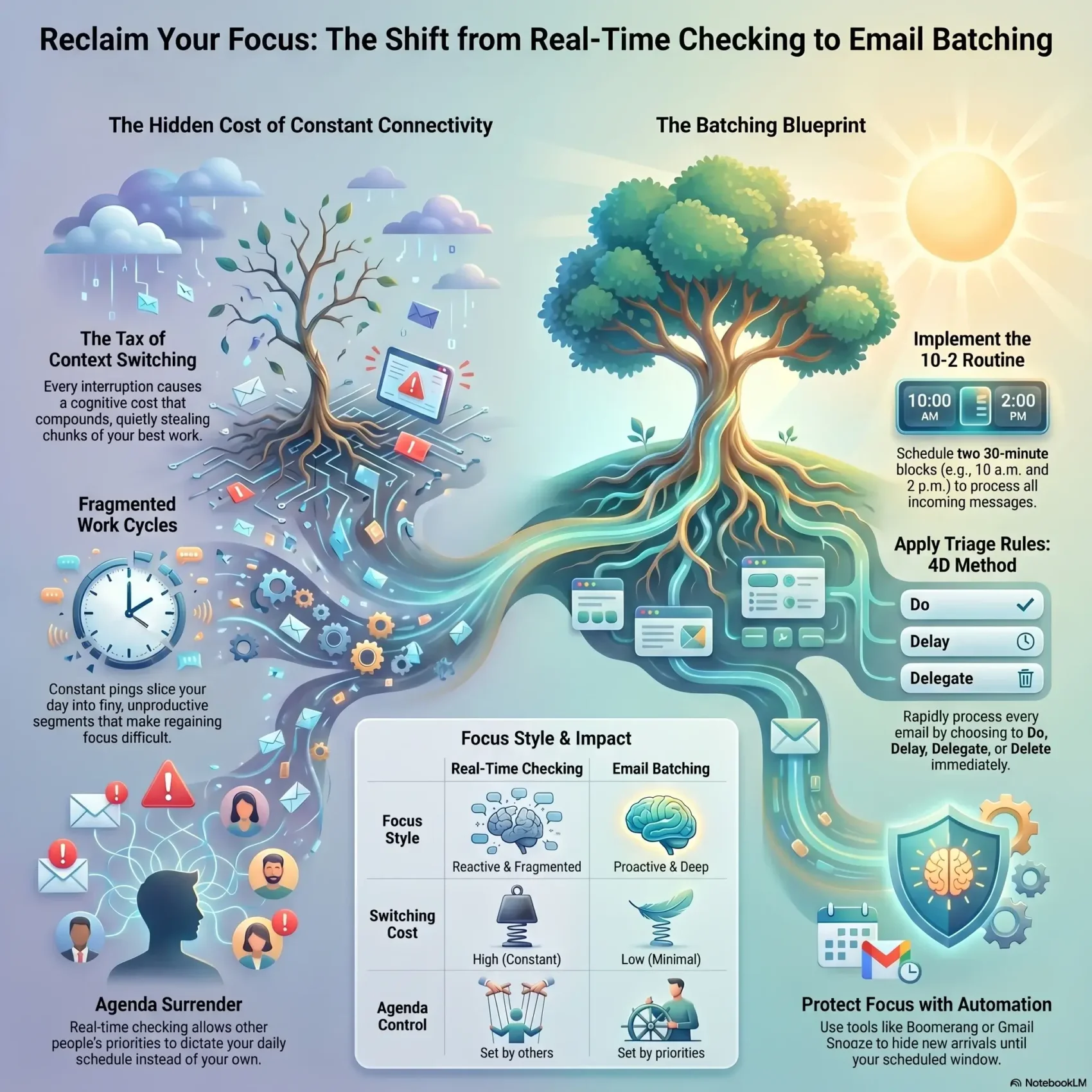
Last Updated on June 3, 2026
You spend too much of your day living in the inbox. Constant interruptions pull you out of deep work and leave you drained by the end of the week. This short article shows a clear way to protect your focus and get more done.
Tim Ferriss popularized grouping similar tasks and checking messages at set times instead of reacting all day. He used autoresponders and empowered teams to resolve small issues so leaders could stay on task. A practical routine is two 30-minute windows at 10 a.m. and 2 p.m., with Do Not Disturb on outside those slots.
This approach cuts distractions and boosts productivity. Tools like Gmail Snooze and Boomerang Pause make it practical, even if your work needs timely replies. Learn a simple framework that helps your inbox serve your priorities, not the other way around. Read more about related methods at task batching productivity.
Key Takeaways
- Two focused windows (example: 10 a.m. and 2 p.m.) protect deep work.
- Use autoresponders and clear expectations to reduce pressure on you.
- Gmail Snooze and Boomerang Pause help schedule and delay incoming items.
- Reducing checks cuts distractions and improves overall productivity.
- The goal is to make your inbox support your work, not consume your day.
Why your inbox steals focus: real-time checking vs batching, and what it eans for your day
Constant pings and open tabs quietly steal chunks of your best work time. Each interruption causes a switching cost that compounds when you react to every new item. Over the course of a morning, those small losses add up.
The Tim Ferriss approach groups replies into set windows so you stop reacting to every signal. Tools like Boomerang Pause and Missive’s reception rules help make that practical. When you mute notifications and schedule arrivals, you remove the urge to peek.
- You lose focus when your inbox is always open because each new message pulls attention away from current tasks.
- Constant notifications fragment your time into tiny slices and raise switching costs, making it hard to regain your train of thought.
- Real-time checking lets other people set your agenda instead of your priorities.
- Putting replies into predictable windows protects deep work and keeps you responsive without burning out.
Make small changes now and the benefits compound across a week: fewer interruptions, more finished work, and more energy left after your day.
What is email batching and why it boosts productivity
When you read and reply in focused blocks, you stop paying the hidden tax of context switching. Define the practice as scheduled checks: you open messages in set windows instead of responding throughout your day. That reduces switch costs and protects deep work.
Defining grouping: cut switching costs
Grouping similar tasks means you handle related items at once, like a baker who completes many loaves in one run. You spend less time re‑setting your attention. Fewer switches make decisions faster and reduce mental friction.
From Ferriss to teams: scheduled blocks reduce distractions
Tim Ferriss checked messages in set frames and used automated replies to set expectations. He later moved to even rarer checks. Teams can copy this by empowering staff to resolve common issues so leaders stay focused.
When this method fits—and when it doesn’t
- Fits: deep work roles where focused stretches matter.
- Doesn’t fit: positions requiring instant replies or strict SLAs.
- Simple example: two daily blocks frees time while keeping responsiveness reasonable.
Pros and cons of batching emails you should know
Weighing the trade-offs helps you decide if scheduled checks fit your role and rhythm.
Upsides: productivity, fewer distractions, and calmer management
You get higher productivity because you protect long stretches of focus. Fewer interruptions mean faster task completion and clearer thinking.
Calmer inboxes also reduce stress and lead to more thoughtful replies instead of reactive notes.
Downsides: delayed responses, large batches, and FOMO
The main cost is a slower response time if people expect instant answers. Big batches can feel overwhelming on Monday or after a busy week.
You may feel FOMO at first when you unplug, but most people adapt once expectations are set.
Who benefits most—and who should be cautious
- Best fit: project managers, sales reps, real estate agents, admins, and marketers who value uninterrupted work and steady productivity.
- Less fit: customer service and support specialists who operate under tight SLAs or need rapid replies.
- Mitigations: use filters, unsubscribe to cut noise, and add an autoresponder with key information and alternative contacts for urgent matters.
How to start email batching: a step-by-step schedule you can keep
Choose fixed check-ins that make your calendar work for you, not the other way around. A simple, repeatable routine removes friction and protects long stretches of focused work.
Pick your times and durations
Choose two or three times a day for 30–60 minutes. Block them on your calendar and add a reminder so the windows become nonnegotiable.
Set response expectations
Add a short note in your signature and an autoresponder that tells senders when to expect replies and who to contact for urgent needs. Clear norms cut pressure.
Control notifications
Turn on Do Not Disturb on phone and desktop. Use snooze tools like Gmail Snooze or Boomerang Pause so new items stay hidden until your scheduled windows.
Sample U.S. workday template
- 10:00 a.m. — 30 minutes: quick triage and replies.
- 2:00 p.m. — 30 minutes: follow-ups and clearing the inbox.
- Define triage rules: Do, Delay, Delegate, Delete.
Write down team norms so colleagues match your times day and keep collaboration smooth. This small schedule change compounds into calmer days and steadier output.
Tools and workflows to make batching stick
Automations and simple workflows make sticking to windows painless. Set a foundation so your inbox works for you, not the other way around.
Smart rules and quick triage
Start with Gmail filters or Outlook rules to auto-label and route messages before you open them.
Use a triage rule: Do, Delay, Delegate, Delete. That keeps batches lean and fast.
Automation helpers
Use Boomerang Pause or Gmail Snooze to hide new arrivals until your scheduled windows. Missive can hold messages and allow VIP exceptions or “urgent” in subject lines.
Unsubscribe and cleanup
Trim noise with Clean Email’s Unsubscriber, Screener, Read Later, and Auto Clean. SaneBox links to to-do apps so low-value items don’t clutter future batches.
Faster replies
- Templates and canned responses speed consistent replies.
- Use schedule send so messages hit inboxes at the right time for your team and calendar.
Handling edge cases: urgent messages, customer service, and team workflows
Design a simple exception system so critical messages reach the right person fast. You can keep deep work hours while still honoring real-time needs. The trick is a mix of tech and delegation.
Build smart exceptions
Use reception-time rules that only let items through at your windows, with clear exceptions for VIP senders or subjects containing “urgent.” Missive and similar tools let you stop sends on weekends or route special cases immediately.
Turn off push notifications by default and rely on exceptions. This keeps control of your attention and prevents constant pings.
Customer service realities
Map your SLAs so messages that need an immediate response bypass the hold. Clean Email warns that roles with tight SLAs need tailored handling, not a one-size fix.
“Ferriss empowered staff to resolve disputes up to $100; most were under $20, saving time and avoiding escalation.”
Empower your teams
- Create rules that allow urgent items or VIPs to pass through, with special weekend modes.
- Delegate action by pre-approving common decisions so your team can act without bottlenecks.
- Standardize handoffs so when something needs immediate attention, it is flagged and owned fast.
- Audit monthly to tighten rules and keep urgent cases from derailing your schedule.
email batching in action: examples, schedules, and small wins
See how a simple two-window routine turns constant checking into predictable progress. Use two 30-minute blocks at 10:00 a.m. and 2:00 p.m., and set Do Not Disturb outside those windows. This gives you long stretches of focused work while keeping replies timely.
A two-batch day example: inbox-zero without rabbit holes
Start each window with a short checklist: triage, quick replies, delegate, and queue follow-ups.
- 10:00 a.m. — 30 minutes: triage and handle urgent messages.
- 2:00 p.m. — 30 minutes: clear remaining items and schedule sends.
- End with a one-line wrap-up and a calendar reminder for the next block.
Team playbook: assign, comment, and triage across shared inboxes
Use Missive or similar tools so teams can assign threads, add internal comments, and avoid duplicate work.
Standardize templates and use schedule send to keep responses consistent. Clean Email’s Read Later and Daily Summary cut noise so your batches stay small.
- Record metrics: batch duration, messages cleared, replies sent.
- Review weekly and tune the process the way high-performing teams do.
- Repeat daily to turn small minutes into big wins over a week.
Conclusion
Protecting large chunks of focus starts with a simple habit: check messages on purpose. Use two short windows (for example, 10 a.m. and 2 p.m.) on your calendar and let tools like Gmail Snooze, Boomerang Pause, or Missive rules hold new items until then.
Strong, practical steps, plus cleanup tools such as Clean Email or SaneBox, help you keep the inbox small and fast. This approach works best when your role does not require strict SLAs, and when your team is empowered to handle routine service questions.
Start small, measure how batches change your productivity, and refine rules, automation, and task handoffs. Do this and you’ll reclaim time, reduce distractions, and finish the day with energy to spare.