If you are comparing project management platforms, this Wrike review covers what the software actually does in 2026, what each plan really costs, and where it falls short. Wrike sits at the heavier end of the market. It combines work intake, scheduling, proofing, reporting and resource planning in a single workspace, which suits marketing teams, agencies, professional services firms and operations departments far better than it suits a three person startup tracking a handful of tasks.
The plan structure changed meaningfully over the past year. Wrike now sells five tiers (Free, Team, Business, Pinnacle and Apex), splits its AI capabilities into two packages, and meters automation actions per seat. That matters for budgeting, because the tier you need is usually decided by one or two specific features rather than by headcount.
Key Takeaways
- The Free plan allows unlimited users but caps the account at 200 active tasks, one shared space and 2 GB of storage in total.
- Paid plans start at $10 per user per month for Team (2 to 15 users) and $25 per user per month for Business (5 to 200 users), billed annually.
- Pinnacle and Apex are quoted by sales. They add resource planning, budgeting, advanced analytics, much larger storage and far more AI actions.
- Time tracking, proofing and resource management unlock only on Business, which is where most serious teams end up.
- Automation is metered per seat: 50 actions on Team, 200 on Business, 1,500 on Pinnacle and 3,000 on Apex each month.
- Wrike scores 4.2 out of 5 on G2 across 4,540 reviews and 4.4 out of 5 on Capterra across 3,038 reviews.
- The consistent criticism is complexity. Wrike rewards teams willing to invest in configuration and punishes those who are not.
What Wrike Is and Who It Suits
Wrike started as a browser based collaboration tool and grew into a full work management platform. The core idea has stayed the same: everything a team needs to plan, execute and report on work lives in one hierarchy of spaces, folders, projects and tasks, and each layer can be viewed in whatever format the reader prefers.
That hierarchy is the reason Wrike scales well and also the reason new users struggle. A small team can run Wrike like a shared task management list. A 200 person marketing department can run intake forms, approval chains, capacity planning and executive reporting on the same structure. The software does not push you towards either, so the way you set it up in week one decides most of your experience afterwards.
Wrike fits best when at least one of these is true:
- Work arrives from outside the team and needs a structured intake process rather than an inbox.
- Deliverables need review and sign off, particularly creative assets and documents.
- You need to see who is over capacity before you commit to a deadline.
- You are running several projects at once and need a portfolio view rather than a project view.
If none of those apply, a lighter tool will serve you better and cost less. Our Basecamp review and Asana review cover two of the simpler options.
Key Features of Wrike
Wrike’s feature list is long. These are the parts that actually change how a team works.
Views and Project Structure
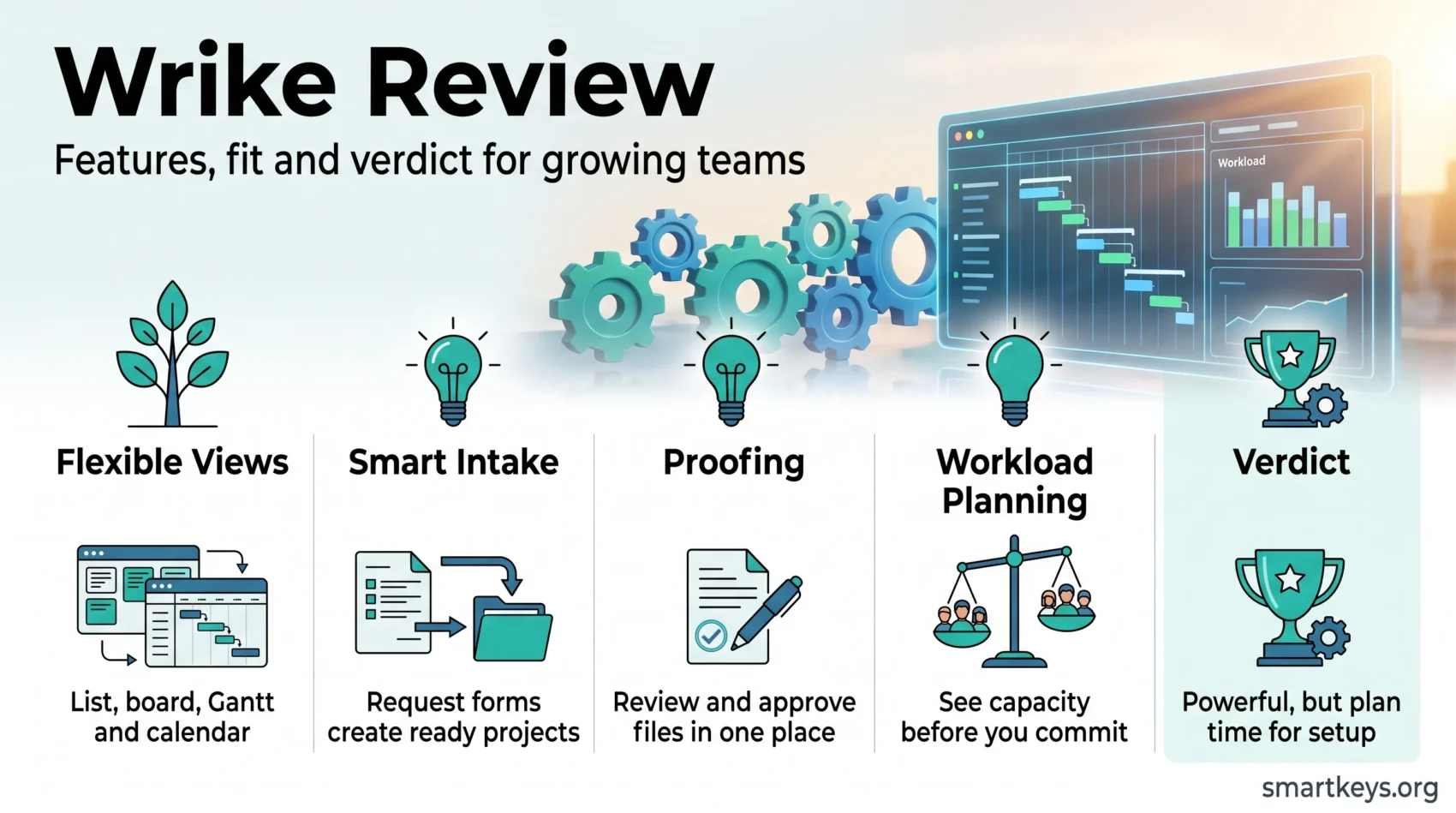
Every project can be displayed as a list, board, table, Gantt chart, calendar or chart view, and switching views does not change the underlying data. Gantt charts support dependencies and critical path, which is the main reason delivery teams choose Wrike over a pure Kanban tool. Custom item types let you model things that are not really tasks, such as campaigns, assets or requests, without bending the structure out of shape.
One caveat worth knowing before you sign up: Gantt charts and custom fields are not available on the Free plan.
Automation and Request Forms
Dynamic request forms are Wrike’s strongest intake feature. A form can branch based on answers, then create a project from a blueprint with the right tasks, owners and due dates already in place. Combined with rule based automation, this removes most of the manual setup that eats a project manager’s week.
Automation is metered. Team gets 50 actions per seat per month, Business 200, Pinnacle 1,500 and Apex 3,000. Those pools are shared across the account, so a few busy workflows can consume a small team’s allowance quickly. If your processes are automation heavy, price the tier on actions rather than on features. Teams that document their processes first, as covered in our guide to standard operating procedures, tend to automate the right things rather than the loud ones.
Proofing and Approvals
Wrike’s proofing tool lets reviewers mark up images, documents and video directly, compare versions side by side, and route approvals to internal or guest reviewers. For agencies and in house creative teams this is often the single feature that justifies the platform. It sits on the Business plan and above.
Resource and Workload Management
Workload charts show effort assigned per person over time, and resource bookings let you reserve capacity before work is scheduled in detail. Pinnacle adds budgeting so you can track financials against the same plan. These are the features that separate Wrike from cheaper tools, and they are also the features that require the most disciplined data entry to be useful.
AI Features
Wrike splits AI into two packages. AI Essentials, included from the Team plan, covers content generation and editing, comment summaries and board level assistance. AI Elite, which starts on Business as a small starter allowance, covers AI agents you configure for your own processes. Pinnacle includes roughly three times the Elite actions of Business and Apex roughly ten times, with additional action packs sold separately.
Treat the agent features as promising rather than proven. As with the wider market covered in our piece on AI in project management, the value depends heavily on how clean your existing data is. Note also that employers deploying AI systems in the EU now face transparency duties, which our EU AI Act guide explains in more detail.
Wrike Pricing in 2026
Understanding Wrike pricing means understanding two things: the tier ladder, and the metered resources inside each tier.
The Plan Ladder
- Free: $0, unlimited users, 2 GB storage for the whole account, one shared space, capped at 200 active tasks including subtasks. Board and table views only.
- Team: $10 per user per month billed annually, for 2 to 15 users. Adds Gantt charts, custom fields, shareable dashboards, AI Essentials, 2 GB storage per user and 50 automation actions per seat.
- Business: $25 per user per month billed annually, for 5 to 200 users. Adds time tracking, proofing and approvals, resource management, full analytics, template workflows, 5 GB storage per user and 200 automation actions per seat.
- Pinnacle: custom pricing. Adds advanced resource planning, budgeting, advanced reporting and BI, 15 GB storage per user and 1,500 automation actions per seat.
- Apex: custom pricing. Adds unlimited whiteboards, Wrike Integrate, bi-directional integrations, 50 GB storage per user and 3,000 automation actions per seat.
Several capabilities are sold as add-ons rather than bundled, including Wrike Whiteboard at $15 per user per month, Wrike Integrate, Two-Way Sync, Datahub, Wrike Lock and additional AI Elite action packs. Add-on pricing beyond Whiteboard is quoted by sales, so a Business quote and a Business invoice can differ.
Where the Real Cost Sits
The gap between Team at $10 and Business at $25 is the decision that matters. Time tracking, proofing and resource management all sit on Business, and those are exactly the reasons most teams choose Wrike in the first place. In practice, Team works as a scheduling and visibility tool for a small group, and Business is the first tier that delivers the platform people think they are buying.
The 200 active task cap on Free is also stricter than it sounds. A single medium sized project with subtasks can approach it, and once you hit the ceiling you cannot create new tasks until existing ones are completed, cancelled or deleted. Treat Free as an evaluation environment rather than a long term home.
Wrike Integrations
Wrike connects to more than 400 applications, including Salesforce, HubSpot, Slack, Zoom, Microsoft Teams, Google Drive and the Adobe Creative Cloud suite. Wrike Sync provides two-way synchronisation with Jira and GitHub, which matters when engineering works in one system and the wider business works in another. Wrike Integrate handles custom connections for anything not covered by a native integration.
The practical benefits are the ordinary ones: fewer places to look for a file, fewer status updates copied by hand, and a single source of truth for dates. If your engineering team already lives in Jira, our Jira review and the Trello versus Jira comparison are useful context before deciding which system owns the schedule. Teams that route work between many tools may also want to read our Workato versus Zapier comparison.
One structural note: Wrike Integrate and bi-directional integrations sit on Apex. If deep two-way sync is a requirement rather than a nice to have, that changes the budget conversation considerably.
Wrike Pros and Cons
No platform is right for every team, and it is worth weighing strengths against weaknesses before committing.
Strengths
- Genuinely deep feature set: intake, scheduling, proofing, capacity and reporting in one place.
- Custom item types and cross-tagging model real business processes rather than forcing a generic task structure.
- Proofing and approvals are stronger than in most general purpose competitors.
- Resource management and budgeting support portfolio level decisions, not just project level ones.
- Security controls including SSO, two-factor authentication, locked spaces, audit reports and customer managed encryption keys through Wrike Lock.
Weaknesses
- Steep learning curve. This is the most consistent theme in public reviews, and the ease of use sub-score on Capterra (4.2) sits below the overall rating (4.4).
- Key features are gated to Business and above, so the realistic entry price is $25 per user per month rather than $10.
- Metered automation and AI actions make costs harder to predict than a flat per seat price.
- The Free plan is too limited to run a real team on.
- Mobile usability draws recurring criticism relative to the desktop experience.
Wrike Alternatives to Consider
Wrike is a strong project management tool, but it is not the only sensible answer. The right alternative depends on which part of Wrike you actually need.
- Asana: cleaner interface, easier adoption, weaker on proofing and resource financials. See our Asana review and the ClickUp versus Asana comparison.
- ClickUp: comparable breadth at a lower entry price, with its own complexity trade-offs. Covered in our ClickUp review.
- Monday.com: more approachable for non-technical teams and strong on visual workflows. Compared in Monday.com versus Notion and Monday.com versus Trello.
- Smartsheet: the closest match for spreadsheet driven planning and portfolio reporting. See our Smartsheet review.
- Zoho Projects: a lower cost option for teams already inside the Zoho ecosystem, compared in Zoho Projects versus Jira.
Choose an alternative if your team needs fast adoption more than depth, if your budget cannot support $25 per user per month, or if your work is genuinely simple and a lighter board based tool such as Trello or Pipefy would cover it.
User Experience and Onboarding
Wrike’s interface is dense. That density is the price of the feature set, and new users consistently report feeling overwhelmed in the first weeks. The pattern in public reviews is fairly stable: frustration during setup, followed by appreciation once the structure settles.
The single biggest determinant of success is how the account is configured before people are invited in. Spaces, folder structure, custom fields and workflows should be agreed first, ideally by one owner, and a sensible prioritization framework should be baked into the statuses rather than left to individual judgement. Teams that open Wrike to everyone on day one and let structure emerge organically almost always end up rebuilding it.
Budget real time for onboarding. A pilot with one team and one workflow, followed by a wider rollout, works better than a company wide launch. Expect several weeks before the platform feels natural rather than several days.
Support and Learning Resources
Support tiers scale with the plan. Free users get access to the help centre and community, while paid subscribers get faster, more direct channels. Wrike does not publish a uniform response time commitment across all plans, so confirm the service level in writing if support responsiveness matters to your team.
The learning material is genuinely good and worth using:
- Wrike Discover, the vendor’s structured training platform with role based learning paths.
- A detailed help centre with feature documentation and release notes.
- Community forums, webinars and template libraries.
- Blueprints and request form templates you can adapt rather than build from scratch.
Verdict
Wrike remains one of the most capable work management platforms available, and this Wrike review lands on a conditional recommendation. If you need intake, proofing, capacity planning and portfolio reporting in one system, and you are willing to configure it properly, there are few better options at the price. Business at $25 per user per month is the realistic entry point, and it compares reasonably with equivalent tiers from Asana, ClickUp and Monday.com once you account for what is bundled.
If you want a tool your team can pick up in an afternoon, Wrike is the wrong choice. The Free plan will not carry a real team, Team is a scheduling tool rather than a platform, and the learning curve is steep enough that a half hearted rollout will fail. That is a configuration problem, not a software defect, but it is a real cost and it should be in your budget.
For a broader view of how this market is changing, including what vendor consolidation means for your contract, see our overview of SaaS consolidation trends.
Found this useful?
Make SmartKeys a preferred source on Google, and our articles will surface more often in your Top Stories, AI Overviews, and AI Mode.
Add as Preferred Source