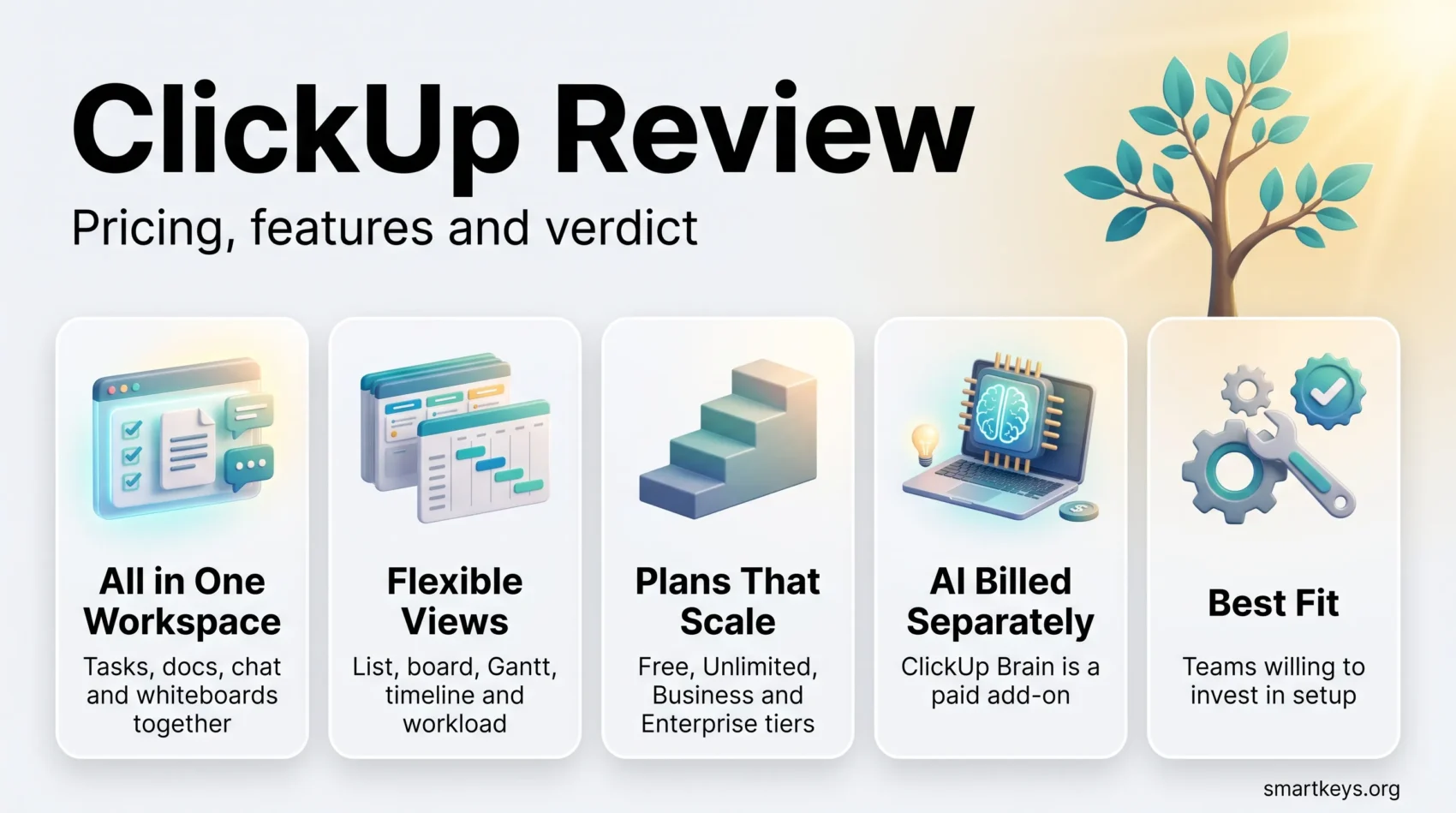
ClickUp sells itself as the app that replaces all your other apps: tasks, docs, chat, whiteboards, goals, time tracking and dashboards in one workspace. That ambition is also the source of most complaints about it. This ClickUp review looks at what the platform actually costs in 2026, which features hold up in daily use, where the depth turns into friction, and which teams are better served by something simpler.
All prices below are ClickUp’s own list prices as published on clickup.com/pricing and checked in August 2026. Plan limits come from ClickUp’s help documentation. Nothing here is based on a vendor-supplied score.
Key Insights
- Paid plans start at $7 per user per month billed annually (Unlimited) and $12 for Business; monthly billing costs $10 and $19 respectively.
- The Free Forever plan allows unlimited tasks and members but caps storage at 60 MB and limits Spaces, Whiteboards, Forms and automations.
- AI is a paid add-on: ClickUp Brain is $9 per user per month, the broader Everything AI tier $28.
- Automation quotas scale hard by plan, from 100 actions a month on Free to 250,000 on Enterprise.
- ClickUp advertises 15+ views and over 1,000 integrations, which is genuine breadth but also the reason onboarding takes work.
- The tool rewards teams willing to configure it and frustrates teams that want to start working in ten minutes.
What ClickUp Is Built For
ClickUp is a cloud-based work management platform organised in a strict hierarchy: Workspace, Space, Folder, List, Task, Subtask. Everything else hangs off that skeleton. Once you accept the hierarchy, the rest of the product makes sense.
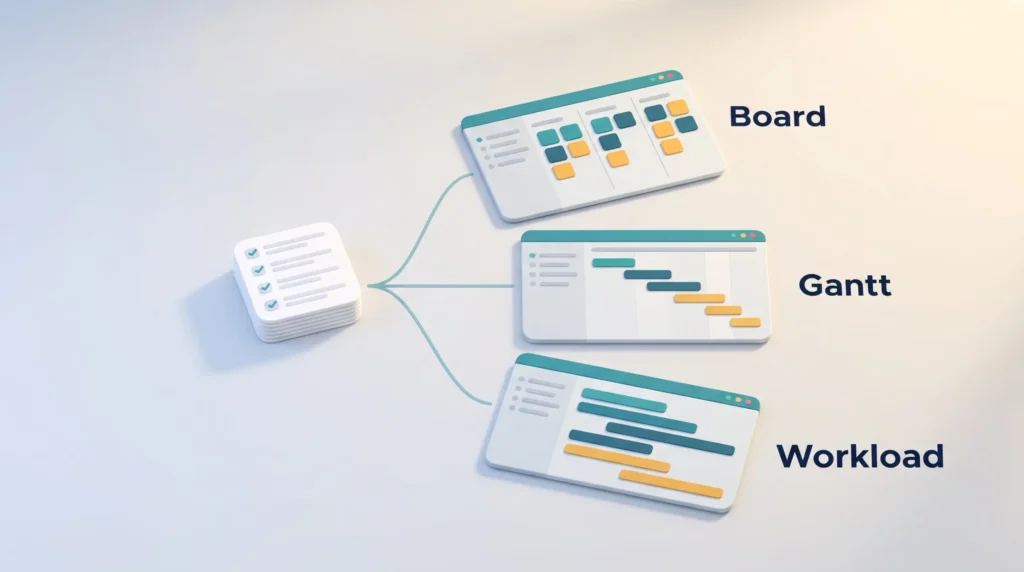
The platform’s calling card is view flexibility. ClickUp advertises 15+ customizable views, and its features page names List, Board, Calendar, Gantt, Table, Timeline, Workload, Box, Activity, Mind Map and Map, alongside page-type views such as Docs, Chat, Whiteboards, Forms and Embed. The same list of tasks can be a kanban board for your developers, a Gantt chart for your client and a workload view for whoever is protecting the team’s capacity.
That breadth is what separates ClickUp from the lighter end of the market. If you want a single tool that also holds your documentation and your sprint reporting, ClickUp is a serious candidate. If your team simply needs shared lists, the same breadth is overhead you will pay for in setup time. Our guide to effective task management is a better starting point if you are still deciding what you actually need from a tool.
ClickUp Pricing in 2026
ClickUp publishes four core tiers plus separate AI add-ons. Prices are per user per month; the lower figure applies when you pay for a year up front.
Free Forever
The free plan is unusually generous on people and unusually tight on everything else. You get unlimited tasks, unlimited members and unlimited projects, but storage is capped at 60 MB, and the workspace is limited to 5 Spaces, 100 Folders per Space, 40 Lists per Space, 3 Whiteboards, 1 Form and 1 Wiki. Automations are capped at 100 actions per month.
For a two- or three-person team running text-based projects, that is workable indefinitely. The moment you start attaching files or building forms, the free tier becomes an upgrade prompt rather than a plan.
Unlimited — $7 per user per month (annual) or $10 (monthly)
Unlimited is the tier most small teams land on. It removes the storage cap entirely, unlocks unlimited Spaces, Folders, Forms, Gantt charts and integrations, and adds native time tracking, Goals and portfolio management. The automation allowance rises to 1,000 actions per month. Lists and Folders are capped at 200 per Space, which is a limit you are unlikely to notice.
Business — $12 per user per month (annual) or $19 (monthly)
Business is the reporting tier. It adds unlimited dashboards, webhooks and automation integrations, mind maps, private whiteboards, and sprint points with sprint reporting. The automation allowance jumps to 5,000 actions per month and per-Space caps rise to 400 Lists and Folders.
If you run sprints or need dashboards that management will actually read, this is the entry point — not Unlimited. That is worth planning for, because the annual jump from $7 to $12 per seat is a 71% increase.
Enterprise — custom pricing
Enterprise is quote-only and adds enterprise permissions, unlimited custom roles, SAML SSO and SCIM provisioning, data residency options, a customer success manager and a 250,000-action monthly automation allowance. Expect a sales conversation and an annual commitment.
Note that the Business Plus tier that appeared in older reviews is no longer listed on ClickUp’s public pricing page. If a comparison article still quotes it, that article is out of date.
ClickUp Brain and the AI Add-Ons
AI is billed separately, which is the single biggest change to ClickUp’s pricing story since the tool launched. Brain AI costs $9 per user per month and covers the Brain assistant, the @Brain agent, AI chat and a monthly allowance of AI credits. Everything AI at $28 per user per month adds the AI notetaker, ambient answers, image generation, AI fields and AI automations, with a larger credit allowance. Additional credits are sold as a pay-as-you-go top-up.

Budget accordingly. A ten-person team on Business with Brain is paying $21 per seat per month, not $12 — and AI features are precisely what most teams are shopping for in 2026.
Features That Matter in Daily Use
Task Management and Views
Task management is ClickUp’s strongest area. Custom statuses per Space or List, multiple assignees, dependencies, recurring tasks, custom fields and nested subtasks are all standard. Gantt charts are unlimited on paid plans, and native time tracking means you are not bolting on a second tool for timesheets — though dedicated tools like those covered in our Toggl Plan review still do timeline planning more simply.
The practical benefit of the view system is that different roles can look at the same data differently without anyone exporting anything. The practical cost is decision fatigue during setup: someone has to decide which views a Space gets, and that someone needs to understand the hierarchy first.
Automations
ClickUp’s automation builder handles trigger-condition-action rules without code, plus pre-built templates for common patterns like status changes and assignment routing. What matters more than the builder is the quota, because automations pause once a workspace exceeds its monthly allocation.
Per ClickUp’s documentation, the monthly action limits are 100 on Free, 1,000 on Unlimited, 5,000 on Business and 250,000 on Enterprise, resetting on the first of each month. A busy 20-person workspace can burn through 1,000 actions quickly, so model your automation volume before committing to the Unlimited tier. Teams with heavy cross-app automation needs often end up pairing ClickUp with a dedicated automation platform — see our Zapier vs Integromat comparison and Workato vs Zapier for that layer.
Docs, Chat and Collaboration
ClickUp Docs handle wikis, specs and meeting notes, and can be linked directly to tasks. Chat lives inside the workspace, whiteboards cover the ideation stage, and comments support assignment so feedback becomes trackable work rather than a thread nobody owns.
The consolidation argument is real: fewer tools means fewer places for context to hide. The counter-argument is equally real — ClickUp’s docs are weaker than a dedicated documentation tool, and its whiteboards are weaker than a dedicated one, as our Miro vs Lucidspark comparison and Notion AI vs Coda both illustrate. You are trading depth for adjacency.
Integrations
ClickUp states it connects to “over 1,000+ tools,” covering the obvious ones — Slack, Google Workspace, GitHub, Zoom, HubSpot, Figma — plus a public API and webhooks on Business and above. Integration availability is not gated on the free plan, which is unusual and genuinely useful for small teams.
Pros and Cons
Where ClickUp Wins
- View flexibility: the same work can be viewed as a list, board, Gantt chart, timeline or workload chart without duplication.
- Depth per dollar: at $7 per user per month, the Unlimited plan includes features that competitors reserve for higher tiers.
- A free plan with unlimited members: useful for small teams and for evaluating the tool properly before paying.
- Consolidation: docs, chat, whiteboards, goals and time tracking in one place reduces tool sprawl.
- Configurability: custom statuses, fields and automations let you model an unusual workflow instead of bending to the tool’s assumptions.
Where ClickUp Falls Short
- Learning curve: the hierarchy and the sheer number of settings mean onboarding is a project, not an afternoon.
- Performance on large workspaces: users consistently report slower loading on workspaces with heavy data and many views.
- AI is a separate bill: the headline seat price no longer includes the AI features most buyers are evaluating.
- Automation quotas: the Unlimited tier’s 1,000 actions per month is easy to outgrow, pushing you to Business.
- Notification volume: defaults are noisy and need tuning per user, or people start ignoring the tool.
How ClickUp Compares
ClickUp’s closest positional rival is Asana, which trades configurability for a cleaner out-of-the-box experience; we cover that matchup in detail in our ClickUp vs Asana comparison and in the standalone Asana review.
Against the simpler end of the market — Trello, Basecamp — ClickUp wins on capability and loses on time-to-value. Our Asana vs Trello and Basecamp review are useful if a lightweight tool would genuinely do the job.
For engineering teams, Jira remains the deeper option for issue tracking and agile ceremonies, as our Trello vs Jira and Zoho Projects vs Jira comparisons show. At the enterprise and professional-services end, Wrike, Smartsheet and the tools in our Teamwork vs Wrike comparison offer stronger resource and financial views.
If your work is fundamentally structured data rather than tasks, a spreadsheet-database hybrid may fit better — see Smartsheet vs Airtable and Airtable vs Notion. And if a visual, operations-style board is closer to how your team actually works, our Monday.com vs Trello comparison covers that end of the field.
Getting Started with ClickUp
Start on the free plan and resist the urge to build everything at once. Create one Space for one real project, pick two views, and run a live project through it for a fortnight. That surfaces the questions that matter — how your team names statuses, who owns what, which notifications people actually read.
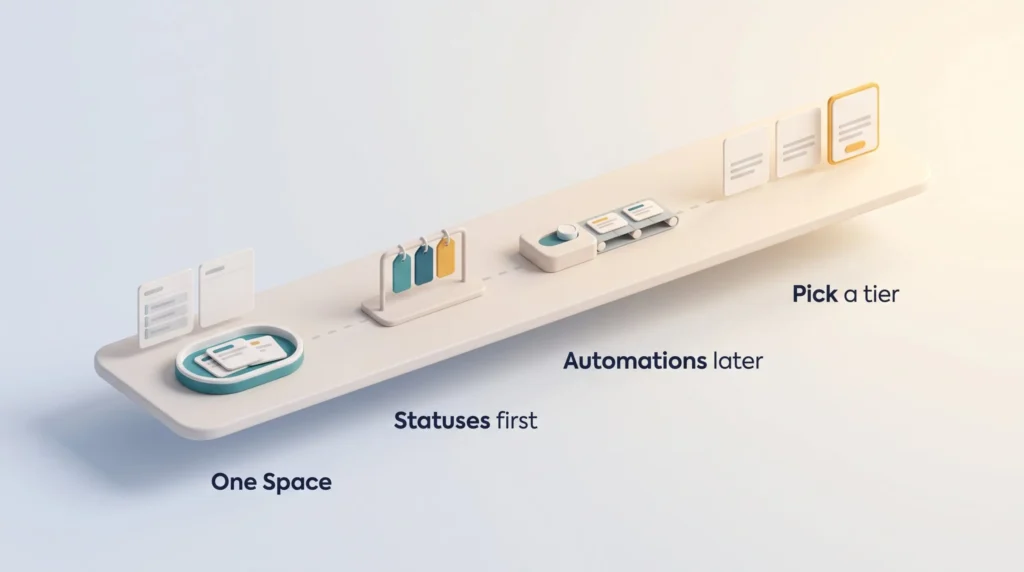
Set custom statuses before you invite everyone, because changing them later means retraining habits. Use Docs for the project brief rather than keeping it elsewhere; the link between doc and task is the main reason to consolidate in the first place. Add automations only after the manual workflow is stable, and check your action quota when you do.
Only then decide on a tier. Most teams discover they need Business for dashboards and sprint reporting, not Unlimited — and it is cheaper to work that out during a trial than after a year of annual billing. If you are running several projects at once, our guide on staying productive across multiple projects pairs well with the setup above.
Verdict
ClickUp remains one of the most capable work management platforms available, and at $7 to $12 per user per month it is priced below what its feature depth would suggest. It is the right choice for teams that have outgrown a simple task list, need several views of the same work, and have someone willing to own the configuration.
It is the wrong choice for teams that want to be productive on day one, for workspaces that will live on the free tier’s 60 MB of storage, and for buyers who assumed AI was included in the seat price. Those are not deal-breakers — they are just the trade-offs you should price in before signing an annual contract.
Try the free plan with one real project. ClickUp is a tool you can only evaluate by using it, and two weeks of honest use will tell you more than any scorecard.
Found this useful?
Make SmartKeys a preferred source on Google, and our articles will surface more often in your Top Stories, AI Overviews, and AI Mode.
Add as Preferred SourceFAQ
How much does ClickUp cost in 2026?
ClickUp’s Unlimited plan costs $7 per user per month billed annually or $10 billed monthly, and the Business plan costs $12 annually or $19 monthly. The Free Forever plan is $0 and supports unlimited members. Enterprise pricing is quote-only. AI is billed separately: ClickUp Brain adds $9 per user per month and the Everything AI tier $28. That means a realistic Business-plus-Brain seat is around $21 per month, not $12. Prices are ClickUp’s published list prices as of August 2026 and apply per user, so multiply by headcount before comparing against competitors that price per workspace.
Is the ClickUp free plan enough for a small team?
It can be, provided your work is text-based. The Free Forever plan allows unlimited tasks, projects and members, which is more generous than most rivals on headcount. The constraints are elsewhere: 60 MB of total storage, 5 Spaces, 40 Lists and 100 Folders per Space, 3 Whiteboards, 1 Form, 1 Wiki and 100 automation actions per month. Teams that attach design files, run intake forms or rely on automation will hit those walls within weeks. Teams that mostly write tasks, comment on them and close them can run on the free plan indefinitely.
Is ClickUp Brain included in the paid plans?
No. ClickUp Brain is a paid add-on layered on top of a base plan, priced at $9 per user per month for the Brain assistant, the @Brain agent, AI chat and a monthly allowance of AI credits. A larger Everything AI tier costs $28 per user per month and adds the AI notetaker, ambient answers, image generation, AI fields and AI automations. Free plans get trial access to advanced AI features rather than ongoing use, and heavy users can buy additional AI credits as a top-up. If AI is central to your evaluation, price it as a second line item from the start.
How many automations does each ClickUp plan include?
ClickUp counts automation actions per month and pauses automations once a workspace exceeds its allocation. According to ClickUp’s documentation the limits are 100 actions on Free Forever, 1,000 on Unlimited, 5,000 on Business and 250,000 on Enterprise, resetting on the first of each month. Higher tiers can purchase additional capacity. The number to watch is the Unlimited tier: a mid-sized workspace with status-change and assignment rules across several Lists can consume 1,000 actions faster than expected, which in practice pushes automation-heavy teams onto Business regardless of whether they need its reporting features.
Is ClickUp hard to learn?
Yes, relative to lighter tools. The obstacle is not the interface but the hierarchy: Workspace, Space, Folder, List, Task and Subtask all have their own settings, and custom statuses, custom fields and views can be configured at several levels. Teams that skip that decision-making end up with inconsistent Spaces that nobody trusts. Budget a proper setup phase, ideally owned by one person, and start with a single Space and two views rather than replicating your entire operation on day one. Teams that want to be productive within an hour will be happier with a simpler tool.
What features does ClickUp actually include?
The core is task management with custom statuses, multiple assignees, dependencies, custom fields and nested subtasks. On top of that sit ClickUp’s 15+ views, including List, Board, Calendar, Gantt, Table, Timeline, Workload, Mind Map and Map, plus Docs, Chat, Whiteboards and Forms as page-type views. Paid plans add native time tracking, Goals and portfolio management, and the Business tier adds unlimited dashboards, sprint points and sprint reporting. A no-code automation builder, a public API, webhooks on Business and above, and integrations with over 1,000 tools round out the platform.
How does ClickUp compare to Asana, Jira and Monday.com?
ClickUp generally offers more configurability per dollar, while its rivals offer more polish in a narrower lane. Asana is easier to adopt and cleaner out of the box but less customisable. Jira is deeper for software issue tracking and agile ceremonies, and remains the better fit for engineering-led organisations. Monday.com is stronger on visual, operations-style boards, and Wrike or Smartsheet fit professional-services teams that need resource and financial views. Choose ClickUp when you want one configurable system of record and have someone to configure it; choose a rival when the narrower tool matches your workflow closely enough.
Who should avoid ClickUp?
Three groups. Teams that need to be productive immediately, because the configuration phase is real work and skipping it produces a messy workspace. Teams whose work is document-heavy or design-heavy, where a dedicated documentation or whiteboard tool will feel noticeably better than ClickUp’s bundled versions. And teams running very large workspaces with heavy data, where slower loading is a recurring complaint. If none of those describe you, the main risk is budgetary rather than functional: confirm the AI add-on cost and your automation volume before committing to annual billing.