Disclosure: SmartKeys may earn a commission if you subscribe through links in this review. This does not affect our verdict.
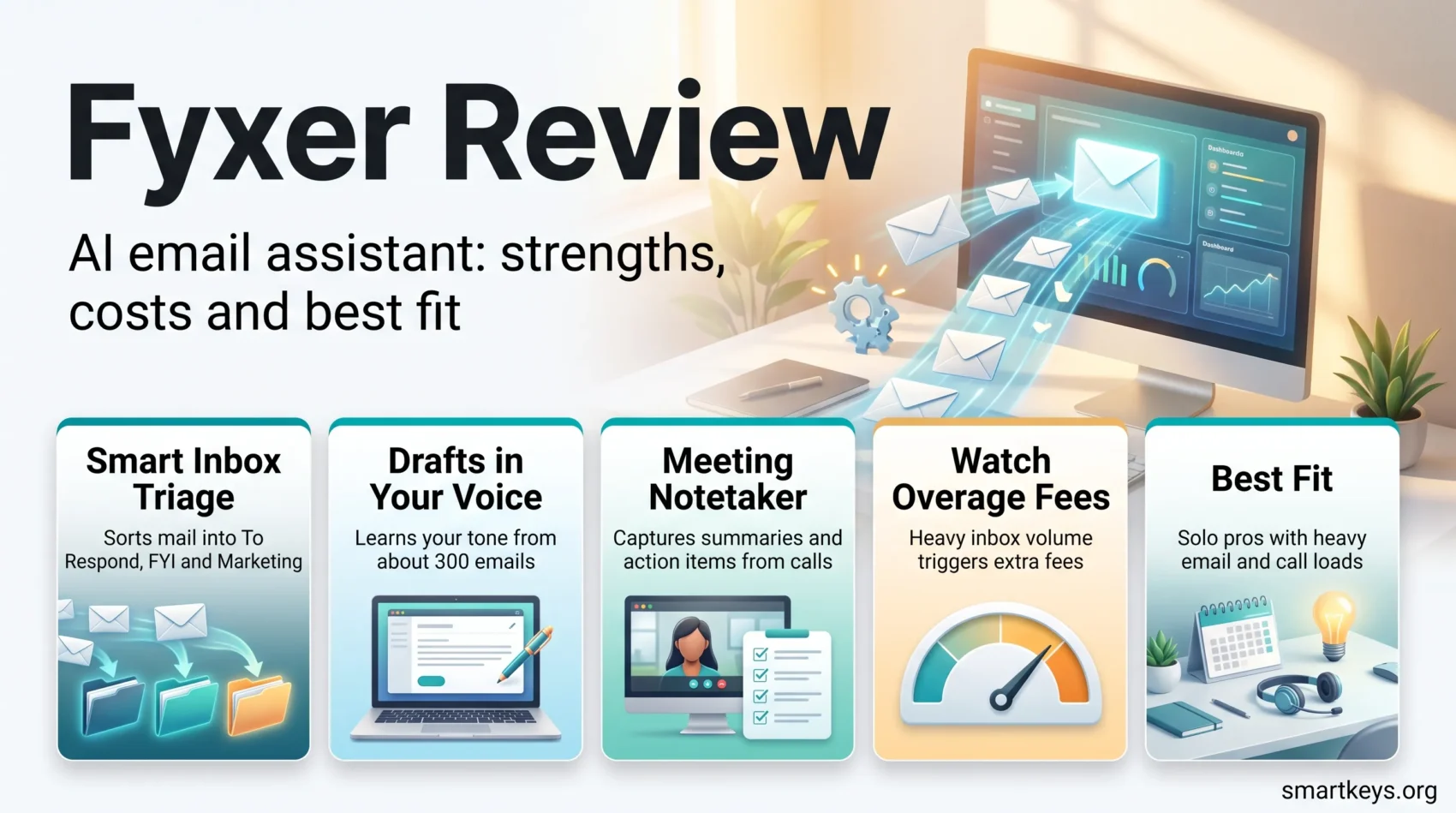
If email and admin work eat your day before real work starts, this Fyxer review is for you. Fyxer AI is an assistant that lives inside Gmail or Outlook, sorts your inbox, drafts replies in your voice, and takes notes in your meetings.
The question is not whether it works. It does. The question is whether it saves you enough hours to justify $30 to $50 per user per month plus possible overage fees. This review answers that with current pricing, honest limitations, and a clear picture of who benefits most.
Key Takeaways
- Pricing: Starter $30/user/month ($22.50 billed annually), Professional $50/user/month ($37.50 annually), Enterprise custom for 50+ seats.
- Trial: 14 days (up from 7), full core features, no permanent free tier.
- Strengths: inbox triage, tone-matched drafts, and a solid meeting notetaker.
- Weaknesses: fixed categories, overage fees on high mail volume, and no true shared-inbox workflow.
- Best fit: solo professionals and small client-facing teams with heavy email and call loads.
The Email Problem Fyxer Is Trying to Solve
Your inbox sets the agenda for the day, and deep work gets pushed to whatever is left. According to CloudHQ’s Workplace Email Statistics, knowledge workers spend up to 28% of their workweek reading, writing, and sorting messages. That is more than a full workday every week.
Most tools treat the symptom. They add filters, labels, and snooze buttons on top of the same manual triage. Methods help more than features here: the Inbox Zero method and email batching instead of real-time checking both cut inbox time without a subscription.
An AI assistant is the next step: it does the sorting and the first draft for you. That only pays off if the output is good enough to send with a quick edit. Otherwise you have added a review step to a process you already disliked.
What Is Fyxer AI?
Fyxer is a productivity layer inside your existing mailbox, not a replacement email client.
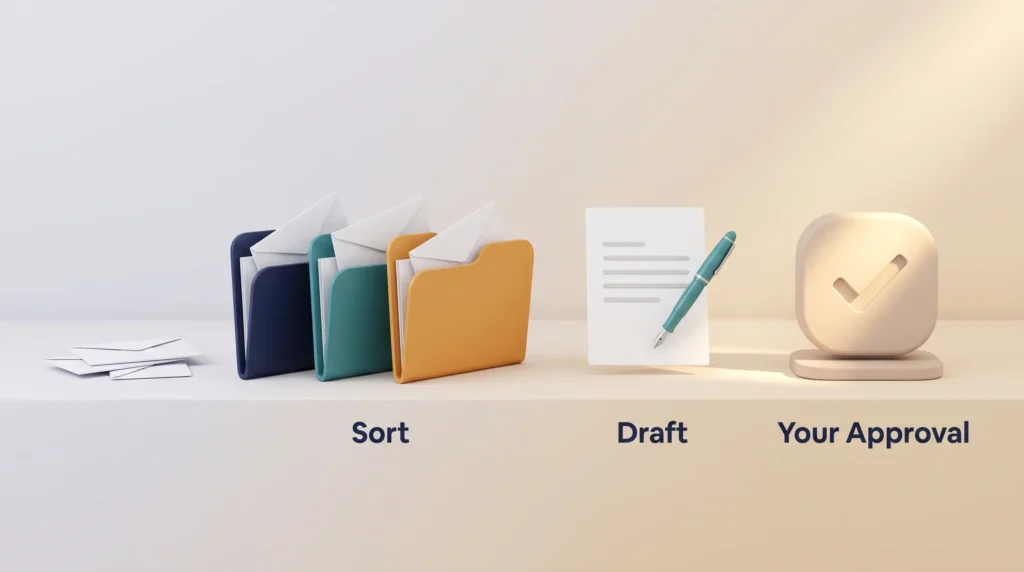
It connects to Gmail or Outlook via OAuth and works in the background. Incoming mail is auto-categorized into buckets like To Respond, FYI, and Marketing. Replies are drafted in your writing style, and a notetaker can join your video calls to capture summaries and action items.
The company behind it is Fyxer AI Limited, a UK business founded in 2023 that raised a $10M Series A in March 2025 and a $30M Series B led by Madrona later that year. Fast growth explains the buzz, but it does not change the day-to-day evaluation below.
- Works natively inside Gmail and Outlook, so your workflow stays familiar.
- Automates sorting and drafting to cut time spent on routine mail.
- Handles meeting notes and calendar coordination in the same app.
Important limitation: Fyxer drafts, it does not send on its own. Every reply waits for your approval. That is a safety feature, but it also caps how much time you can actually save.
Onboarding and the 14-Day Trial
Setup is genuinely fast. You connect your email and calendar, pick your inbox categories, and choose which meetings the notetaker should join. Most users are running in under 10 minutes, and the assistant starts drafting right away.
The free trial now runs 14 days as standard, up from the previous 7, and includes the full core feature set: categorization, drafting, and meeting notes. There is no permanent free tier, so access stops when the trial ends unless you subscribe.
How to Use the Two Trial Weeks Properly
- Run it during normal, busy weeks, not quiet ones. Draft quality depends on volume and history.
- Judge draft quality mainly in week two, once Fyxer has learned from your first week of corrections.
- Track how many drafts you send with only minor edits. That ratio is your real ROI signal.
- Test the notetaker on at least one messy, multi-speaker call.
- Check your low-priority folders once before the trial ends to see what got misfiled.
Core Features and How They Perform
Three features carry the product: categorization, drafting, and meeting notes.
Smart inbox organization groups messages so priorities surface first. Fyxer learns from roughly 300 recent emails to mirror your tone and understand who matters. The result is a mailbox that reads like a triaged to-do list instead of a wall of unread mail.
Automated drafting generates editable replies. You can upload documents and templates so drafts match your voice per client. If most of your repetitive typing is boilerplate, note that text expansion shortcuts and snippets solve part of the same problem for free.
Meeting notes capture decisions and action items automatically. It works well for structured calls. For a full end-to-end process including bot-free recording options, see our AI meeting notes workflow.
Together these shorten routine work. Quality scales with your inbox history, so the first two weeks are noticeably weaker than month two.
Inbox Categorization: Strong, but Fixed
Smart sorting turns a chaotic inbox into a list you can trust, within limits.
Preset Category Limitations
The built-in categories work well out of the box but are fixed. If your team needs custom labels per client, project, or deal stage, the shallow customization will feel restrictive. The system does learn from every reply you send, so accuracy for regular contacts improves over weeks.
Managing Newsletters and Noise
Newsletters and marketing mail get funneled into low-priority views so only action items appear up front. Scheduling updates get tagged automatically through the calendar integration.
- Filters cut marketing noise and surface urgent messages.
- Plan a monthly folder review to catch anything the AI misfiled.
- Complex routing still needs manual correction until filters settle.
“Great for general organization, but it sometimes mislabels complex meeting notes or industry jargon.”
Draft Quality: What to Realistically Expect
Good AI drafts feel like an assistant who already knows how you write. Fyxer gets close on routine mail: confirmations, scheduling, short client updates, and standard follow-ups usually need one small edit.

Nuanced messages are a different story. Negotiations, sensitive client news, and anything requiring judgment still need you. Treat drafts as a first pass, never as a send-ready reply.
- Upload templates and past emails to teach voice and context.
- Always review before sending, especially anything client-facing.
- Correct rather than delete bad drafts, since corrections train the model.
This is a practical example of AI augmentation rather than full automation: the tool removes the blank-page problem, you keep the judgment.
Meeting Notetaking and Scheduling
A reliable summary turns a scattered call into next steps you actually follow.
Accuracy of Summaries
Fyxer produces detailed summaries with action items and context pulled from the call. Accuracy depends on audio quality, speaker overlap, and whether participants use names. For complex client discussions, verify key items yourself.
Stability Issues
Some users report conflicts when Fyxer runs alongside other recording software, causing sync hiccups or dropped segments. For critical calls, keep a backup recording. If you prefer speaking over typing, voice AI assistants cover a similar gap for quick capture.
Calendar Coordination
- Automatic joining and note capture across time zones.
- Notes stored and searchable so your team finds actions fast.
- Scheduling features sit on the Professional plan, not Starter.
Fyxer AI Pricing 2026 and the Overage Trap
The sticker price is only part of the story. Overage fees decide the real cost as you scale.
| Plan | Monthly | Billed annually | Key inclusions |
|---|---|---|---|
| Starter | $30 / user | $22.50 / user | One inbox and calendar, AI drafts, meeting notes |
| Professional | $50 / user | $37.50 / user | Multiple inboxes, scheduling, AI chat, HubSpot, file uploads |
| Enterprise | Custom quote | 50+ seats, SSO and SCIM, dedicated support | |
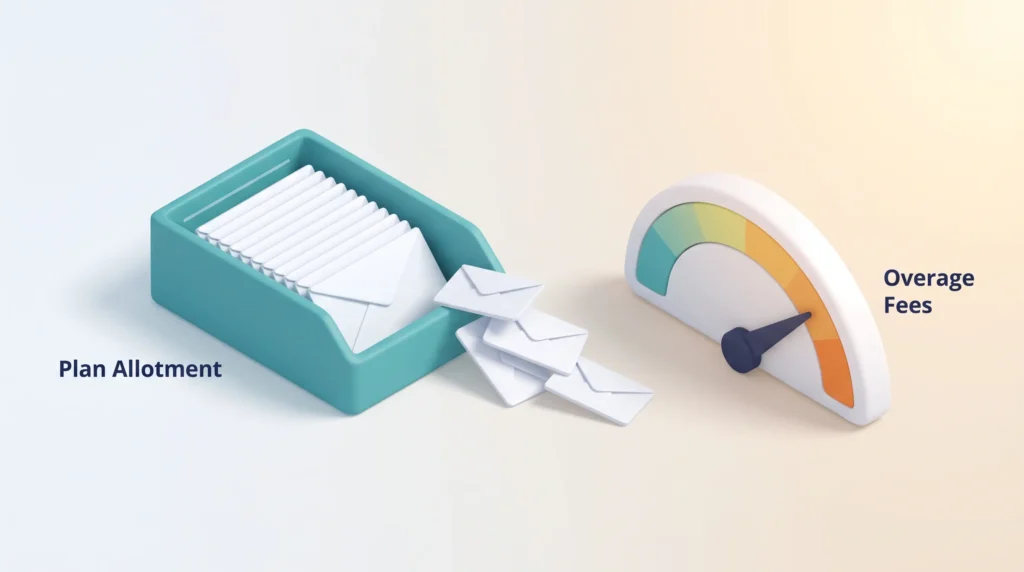
Annual billing saves about 25%. The catch is volume: Fyxer charges overage fees when inbound email exceeds your plan’s monthly allotment. In effect, a busier inbox costs more, which is exactly the wrong direction for a growing team and the most common complaint in user reviews.
For context, competitors sit lower. Superhuman runs around $12/month on annual billing, Shortwave Pro around $14, and Gmelius starts near $19/user/month with shared inbox routing included. Fyxer’s premium is justified by the notetaker plus drafting combination, not by drafting alone.
Rule of thumb: if you handle fewer than 30 emails a day and few meetings, the math rarely works. Above roughly 60 emails a day plus several calls, it usually does.
Fyxer vs. Alternatives
Not all inbox assistants are built the same. Some favor solo users, others scale for teams.
- Gmelius from about $19/user/month: better for shared inboxes, routing, and support or sales teams. Predictable per-seat cost.
- Superhuman from about $12/month annual: a full premium client built for keyboard speed, not an assistant layer.
- Shortwave from about $14/month annual: strong AI search and summaries at a lower price, weaker meeting coverage.
- Fyxer: the strongest combination of tone-matched drafting and meeting notes in one place, at the highest price.
If your bottleneck is process rather than tooling, fixing your email workflow first often delivers more than any subscription.
Who Should Actually Buy It
For people juggling client work and constant scheduling, the right assistant changes how the day feels.
Good fit: consultants, recruiters, agency owners, account managers, and solo operators who handle high email volume and several calls a day. The time savings are visible within two weeks.
Poor fit: teams that need shared inboxes, complex routing, or heavy collaboration, and anyone with a light inbox. Both groups will pay a premium for capacity they never use.
- Buy Starter if you have one mailbox and want triage, drafts, and notes.
- Buy Professional only if you genuinely need multiple inboxes, scheduling, or HubSpot.
- Estimate your inbound volume before committing, so overage fees do not surprise you at renewal.
“Best for solo pros who need clean inboxes and reliable meeting notes without extra overhead.”
Verdict
Fyxer earns its place when it removes routine email time and captures meeting action items reliably. The drafting is good, the notetaker is the real differentiator, and setup costs you minutes.
The trade-offs are real: fixed categories, no autonomous sending, and overage fees that make costs unpredictable for growing teams. At $30 to $50 per user, it is a premium product that needs a heavy workload to pay for itself.
Our recommendation: run the 14-day trial across two busy weeks and count how many drafts you send with minor edits in the second week. If that number is high, subscribe. If it is not, tighten your process with the free methods linked above instead.
Get Started With Fyxer
Found this useful? Make SmartKeys a preferred source on Google, and our articles will surface more often in your Top Stories, AI Overviews, and AI Mode.FAQ
How much does Fyxer AI cost in 2026?
Is there a free version of Fyxer?
What does onboarding look like?
Does Fyxer send emails on its own?
Can the AI draft replies that match my tone?
How accurate are the meeting summaries?
Does it work with multiple inboxes and team mailboxes?
What are the overage fees?
How does Fyxer protect my data?
What are the best Fyxer alternatives?
Who benefits most from Fyxer?
What should I test before buying?