Most workdays start with a to-do list that is longer than the day. You look at it, pick something that feels urgent, and by lunch the important work has not moved. The problem is rarely motivation. It is that a list says nothing about when each task will happen or whether it fits at all.
AI daily planning closes that gap. You hand an AI assistant or an AI planner app your tasks, your calendar and a few rules, and it turns them into a realistic, time-blocked schedule. This guide gives you a 10-minute routine you can run every morning, copy-and-paste prompts for any chat assistant, an honest look at dedicated planner apps such as Trevor AI, and the mistakes that make AI-built plans fall apart.
Key Takeaways
- AI daily planning turns a task list plus your calendar into time blocks that fit the hours you actually have.
- The routine takes about ten minutes: capture, prioritize, estimate and block, then stress-test the plan.
- A general chat assistant works well for the thinking part. A dedicated planner app adds calendar sync and automatic rescheduling.
- Always leave free buffer time. A plan that fills every minute breaks at the first overrunning meeting.
- You stay in charge: the AI proposes, you decide what goes on the calendar.
What AI Daily Planning Means (and What It Does Not)
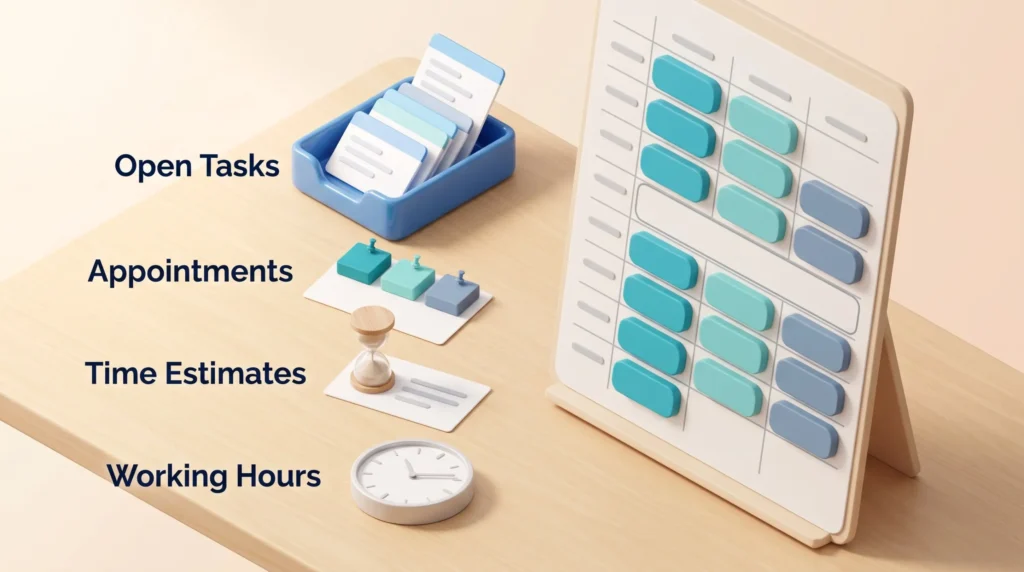
AI daily planning means using an AI tool to decide what you work on today, in which order and at what time. It combines four inputs into one schedule: your open tasks, your fixed appointments, a time estimate for each task and your available working hours.
The output is usually a set of time blocks. A time block is a slot on your calendar reserved for one specific task, such as “9:30 to 10:45: draft the Q4 budget memo.” If you have never worked this way, the timeboxing playbook explains the underlying method in detail.
What AI planning does not do is choose your priorities for you. It cannot know that your manager cares more about the client proposal than the internal report unless you tell it. Treat the AI as a fast scheduling assistant, not as a boss.
Why a Plan Matters More Than Ever
Without a plan, whatever arrives next shapes your day. Microsoft’s Work Trend Index special report from June 2025 found that employees are interrupted every two minutes during core work hours, about 275 times a day, by meetings, emails or chats.
A written schedule does not stop those interruptions. It does give you a clear answer to the question “what should I be doing right now?” once the interruption is over. That is the difference between proactive and reactive work. AI helps because building a realistic plan by hand takes longer than most people will spend each morning.
Before You Start: What the AI Needs From You
An AI planner is only as good as its inputs. Before your first run, prepare three things once and reuse them every day.
- Your working hours. For example: “I work 8:30 to 17:00, lunch 12:30 to 13:15, no deep work after 16:00.”
- Your energy pattern. Most people have a time of day when hard thinking is easier. Tell the AI when that is, so demanding tasks land there.
- Your planning rules. Examples: “Keep 20 percent of the day unplanned,” “Batch email into two slots,” or “No task block shorter than 25 minutes.”
Save these as a reusable prompt. If you already keep a personal prompt library, this is a perfect first entry.
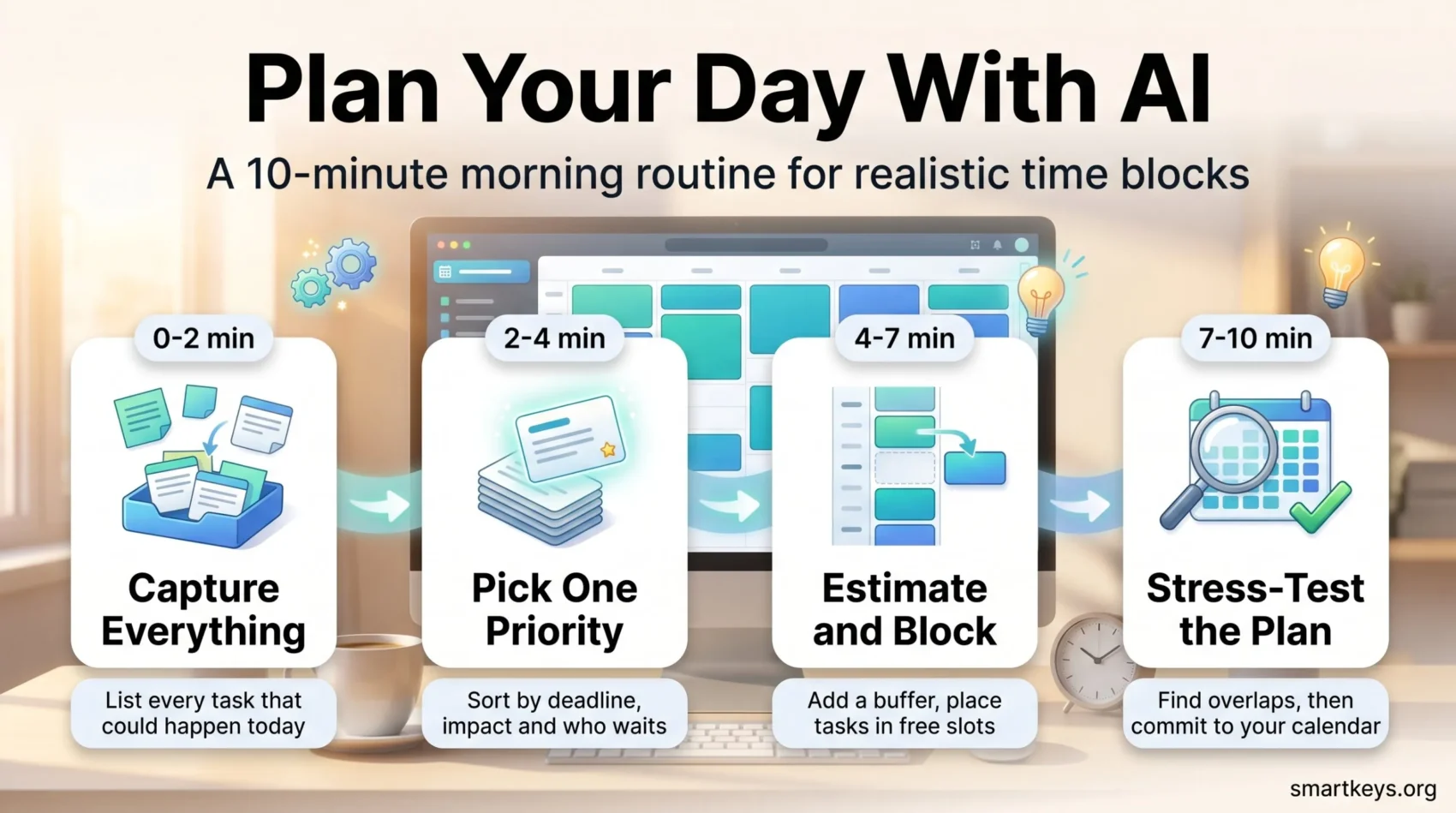
The 10-Minute Routine, Step by Step
The routine has four short steps. Run it before you open your inbox, because email tends to replace your plan with other people’s priorities.
Minutes 0-2: Capture Everything
List every task that could happen today: carry-overs from yesterday, deadlines, follow-ups from meetings and small admin jobs. Do not sort yet. A quick brain dump works well here. If you already capture tasks in one trusted inbox, simply copy the relevant items.
Minutes 2-4: Pick Your Priorities
Ask the AI to sort the list, but give it criteria: deadline, impact and who is waiting on you. Then choose one task that must happen today no matter what. The daily highlight technique is a good model for this. Everything else is optional until the highlight has a protected slot.
Minutes 4-7: Estimate Time and Build Blocks
Now paste your calendar for the day and ask the AI to estimate how long each task will take and place it in the free gaps. Check the estimates carefully. People and AI both tend to be optimistic, a pattern known as the planning fallacy. A simple fix is to add 25 to 50 percent to any task you have not done before.
Group similar small tasks, such as replies and approvals, into one block. Put demanding work into your high-energy window, and keep meetings and shallow work together where you can. The maker vs manager schedule explains why this grouping protects your focus.
Minutes 7-10: Stress-Test and Commit
Ask the AI to find the weak points in its own plan: overlaps, missing breaks, tasks that depend on someone else, and days that are simply overbooked. Then decide what moves to tomorrow. Finally, put the blocks into your calendar so they are visible and, ideally, blocked for others.
Copy-and-Paste Prompts for Any AI Assistant
These prompts work in ChatGPT, Claude, Gemini, Microsoft Copilot or any similar chat assistant. Replace the parts in square brackets.
1. Set the rules (paste once per session):
“You are my daily planning assistant. My working hours are [hours]. My best focus time is [time]. Rules: keep at least 20 percent of the day free, no focus block shorter than 25 minutes, batch email into [number] slots. Ask me before you drop any task.”
2. Prioritize:
“Here are today’s tasks: [list]. Sort them by deadline, impact and whether someone is waiting on me. Mark the one task that most needs to happen today and explain why in one sentence.”
3. Schedule:
“Here are my fixed appointments today: [calendar]. Estimate a realistic duration for each task, add a buffer, and place the tasks in the free slots. Show the result as a table with start time, end time and task.”
4. Stress-test:
“Review this plan like a skeptical colleague. What is likely to overrun, what is missing, and what should move to tomorrow if my 11:00 meeting runs 30 minutes late?”
Chat Assistant or Dedicated AI Planner?
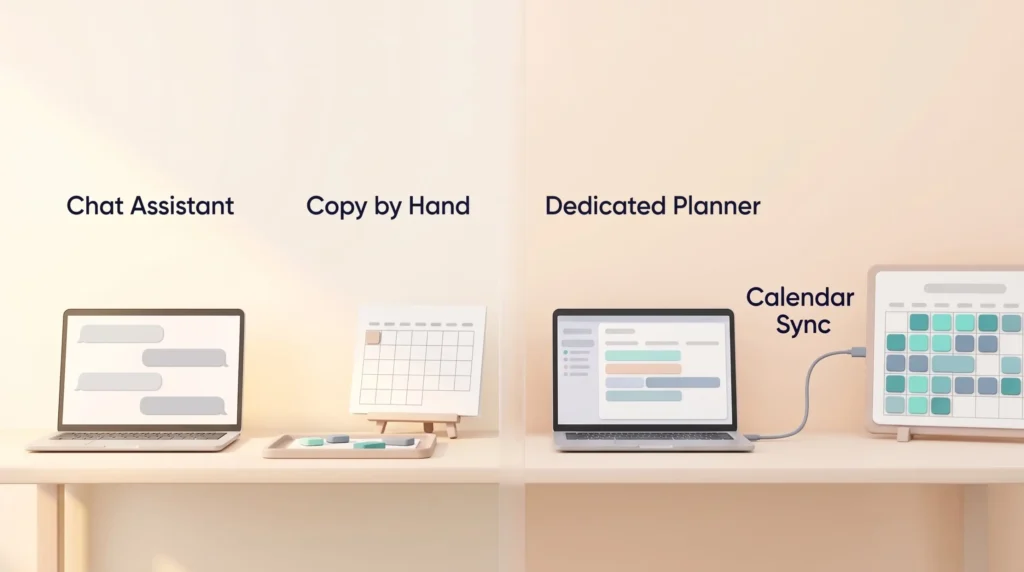
You can run the whole routine in a chat window. The downside is copying: you paste your tasks and calendar in, then copy the result back into your calendar by hand. Dedicated AI planner apps connect to your calendar and task manager directly and place the blocks for you.
Example: Trevor AI
Trevor AI is a planner that combines your task list and calendar in one view. According to trevorai.com, its main features in September 2026 are:
- Plan My Day and Plan My Week: one-click AI scheduling of your open tasks into free calendar slots.
- Duration prediction: the app estimates how long a task will take.
- Ask Trevor: a chat interface to add, schedule or reschedule several tasks at once.
- Focus Mode: a timer, a notes field and an AI-generated breakdown of a task into smaller steps.
- Scheduling blocks: windows that keep work tasks in work hours and personal tasks in personal time.
- Progress insights: a review of your planning habits over time.
Trevor connects to Google Calendar, Outlook and Microsoft 365, and Apple Calendar, plus Google Tasks, Microsoft To Do and Todoist. The free plan covers one calendar. The Pro plan adds multiple calendar accounts and costs $5 per month billed annually or $6 billed monthly, with a 30-day money-back guarantee. Prices can change, so check the vendor site before you buy.
Other Options
Other AI schedulers take a different angle. Reclaim.ai, for example, automatically adds buffer time around meetings and travel time around events with a location, and works with Google Calendar and Outlook. If your problem is mainly back-to-back meetings, that kind of tool may matter more than smart task placement.
Whatever you choose, start small. A tool you open every day beats a feature-rich one you abandon after a week. If you want a timer or blocker alongside it, see our overview of focus tools.
Common Mistakes That Break AI-Built Plans
- Planning 100 percent of the day. Something always runs late. Leave free space so one delay does not push everything back.
- Trusting every time estimate. AI guesses are based on general patterns, not on your specific task. Correct them with your own experience.
- Skipping the priority step. Without clear criteria, the AI tends to schedule whatever looks easiest or most urgent.
- Replanning all day. Rebuilding the schedule after every change feels productive but is not. This is one of the classic productivity pitfalls. Replan once at midday if needed, not every hour.
- Ignoring what actually happened. If your plans keep failing in the same way, track a week with a time audit and feed the results back into your rules.
Protect Your Privacy When You Share Your Calendar
Your calendar holds sensitive details: client names, health appointments and internal project codes. Before you paste it into an AI tool, check two things.
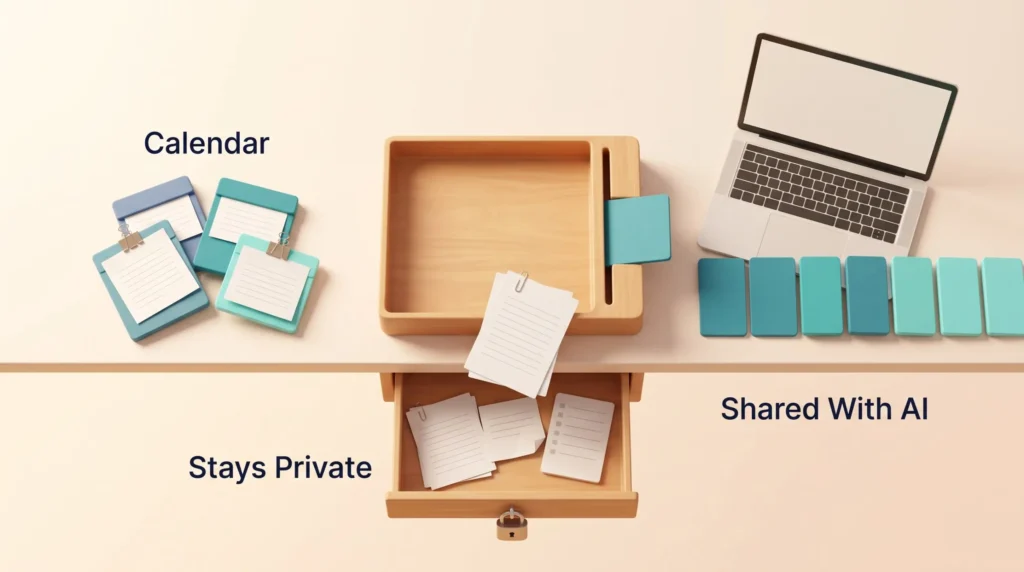
First, does your employer allow the tool? Using AI apps without approval is known as shadow AI and can breach company policy. Many companies offer an approved assistant, such as a business version of Copilot or Gemini, that keeps data inside company systems.
Second, share only what the AI needs. “10:00 to 11:00 client call” is enough for scheduling. You do not need to paste meeting notes, attendee lists or confidential titles. For dedicated apps, look for clear data export and account deletion options. Trevor AI, for example, states that it follows the EU General Data Protection Regulation (GDPR) and lets you export or delete your data.
Close the Loop With a Two-Minute Evening Check
The morning routine gets better when you spend two minutes at the end of the day asking three questions. What got done? What slipped, and why? What is the first task for tomorrow? Paste the answers into your AI assistant the next morning as context.
Once a week, zoom out. A short weekly review connects your daily plans to bigger goals, so you are not just scheduling busy work efficiently.
Conclusion
AI daily planning works best as a short, repeatable habit. Spend ten minutes each morning capturing tasks, choosing one priority, letting the AI place time blocks and stress-testing the result. Keep buffers, share only what the tool needs, and correct its guesses with your own judgment.
Start with the four prompts above in the assistant you already use. If the copying gets tedious after a week or two, that is the moment to try a dedicated planner app.
Found this useful?
Make SmartKeys a preferred source on Google, and our articles will surface more often in your Top Stories, AI Overviews, and AI Mode.
Add as Preferred SourceFAQ
Can ChatGPT or another chat assistant plan my day without a dedicated app?
Yes. A general chat assistant such as ChatGPT, Claude, Gemini or Copilot can prioritize your tasks, estimate durations and build a time-blocked schedule if you paste in your task list, your appointments and your working hours. The limitation is that most chat assistants do not write the result into your calendar, so you copy the blocks over by hand. Some business versions can read your calendar if your company has enabled that access. If the copying becomes tedious, a dedicated planner app that syncs with your calendar saves those minutes.
What features should I look for in an AI planning app?
Look first for two-way sync with the calendar and task manager you already use, because a planner that does not see your real appointments will double-book you. Next, check for automatic time blocking with editable suggestions, task duration estimates and simple rescheduling when a task slips. Useful extras are buffer time around meetings, separate windows for work and personal tasks, and a short progress review. Finally, check the price of the plan you actually need, since multiple calendar accounts are often a paid feature, and look for clear data export and deletion options.
How does time blocking work?
Time blocking means reserving a specific slot on your calendar for one task, the same way you would book a meeting. Instead of a list that says “write report,” your calendar says “9:30 to 11:00: write report.” This shows whether your tasks actually fit into the hours you have and tells you what to work on at any moment. AI planners speed this up by estimating task durations and placing the blocks in free gaps. The method works best when you also leave unplanned buffer time for interruptions and overruns.
Is it easy to sync multiple calendars?
Usually yes, but check the plan limits first. Most AI planners connect to Google Calendar and Outlook, and some also support Apple Calendar. Connecting a single calendar is often free, while several accounts, such as a work Outlook and a private Google calendar, frequently require a paid plan. Trevor AI, for example, supports one calendar on its free plan and multiple accounts on Pro. Syncing both calendars matters because the AI can only avoid conflicts it can see. If you cannot connect your work calendar for policy reasons, block your personal commitments manually instead.
Can I use an AI planner for both work and personal tasks?
Yes, and it often works better that way, because the AI sees your real availability. The key is to keep the two areas apart on the calendar. Many planners let you define scheduling windows, so work tasks only land in work hours and personal tasks only in your free time. A good habit is to enter personal commitments such as school runs or workouts first, then let the AI plan work around them. Be careful with privacy: if your employer restricts which apps may access your work calendar, follow that policy.
How do I keep my data safe when an AI tool reads my calendar?
Start by checking whether your employer allows the tool, and prefer an approved company assistant for work data. Share only what the AI needs to schedule, such as times and short neutral titles, not meeting notes or client details. For dedicated apps, read the privacy page and look for encryption, a clear statement on whether data is shared with third parties, and options to export or delete your data. Apps that serve EU users should explain how they comply with the GDPR. Remove connected apps you no longer use from your Google or Microsoft account.
What should I do when my plan falls apart before lunch?
Replan once, briefly, instead of abandoning the plan. Tell your AI assistant what changed, for example “my 10:00 meeting ran an hour over and an urgent client request came in,” and ask it to rebuild the afternoon around your one priority task. Move everything else to tomorrow without guilt. If this happens most days, your plans are too full: increase your buffer, shorten your task list, or protect a fixed focus block that meetings cannot take. A short evening check helps you spot these patterns.