
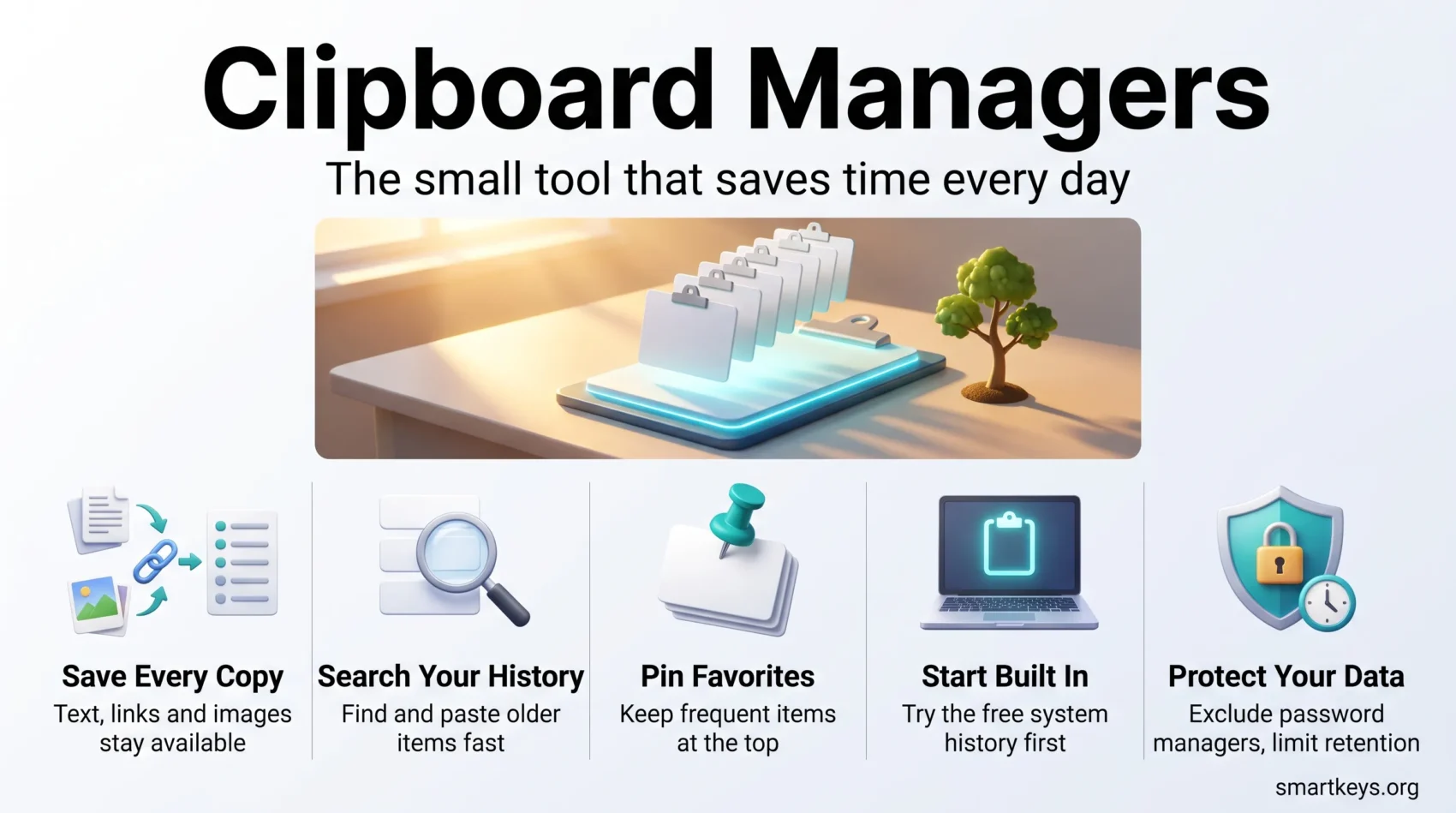
You copy a link, then a phone number, then a paragraph for a report. When you go back for the link, it is gone. A standard clipboard holds exactly one item, and every new copy overwrites the last one.
A clipboard manager fixes that. It quietly saves everything you copy, so you can search for and paste an older item whenever you need it. Text, links, images and sometimes whole files stay available instead of disappearing.
This guide covers the built-in options in Windows, macOS and Android in 2026, the third-party apps worth a look, and the privacy settings to change on day one. If you already use keyboard shortcuts to work faster, a clipboard manager is the natural next step.
Key Takeaways
- A normal clipboard keeps only the last item you copied. A clipboard manager keeps a searchable history.
- Windows (Windows + V) and macOS Tahoe (Spotlight) now include a basic history, so start there before you buy anything.
- Third-party tools add longer history, pinned items, snippets, plain-text pasting and sync between devices.
- Clipboard history can capture passwords and client data, so exclusions and auto-clear settings matter.
What a Clipboard Manager Does
When you press Ctrl + C on Windows or Command + C on a Mac, your computer stores the item in the clipboard. Copy again, and the old item is replaced. That breaks down as soon as you collect information from several places.
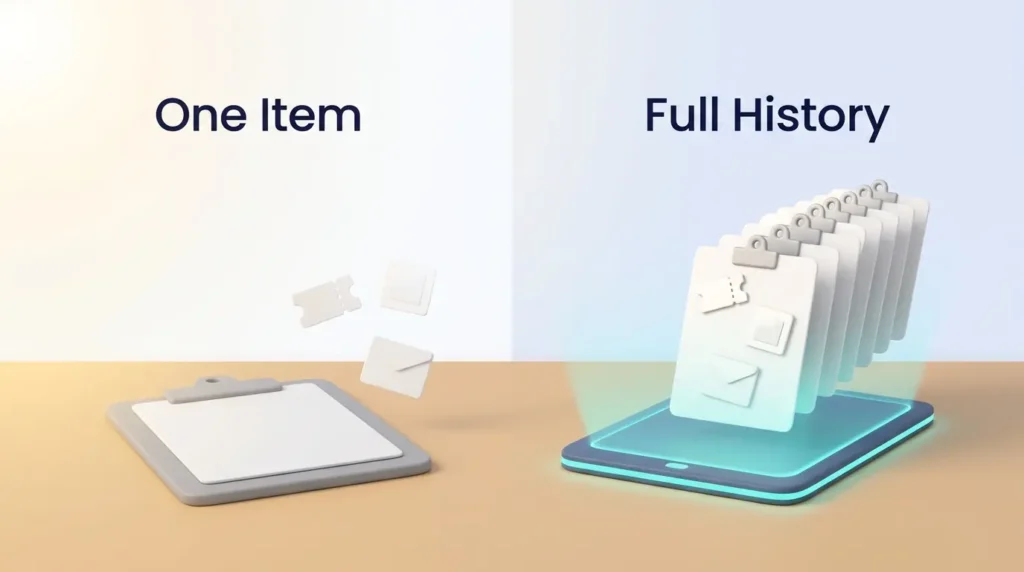
A clipboard manager runs in the background and records each copy in a list. You keep using the same copy shortcuts as before. When you need an older item, you open the history with a shortcut, type a few letters to find it, and paste it.
Picture a team lead preparing a client update. She copies a ticket number from the project tool, a figure from a spreadsheet, a link from the browser and a sentence from last week’s email. Without a history, she switches back and forth between four windows. With one, she copies all four first, then writes the update in one go and pastes each item from the list.
The real benefit is fewer window switches and no lost items. Our guide to taming browser tab overload covers the same problem from another angle.
Features to Look For
Search, pinned clips and snippets
- Fast search: You open the history, start typing and the list filters instantly.
- Pinned clips: Items you reuse often, such as your company address or a meeting link, stay at the top and survive restarts.
- Snippets: Saved text blocks, such as an email sign-off, that you insert with a shortcut. If snippets are your main need, a dedicated text expansion tool may fit better.
- Plain-text paste: Pastes text without the source’s fonts and colors.
Privacy controls and active development
Look for a setting that ignores certain apps, especially your password manager, and an auto-clear option. Also check when the app was last updated. A tool that sees everything you copy should still receive security fixes.
Built-In Clipboard History: Start Here
Before you install anything, try what your system already offers. In 2026, all major systems have some form of history, with different limits.
Windows: Windows + V
Windows has included clipboard history since the October 2018 Update for Windows 10, and it is part of Windows 11. It is off by default. Turn it on under Settings > System > Clipboard, or press Windows + V and accept the prompt.
According to How-To Geek, the history keeps the 25 most recent items. It stores text, HTML and images under 4 MB, and larger items are skipped. Unpinned items are erased when you restart, while pinned items stay.
The same settings page lets you sync history between PCs signed in with the same Microsoft account.
macOS Tahoe: clipboard history in Spotlight
macOS Tahoe (macOS 26) added a clipboard view to Spotlight, the system search bar. Before that, Mac users needed a third-party app.
As MacRumors explains, you open Spotlight with Command + Space and switch to clipboard mode with Command + 4. Items are kept for eight hours by default. Since macOS 26.1, you can choose 30 minutes, 8 hours or 7 days, clear the history in System Settings, or turn the feature off.
It has no pinned favorites or long-term storage, which is where dedicated apps still help.
Android and iPhone
On Android, the keyboard usually holds the clipboard history. Gboard, Google’s keyboard, deletes unpinned items after one hour, as Android Authority reports. Pin anything you want to keep. Samsung Keyboard has its own clipboard panel with similar pinning.
The iPhone and iPad have no visible clipboard history. Universal Clipboard moves only the latest item between nearby Apple devices.
Best Clipboard Managers for Windows
Ditto: free and open source
Ditto is a free, open-source classic. It keeps a large, searchable history that survives restarts and can sync between computers on a network. Check the latest release date on the project page before you roll it out, because updates have been infrequent in recent years.
Clipboard Master and ClipClip
Clipboard Master is a free tool for power users. It offers multiple clipboards, text templates and paste options, such as inserting the current date. ClipClip, also free, lets you sort saved clips into folders.
PowerToys Advanced Paste
Microsoft’s free PowerToys utilities include Advanced Paste. It is not a history tool. It changes how you paste. According to Microsoft’s documentation, Ctrl + Win + Alt + V pastes clean plain text. Win + Shift + V opens a menu with options such as Markdown, JSON or text from an image.
Best Clipboard Managers for Mac
Maccy is lightweight and keyboard-first. You open it with a shortcut, type to search and press Enter to paste. The developer’s site describes it as open source under the MIT license and free to download. The Mac App Store version is a paid option that supports development. Check the listing for the current price and the macOS version it requires.
Paste is the polished option for people who work across Apple devices. It shows clips as visual cards, organizes them into pinboards and syncs your history between Mac, iPhone and iPad. On its pricing page (checked October 2026), the personal plan costs $2.49 per month or $29.99 per year after a 7-day trial. Paste for Mac is also included in a Setapp subscription.
CopyClip is a simple menu bar app that keeps recent clips one click away.
Clipboard Features in Launchers and Power Tools
Several productivity tools already include a clipboard manager.
- Raycast (Mac) is a launcher, a search bar for apps and commands. Its free version includes a searchable clipboard history.
- Alfred (Mac) offers clipboard history as part of its paid Powerpack.
- ClipboardFusion (Windows) adds macros that clean up or transform copied text, and its paid version syncs clips across devices.
If you already use one, turn on its clipboard feature before adding another app. Fewer tools means less friction, as we explain in simplifying your work toolset.
Clipboard History, Syncing and Your Data
A clipboard manager remembers everything, and that is also its biggest risk. Passwords, login codes and confidential client text can all end up in the history. Three settings reduce that risk:
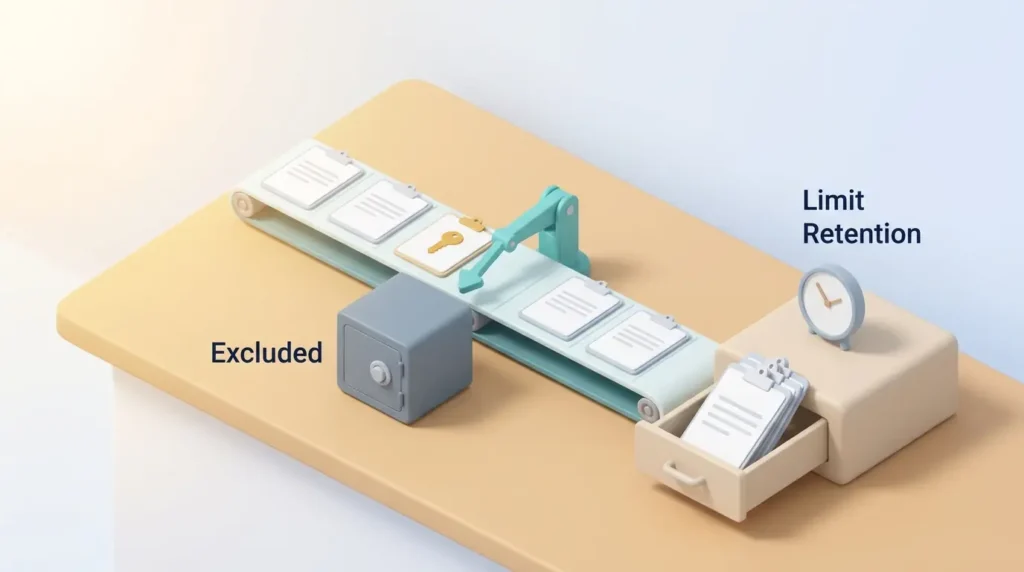
- Exclude sensitive apps. Most third-party managers let you ignore specific apps. Add your password manager first.
- Limit retention. Keep history only as long as you need it. On a Mac, Spotlight’s 30-minute or 8-hour setting is enough for many people.
- Think before you sync. Cloud sync sends your clips to the vendor’s servers or your account. Switch it off on shared or company devices if you are unsure.
At work, an unapproved tool becomes shadow IT. A clear policy for employee-chosen apps settles which tools are allowed. The same caution applies when you paste copied material into AI chat tools, as our generative AI usage guidelines explain.
How to Choose the Right Clipboard Manager
Work through these questions in order.
- Is the built-in history enough? Turn on Windows + V or Spotlight’s clipboard view and use it for a week. If you rarely miss anything, you are done.
- Do you need history that survives restarts? Choose Ditto or Clipboard Master on Windows, or Maccy on a Mac.
- Do you work across several devices? Paste suits Apple users. On Windows, the built-in sync covers PCs signed in to the same account.
- Do you mostly reuse the same text? A text expander or email response templates may serve you better.
- Do you already use a launcher? Use the clipboard feature in Raycast or Alfred instead of adding a new app.
Whatever you pick, practice the history shortcut until it becomes automatic. It pairs well with other small habits, like the ones in our guide to making the most of small time gaps.
Conclusion
Your next copy should not erase something you still need. Start with what you have. Windows + V and macOS Tahoe’s Spotlight history cover many everyday needs at no cost. Move to Ditto, Clipboard Master, Maccy or Paste when you want longer history, pinned items or sync. Whatever you choose, exclude your password manager first.
To find more small wins, a quick time audit shows where your day really goes, and our overview of productivity apps helps you build a lean toolkit around it.
Found this useful?
Make SmartKeys a preferred source on Google, and our articles will surface more often in your Top Stories, AI Overviews, and AI Mode.
Add as Preferred SourceFAQ
What is a clipboard manager?
A clipboard manager is a small app that saves everything you copy, not just the last item. Your normal clipboard holds one entry, and each new copy replaces it. A clipboard manager records every copied text, link or image in a searchable list. You open the list with a shortcut, find the item you need and paste it. Most tools also let you pin favorites, such as an address or a meeting link, so they are always available.
Why use a clipboard manager instead of the built-in option?
A dedicated clipboard manager gives you a longer, more permanent history than the built-in tools. Windows clipboard history keeps 25 items and clears unpinned ones when you restart. The macOS Tahoe history in Spotlight keeps items for up to seven days and has no pinned favorites. Third-party tools typically store far more items across restarts, add folders or pinboards, and offer plain-text pasting and snippets.
Does macOS have a built-in clipboard history now?
Yes. Since macOS Tahoe (macOS 26), Spotlight includes a clipboard history. Open Spotlight with Command + Space, then press Command + 4 to switch to the clipboard view. Items are kept for eight hours by default. Since macOS 26.1, you can change this to 30 minutes or seven days, clear the history in System Settings, or turn it off. For pinned items or a permanent archive, use an app like Maccy or Paste.
Can I sync my clipboard across different devices?
Yes, but how depends on your devices. Windows can sync clipboard history between PCs signed in with the same Microsoft account once you enable sync in the clipboard settings. Apple’s Universal Clipboard moves only the latest item between nearby devices with the same Apple ID, Bluetooth, Wi-Fi and Handoff turned on. For a full synced history across Mac, iPhone and iPad, you need an app such as Paste. Keep in mind that sync sends your clips through the vendor’s service or your account, so check the privacy settings first.
Can I use a clipboard manager on my phone?
Yes, with some limits. On Android, keyboards such as Gboard and Samsung Keyboard include a clipboard panel. Gboard deletes unpinned items after one hour, so pin anything you want to keep. Dedicated clipboard apps are available on Google Play if you need a longer history. On iPhone and iPad, Apple offers no visible history, so you need a third-party app. Paste, for example, includes its iPhone and iPad apps in the same subscription and syncs clips with your Mac.
Is it safe to keep passwords in clipboard history?
It is safer to keep passwords out of it. Clipboard history can store anything you copy, including passwords, login codes and client data, and sync can send those items to other devices. Add your password manager to the clipboard manager’s list of ignored apps. Many password managers also clear copied passwords after a short time. Set a short retention period for the history, and turn off cloud sync on shared or company devices if you are unsure who can access it.
Can a clipboard manager paste text without formatting?
Yes, many can. Plain-text pasting removes fonts, colors and links from copied text, so it matches the document you paste into. Most third-party clipboard managers offer this as a setting or a separate shortcut. On Windows, Microsoft’s free PowerToys includes Advanced Paste, which pastes plain text with Ctrl + Win + Alt + V. On a Mac, many apps also accept Command + Shift + Option + V to paste and match the surrounding style.
How do I choose the right clipboard manager for my needs?
Start with the built-in history and upgrade only when you hit a real limit. Use Windows + V or the Spotlight clipboard view for a week. If you need history that survives restarts, try Ditto or Clipboard Master on Windows, or Maccy on a Mac. If you work across Apple devices, Paste adds sync. If you already use a launcher like Raycast or Alfred, turn on its clipboard feature instead of installing another app.