

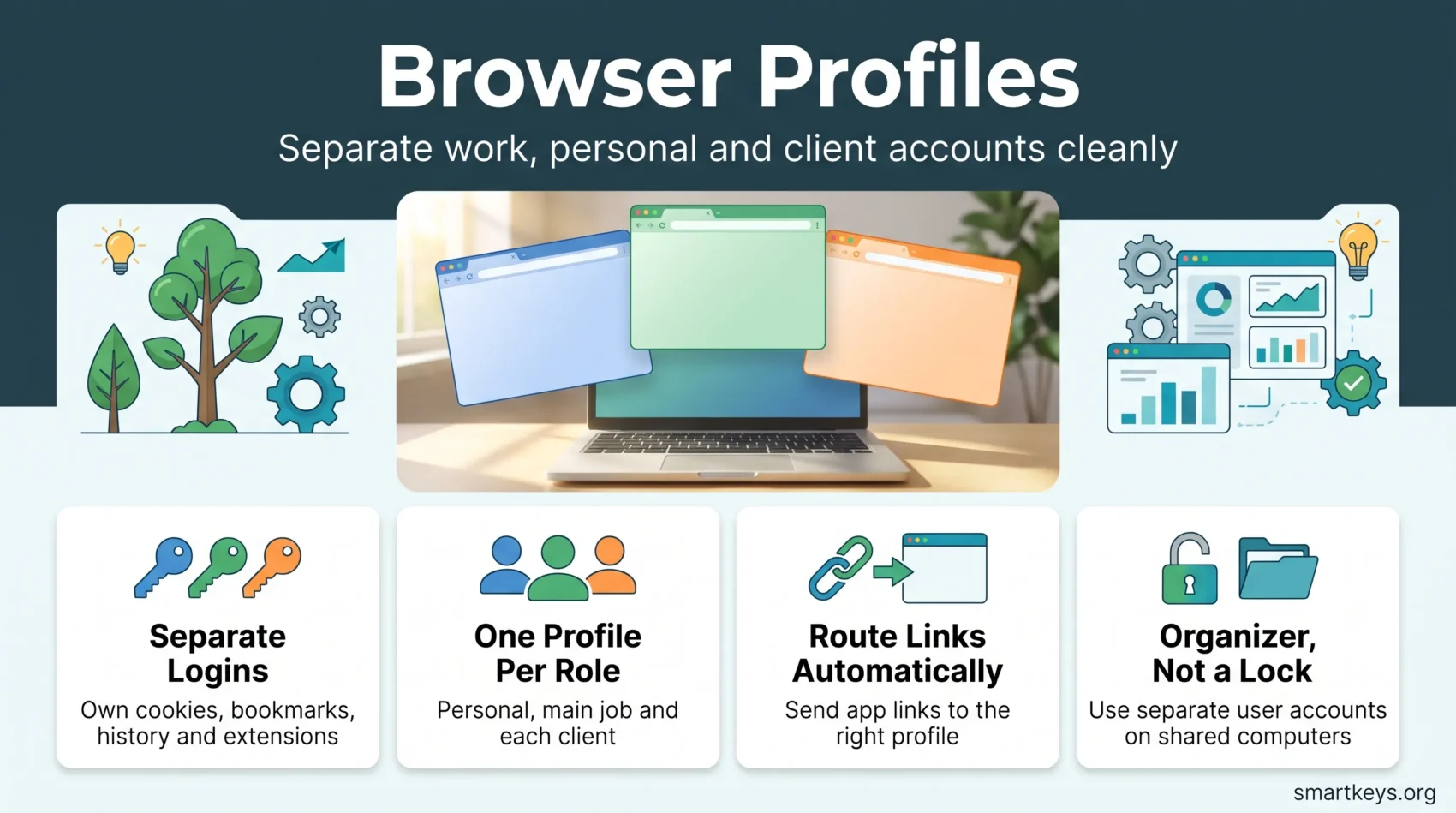
If you work for more than one employer, client or project, your browser probably holds a messy mix of logins. Your personal Gmail sits next to a client’s Google Workspace. A work Slack tab opens in the same window as your online banking. Sooner or later you send a file from the wrong account or log a client out of their own dashboard.
Browser profiles fix this. A profile is a separate copy of your browser with its own bookmarks, history, saved passwords and logins. You can run several profiles side by side, each in its own window, and switch between them in two clicks.
This guide shows what profiles keep apart, how to set them up in Chrome, Edge, Firefox and Safari, and where their limits are.
Key Takeaways
- A browser profile keeps bookmarks, history, cookies, saved passwords and extensions separate from your other profiles.
- Chrome, Edge, Safari (version 17 and later) and Firefox (version 144 and later) all support multiple profiles.
- One profile per role works well: personal, main job, and one per long-running client.
- Edge and Safari can send links from other apps to a chosen profile, which cuts down on account mix-ups.
- Profiles organize your accounts. They are not a security barrier against people who use the same computer.
What Browser Profiles Keep Separate
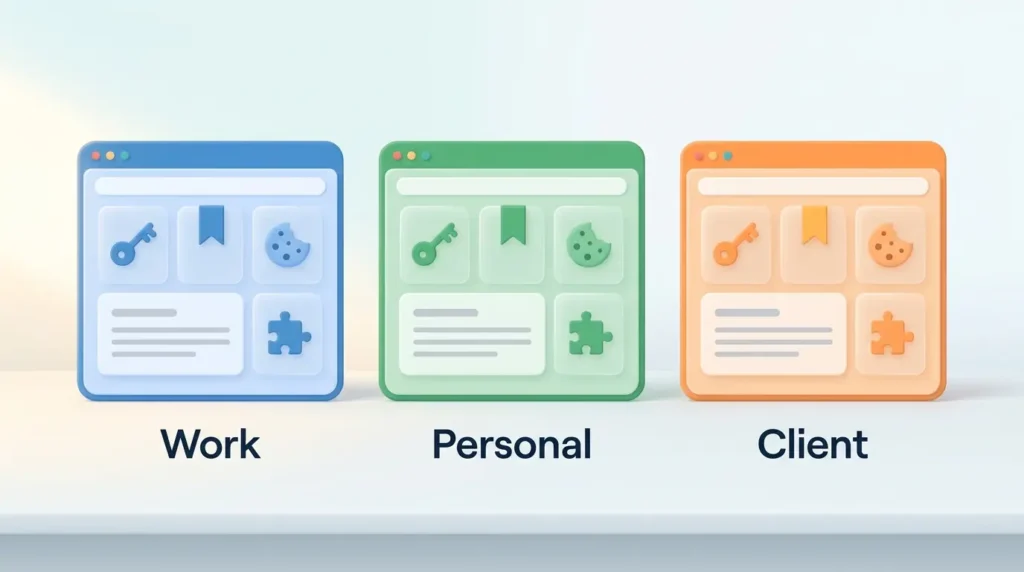
Each profile behaves like its own browser. The key thing it isolates is cookies, the small files websites use to remember that you are logged in. Because cookies stay inside one profile, you can be signed in to two Google accounts at once without one logging the other out. In Chrome, profiles also keep apart:
- Bookmarks, history and saved passwords, as Google’s help page confirms.
- Extensions, the small add-ons such as password managers or grammar checkers.
- Settings such as search engine, theme and site permissions.
- Open tabs, which belong to the window of the active profile.
Safari works a little differently. According to Apple, each Safari profile has separate history, cookies, website data, extensions, Tab Groups and Favorites. AutoFill and Passwords, however, are shared across all Safari profiles, and bookmarks are visible in every profile.
Why Separate Work, Personal and Client Browsing
The first benefit is fewer mistakes. When each client has its own profile, the right email, drive and project tool open every time. You no longer send a proposal from your personal address.
The second benefit is focus. A work profile without shopping, news or streaming bookmarks gives you fewer reasons to drift. This fits well with other focus management techniques and makes it easier to keep browser tab overload under control, because each window only holds tabs for one context.
The third benefit is a cleaner end to the day. Closing the work window removes work from view, which supports healthy boundaries between work and personal time.
A simple example: a freelance designer works for two agencies, each with its own Google Workspace and Figma login. She creates three profiles: Personal, Agency A and Agency B. Switching clients now means switching windows, not logging out and back in. For more ideas, see these freelancer productivity hacks.
How to Create a New Profile in Chrome or Edge
Add a Chrome Profile From the Profile Icon
In Chrome, click the profile icon in the top right corner and select Add Chrome profile. You can sign in with a Google Account or continue without one. Then choose a name, a photo and a color scheme. If you sign in, Chrome uses the account name as the profile name by default.
Create an Edge Profile for Work or Personal Use
In Edge, click your profile picture in the toolbar and choose the option to set up a new profile. You can add a personal Microsoft account, a work or school account, or start without signing in. Edge opens the new profile in a separate window, so you can see right away which environment you are in.
Decide Whether to Sync Bookmarks, Passwords and Settings
Sync means the browser copies your bookmarks, passwords and settings to your account so they appear on your other devices. For a client profile, check first whether the client allows its data on your other devices. Many companies restrict this, as our guide to BYOA policies explains.
Profiles in Firefox and Safari
Firefox long hid profiles behind a technical page called about:profiles. With version 144, released on October 14, 2025, Mozilla began a gradual rollout of a new profile manager. It keeps bookmarks, tabs and history separate and launched on Windows 11, Mac and Linux.
Safari added profiles with Safari 17, which ships with macOS Sonoma and later and is also available on iPhone and iPad. On a Mac, choose Safari > Create Profile or open Settings > Profiles, then pick a name, symbol and color. Apple notes that extensions are turned off by default in each new profile, so you switch on only the ones that profile needs.
How to Switch Profiles and Check Which One Is Active
Switch Profiles From the Profile Menu
In Chrome, click the profile icon and choose the profile you want. Edge works the same way. In Safari, use the profile button in the toolbar or the File menu.
Check the Active Profile Before Opening Work or Client Sites
Give every profile a distinct color and name. The color shows up in the window frame or toolbar, so you can tell at a glance which context you are in. If color coding already helps you elsewhere, use the same colors here: for example blue for your employer, green for personal and orange for a client.
- Look at the profile name and color before logging in to email, banking or client portals.
- Learn the keyboard shortcut for opening a new window in the active profile. Our guide to keyboard shortcuts covers the basics.
Send Links to the Right Profile Automatically
Links clicked in email or chat apps often open in whichever profile you used last, where you may not be logged in. Two browsers offer a fix. In Edge, you can pick a default profile for links from other apps under Settings > Profiles > Multiple profile preferences. Edge also has automatic profile switching: if you open a site that uses your work or school account while you are in your personal profile, Edge offers to open it in your work profile instead.
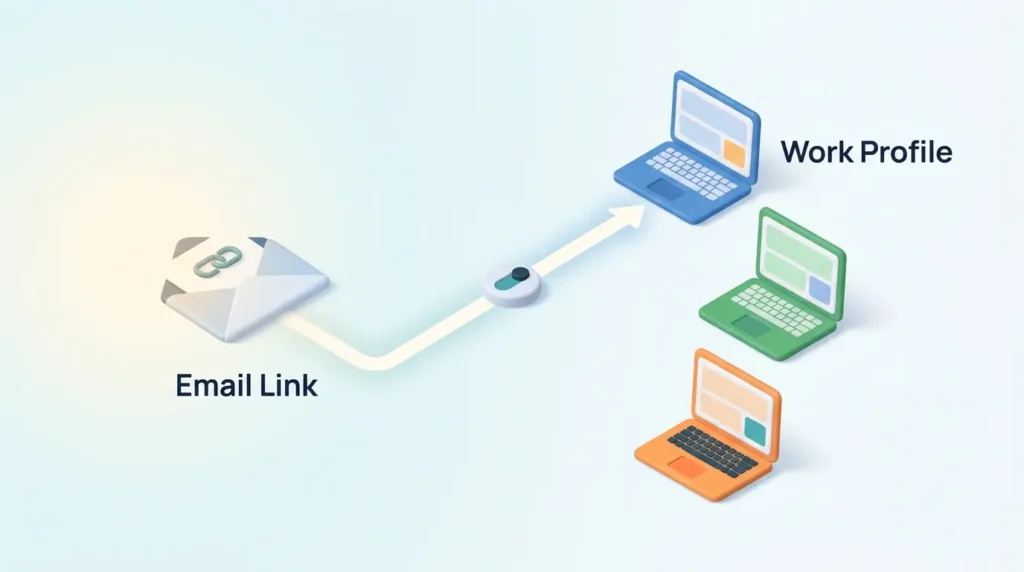
In Safari, go to Settings > Websites > Open Links With Profile to choose which profile handles links from apps such as Mail or Messages. This only applies to links opened from outside Safari. A Focus filter can also switch Safari to a set profile, for example your work profile during working hours.
How to Manage Chrome Profiles and Customize Settings
Change a Profile Name, Photo or Color
In Chrome, go to Profile > Manage Chrome profiles, click More on the profile and choose Edit. Changes save automatically.
Show Profiles on Startup
In the same Manage Chrome profiles window, check Show on startup. Chrome will then ask which profile to open each time it starts.
Set Up Bookmarks and Extensions for Each Profile
Give each profile only what it needs: a client profile might hold bookmarks for the client’s project tool and shared drive, and nothing else. Fewer extensions mean fewer programs with access to the pages you visit, which also helps with shadow IT risks on work devices.
Use Guest Mode for Temporary Browsing
For a one-off session, such as a colleague borrowing your laptop, use guest mode. Chrome and Edge both offer a guest window from the profile menu. A guest window does not see your bookmarks, saved passwords or history, and the browser deletes its browsing data when you close it.
How to Delete a Profile and What Gets Removed
When a client project ends, delete its profile so old logins do not linger. In Chrome, go to Profile > Manage Chrome profiles, click More on the profile, choose Delete and confirm. Google states that this erases the profile’s bookmarks, history, passwords and other settings from the computer. In Edge, remove profiles from the Profiles section of Settings.
Deleting a profile does not delete the Google or Microsoft account behind it. If that profile synced, the synced copy stays in the account. Before you delete, export any bookmarks you want to keep and make sure the passwords live in your password manager. It is a good moment for a wider digital declutter.
Profile Privacy Limits and Everyday Tips
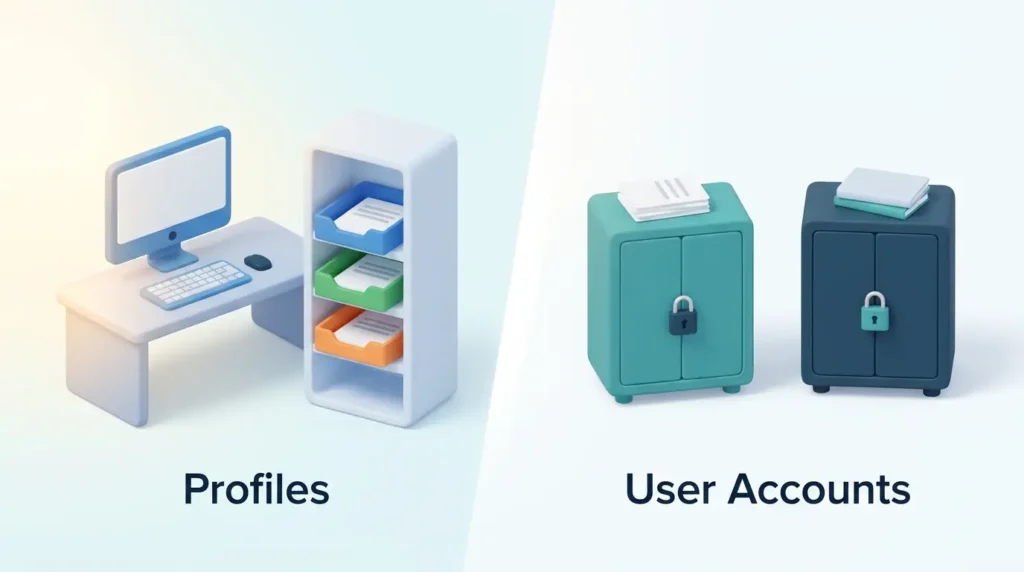
Profiles are an organizing tool, not a lock. Google’s own help page warns that anyone with access to your device can switch to any profile on it and see information such as the websites you visited. If several people use one computer, give each person a separate operating system user account instead.
Profiles also do not protect you from phishing or malware. The usual rules still apply: strong unique passwords, two-factor authentication and caution with unexpected links. For the bigger picture, read our overview of cybersecurity in remote work.
A few everyday habits help profiles stay useful:
- One profile per role, not per website. Three to five profiles are easy to manage. Fifteen are not.
- Review profiles every quarter. Delete profiles for finished projects, as old ones keep cookies and local data. A weekly review routine is a natural place to add this check.
- Use profiles to cut context switching. Finishing one client’s work in one window before opening the next supports single-tasking and reduces the cost of task switching.
Conclusion
Browser profiles give each part of your working life its own space: personal, main job and every client with separate logins. Chrome, Edge, Firefox and Safari all support them. Give each profile a clear name and color, decide carefully what should sync, and route links from other apps to the right profile where possible.
Treat profiles as organizers, not security walls. Check the active window before you open a sensitive site, and delete profiles you no longer need. These small habits make a productive home office a little calmer.
Found this useful?
Make SmartKeys a preferred source on Google, and our articles will surface more often in your Top Stories, AI Overviews, and AI Mode.
Add as Preferred SourceFAQ
What are browser profiles used for?
Browser profiles keep separate sets of accounts and browsing data apart inside one browser. The most common use is splitting personal browsing from work, and work from individual clients. Each profile has its own cookies, so you can stay logged in to several Google, Microsoft or Slack accounts at once without them interfering. Each profile also has its own bookmarks, history and extensions, so a client profile can contain only that client’s tools.
How many browser profiles should I create?
Most people do well with one profile per role: one personal profile, one for their main job and one for each client or project that uses separate logins. That usually means three to five profiles. Avoid creating a profile for every website, because you will spend more time choosing windows than working. Review your profiles every few months and delete the ones you no longer use.
Do Firefox and Safari support profiles?
Yes, both do. Safari has supported profiles since Safari 17, which comes with macOS Sonoma and later. Each Safari profile has its own history, cookies, extensions and Tab Groups, while passwords and AutoFill are shared. Firefox began rolling out a new, easy-to-use profile manager with version 144 in October 2025. Before that, Firefox profiles existed but were managed through a technical page called about:profiles.
Do browser profiles sync across devices?
They can, if you sign the profile in to an account. A Chrome profile signed in to a Google Account can sync bookmarks, passwords and settings to your other devices. An Edge profile does the same with a Microsoft account or a work or school account. For client profiles, check whether the client allows its data to sync to your personal devices before you turn sync on.
What happens when I delete a profile?
Deleting a profile removes its local bookmarks, history, saved passwords and settings from that computer. Google states this explicitly for Chrome. The account behind the profile is not deleted, so a Google or Microsoft account and any data already synced to it remain. Before you delete a profile, export bookmarks you want to keep and make sure important passwords are stored in your password manager.
When should I use guest mode instead of a profile?
Use guest mode for short, one-time sessions. Examples are letting a colleague check their email on your laptop or viewing a website as a logged-out visitor. A guest window in Chrome or Edge cannot see your bookmarks, passwords or history, and the browser deletes the guest session’s data when you close it. For anything you do regularly, such as work for a recurring client, a proper profile is better because it remembers logins and bookmarks.
Are browser profiles private and secure?
Profiles keep your data organized, but they do not lock it away from other people on the same computer. Google warns that anyone with access to your device can switch to any Chrome profile on it and see things like the websites you visited. If several people share a computer, give each person a separate operating system user account, and protect your accounts with strong passwords and two-factor authentication.
How can I tell which profile is active?
Look at the profile icon and the window color. Chrome and Edge show the active profile’s picture in the toolbar, and the color you chose tints the window frame or toolbar. Safari shows the profile name and symbol in the toolbar. To make this reliable, give every profile a clearly different color and a short, descriptive name such as “Client A” or “Personal”. Check it before you log in to email, banking or a client portal.