
Email still eats a large part of the working day. In Adobe’s 2019 email usage survey of more than 1,000 US workers, respondents said they spent about 209 minutes per weekday checking work email (CNBC). The figure is several years old, but the pattern will feel familiar. A lot of that time goes into the same few jobs: reading long threads, deciding what matters, and typing replies that say roughly what you said last week.
An AI email assistant is a tool that reads your messages and helps with those jobs. It can draft a reply, summarize a thread, or flag what needs an answer today. The catch is that a careless setup produces bland, interchangeable replies that colleagues and customers spot immediately.
This guide explains how AI email drafting works and which tools fit Gmail, Outlook and team inboxes in 2026. It also gives you a simple workflow for faster replies that still sound like you.
Key Takeaways
- AI drafting saves the most time on routine replies: confirmations, scheduling, status updates and polite follow-ups.
- Replies sound generic when the tool lacks context. Give it your intent, the relationship and a few style rules.
- Pick a tool that lives inside the email client you already use (Gmail or Outlook) before you consider switching apps.
- Check data handling before you connect a work inbox, and keep a human review step for anything sensitive.
- Measure time spent and response times before and after, so you know whether the tool is worth paying for.
What an AI Email Assistant Actually Does
Most AI email tools run on a large language model (LLM), software trained on huge amounts of text that predicts useful wording from a prompt. Connected to your inbox, it does four main things.
- Drafting: It turns a short instruction such as “decline politely, suggest next Tuesday” into a full reply.
- Summarizing: It condenses a 30-message thread into the decision, the open questions and who owns what.
- Triage: It sorts incoming mail by urgency or type, so a newsletter does not bury a client request.
- Search: It finds messages by meaning, not exact words. Asking for “the thread where finance pushed back on the Q3 budget” can work even if nobody used those words.
If a term along the way is new to you, the AI glossary for tool buyers explains the vocabulary in plain language. For a broader look at assistants beyond email, see what actually works with AI-powered assistants at work.
None of this removes you from the loop. The tool proposes; you decide what gets sent. That split is also what keeps the replies from sounding generic, as the next section shows.
Why AI Replies Sound Generic
A generic reply is usually a context problem, not a model problem. When you click “draft reply” with no instruction, the tool only knows the last message. It does not know that the sender is a long-time client or that you already agreed on a discount by phone. It also does not know that you never open with “I hope this email finds you well”.
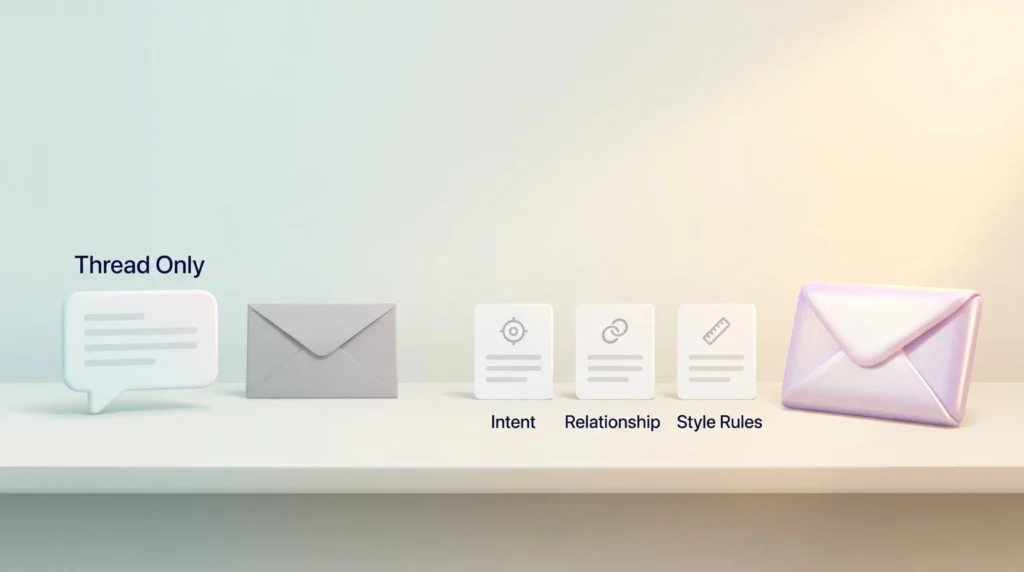
So it fills the gaps with safe, average phrasing. You get polite filler, an extra paragraph nobody needs, and a sign-off that is not yours.
Three inputs fix most of this:
- Your intent: what you want the reader to do or know after reading.
- The relationship: client, manager, supplier, new contact. This sets the level of formality.
- Your style rules: length, greeting, words you avoid, how you close.
Some tools learn part of this automatically by analyzing the emails you have sent. Others rely on saved instructions. Either way, clear writing habits help: the principles in writing clear emails that prevent miscommunication apply just as much when AI writes the first draft.
Three Types of AI Email Tools
Before comparing brands, it helps to know which category you are shopping in. Each one changes how much of your routine you have to adjust.
Assistants Built Into Your Email Client
These add AI features inside Gmail or Outlook. You keep your inbox, your filters and your mobile app. Microsoft Copilot and Google Gemini fall here. This is the lowest-friction starting point for most people and most companies.
Standalone AI Email Clients
These replace the app you read email in, while your account stays with Google or Microsoft. Superhuman and Shortwave are examples. They tend to offer faster workflows and deeper AI features, but you and your team have to adopt a new interface.
Automation and Team Inbox Tools
Automation platforms such as Zapier connect email to other apps, for example turning a message into a task. Shared inbox tools such as Front, Missive, Hiver and Gmelius help teams split up a common mailbox like support@ or sales@. Our Workato vs Zapier comparison covers the automation side in more detail.
AI Email Tools for Gmail and Outlook Compared (2026)
Prices and plans in this market change often, so treat the figures below as a snapshot from October 2026 and check the vendor page before you buy.
Microsoft Copilot in Outlook
Copilot drafts replies, summarizes threads and offers coaching on tone and clarity inside Outlook. For businesses, Microsoft 365 Copilot is an add-on to an existing Microsoft 365 license. According to a 2026 pricing breakdown, Copilot Business lists at $21 per user per month on annual billing and the Enterprise version at $30. During 2026 Microsoft has also run promotional discounts and Copilot bundles for its Business plans, so the price you actually pay may be lower. The free Copilot Chat is available to eligible Microsoft 365 users, but it does not work with your organization’s emails and files the way the paid license does.
For individuals, Microsoft stopped selling Copilot Pro in October 2025 and folded it into Microsoft 365 Premium at $19.99 per month (TechRepublic).
Google Gemini in Gmail
Gemini adds “Help me write”, thread summaries and inbox questions to Gmail. Since January 2025, Google has included these AI features in its Google Workspace Business and Enterprise editions rather than selling them as a separate add-on (Google Workspace Help). If your company already pays for Workspace, this is usually the first tool to test.
Superhuman Mail
Superhuman is a standalone email client built around speed and keyboard shortcuts. It now belongs to the company formerly known as Grammarly, which renamed itself Superhuman. Its official plan page lists Starter at $25 and Business at $33 per member per month, billed annually. Features like automatic drafts sit in the Business tier. It suits people who process a very high volume of mail and are willing to learn a new workflow. Our full Superhuman review tests these features in daily use.
Shortwave
Shortwave is an AI-first client for Gmail and Google Workspace accounts. It combines an AI assistant that searches and summarizes your inbox with drafting that imitates your past writing. It is not an option if your mail runs on Outlook or Microsoft 365. Shortwave has changed its plans several times, so compare the current tiers on its site before committing.
Privacy-Focused Options
Apple Intelligence offers writing tools in Apple Mail and processes many requests on the device itself. Proton offers a writing assistant for Proton Mail users. Both appeal to people who care most about keeping email content away from third-party servers, though their drafting features are simpler than Copilot or Gemini.
How to Choose
- You use Outlook at work: start with Copilot, since it sees your mail, calendar and files in one place.
- You use Gmail or Workspace: start with Gemini, then look at Shortwave or Superhuman if you want more.
- You handle a shared mailbox: look at a shared inbox tool first; AI drafting is a secondary feature there.
- Privacy is the top concern: favor on-device processing and read the data policy before anything else.
A Five-Step Workflow for Replies That Sound Like You
The tool matters less than how you use it. This routine works with any of the assistants above.
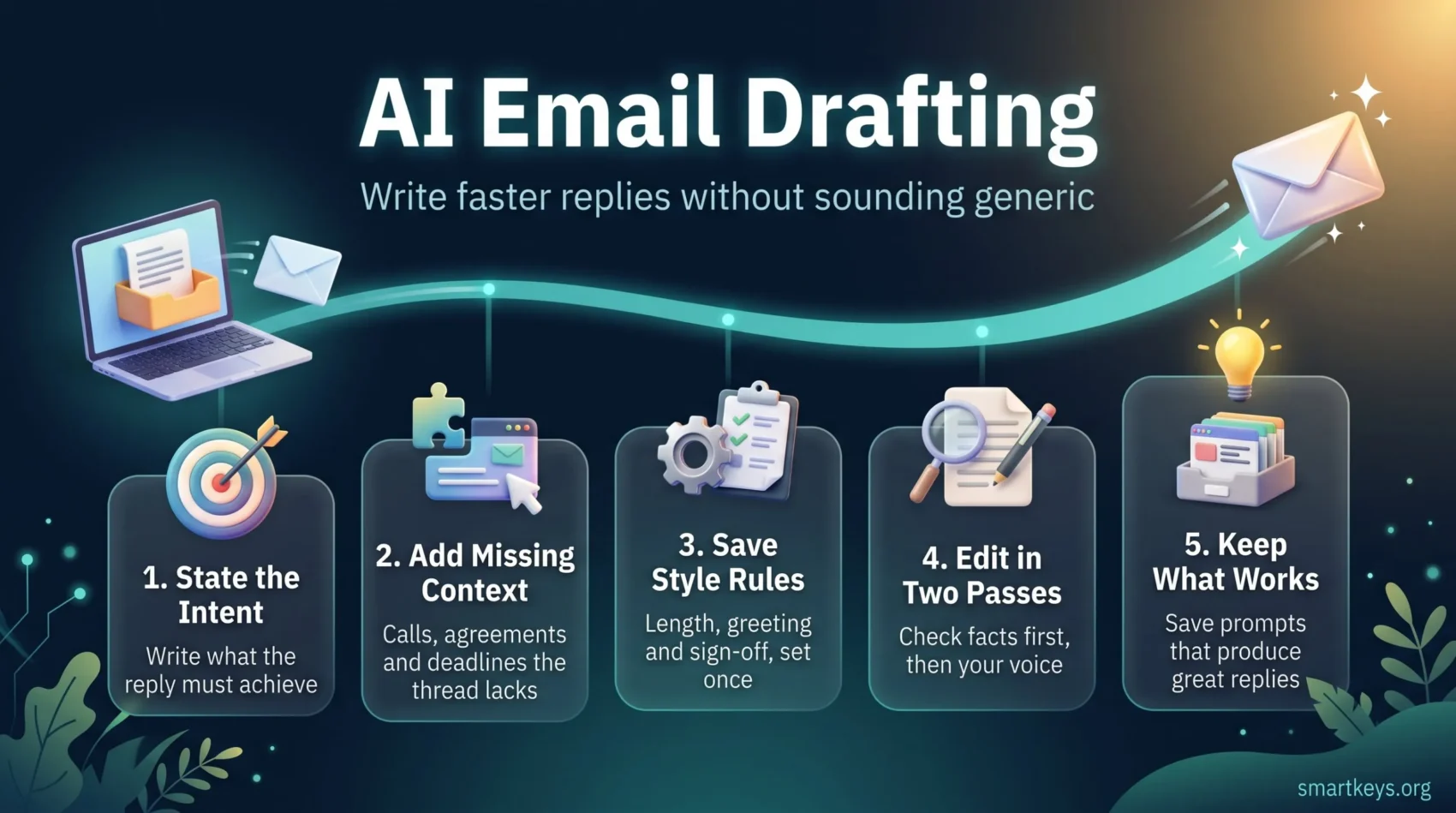
1. State the Intent in One Line
Before you click “draft”, write what the reply must achieve. “Confirm Thursday 2 pm, ask them to send the contract first” gives the tool a clear job. “Reply to this” does not.
2. Add the Missing Context
Mention anything the thread does not show: a phone call, a prior agreement, a deadline. The assistant cannot use information it never saw.
3. Save Your Style Rules Once
Most tools let you store standing instructions. Keep them short and concrete, for example:
- Maximum five sentences unless I ask for more.
- Open with the person’s first name, no “I hope you are well”.
- Put the question or next step in the first two sentences.
- Close with “Best, [your name]”.
4. Edit in Two Passes
First pass: facts. Check names, dates, numbers and promises. AI drafts sometimes invent details that sound plausible. Second pass: voice. Cut filler, swap any phrase you would never say, and make sure the tone fits the relationship.
5. Keep What Works
When a prompt produces a reply you send almost unchanged, save it. A personal prompt library turns one good result into a repeatable shortcut. For replies that barely change, plain email response templates are often faster than AI.
A Reusable Prompt for Email Drafts
If your tool accepts free-text instructions, this structure covers the context most drafts need:
“Write a reply to [name], who is my [relationship]. Goal: [what should happen next]. Include: [key facts or decisions]. Deadline: [date, if any]. Tone: [friendly, direct, formal]. Length: [number] sentences. Do not add information that is not in the thread or in these notes.”
The last sentence matters. It tells the model to stick to what you gave it rather than filling gaps with guesses.
Where AI Drafting Saves Time, and Where It Does Not
AI drafting shines on messages with a predictable shape. It helps less where the hard part is thinking, not typing.

Good fits:
- Meeting confirmations and rescheduling
- Status updates based on a thread’s history
- Polite follow-ups and reminders
- First drafts of longer explanations you then shorten
- Catching up on a long thread after time away, which pairs well with a plan for clearing an email backlog
Poor fits:
- Negotiations, complaints and anything legally or financially binding
- Sensitive people topics such as feedback, conflicts or personal news
- First contact with an important new client, where your own voice sets the tone
Deciding which messages go to AI is a delegation question. The framework in delegating tasks to AI helps you sort what to hand off and what to keep.
Faster drafting also works best alongside good inbox habits. Checking mail in set blocks, as described in email batching, stops quick replies from turning into constant interruptions. Tuning alerts with these notification practices helps too.
Beyond Drafting: Summaries, Action Items and Automation
Once drafting works, the next gains usually come from what happens around the reply.
Summaries with sources. Copilot and Gemini can summarize a thread. Summaries that point back to the original messages are easier to trust, because you can click through and check a claim before acting on it.
Action items. Some assistants pull out deadlines, owners and open questions. Treat that list as a draft too. Confirm who owns each item and when it is due, then move it into your task system. Capturing tasks in a trusted system explains why that step matters.
Calendar handling. A common automation detects a meeting request, checks your availability and leaves a draft reply for approval. Good calendar management habits make those suggestions more useful.
Start small. Begin with low-risk automations: labeling, summarizing and drafting for review. Move to automatic sending only for narrow, predictable cases after weeks of clean results. The task automation playbook walks through this staged approach.
AI in Team Inboxes
Shared mailboxes have a different problem from personal inboxes: two people answering the same customer, or nobody answering at all. Shared inbox tools solve this with assignments, internal notes and visible status for every conversation.
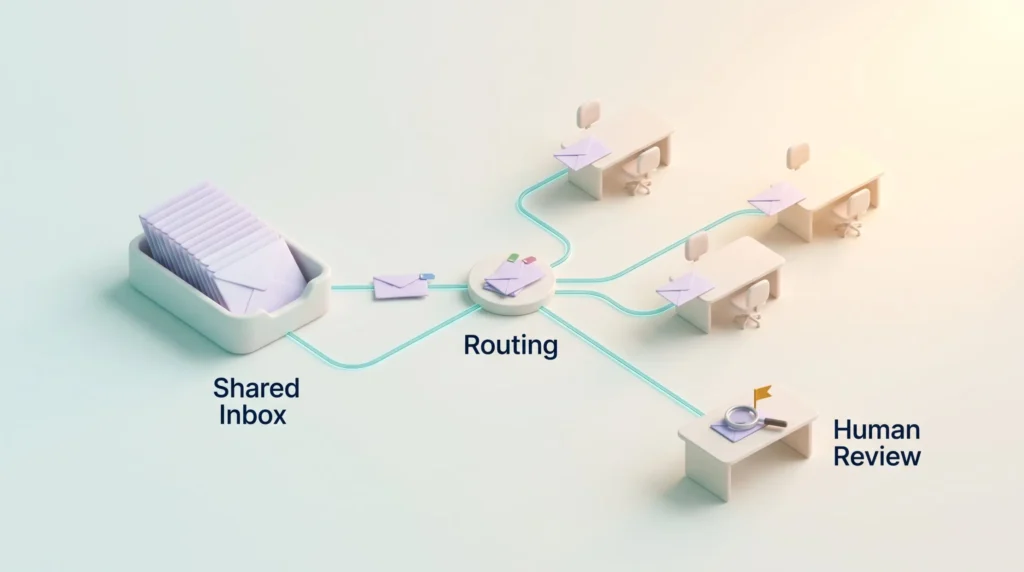
Front brings email, SMS and other channels into one team workspace. Missive combines email with internal chat and tasks. Hiver and Gmelius work inside Gmail. AI features in these tools can tag and route messages to the right person and suggest replies from past answers.
The risk is routing errors. A message tagged as routine might be an angry customer or an escalation. Set clear rules for which replies may go out after a quick glance and which always need a careful human read. Agree on AI etiquette as a team as well. The guide to AI communication etiquette at work covers questions such as whether to disclose AI help.
Privacy and Security Checks Before You Connect Your Inbox
Granting an AI tool access to your inbox means granting access to contracts, customer data and internal discussions. Run through these checks first:
- Training use: Does the vendor use your email content to train its models? Business plans usually say no; confirm it in writing.
- Retention: How long are prompts and email content stored, and can you delete them?
- Certifications: Look for an independent security audit such as SOC 2 Type II, which checks how a vendor protects customer data over several months. If you handle EU data, also ask for terms that cover the GDPR, the EU’s data protection law.
- Permissions: Grant the narrowest access that works. Read access is less risky than send access.
- Company policy: Check whether your employer approves the tool. Connecting a work inbox to an unapproved app is a textbook case of shadow AI.
If your organization has no rules yet, generative AI usage guidelines for employees are a good template to start from.
How to Measure Whether It Works
AI use at work is now mainstream. In a February 2026 survey, Gallup found that half of employed US adults use AI in their role at least a few times a year, and 13% use it daily. Using a tool is not the same as benefiting from it, though. EY’s 2025 Work Reimagined Survey estimated that companies miss out on up to 40% of possible AI productivity gains because of gaps in their talent strategy, including training.
A simple before-and-after check tells you more than any vendor claim:
- For one week before the trial, note your daily email time and how many messages are still unanswered at the end of the day.
- Run the tool for two to four weeks on the same kinds of messages.
- Compare time spent, response times and how often you rewrote drafts heavily.
- Weigh the saved hours against the subscription cost per user.
If you rewrite most drafts from scratch, the tool or your setup is not working yet. Revisit the style rules before you give up. And if your inbox never reaches zero regardless, the Inbox Zero method or its gentler alternative, Inbox Infinity, may matter more than any AI feature.
What Comes Next: Agents That Act on Your Inbox
The next step is AI agents: assistants that carry out multi-step tasks, not just write text. An agent might read a request, check your calendar, draft a reply, create a task and wait for your approval before sending.
A building block here is the Model Context Protocol (MCP), an open standard that lets AI tools connect to other apps such as calendars, documents and CRMs in a consistent way. It makes it easier for an assistant to pull the right context into a draft.
More autonomy means more need for limits. The useful agents will ask before sending, show where their information came from, and stay within the permissions you set. For practical patterns, see this AI agent workflow playbook.
Conclusion
AI email drafting pays off when you treat the tool as a fast first-draft writer, not as a replacement for your judgment. Start with the assistant built into the email client you already use. Give it a clear intent, the missing context and a few style rules. Review every draft for facts and voice before sending.
Test one low-risk use case, such as meeting confirmations, and measure the time you save. Expand from there only when the drafts consistently need little editing. That way you reply faster and still sound like yourself.
Found this useful?
Make SmartKeys a preferred source on Google, and our articles will surface more often in your Top Stories, AI Overviews, and AI Mode.
Add as Preferred SourceFAQ
What are the main benefits of using AI for drafting replies?
The main benefit is speed on routine messages. An AI email assistant can turn a one-line instruction into a complete reply, summarize a long thread before you answer, and pull out deadlines or open questions. That saves the most time on confirmations, scheduling, status updates and follow-ups, which follow a predictable pattern. It saves less on negotiations or sensitive topics, where the hard part is deciding what to say. You still need to review each draft for facts and tone, so the gain comes from starting with a solid draft instead of a blank page.
How do I stop AI-generated emails from sounding generic?
Give the tool more context than the thread alone. State your goal in one line, mention anything the thread does not show (such as a phone call or an earlier agreement), and describe the relationship with the recipient. Then save a few standing style rules, for example a maximum length, how you greet people and how you sign off. Some tools also learn from the emails you have sent. Finally, edit every draft once for voice: remove filler phrases and anything you would never say yourself.
Is my data secure when using AI email tools?
It depends on the vendor and the plan, so check before you connect a work inbox. Look for a clear statement that your email content is not used to train models, defined retention periods, and independent security audits such as SOC 2 Type II. If you handle EU personal data, confirm GDPR terms as well. Grant only the permissions the tool needs, and make sure your employer has approved it. Tools that process requests on your device, such as Apple Intelligence for many tasks, keep more data local but offer simpler features.
Which AI email assistant works best with Gmail or Outlook?
For Outlook, Microsoft Copilot is usually the natural first choice, because it works inside Outlook and can draw on your Microsoft 365 calendar and files with a paid license. For Gmail, Google includes Gemini features in its Workspace Business and Enterprise editions, so many teams already have access. If you want a different client, Superhuman supports high-volume email with speed-focused workflows, while Shortwave is built for Gmail and Google Workspace accounts only. Start with the assistant inside your current client before adding another app.
Should I let AI send emails automatically?
Only for narrow, predictable cases, and only after you have tested the tool for a while. Good candidates are simple acknowledgments, such as confirming receipt of a document. Anything involving money, contracts, complaints, personal matters or important clients should always get a human review before it goes out. A sensible path is to start with labeling, summaries and drafts that wait for your approval. Expand to automatic sending step by step once the drafts have needed almost no edits for several weeks.
How much do AI email tools cost?
Costs range from nothing extra on top of your existing subscription to a noticeable per-user fee. Google includes Gemini features in Workspace Business and Enterprise editions. For business users, Microsoft 365 Copilot is a paid add-on that lists at $21 per user per month for Copilot Business. Individuals can get Copilot features through Microsoft 365 Premium. Standalone clients charge a monthly fee per user on top of your email account; Superhuman Mail, for example, starts at $25 per member per month on annual billing. Because plans change often, check current pricing on the vendor’s site and compare it against the time you actually save.
How does AI help teams that share an inbox?
In a shared inbox, AI mainly helps with sorting and routing. Shared inbox tools such as Front, Missive, Hiver or Gmelius can tag incoming messages and send them to the right person, while showing the whole team who is handling what. That reduces duplicate replies and forgotten requests. AI can also suggest answers based on how the team replied before. The main risk is misrouting, such as an urgent complaint tagged as routine, so set clear rules for which messages always need a careful human read.