Automated reminders are messages that a calendar or workflow tool sends for you at a set time or when something changes. They replace the mental note you would otherwise have to keep: the invoice due Friday, the contract renewal next month, the report your team owes a client.
This guide explains how reminders and alerts differ and how to set them up in the calendar you already use. It then shows how to connect them to Zapier, Slack, your CRM (customer relationship management software) and your billing system. Finally, it covers the part most setups get wrong: sending so many pings that people start ignoring them.
Key Takeaways
- Reminders fire on a schedule; alerts fire when data changes. Most working systems use both.
- Every automation is a trigger plus an action. Write that pair down before you open any tool.
- Your calendar handles simple date reminders. Workflow tools like Zapier handle anything that crosses apps.
- Test on yourself first, because test runs send real messages.
- Fewer, better-timed reminders beat many generic ones. Watch for alert fatigue and prune regularly.
Why automated reminders matter
A reminder only helps if it arrives before the deadline, at a moment when you can act on it. Memory is unreliable for that job, especially when you juggle dozens of small commitments. Unfinished tasks also keep tugging at your attention, a problem we cover in our guide to open loops and unfinished tasks.
Research on planning supports the idea of tying an action to a specific cue. A widely cited meta-analysis by Peter Gollwitzer and Paschal Sheeran (2006) pooled 94 independent tests. It found that “if-then” plans, which link a situation to a planned response, had a medium-to-large effect on goal attainment (d = 0.65). An automated reminder is a practical version of that cue: at 9 a.m. on Monday, the system tells you to send the status report.

The business case is easy to picture. A freelancer who gets a prompt three days before a payment is due can chase the client before the invoice is late. A team lead whose renewal reminder lands a month early has time to negotiate instead of auto-renewing.
- Protect revenue: timely payment and renewal notices keep cash flow predictable.
- Protect trust: clients notice when follow-ups arrive on time without being chased.
- Protect focus: a system you trust means you stop re-checking lists in your head.
Reminders vs. alerts: how the system works
Before you configure anything, know the two building blocks. They look similar on your phone but start in different ways.
Reminders run on a schedule, alerts react to data
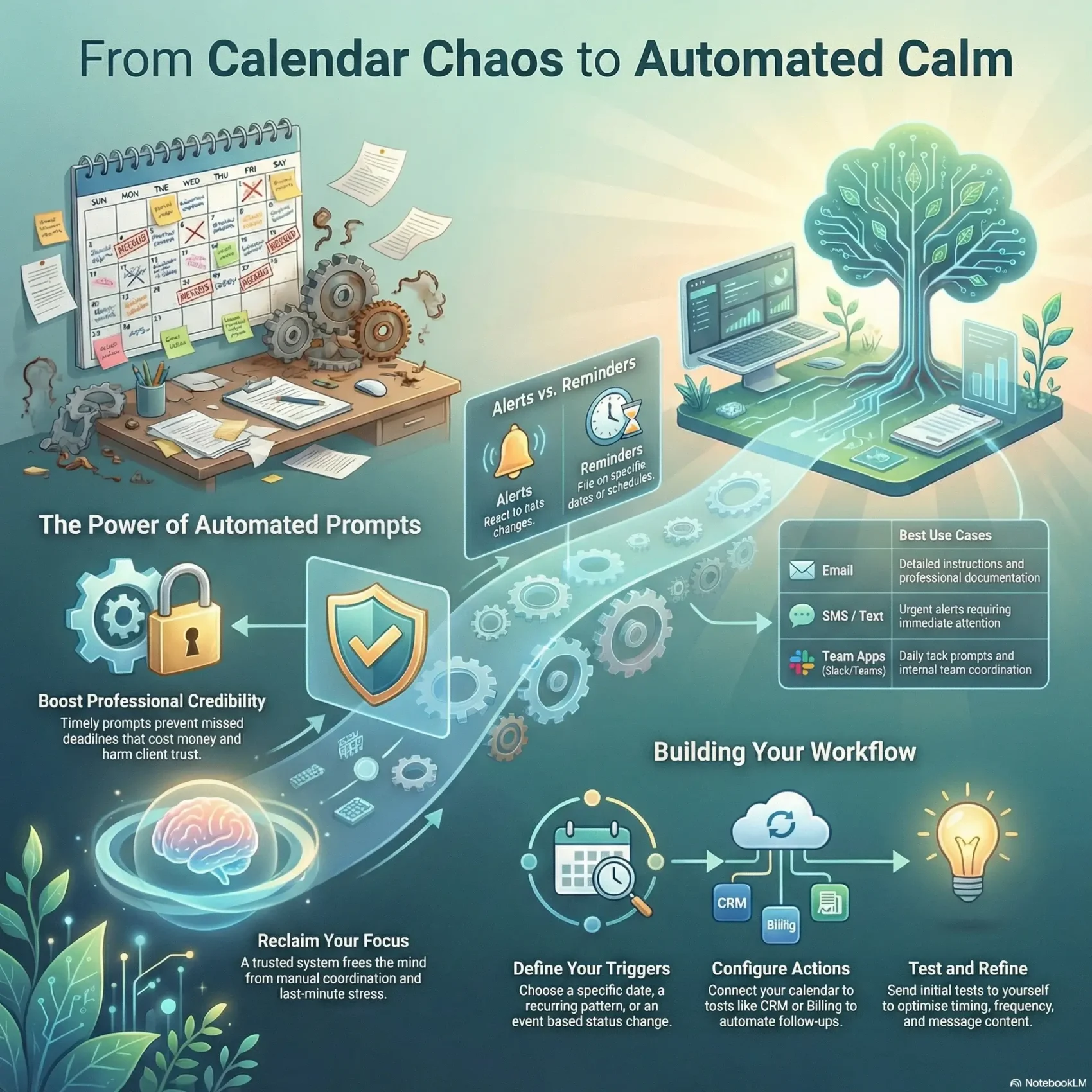
Reminders are time-based. You pick a date, a time or a repeating pattern, and the system sends a prompt when that moment arrives. Example: “Submit expenses every last Friday of the month.”
Alerts are event-based. They fire when a record changes: a new form entry, a deal that moves stages, a payment that fails. Example: “Tell the account manager when an invoice becomes overdue.”
Triggers and actions: the two halves of every workflow
Every automation, simple or complex, pairs a trigger (what starts it) with an action (what it does). Writing the pair in one sentence keeps the setup predictable and easy to audit later.
- Schedule trigger: every weekday at 3 p.m., send an email and post a Slack message.
- Event trigger: when a CRM deal is marked “won”, notify the account manager and create an onboarding task.
Channels and frequency
Send reminders where the recipient already pays attention. Email suits detail and links. Chat apps like Slack or Microsoft Teams suit team deadlines. SMS or push notifications suit urgent, time-critical items.
Frequency should match the task. A daily nudge makes sense for a habit; a monthly summary makes sense for reporting. Our guide to managing work notifications explains how to keep volume under control.
Set up calendar alerts step by step
Start with the calendar you already use. For simple date reminders, it is often all you need. Reminders also depend on every commitment being written down first, so if tasks still live in your head, begin with a task capture routine and a realistic to-do list.
Step 1: Set sensible defaults in your calendar
Both major calendars let you set defaults, so you do not add alerts by hand.
- Google Calendar: open Settings, choose your calendar under “Settings for my calendars” and set default event notifications. All-day events have their own setting. You can add several notifications to one event.
- Outlook: by default, reminders appear 15 minutes before a meeting or appointment. In classic Outlook you change this under File, Options, Calendar, Default reminders.
One detail trips up many Google users: the old “Reminders” feature in Google Calendar no longer exists as a separate item. Google moved Calendar and Assistant reminders into Google Tasks in 2023. Tasks with a due date still show up on your calendar.
For more on structuring the calendar itself, see our guide to calendar management. If you pair reminders with time blocking, set the alert a few minutes before each block so you can wrap up the previous task.
Step 2: Define the trigger
Decide exactly what starts the reminder. Is it a fixed date, a repeating pattern such as “first business day of the month”, or an event in another app? Keep the rule simple and write it down.
Step 3: Configure the action in a workflow tool
When a reminder has to go beyond your calendar, use an automation platform. In Zapier, the built-in Schedule by Zapier trigger can run every hour, day, week or month, and custom intervals cover quarterly or annual tasks. According to Zapier, it does not count toward task usage and uses your account’s time zone.
A typical example uses the trigger “Every Monday at 8 a.m.” The first action emails the team this week’s deadlines, and a second posts the same list in Slack. If you are still choosing a platform, our Zapier vs Make comparison covers pricing and limits, and the task automation playbook shows which workflows are worth automating first.
Chat tools have simple reminders built in. In Slack, you can hover over a message and choose “Remind me about this” or create personal reminders from the Later tab. For recurring channel reminders, use the /remind command.
Step 4: Test on yourself, then roll out
Test runs send real messages. Point the first version at your own inbox or a direct message, check the wording and timing, and only then add other recipients.
- Tip: put the action and the deadline in the subject line, for example “Approve Q3 budget by Thursday”.
- Tip: include a direct link to the task, document or invoice, so the recipient can act in one click.
Connect reminders to your CRM, billing and team tools
The biggest time savings come from reminders that start themselves. Instead of creating each prompt by hand, you let a change in one system send the message automatically.
Client and payment reminders from CRM and billing
Your CRM already holds renewal dates, open quotes and client contacts. Use those fields as triggers: 30 days before a contract ends, remind the account owner; when a quote has been open for a week, prompt a follow-up. Billing tools work the same way, with reminders when an invoice is issued, due soon or overdue. Our finance automation guide covers the accounting side. For client-facing sequences, see our guide to email workflow automation.
Turn pings into tracked tasks
A notification is easy to dismiss. A task with an owner and a due date is not. Where possible, make the workflow create a task in your project tool, such as Asana, at the same time as it sends the message. That way the reminder becomes visible work instead of a forgotten ping.
- Map your revenue cycle (lead, quote, invoice, follow-up) and add one reminder per stage.
- Keep a short list of every active workflow, so anyone can see where a message comes from.
Avoid alert fatigue: timing, measurement and privacy
More reminders do not mean fewer missed deadlines. Alert fatigue sets in when people get so many prompts that they tune all of them out, including the important ones.
Timing and personalization
Send reminders when the recipient can act. For distributed teams, schedule by the recipient’s time zone, not yours.
Personalize the content: name, task, deadline and link. It also helps to respect protected focus hours, a practice we describe in our article on a team focus time policy.
Measure and prune
Check a few signals every month: whether messages were delivered, whether they were opened, and above all whether the task was done on time. If a reminder is routinely ignored, change its timing or channel, or delete it. Your weekly review is a good moment to spot reminders that no longer serve a purpose.
Security and privacy
Reminders often carry personal or financial details, so share only what the recipient needs. Limit who can edit workflows. If you send automated texts or emails to customers, check the consent rules that apply to you. The EU’s GDPR sets conditions for processing personal data, and in the US, automated text messages to consumers generally require prior consent.
Conclusion
Start small. Pick one recurring deadline that has slipped before, and automate a single reminder for it this week.
Write the trigger and action in one sentence, set it up and test it on yourself. After a month, check whether the task now gets done on time. If it does, add the next reminder.
Combined with a clear next action for every project, a good reminder system takes deadlines off your mind without adding noise.
Found this useful?
Make SmartKeys a preferred source on Google, and our articles will surface more often in your Top Stories, AI Overviews, and AI Mode.
Add as Preferred Source