Most knowledge workers lose a large part of their week to admin: sorting email, finding meeting slots, chasing follow-ups and filing documents. Personal AI agents promise to take that work off your plate. They are AI tools that connect to your email, calendar and files, and then carry out approved tasks on your behalf instead of only answering questions.
The catch is control. An agent that can send email or move meetings can also send the wrong email or move the wrong meeting. This guide explains what personal AI agents can do in 2026, what the evidence says about time saved, where the real risks sit, and how to set one up step by step so you stay in charge. If you are looking at agents for a whole company rather than for your own workload, our guide to AI agents in business covers the team and budget side.
Key Takeaways
- A personal AI agent combines three things: access to your apps, memory of your preferences, and permission to take actions.
- The best public evidence, a UK government trial with 20,000 civil servants, found self-reported savings of 26 minutes per day. Results vary widely by role.
- Control comes from permissions, not trust. Start with read-only access, then drafts, and only later allow actions.
- Prompt injection and unvetted add-ons are the biggest security risks for agents that read your inbox.
- Pick one repetitive task, measure it for a month, and expand only if the numbers hold up.
What Is a Personal AI Agent?
A personal AI agent is software that works through your own accounts to complete multi-step tasks for you. You give it a goal, such as “find a time next week for a call with Maria and send her two options.” The agent then checks your calendar, drafts the email and, if you allow it, sends it.

That is the key difference from a regular AI assistant. An assistant, such as a basic chatbot, answers a question and stops. You still copy the answer into your email and do the clicking yourself. An agent does the clicking.
Three ingredients make this possible:
- Access: connections to your email, calendar, cloud storage, task manager or chat apps, usually through a login you approve.
- Memory: stored context about you, such as your working hours, preferred meeting length or the clients you prioritize, so you do not have to explain everything again.
- Actions: permission to change things, for example to create a calendar event, send a message or update a task.
Each ingredient adds usefulness and risk at the same time. An agent with read access can summarize your inbox. An agent with send access can also embarrass you in front of a client. Keeping that trade-off visible is the whole idea behind “automate without losing control.” Our AI glossary explains related terms such as connectors, context window and MCP in plain language.
What Personal AI Agents Can Handle Today
The large AI platforms all moved toward agents in 2025 and 2026. Google describes Gemini Spark as a personal agent that drafts email replies, sorts messages by priority, pulls action items out of threads and schedules calendar blocks. Since summer 2026 it has been open to Google AI Pro and Ultra subscribers on personal Google accounts in more than 150 countries. As of the latest reports, the EU, the UK and Switzerland are still excluded. OpenAI’s ChatGPT agent runs multi-step tasks on paid plans and can use connected apps as data sources. Microsoft builds similar functions into Microsoft 365 Copilot.
In daily work, these are the jobs where agents already help most:
Email Triage and Drafting
An agent can sort incoming mail into “needs you today,” “can wait” and “newsletter,” then draft replies for the routine ones. A freelancer, for example, might get a short morning list of three client emails that need a decision, plus ready drafts for five scheduling requests. You still read and send. If your inbox is already out of control, a simple routine such as the Inbox Zero method gives the agent a clear system to work within. Dedicated email tools such as Fyxer focus only on this job and plug into Gmail or Outlook.
Calendar and Scheduling
Calendar agents compare availability, suggest slots across time zones and protect focus time. They build on the same idea as automated scheduling tools, but can also read the email that triggered the request. A team lead can ask the agent to keep two mornings a week free for deep work and to move low-priority meetings around them. This works well together with a method such as the Daily Highlight technique, where one important task gets a fixed slot every day.
Meeting Preparation and Follow-Up
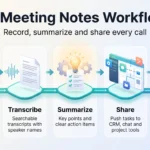
Before a meeting, an agent can collect the last email thread and related documents into a short brief. Afterwards, it can turn notes into a summary with action items and owners. Our AI meeting notes workflow shows how to set up that capture and review process.
Documents, Files and Small Research Tasks
Agents can file attachments into the right folder, collect receipts into a spreadsheet or compare three offers from different suppliers. These tasks are boring for people but easy to check, which makes them good first candidates.
What the Evidence Says About Time Saved
Vendor marketing often promises hours per day. Independent data is more modest, and it is worth knowing the details.
The largest public trial came from the UK government. According to its official report to Parliament, about 20,000 civil servants in 12 organizations used Microsoft 365 Copilot from September to December 2024. Participants reported saving an average of 26 minutes per day, mostly on routine admin such as finding information and drafting documents. Two limits matter. First, the figures are self-reported, not measured: they come from survey answers by about 7,100 participants. Second, 17 percent of users noticed no clear time savings at all.
Copilot in that trial worked mostly as an assistant, not as a fully autonomous agent. Agents that take actions could save more time, but they also create new review work. The honest summary: expect meaningful savings on repetitive admin, and expect your own results to depend heavily on your role and habits.
Adoption is moving fast. Gartner predicted in August 2025 that 40 percent of enterprise applications would include task-specific AI agents by the end of 2026, up from less than 5 percent in 2025. In other words, many of the apps you already use will offer agent features whether you ask for them or not.
The Main Types of Personal AI Agents
You do not need to pick one tool that does everything. Most people end up combining two or three from these groups:
| Type | Examples | Best for | Watch out for |
|---|---|---|---|
| Built into your office suite | Gemini in Google Workspace, Microsoft 365 Copilot | People who live in Gmail or Outlook and want little setup | Works best inside one ecosystem |
| General AI assistants with agent mode | ChatGPT agent, Gemini Spark | Mixed tasks across web, email and documents | Usage limits and extra care with connected apps |
| Specialist tools | Email assistants, calendar schedulers, meeting note-takers | One painful job done very well | Several subscriptions add up |
| Automation platforms | Zapier, Make and similar tools | Fixed, repeatable workflows with AI steps inside | You design and maintain the logic |
| Open-source and self-hosted agents | OpenClaw | Technical users who want full control over data | Security depends entirely on your own setup |
If your organization already pays for Google Workspace, the built-in option is usually the cheapest place to start. Our Google Workspace review explains what Gemini adds on each plan. For agents that live inside Slack or Microsoft Teams and act for a whole team, see our Viktor review. If you lean toward an automation platform, our Zapier vs Make comparison covers pricing and limits.
The Control Ladder: Five Levels of Permission
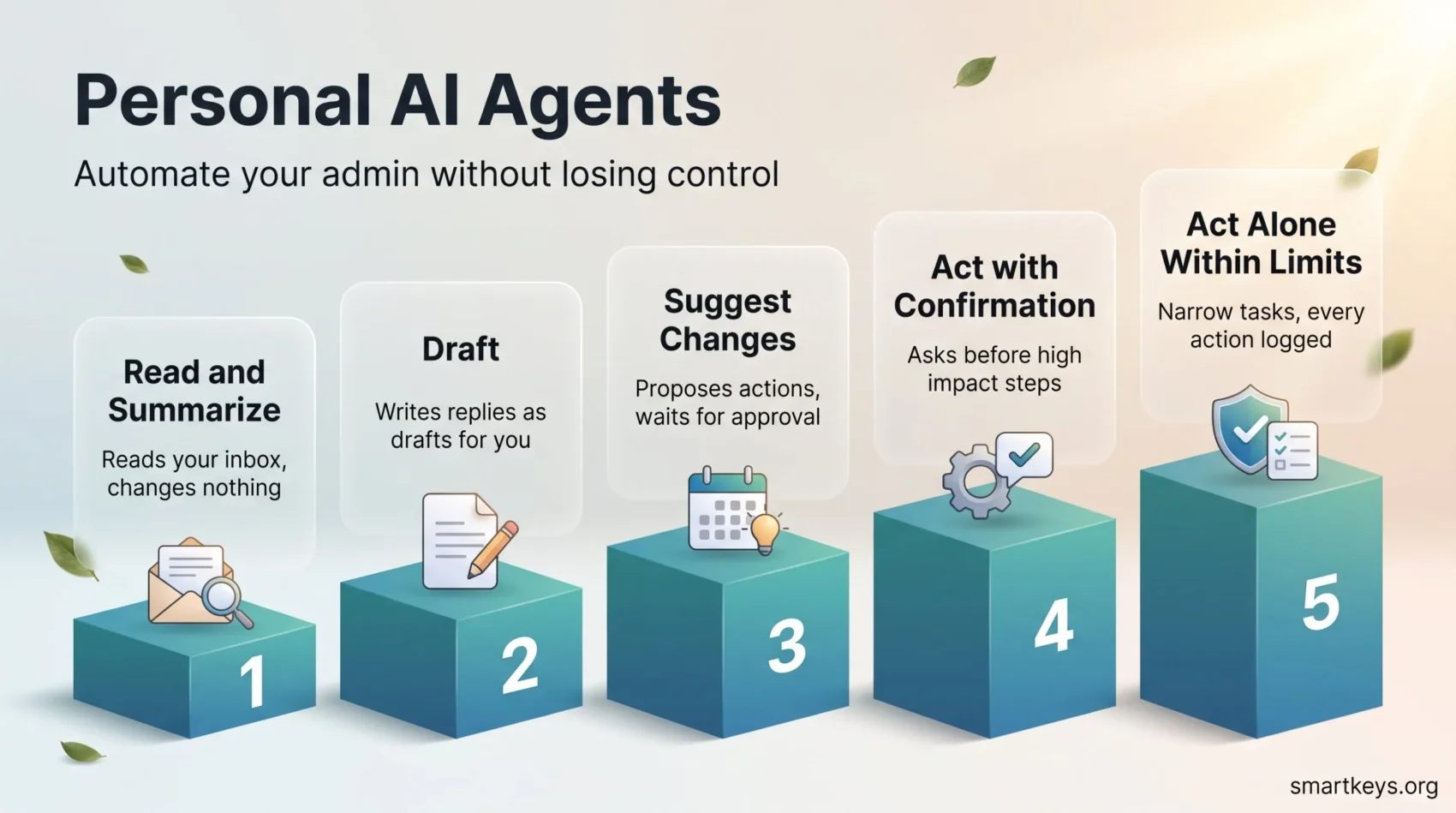
The safest way to use an agent is to raise its permissions step by step. Think of it as a ladder. You only climb to the next rung once the agent has proven reliable on the current one.
- Read and summarize. The agent can read your inbox or calendar and tell you what matters. It cannot change anything.
- Draft. The agent writes replies, meeting invites or task lists, but saves them as drafts for you to send.
- Suggest changes. The agent proposes actions, such as “move the Tuesday call to Thursday,” and waits for one click of approval.
- Act with confirmation. The agent carries out routine actions but asks before anything important. Both Google and OpenAI say their agents are designed to check with you before high-impact steps.
- Act alone within limits. The agent handles a narrow, clearly defined job on its own, for example accepting internal meeting requests during office hours, and logs what it did.
Most people get most of the value from levels 1 to 3. Level 5 only makes sense for low-risk tasks with an easy undo. Supervising agents at that level is a skill of its own, which our guide to managing AI agents covers. Our guide on delegating to AI offers a five-question test for deciding which tasks belong on which rung.
Security Risks You Should Understand
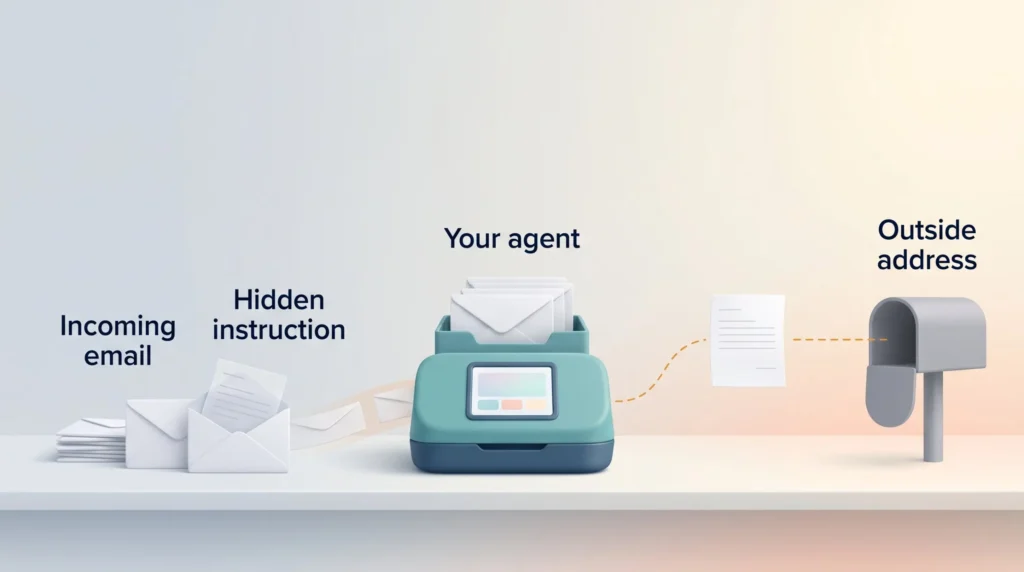
An agent that reads your email reads everything in it, including messages written by strangers. That creates a specific risk called prompt injection: hidden instructions inside an email, web page or document that try to trick the agent into doing something you never asked for. For example, a message could contain invisible text telling the agent to forward your latest invoices to an outside address.
The second risk is add-ons. Many agents can install extra skills or plugins written by third parties. In January 2026, Cisco’s security researchers tested a third-party skill for OpenClaw, a popular open-source personal agent. The skill quietly sent data to an external server and used prompt injection to bypass the agent’s safety rules. The lesson applies to every platform: treat add-ons like software from an unknown source.
The third risk is scope creep. When you connect an agent, the login screen often asks for broad access, such as “read, send and delete all email.” Grant the narrowest access that does the job, and revoke connections you no longer use.
Finally, check your employer’s rules before connecting work accounts. Using an unapproved AI tool with company data is known as shadow AI, and our article on shadow AI at work explains why security teams take it seriously.
Rules That Keep You in Control
Permissions set the limits. A few simple rules make sure the agent stays inside them:
- Separate reading from writing. Let the agent summarize freely, but require approval for anything that sends, deletes or books.
- Keep a list of “never alone” actions. Payments, contracts, messages to new external contacts, anything legal or HR-related, and deleting files should always need your click. Payment requests deserve extra care, because deepfake fraud now uses cloned voices and faces to fake urgent approvals.
- Turn on activity logs. You should be able to see what the agent did, when and why. If a tool offers no log, keep it on the read-only rung.
- Write clear standing instructions. Tell the agent your tone, your working hours and your priorities in a short text you can reuse. A personal prompt library helps you keep those instructions consistent.
- Check what the agent remembers. Good tools let you view, correct and delete stored memory. Outdated memory, such as an old client priority, leads to wrong decisions.
- Review weekly at first. Spend 15 minutes each week in the first month checking drafts, actions and mistakes. Adjust instructions based on what you find.
How to Start: A 30-Day Plan
Gartner expects over 40 percent of agentic AI projects to be canceled by the end of 2027, often because of unclear value or rising costs. That warning is aimed at companies, but it applies on a small scale too. A narrow start with a clear measure protects you from paying for a tool you stop using.
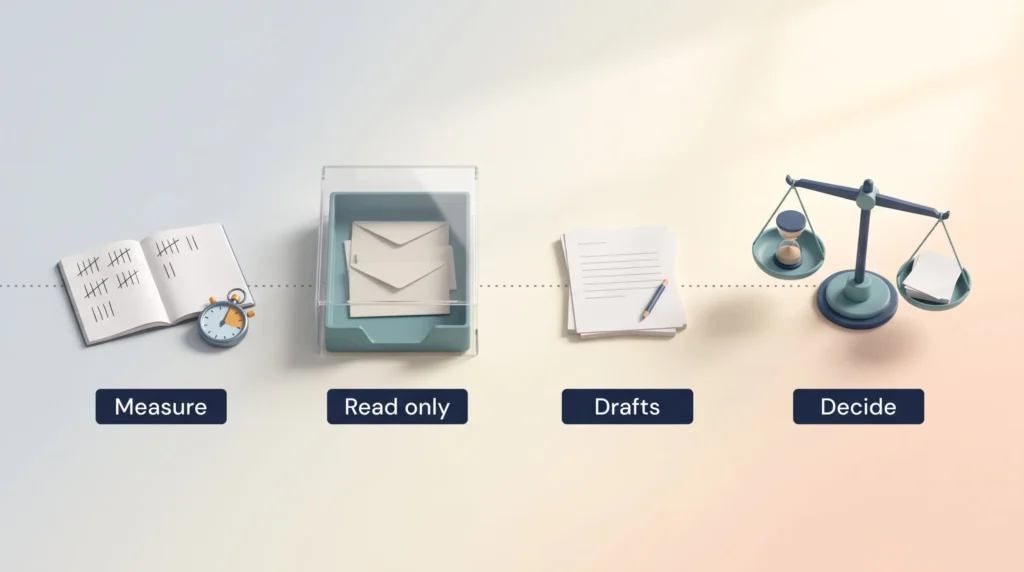
Week 1: Pick One Task and Measure It
Choose one repetitive job, such as scheduling external meetings or clearing routine email. Note how long it takes you each day without help. A simple tally in a notebook is enough. If you are unsure what to pick, a task automation playbook helps you find the tasks with the best payoff.
Week 2: Read-Only Mode
Connect the agent with the narrowest access available. Ask it for summaries and priorities only. Check whether its judgment matches yours.
Week 3: Drafts and Suggestions
Let the agent draft replies or propose calendar changes. Count how many drafts you send unchanged, how many you edit and how many you throw away.
Week 4: Decide
Compare your time with the baseline from week 1. Include the time you spend reviewing and fixing the agent’s work. If the net saving is clear, consider moving one rung up the ladder for that task. If it is not, try a different task or a different tool.
How to Measure Whether It Works
Time saved is the obvious metric, but it is not the only one. Track these four for at least a month:
- Net time saved: time the task used to take, minus time spent prompting, reviewing and correcting.
- Error rate: how often you had to fix or undo something the agent did.
- Missed commitments: follow-ups or deadlines that slipped, before and after.
- Focus time: hours of uninterrupted work per week, which should go up if the agent absorbs admin.
Our guide to personal productivity metrics shows how to track these numbers without building a complicated system. If constant chat pings are part of the problem, pairing an agent with clear instant messaging boundaries often helps more than either change alone.
An agent is also not the only way to hand off admin. For some tasks, a human virtual assistant is the better choice, especially when judgment and relationships matter. Our article on outsourcing tasks compares the options.
Conclusion
Personal AI agents can take real work off your desk: sorting email, finding meeting slots, preparing briefs and following up. The best independent data, the UK government trial, points to savings of around 26 minutes a day for routine admin, with large differences between people.
The way to get those savings without new problems is simple. Start with one task. Give the agent the smallest permissions that work. Climb the control ladder slowly, keep a list of actions that always need your approval, and review the results every week for the first month. Handled this way, an agent works for you and not the other way around. For the bigger picture on how agents run whole processes, read our AI agent workflows playbook.
Found this useful?
Make SmartKeys a preferred source on Google, and our articles will surface more often in your Top Stories, AI Overviews, and AI Mode.
Add as Preferred SourceFAQ
What can a personal AI agent do?
A personal AI agent handles multi-step admin tasks across your own apps. Typical jobs include sorting email by priority, drafting routine replies, finding meeting slots across time zones, turning meeting notes into action items and filing documents or receipts. Some agents can also browse the web to compare options, for example for travel or supplier offers. What a specific agent can do depends on which apps you connect and which permissions you grant. Most people start with summaries and drafts and only later let the agent take actions such as sending messages or booking meetings.
How are personal AI agents different from traditional productivity tools?
Traditional productivity tools follow fixed rules inside one app, such as an email filter that moves messages from one sender into a folder. A personal AI agent understands context and can work across several apps. It can read an email, recognize a meeting request written in plain language, check your calendar and draft a reply with two time options. The trade-off is predictability. Rule-based tools do exactly the same thing every time, while agents can make judgment errors. That is why agents need review steps that a simple filter never needed.
How do I connect a personal AI agent to my existing apps?
Most agents connect through a login screen from your email or calendar provider, where you approve what the agent may access. Read that screen carefully. If the agent only needs to summarize email, avoid granting send or delete rights until you have tested it. Agents built into Google Workspace or Microsoft 365 need little setup because they already sit inside your account. Standalone tools and automation platforms such as Zapier need one connection per app. Review your connected apps every few months and remove the ones you no longer use.
Is my data safe with a personal AI agent?
Not automatically. Safety depends on the provider, the permissions you grant and the add-ons you install. Check how the provider stores your data, whether it is used for model training and how long it is kept. The biggest agent-specific risk is prompt injection, where hidden instructions in an email or web page try to make the agent act against your interests. Limit access to what the task needs, avoid unvetted third-party skills, and require approval for anything that sends, deletes or pays. For work accounts, follow your employer’s approved-tools list.
Can personal AI agents learn my preferences?
Yes, many agents have a memory feature that stores details such as your working hours, preferred meeting length, writing tone and key contacts. This saves you from repeating the same instructions every time. Memory is only useful if it stays accurate, so look for tools that let you view, correct and delete what they remember. An outdated entry, such as a client you no longer work with, can lead to wrong priorities. A short set of written standing instructions that you update yourself is often more reliable than memory the agent builds on its own.
Should I let an AI agent send emails on my behalf?
Only for narrow, low-risk cases and only after a trial period with drafts. A good middle ground is to let the agent draft every reply but send nothing without your click. After a few weeks, you may allow automatic sending for simple, internal messages, such as confirming a meeting time with a colleague. Messages to new external contacts, anything involving money, contracts or complaints, and replies in sensitive situations should always stay under your control. If the tool keeps no log of sent messages, do not allow automatic sending at all.
Can I use a personal AI agent with my work accounts?
Only if your employer allows it. Connecting an unapproved AI tool to a work inbox or calendar gives an outside company access to business data, which can break security policies, client contracts or data protection rules. Many organizations already provide an approved option, such as Microsoft 365 Copilot or Gemini in Google Workspace, with admin controls in place. Ask your IT or security team which tools are approved before you connect anything. For self-employed people, the same question applies to client data you handle under confidentiality agreements.
How do I measure whether a personal AI agent is worth it?
Measure one task before and after. Record how long the task takes you for a week without help, then track the same task for a month with the agent. Count net time saved, meaning time saved minus the time you spend prompting, reviewing and fixing. Also track how often you had to correct the agent and whether any follow-ups slipped. Add the subscription cost to the comparison. If the net saving is small or the error rate stays high after a month, change the task or the tool before expanding.