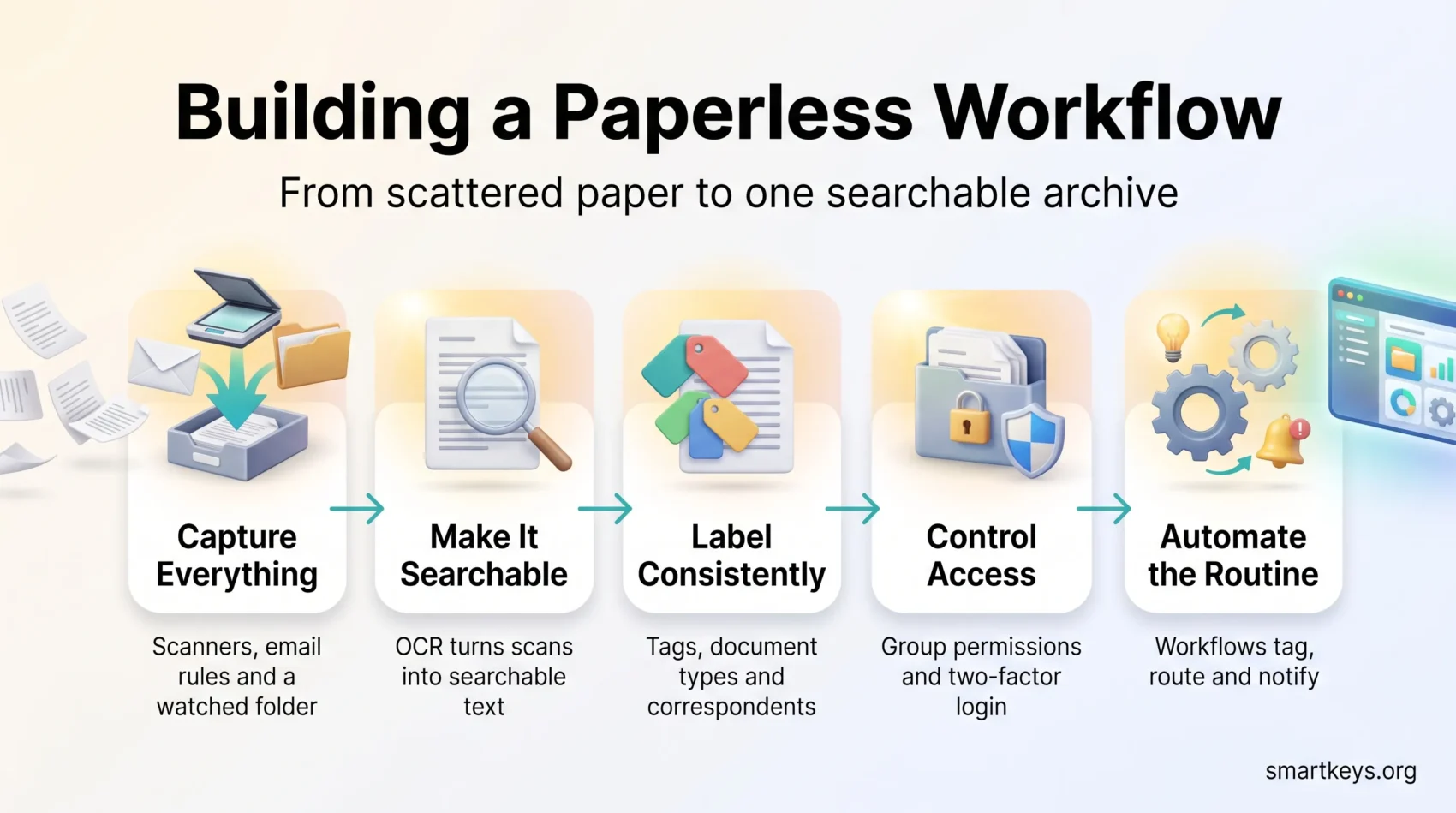
A paperless workflow means every document that reaches you ends up in one searchable digital archive, whether it arrives on paper, by email or as a download. You stop hunting through cabinets and inboxes, and the original file stays safe.
This guide shows how to build that workflow with Paperless-ngx, a free, open-source document management system. You host it yourself, for example on a small server, a NAS or a rented cloud machine. The principles carry over to commercial tools too: capture everything in one place, make it searchable, label it consistently and automate the routine steps.
You will see how files arrive from a watched folder, an email inbox or a simple drag-and-drop. Paperless-ngx then runs OCR (optical character recognition, which turns a scanned image into searchable text). It stores an archive copy as PDF/A, a PDF variant designed for long-term storage, and indexes everything for instant search.
Every step is small enough to copy this week. By the end, you will have a clear path from the first scan to automated routing, secure sharing and a structure your team can grow into.
Key Takeaways
- Capture documents through one watched folder, email rules, scanners or drag-and-drop.
- OCR makes scans searchable, and PDF/A archive copies keep them readable long term.
- Tags, document types and custom fields replace deep folder trees.
- Decide on names and storage paths before you import, not after.
- Workflows handle routine tagging, permissions, emails and webhooks automatically.
Why Go Paperless Now
The case for a digital archive is less about saving paper and more about saving time and reducing risk. Three things change once your documents live in one indexed system.
Faster retrieval and less physical storage
Find what you need in seconds. Because OCR text is indexed, search finds a document by title, date, sender, tag or any word printed inside it. Looking up “insurance renewal” in the archive is a single query; finding the same letter in a binder means guessing which binder.
Once papers are scanned and archived, you need far less cabinet space. Keep only the paper originals you are required to retain, and record exactly where they live (more on archive serial numbers below).
Better access control and audit readiness
Paper has no access log. A digital archive lets you decide who can view or edit each document. Paperless-ngx also records a history of changes to each document, supports two-factor authentication and can create share links that expire on their own.
“A consistent index and clear permissions mean you can show who handled a record and find it in seconds.”
Digital invoices are becoming the norm
Regulation points the same way. Germany has required businesses to be able to receive electronic invoices since January 2025. The EU’s VAT in the Digital Age (ViDA) package makes e-invoicing the standard for cross-border B2B trade from 2030. Once invoices arrive digitally, a paperless archive is the natural place to file them.
Plan Your System Before You Import Anything
Create a simple map before you ingest a single file. List the core document types you handle, such as invoices, bank statements, contracts and payslips, and decide where each one belongs. An hour of planning now saves you from re-tagging thousands of files later.
Define document types, correspondents, tags and storage paths
Paperless-ngx organizes files with four building blocks:
- Document type describes what a file is: invoice, contract, statement.
- Correspondent is who sent it or who it concerns: your bank, a supplier, a tax office.
- Tags are flexible labels, and a document can carry several of them.
- Storage path decides where the file is saved on disk.
Storage paths use placeholders that Paperless-ngx fills in automatically, such as the year, the correspondent or the document type. That predictability makes backups and exports easy to navigate, even outside the app.
Standardize names, dates and roles from day one
Agree on a file naming pattern now, because consistent names make exports and bulk operations easier.
Paperless-ngx tracks two dates. The created date is the date printed on the document, while the added date records when it entered the system. Use the created date for reports and retention rules, and the added date to see what arrived this week.
- Start with a short list of document types and a small tag set.
- Write naming rules and user roles into a one-page standard operating procedure that new colleagues can follow.
Set Up the Paperless-ngx Foundation
Paperless-ngx is usually installed with Docker, a tool that runs software in self-contained packages called containers. The project’s documentation walks through the installation. If you have never used Docker, ask your IT contact for help or use a NAS that supports containers. This section covers the settings that matter most for a working paperless workflow.
Web interface basics: dashboard, document list and saved views
Arrange the dashboard around saved views, which are stored filters for the documents you check most often, such as “New invoices this month”.
Learn the bulk edit function early: it applies tags, types or permissions to many documents at once.
Configure the consumption folder and OCR
The consumption folder is a watched folder. Every file you drop into it is imported, then removed from the folder, so the folder never fills up.
Tune OCR so it runs only when a file has no text layer yet. Scans need OCR; a PDF exported from accounting software already contains text. You can also decide whether such born-digital files get their own archive copy. Version 3.0, released in summer 2026, reorganized the OCR and archive settings, so check the configuration docs for the version you run.
Keep originals and archive copies apart
Paperless-ngx never overwrites the file you upload. It keeps the original untouched and stores the searchable PDF/A archive version separately. Check that your storage path rules produce the tidy structure you planned.
- Set default owners and permissions that match your team structure.
- Create saved views for common queues before you import in bulk.
- Import a test batch of 20 or 30 documents and check names, paths and tags.
Capture Documents the Smart Way
Make intake painless by routing uploads, email, scanners and other software into one place. Fewer manual steps mean documents get handled the day they arrive.
Upload via the web interface and drag-and-drop
Click upload on the dashboard or drag files anywhere into the web app. The document appears in the list once OCR is finished.
Incoming email rules
Mail rules fetch attachments straight from an inbox. Each rule can filter by folder, sender, subject, attachment file name or message age.
After a message is processed, the rule can delete it, mark it as read, flag it, move it to another folder or add a tag. That way the same email is never imported twice. Paperless-ngx checks mail every 10 minutes by default, and you can change the schedule.
Gmail and Outlook accounts can connect through OAuth, a sign-in method that grants access without storing your password in Paperless-ngx. If the inbox itself is the bottleneck, a cleaner email workflow or the Inbox Zero method will help before you automate anything.
Scanners, mobile apps and the REST API
Point network scanners at the consumption folder over SMB (Windows file sharing) or FTP, so each scan drops in automatically. Several mobile apps can send photos or PDFs from your phone.
Other software can deliver documents through the REST API, the interface programs use to talk to Paperless-ngx. An upload through the API can include metadata such as tags, correspondent or document type.
For companion apps that speed up capture and daily organization, see this curated list of productivity apps.
Structure Your Data: Tags, Document Types and Metadata
Begin with a simple metadata plan that gives each file a purpose and a place. Good structure makes search faster and reports more reliable.
Use nested tags for powerful grouping
Tags can be nested in parent and child levels. When you assign a child tag, Paperless-ngx adds its parent tags automatically, so grouping stays consistent. For example, a document tagged “Finance > Invoices” also shows up when you filter by “Finance”.
Tags can also carry colors. Using one color per area is the same idea behind color coding for better organization: you recognize a category before you read it.
Let Paperless-ngx learn your filing habits
Tags, correspondents and document types can be assigned automatically. You can set explicit rules, such as “contains the word invoice”, or choose the automatic mode, which learns from how you filed earlier documents. Correct its guesses in the first weeks and the suggestions improve.
Add correspondents and custom fields
Correspondents let you filter by source in one click. Custom fields store extra details such as an invoice number, a department or a contract value. Field types include text, dates, numbers, monetary amounts and links to other documents.
Map archive serial numbers to physical storage
An archive serial number (ASN) is a running number that connects a digital record to its paper original. Write it on the paper copy or use a barcode sticker, then file the paper in numerical order. With barcode detection enabled, Paperless-ngx reads the ASN from the scan automatically.
“Keep the created date true to the date on the document; use the added date to track intake.”
Run bulk edits to clean up older imports, and prune unused tags every few months.
Control Access with Users, Groups and Permissions
Start by mapping who needs to view, edit or share each document type. A clear plan reduces mistakes and speeds up onboarding.
Global and object-level permissions
Global permissions decide which parts of the app a user can open, such as documents, tags or settings. Grant view, add, edit or delete rights only where they are needed.
Object-level permissions restrict individual documents, tags or document types. Use them for payroll or HR files so only named people or groups can open them. This is the principle of least privilege, a core idea of zero trust security.
Ownership and defaults
Every object has an owner who can set permissions and create share links. Items created in the web interface belong to the person who created them.
Files from the consumption folder start without an owner, which means anyone with document access can see them. Set an owner and permissions through workflows so nothing sensitive lands in a shared view by accident.
Protect accounts with 2FA and password reset
Turn on two-factor authentication with an authenticator app for every account with broad access, and ask users to store their recovery codes safely.
Configure the email settings (PAPERLESS_EMAIL_HOST and related values) and PAPERLESS_URL, so password reset emails arrive and their links work. For the wider picture of protecting files outside the office, see our guide to cybersecurity for remote work.
“Organize users into groups that mirror departments to simplify permission reviews.”
Assign permissions to groups rather than individuals, and review memberships after every role change.
Automate Your Paperless Workflow
Once intake and structure work, automation removes the repetitive clicks. In Paperless-ngx, a workflow is a rule made of a trigger (when it runs) and one or more actions (what it does).
Triggers and filters
There are four trigger types:
- Consumption started: runs while a new file is being imported.
- Document added: runs after a new document is saved.
- Document updated: runs when someone changes a document’s details.
- Scheduled: runs relative to a date field, for example 30 days after the created date.
Filters narrow a trigger down. Examples are a file name pattern, a source (folder, email, web upload or API), a mail rule, or certain tags, correspondents and types.
Actions you can combine
Actions assign or remove tags, correspondents, document types, storage paths, owners and permissions. They can also send an email or call a webhook, a web address another program listens on, such as your ticketing tool. Further actions move a document to the trash or remove a PDF password. Version 3.1 added an action that applies AI suggestions, for teams that switch on the optional AI features.
What workflows do not do
Paperless-ngx workflows have no approval steps, waiting periods or if/else branches. You get the same effect with several small workflows that use different filters. For approvals, send a webhook to a tool built for multi-step processes. Our guide to digital workflows explains how to pick one, and task automation covers connecting tools without code.
Practical automation examples
- Supplier invoices: email attachment named “invoice*” triggers tag “Finance > Invoices”, type Invoice, owner group Accounting, then an email to the finance team.
- Payment reminder: a scheduled workflow sends a webhook to your ticketing system 14 days after the created date of documents tagged “Unpaid”.
- Signed contracts: when someone adds the tag “Signed”, a document updated workflow removes “Awaiting signature” and restricts access to the legal group.
Start small: build one workflow, test it with a handful of documents, then add the next. Check the document history when a rule does not behave as expected.
Share, Collaborate and Track Documents
Sharing should be simple and safe. A share link gives someone outside your system access to a document without an account. Links follow the pattern {paperless-url}/share/{slug} and work without a login while they are active.
Share links with an expiry date
Set an expiration so a link closes automatically. After it expires or is deleted, visitors only see the login screen. Version 3.0 added share link bundles, which put several documents behind one link. If Paperless-ngx sits behind a reverse proxy with extra authentication, share links need a route through it, so plan that change with care.
Email and bulk operations
Recent versions can email a document straight from its detail page. For many files at once, use bulk operations to change permissions or metadata across a whole selection.
For contracts that need a signature, pair the archive with an e-signature tool such as DocuSign and file the signed version.
Search, Manage and Keep Documents Current
Search is where daily document management wins or loses. Full-text search covers titles, ASNs, tags, custom fields and the OCR text inside every file. Version 3.0 replaced the search engine with a faster one called Tantivy.
Advanced search and bulk edits
Combine a phrase with filters, for example a correspondent plus a date range, to surface exact matches. Then use bulk edits to set tags, document types or custom field values across all results.
Saved views and document versions
Pin saved views to the dashboard so the documents that need attention appear first, for example contracts expiring this quarter. Since version 3.0, a document can also hold several file versions, so a revised contract stays with its original record instead of becoming a duplicate.
“Standardize names and dates so reporting and retention stay reliable.”
Schedule a short monthly review of tags and saved views. Our digital declutter guide shows how to keep that habit light.
Is Paperless-ngx the Right Tool for You?
Paperless-ngx suits people and teams who want full control over their documents. There are no license fees, and the files stay on hardware you choose.
The trade-off is responsibility. You handle updates, security and backups yourself. The built-in document exporter creates a complete copy of your archive, but only if you schedule it and store the copy elsewhere. The optional AI features, covered in the FAQ below, raise the same question of where your data goes.
When a hosted tool fits better
If nobody on your team wants to maintain a server, cloud storage with good search can be enough. Our reviews of Google Workspace and Dropbox Business cover what those plans offer. For receipts and bills alone, accounting software such as QuickBooks Online often captures documents directly.
Real-World Examples and Storage Path Templates
Concrete examples make it easy to copy proven intake and storage patterns.
Invoice intake and approval
Example: a mail rule imports attachments named “invoice*” from the accounts payable inbox.
A workflow assigns the nested tag Finance > AP, the document type Invoice and the vendor as correspondent, so saved views pick the invoice up immediately. A webhook then passes the document link and details to your approval or accounting tool, where the actual sign-off happens. Our overview of finance automation shows what that next step can look like.
HR onboarding and retention
Restrict HR files to an HR group from the moment they arrive. Tag them Employee and Onboarding, and store the leaving date or retention deadline in a custom field.
Object-level permissions let leadership read documents without editing them. Because personnel files hold personal data, check the rules in our guide to data privacy at work before you decide who gets access. A scheduled workflow can flag records once their retention period ends, so a person decides what gets deleted.
Storage path templates
Templates use double curly braces for placeholders. Two patterns that work well:
- {{ document_type }}/{{ created_year }}/{{ correspondent }}/{{ title }}
- Finance/AP/{{ created_year }}-{{ created_month }}/{{ correspondent }}/{{ asn }} {{ title }} (links each file to its paper original through the ASN)
Conclusion
A paperless workflow rests on four habits: capture every document in one place, make it searchable, label it consistently and let rules handle the routine. Paperless-ngx covers all four with a watched folder, mail rules, OCR, PDF/A archive copies, nested tags and workflows.
Protect the archive with group permissions and two-factor authentication, share through expiring links and schedule backups from day one. Start with one document type and one intake channel, measure what you save, then expand.
Found this useful?
Make SmartKeys a preferred source on Google, and our articles will surface more often in your Top Stories, AI Overviews, and AI Mode.
Add as Preferred Source