Notifications are not the problem. Reacting to all of them is. Microsoft’s 2025 Work Trend Index found that employees are interrupted roughly every two minutes during core working hours by a meeting, an email or a chat message, and that the heaviest-hit group receives about 275 pings across a day. The same research counted 117 emails and 153 Teams messages per weekday for a typical worker.
That is a workday chopped into fragments too short to think in. The goal of work notification management is not silence. It is deciding in advance which alerts have earned the right to pull you out of what you are doing, and pushing everything else into a moment you choose. This guide covers how to make that decision, how to configure your tools to enforce it, and why the rules only hold when your team agrees on them together.
Key Takeaways
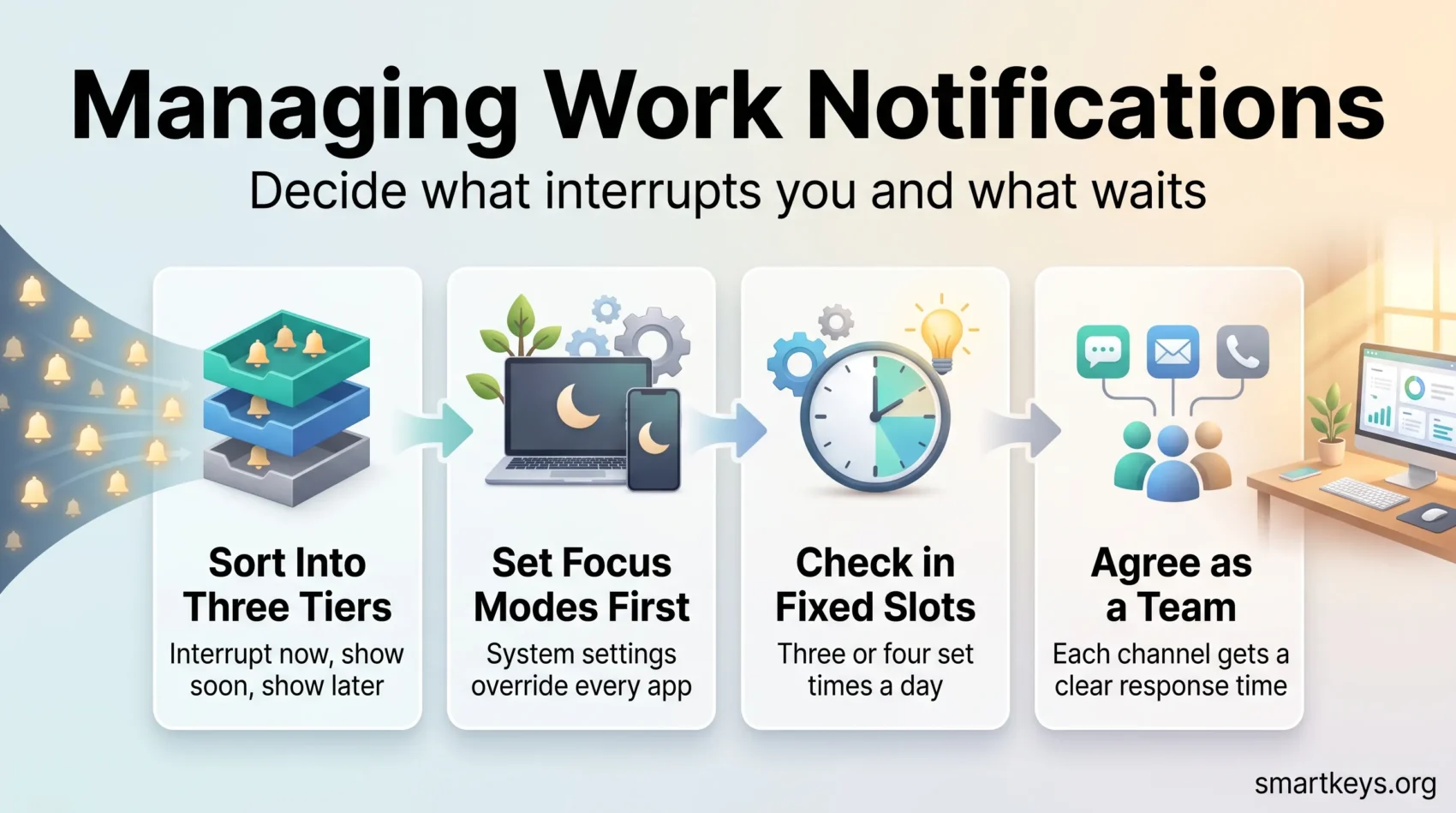
- Sort alerts into three tiers: interrupt me now, show me soon, show me later.
- Configure the operating system first, then each app. System focus modes override everything else.
- Check messages in fixed slots rather than continuously, and tell colleagues what those slots are.
- Keep one deliberate escape hatch (usually a phone call) so genuine emergencies still reach you.
- Personal settings only work if the team agrees on which channel means what.
- Review your notification setup every few months. Projects end, channels go quiet, defaults creep back.
What Constant Notifications Actually Cost You
The cost is not the seconds spent reading an alert. It is the reload afterwards. Researchers call this context switching: the mental work of putting down one task, picking up another, and later rebuilding everything you had in your head about the first one.
Gloria Mark, a professor at the University of California, Irvine, has measured this for two decades. In her widely cited study of interrupted work, people took an average of 23 minutes and 15 seconds to return to the task they had been interrupted from, usually after working on two other things in between. Her later research tracked how long people stay on a single screen before switching: an average of about two and a half minutes in 2004, falling to roughly 47 seconds by the late 2010s.
Here is what that looks like in practice. You are drafting a client proposal when a chat notification arrives about next week’s schedule. You answer it in 40 seconds, glance at the email badge that appeared while you were typing, then open a document someone linked. Twenty minutes later you are back in the proposal, rereading your last two paragraphs to remember what you meant. The interruption cost 40 seconds. The recovery cost the rest.
This is why building a longer attention span and protecting blocks for deep work both start with the same step: cutting the number of things allowed to interrupt you in the first place.
Decide What Deserves to Interrupt You
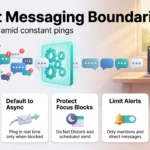
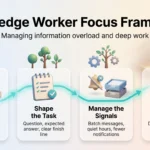
Before touching a single setting, sort your incoming messages into three tiers. It takes ten minutes on paper and makes every configuration decision afterwards obvious.
Tier 1, interrupt me now. Things where an hour’s delay causes real damage. A production system is down. A client is waiting on a call. Your manager needs an answer before a meeting starts. For most people this list is short: two or three people, one or two channels, and the phone.
Tier 2, show me soon. Things you should see within a few hours but not this minute. Direct messages, mentions in your team’s channels, replies on work you are actively involved in. These belong in a badge or a quiet list you check on your schedule, not in a banner that appears over your work.
Tier 3, show me later. Everything else: channel activity you are not named in, newsletters, automated updates from project tools, reminders for meetings you already know about. These need no alert at all. You will find them when you look.
The useful test for tier 1 is not “is this important?” Almost everything at work feels important. The test is “would I want someone to physically walk over and tap me on the shoulder for this?” Very little passes that bar. Sorting alerts this way is the same discipline behind any good task management system: the value comes from what you deliberately leave out.
Set Up Your Devices and Apps
Work through this in order. System settings sit above app settings, so configuring the operating system first saves you from fighting the same battle in five places.
Start With the Operating System
Apple’s Focus modes, Do Not Disturb on Windows and Android, and the equivalent modes on Linux desktops all do the same core job. They silence everything by default and let you name the exceptions.
Build one mode called Work. Allow your tier 1 contacts and nothing else, and set it to switch on automatically during the hours you do focused work so you do not have to remember. On Apple devices, add app filters so your work calendar and mail account appear while personal accounts stay hidden.
One feature is worth switching on separately: sharing your focus status. Colleagues messaging you then see that your notifications are silenced, which prevents most of the follow-up “did you see my message?” pings.
Tune Slack and Teams
Chat platforms are usually the loudest thing on the machine and also the most configurable. Whether your team runs on Slack or Teams, the same four moves apply, and it is worth knowing how the two platforms compare if you are choosing between them.
First, set a do-not-disturb schedule matching your working hours. Second, change your global default from “all messages” to direct messages and mentions only. Third, add keyword alerts for the few terms you cannot miss, such as a client name or a system you own. Fourth, override the default per channel: turn busy but low-stakes channels down to nothing and your two or three critical ones up.
That per-channel override is the setting most people never touch and the one that does the most work. It lets you stay a member of thirty channels while being notified by three. Our Slack review covers where these controls live on each plan.
Turn Off Email Push Entirely
Email was designed to wait. Almost no email needs to reach you within minutes, and the ones that do usually arrive as a phone call anyway.
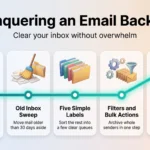
Switch off push notifications, banners and sounds for mail on every device, and hide the unread badge too, since a climbing number pulls attention almost as effectively as a banner. If a specific person needs to reach you faster, use a VIP or priority-sender rule so those few addresses can still notify you and nothing else can. Pairing this with email batching turns a constant trickle into a manageable block of work.
Batch Your Checking Instead of Reacting
Once alerts are off, you need a replacement rhythm. Otherwise you will simply check manually every few minutes, which is worse: you get the interruption without the information.
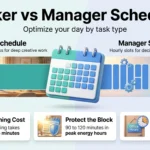
Pick fixed slots. Three or four a day suits most roles: early morning, before lunch, mid-afternoon, and a short pass before you finish. Support and sales roles usually need more, writers and analysts fewer. Give each slot a time limit and put it in your calendar so colleagues can see it.
In each slot, act rather than read. Handle anything under two minutes immediately, turn longer items into dated tasks, and pass on whatever belongs to someone else. The point of a slot is to leave it empty, not to leave it read.
Then tell people the schedule. A one-line note in your chat status (“I check messages at 9, 12 and 4; call me if something cannot wait”) sets a realistic expectation and names the escape hatch in the same breath. Most complaints about slow responses come from uncertainty rather than delay. The same logic underpins asynchronous work, where written updates replace the assumption that everyone is available at once.
Manage Channels and Groups Deliberately
Group chats generate the largest share of notification volume in most companies, and they are the easiest to fix, because almost none of those alerts are aimed at you personally.
Start by leaving channels you no longer need. This feels rude and almost never is. Channels you want visible but silent get muted: you stay a member, the content stays searchable, nothing pings you. Pin the handful you genuinely need so you can scan them in seconds.
Then handle mentions. Broadcast mentions such as @here and @channel are the biggest source of unnecessary chat interruptions, because they notify everyone regardless of relevance. Most platforms let you mute those specifically while keeping direct mentions of your name active.
Repeat this cleanup quarterly, since channels that mattered in March are noise by September. It also helps to set clear boundaries around instant messaging so the volume does not rebuild itself.
Notification Rules Are a Team Problem
Personal settings can only take you so far. If your team treats chat as a place where an answer is expected within five minutes, no configuration will protect your attention. The rules have to be shared.
Three agreements make the biggest difference. First, decide what each channel is for and what response time it implies. Chat might mean “today”, email “within two working days”, and a phone call “now”. Our guide to choosing between email, chat and a meeting works through how to draw those lines.
Second, make the default asynchronous. Microsoft’s data found that 57% of meetings are now ad hoc calls with no calendar invitation, which means more than half of all meetings begin as an interruption. A short written update is almost always cheaper than pulling four people out of focused work. A regular meeting audit finds which recurring calls could be a message instead, and asynchronous communication tools make the switch practical.
Third, agree protected hours. Some teams block a shared morning with no internal meetings and no expectation of chat replies. A written focus time policy sticks far better than individual good intentions, because nobody has to defend their own calendar alone. For mixed groups, hybrid meeting etiquette stops remote participants needing a second round of chat afterwards to catch up.
Protect the Hours After Work
Notification management stops being a productivity question and starts being a health one at the end of the day. Microsoft’s research counted more than 50 chat messages arriving outside standard business hours for a typical worker, and the ambient expectation that you will see them is what makes evenings feel like an extension of the workday.
Some countries have legislated on this. Australia’s right to disconnect took effect for large employers on 26 August 2024 and for small business employers on 26 August 2025. It is worth understanding what the law actually does: it does not ban after-hours contact. It gives employees the right to refuse to monitor, read or respond to contact outside working hours, unless that refusal would be unreasonable given factors such as the reason for the contact, the employee’s role, and whether they are compensated for being available.
Whatever your jurisdiction, two practices help. Use scheduled send so a message written at 22:00 arrives at 09:00, which stops your habits from setting an expectation for everyone else. And put the do-not-disturb schedule on the app rather than relying on willpower, so the decision is made once instead of every evening. Our guides to the right to disconnect and protecting your personal time go deeper, and burnout prevention covers what happens when those boundaries stay open too long.
Review the Setup Every Few Months
A notification setup is not permanent. App updates reset defaults, new tools arrive with everything switched on, and you join channels you forget to leave. Twice a year, walk the list: which alerts did you act on immediately, which did you ignore, and which arrived at the worst possible moment?
Turn off anything in the ignored column. If an alert has not changed your behaviour in six months, it is not information, it is noise. This fits naturally alongside the time management techniques you already use.
The review matters most when you work from home, where the boundary between focus and availability is entirely self-imposed. Remote work habits depend on it, and so does anyone juggling competing demands, such as working parents balancing school runs with meetings. In a shared office the pressure comes from a different direction, which is why managing open office distractions needs its own approach.
Conclusion
Managing work notifications comes down to one decision made repeatedly: what gets to interrupt you, and what waits. Sort your alerts into three tiers, configure the operating system before the apps, replace constant checking with fixed slots, and leave one clear route open for genuine emergencies.
None of it holds without the team part. Agree what each channel means, default to writing rather than calling, and protect a shared block where nobody expects an answer. Then review the whole setup twice a year, because defaults drift back.
The measure of success is simple. At the end of a good week you should be able to say what you finished, not just how fast you replied.
Found this useful?
Make SmartKeys a preferred source on Google, and our articles will surface more often in your Top Stories, AI Overviews, and AI Mode.
Add as Preferred Source